Troubleshooting
MacBook not charging? 4 fixes to try
4 fixes, 4 with a real screenshot from our MacBook Neo on macOS 27.0.1. Try them in order.
- Shown on
- MacBook Neo
- Software
- macOS 27.0.1More macOS 27 guides
- Checked
- October 2026
- Real screenshots
- 4 of 4 steps

Quick answer
Unplug the power adapter from the socket, wait 30 seconds and plug it in again, then try another socket and another USB-C cable. Restart the MacBook, read the charge state under System Settings, Battery, and install macOS updates.
Steps
- 1
Check the adapter, socket and cable
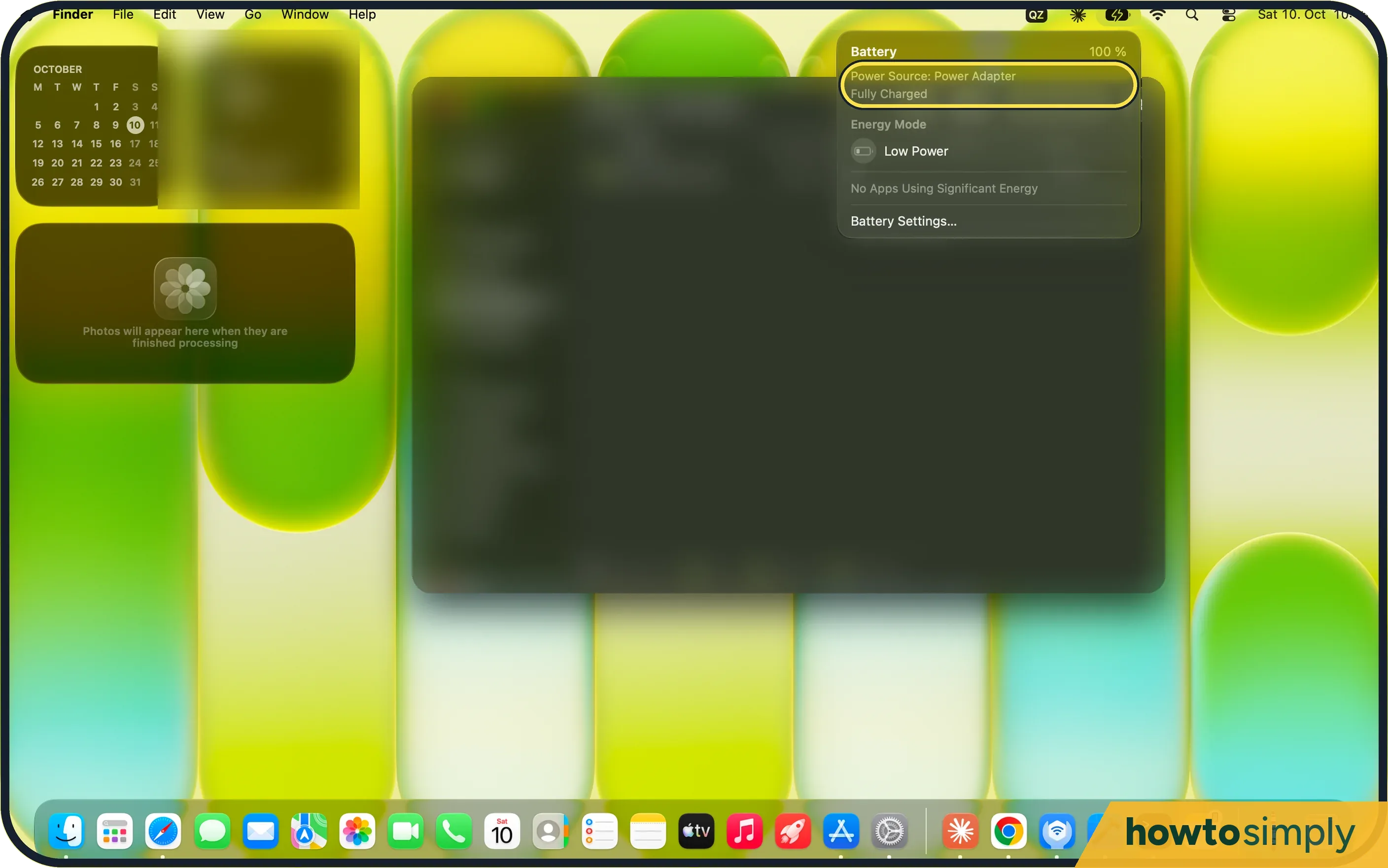
Take the power adapter out of the wall socket, wait 30 seconds and put it back. If it then charges, Apple's adapter article says the socket may share a circuit with lights with ballasts or fridges: use a socket on a different circuit or a UPS. Try another socket, without an extension lead, and another USB-C cable made for charging. Then click the battery icon in the menu bar: on our MacBook Neo it reads Power Source: Power Adapter and Fully Charged.
- 2
Restart the MacBook
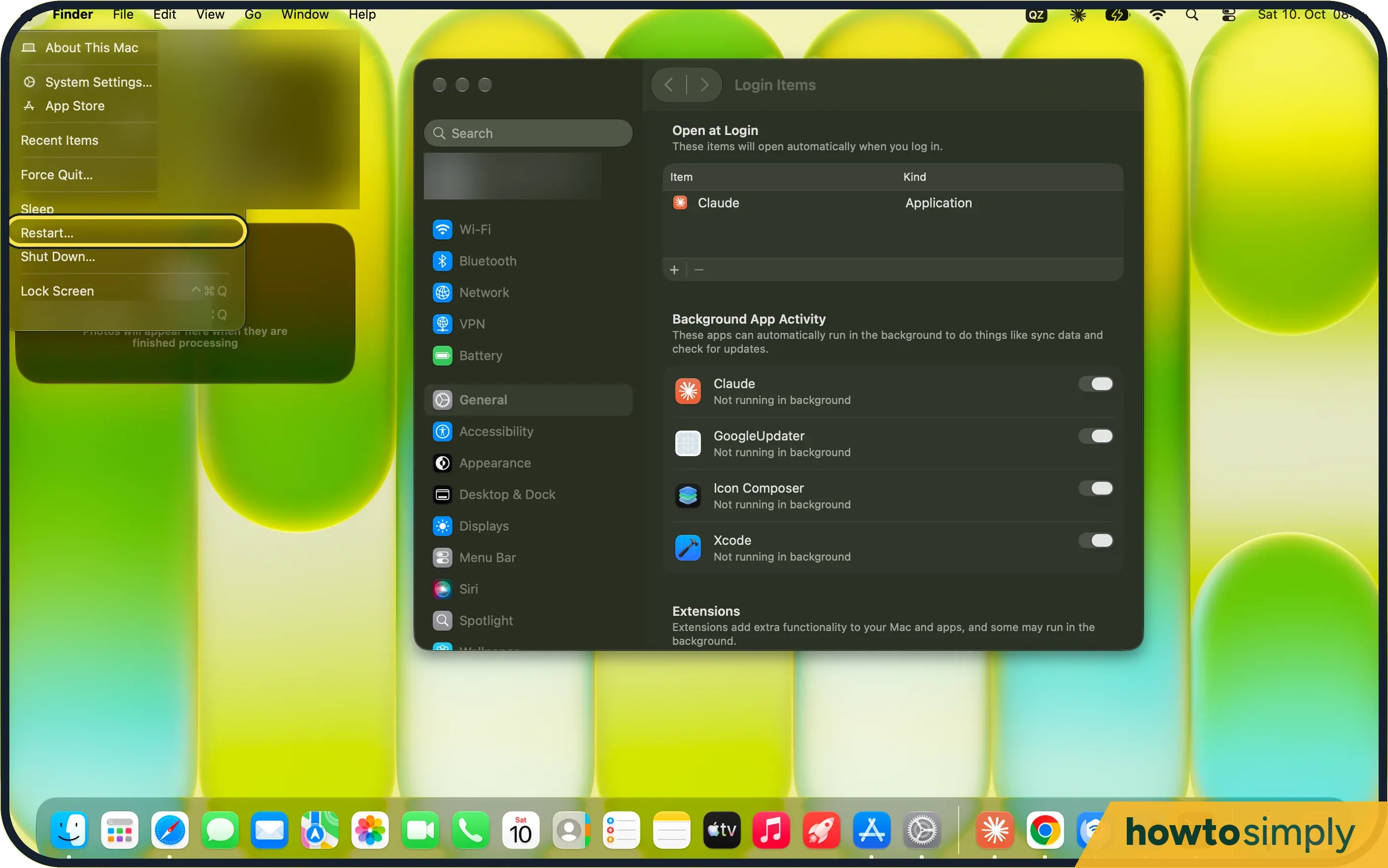
Choose Apple menu, Restart…. On our MacBook Neo, Restart… sits between Sleep and Shut Down….
- 3
Read the battery status
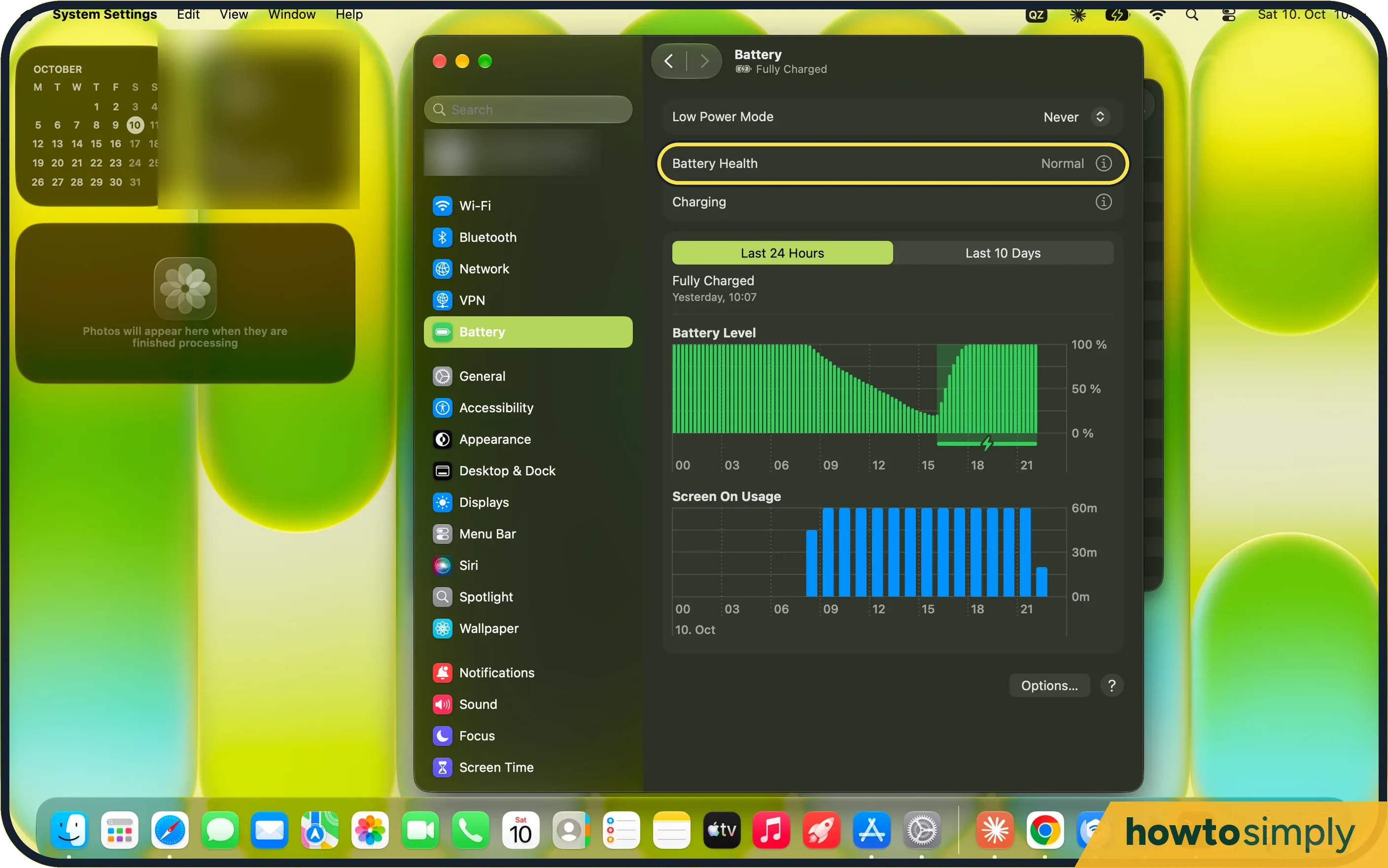
Open System Settings, Battery. Our MacBook Neo shows Low Power Mode (Never), Battery Health: Normal and a Charging row with an (i) button. The battery icon in the menu bar also lists the Power Source and the charge state.
- 4
Install updates
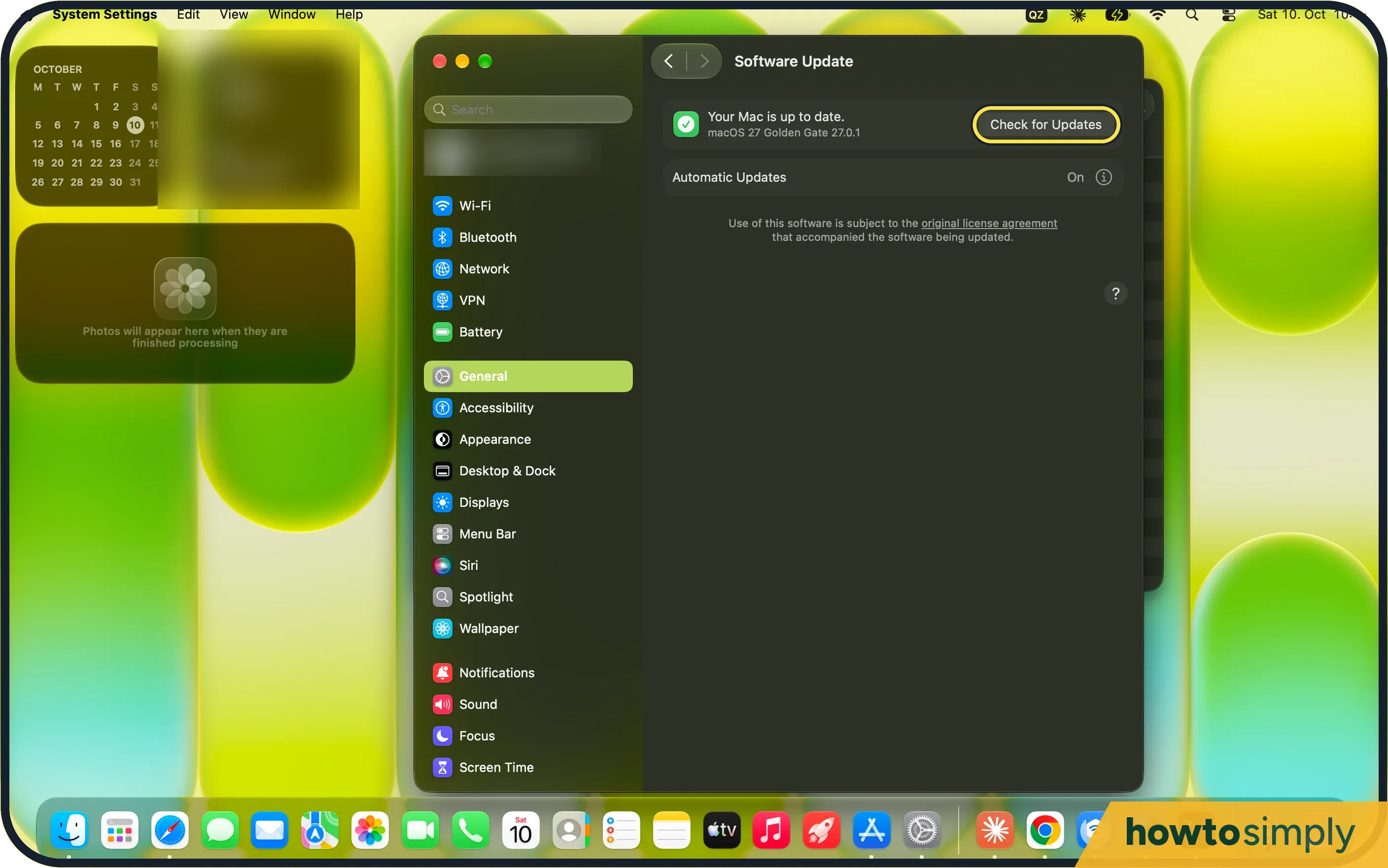
Open System Settings, General, Software Update, click Check for Updates and install what is offered. Our MacBook Neo shows Your Mac is up to date (macOS 27 Golden Gate 27.0.1) and Automatic Updates: On. Apple's macOS 27 guide notes that a laptop must have its power adapter plugged in to download updates automatically.


Charger stopped working suddenly
- Unplug it at the wall Take the adapter out of the socket for 30 seconds. If it then charges, Apple says the socket may share a circuit with lights or fridges: use another circuit (step 1). Source: If your USB-C power adapter isn't charging your Mac laptop
- Shut down and close the lid Apple's advice: shut down the Mac, keep the lid closed for 30 seconds, then open it and try charging once more. If the battery menu still shows no power adapter, take the Mac, adapter and cable to Apple or an authorised service provider. Source: If your USB-C power adapter isn't charging your Mac laptop
If you do not see this option
- No Not Charging message On our MacBook Neo the battery menu showed Power Source: Power Adapter and Fully Charged, so there was no Not Charging line to read.
- No Optimized Battery Charging switch on the page Apple's macOS 27 guide puts Optimized Battery Charging behind the button next to Battery Health. On our MacBook Neo there is also a separate Charging row with its own (i) button.
If this does not work
- Clean the port Look into the USB-C port with a torch, because one stubborn speck of fluff can stop the plug sitting properly. Remove it carefully, without metal tools. Then check the battery menu again: on our MacBook Neo it names the Power Source.
- Try another plug or cable on the adapter Apple's adapter article: try another Apple AC plug on the adapter, or the Apple Power Adapter Extension Cable (sold separately).
- You use an adapter from another maker Try the Apple adapter and cable that came in the box first, to check the other one isn't the problem. Apple's adapter article says any replacement should be a USB-C power adapter with the same wattage as the original or more.
Good to know
If nothing helps, you have done the sensible checks; now Apple or an authorised service provider can test the adapter and the MacBook.
If the MacBook does not start at all: Mac won't turn on: 7 things to try before a repair.
Checking the battery itself: how to check battery health on a MacBook.
macOS 27 compared with macOS 26: We rewrote this guide on macOS 27.0.1 (MacBook Neo): it now has 4 steps instead of 8. The macOS 26 page keeps the steps and screenshots as they were.
Version history: the macOS 26 version of this guide, with its own screenshots.
About this guide
Well, it is maddening when the charger is in and the battery will not budge. The problem can be the socket, the cable or the adapter, so work through the list from the top, quickest checks first.
- Device
- Mac
- Shown on
- macOS 27.0.1 (MacBook Neo)
- App
- System Settings
- Real screenshots
- 4 of 4 steps
- Checked
- October 2026
- Sources
- 2 official, linked below
What changed: added what to do when the charger stopped working suddenly.
Sources
Links checked October 2026. Menus and features can change with updates.Related guides
How to check and free up storage on a Mac (and what System Data is)How to turn off the startup sound on a MacHow to make a Mac ask for both name and password at loginHow to stop apps from opening at login on a MacHow to stop a Mac from going to sleepWhat's new in macOS 27.2 on a MacBook NeoWhat to do next
Sort out sleep and charging on a Mac Step 3 of 4
Did this guide work for you?
Sorry about that. What happened?
Get new guides by email
Our newest guides, sent to your inbox. Free, and you can unsubscribe in one click.
We'll email you to confirm. How we use your email
Follow howtosimply on Facebook
We share our new guides on our Facebook page, so the next fix turns up in your feed.
Follow on Facebook