How to stop a Mac from going to sleep
- Shown on
- MacBook Neo
- Software
- macOS 27.0.1More macOS 27 guides
- Checked
- October 2026
- Real screenshots
- 5 of 5 steps
 Real screenshot · MacBook Neo, macOS 27.0.1
Quick answer
Open System Settings, click Lock Screen and set Turn display off on power adapter when inactive to Never or a longer time, then confirm with Touch ID or your password. On a MacBook, also switch on Prevent automatic sleeping on power adapter when the display is off in Battery > Options….
Steps
- 1
Open System Settings
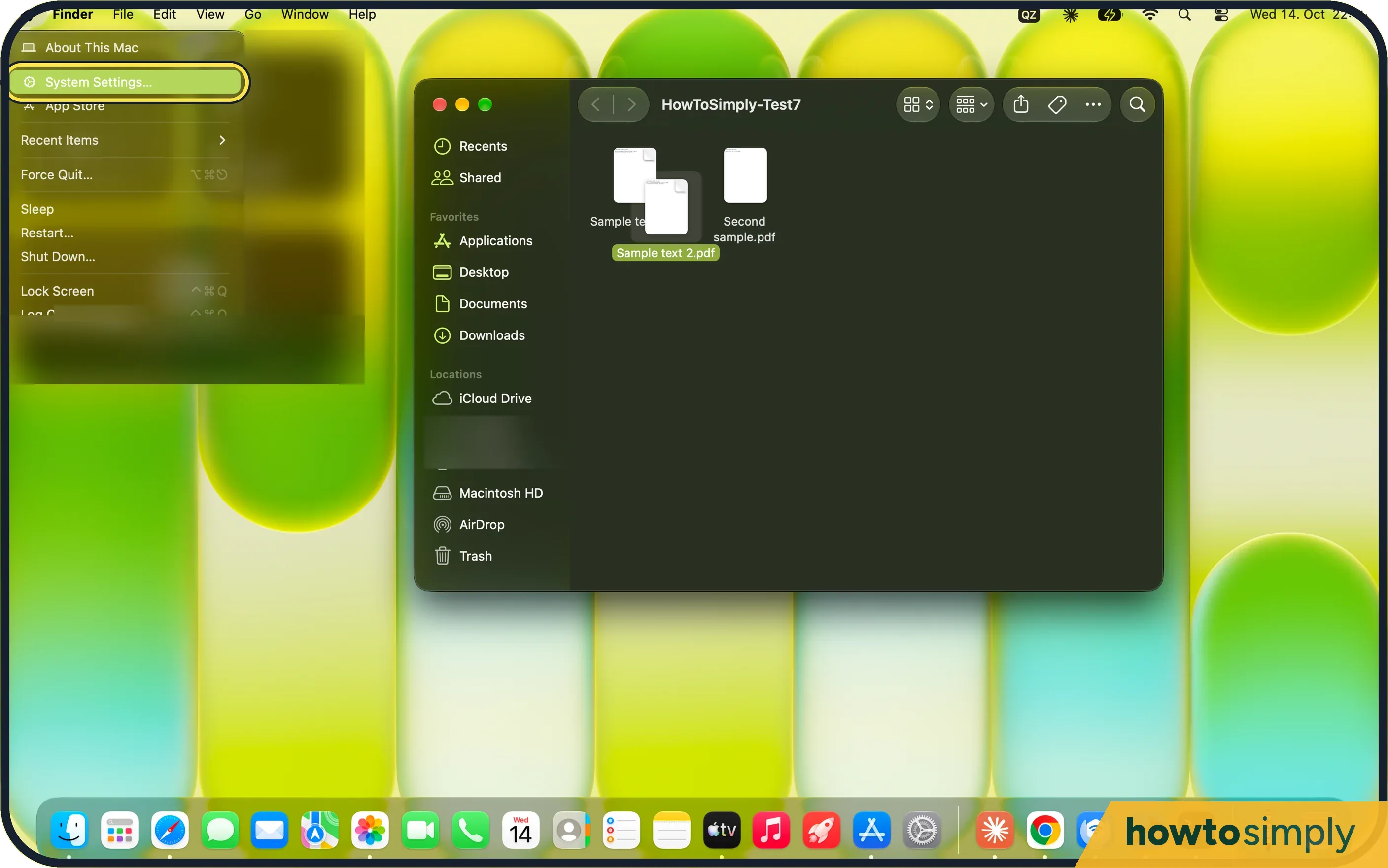
Click the Apple menu at the top left of the screen, then click System Settings….
- 2
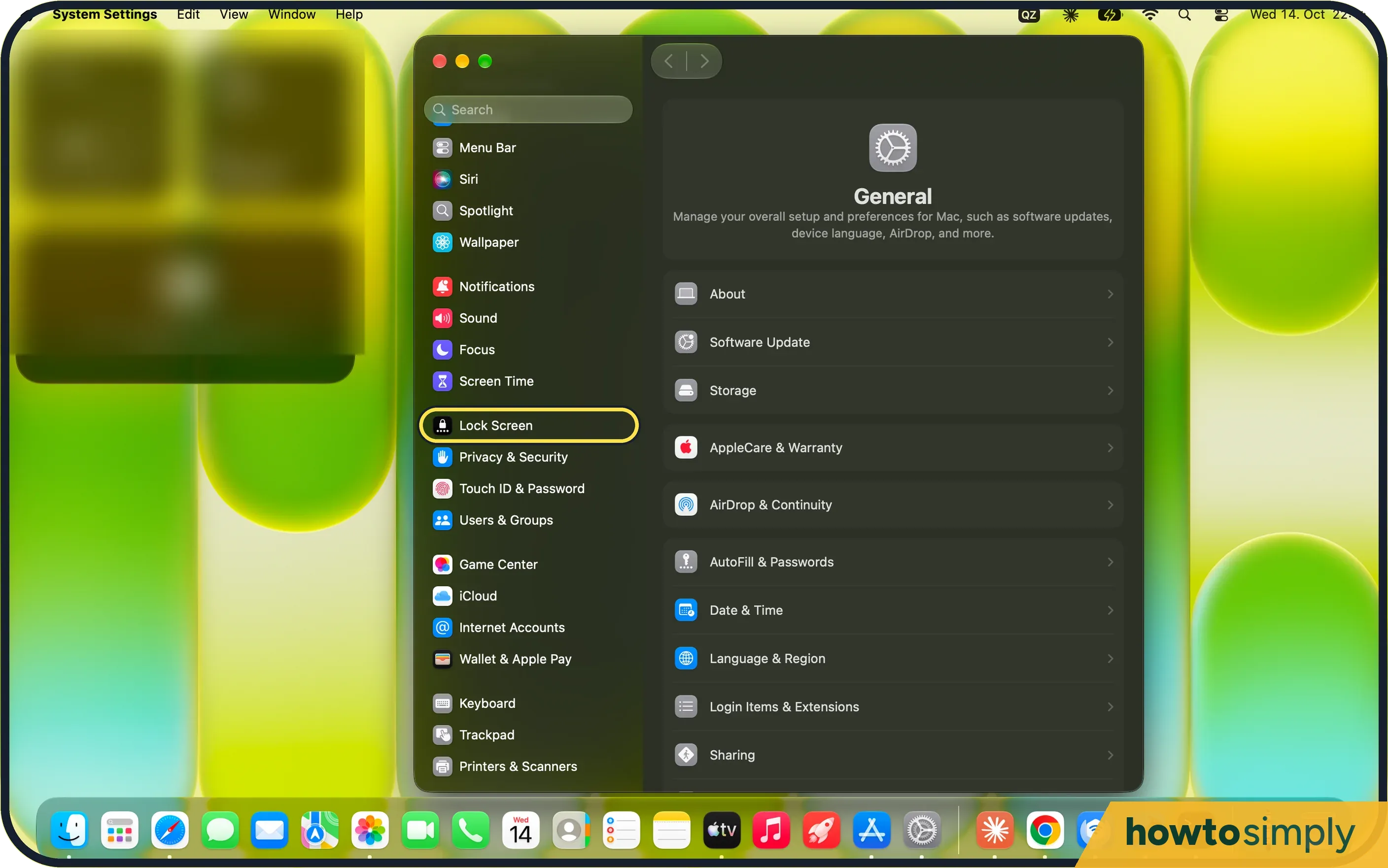
Click Lock Screen
Lock Screen is in the sidebar. On our MacBook Neo it sits between Screen Time and Privacy & Security.
- 3
Set the power adapter row to Never
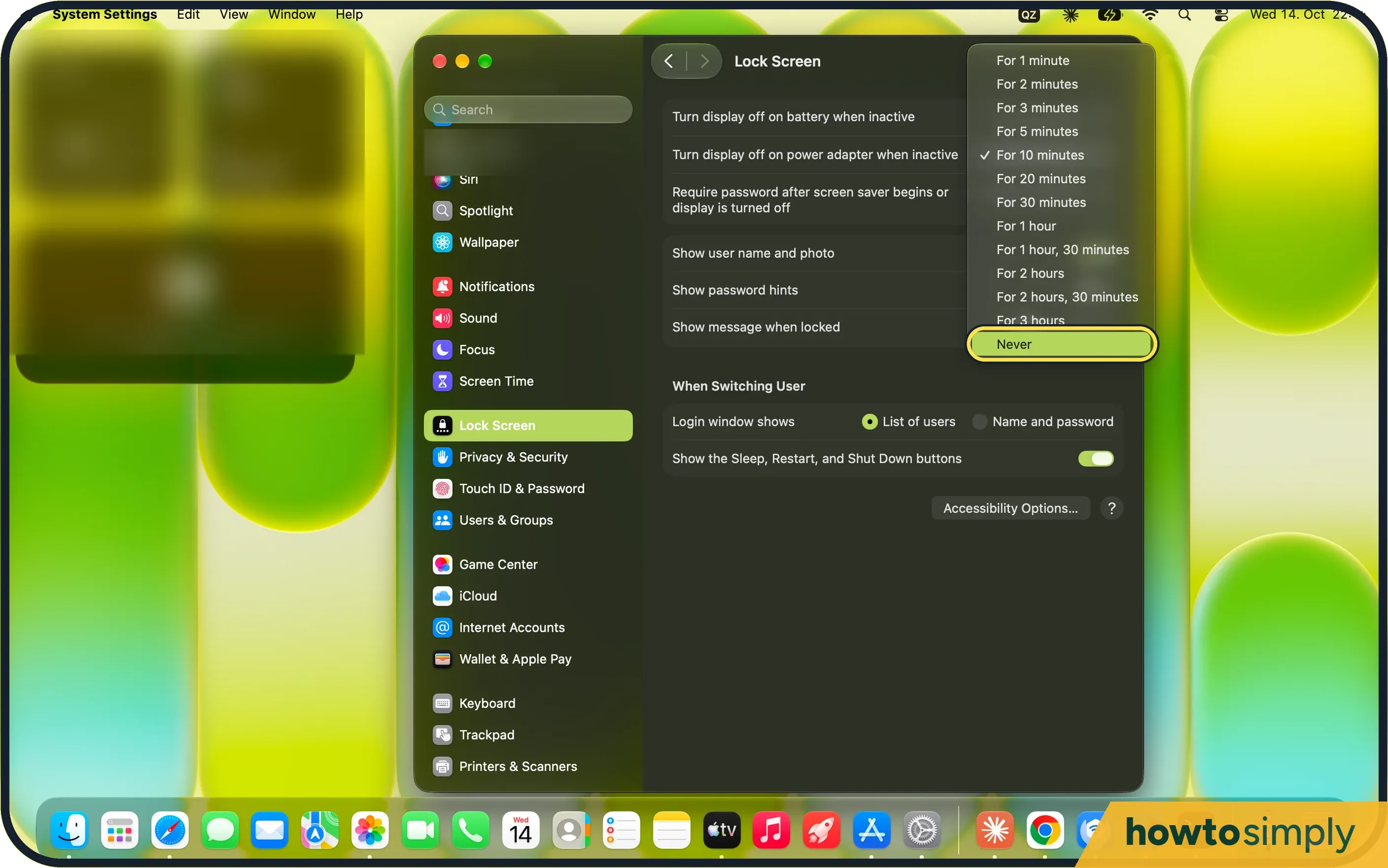
Click the menu next to Turn display off on power adapter when inactive and choose Never, or a longer time. On our MacBook Neo the menu runs from For 1 minute to For 3 hours, then Never, and the setting was For 10 minutes.
Turn display off on battery when inactive is the row above it; a shorter time there saves energy.
- 4
Confirm with Touch ID or your password
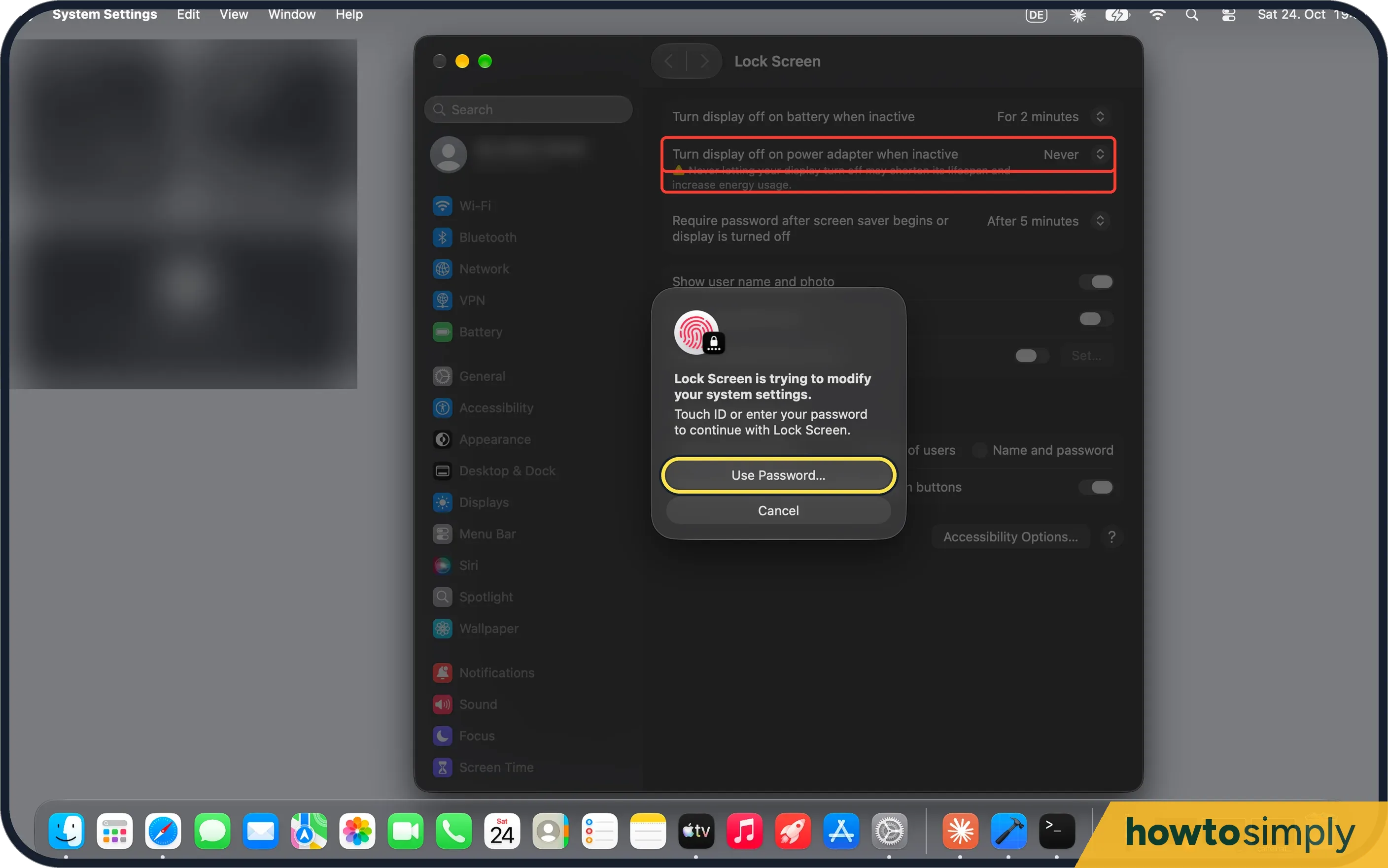
Use Touch ID, or click Use Password… and enter your password, to save the change. On our MacBook Neo choosing Never showed the prompt Lock Screen is trying to modify your system settings, with Use Password… and Cancel buttons.
A warning also appears under the row that leaving the display on may shorten its lifespan and increase energy usage.
- 5
MacBook: switch on Prevent automatic sleeping
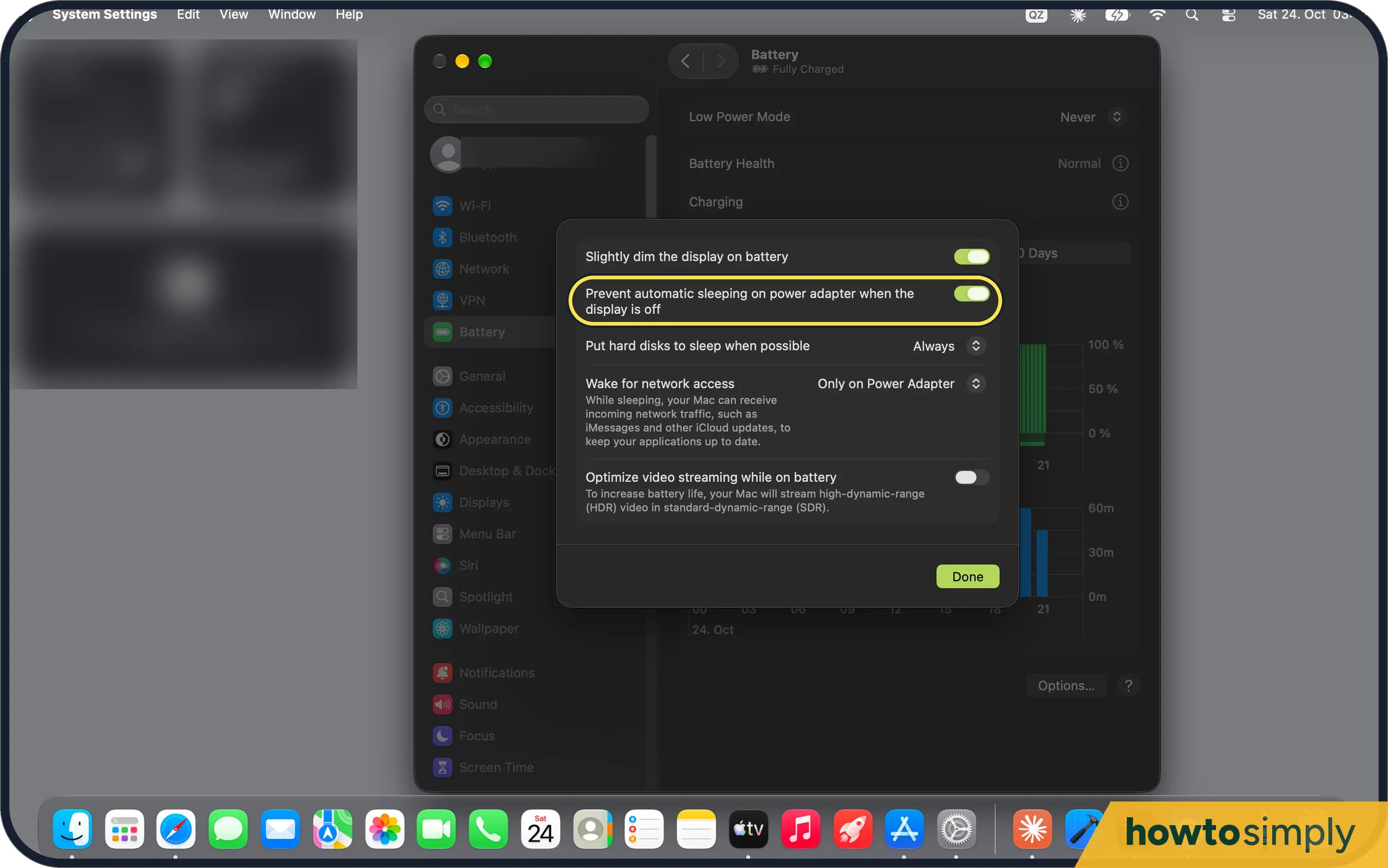
Click Battery in the sidebar, click Options… at the bottom of the page and switch on Prevent automatic sleeping on power adapter when the display is off, then click Done.
The MacBook then keeps working while plugged in, even with the screen dark. On our MacBook Neo this switch was already on.


Keep it awake for one task only
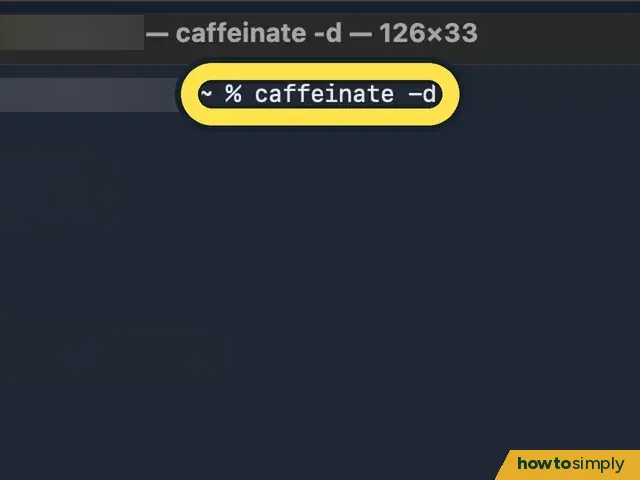
- Run caffeinate in Terminal Open Terminal, type caffeinate -d and press Return. On our MacBook Neo with macOS 27.2 the display stayed awake for as long as it ran, and Terminal printed nothing else. When the task is done, press Control-C in that window to stop it; we stopped ours that way.
Zoomed in on the setting. Tap to see the whole screen
If you do not see this option
- Lock Screen is not in the sidebar Scroll down the System Settings sidebar to find it.
- There is no battery row Apple says your Mac might not have all of these options. Sources: Set sleep and wake settings for your Mac, Change Lock Screen settings on Mac
- There is no Battery page Apple says desktop Macs show Energy rather than Battery: click Energy in the System Settings sidebar (scroll down if needed) and turn on Prevent automatic sleeping when the display is off. On our MacBook Neo, Battery sits in the sidebar between VPN and General. Sources: Set sleep and wake settings for your Mac, Change Lock Screen settings on Mac
If this does not work
- The display still turns off Check you changed Turn display off on power adapter when inactive and that the Mac is plugged in. The battery row just above it is a separate setting, and the two are easy to mix up.
- The setting goes back after choosing Never Nothing is broken: the change is only saved once you confirm with Touch ID or Use Password…. On our MacBook Neo, clicking Cancel left the setting at For 10 minutes.
- The MacBook sleeps once the screen goes dark Switch on Prevent automatic sleeping on power adapter when the display is off under Battery > Options…. This only applies while the power adapter is connected.
- The menu closes without changing anything Click Never in the open menu itself. The tick shows the current choice; on our MacBook Neo the tick sat on For 10 minutes while the menu was open.
Good to know
Apple says delaying or preventing sleep may increase power consumption, so set these back when the long job is finished.
If your Mac shows different rows from ours, that is normal, because which options appear depends on the Mac model.
On our MacBook Neo the Lock Screen page also holds Require password after screen saver begins or display is turned off, just below the two display rows.
On our MacBook Neo the Battery Options… window also lists Slightly dim the display on battery, Put hard disks to sleep when possible (Always), Wake for network access (Only on Power Adapter) and Optimize video streaming while on battery.
macOS 27 compared with macOS 26: We rewrote steps 1, 2, 3, 4 and 5 to match the macOS 27 screens. The macOS 26 page keeps the steps and screenshots as they were.
Version history: the macOS 26 version of this guide, with its own screenshots.
About this guide
Well, it is frustrating to come back and find the Mac asleep halfway through a job you left running. Two settings stop a Mac sleeping during a long download, backup or presentation: when the display turns off, and whether the Mac may sleep after that.
- Device
- Mac
- Shown on
- macOS 27.0.1 (MacBook Neo)
- App
- System Settings
- Real screenshots
- 5 of 5 steps
- Checked
- October 2026
- Sources
- 2 official, linked below
What changed: added keeping the Mac awake for one task only, with caffeinate in Terminal.
Sources
Links checked October 2026. Menus and features can change with updates.What to do next
Sort out sleep and charging on a Mac Step 1 of 4
Did this guide work for you?
Sorry about that. What happened?
Get new guides by email
Our newest guides, sent to your inbox. Free, and you can unsubscribe in one click.
We'll email you to confirm. How we use your email
Follow howtosimply on Facebook
We share our new guides on our Facebook page, so the next fix turns up in your feed.
Follow on Facebook