How to check and free up storage on a Mac (and what System Data is)
- Shown on
- MacBook Neo
- Software
- macOS 27.0.1More macOS 27 guides
- Checked
- October 2026
- Real screenshots
- 4 of 4 steps
- Where it is
- System Settings › General › Storage
 Real screenshot · MacBook Neo, macOS 27.0.1
Quick answer
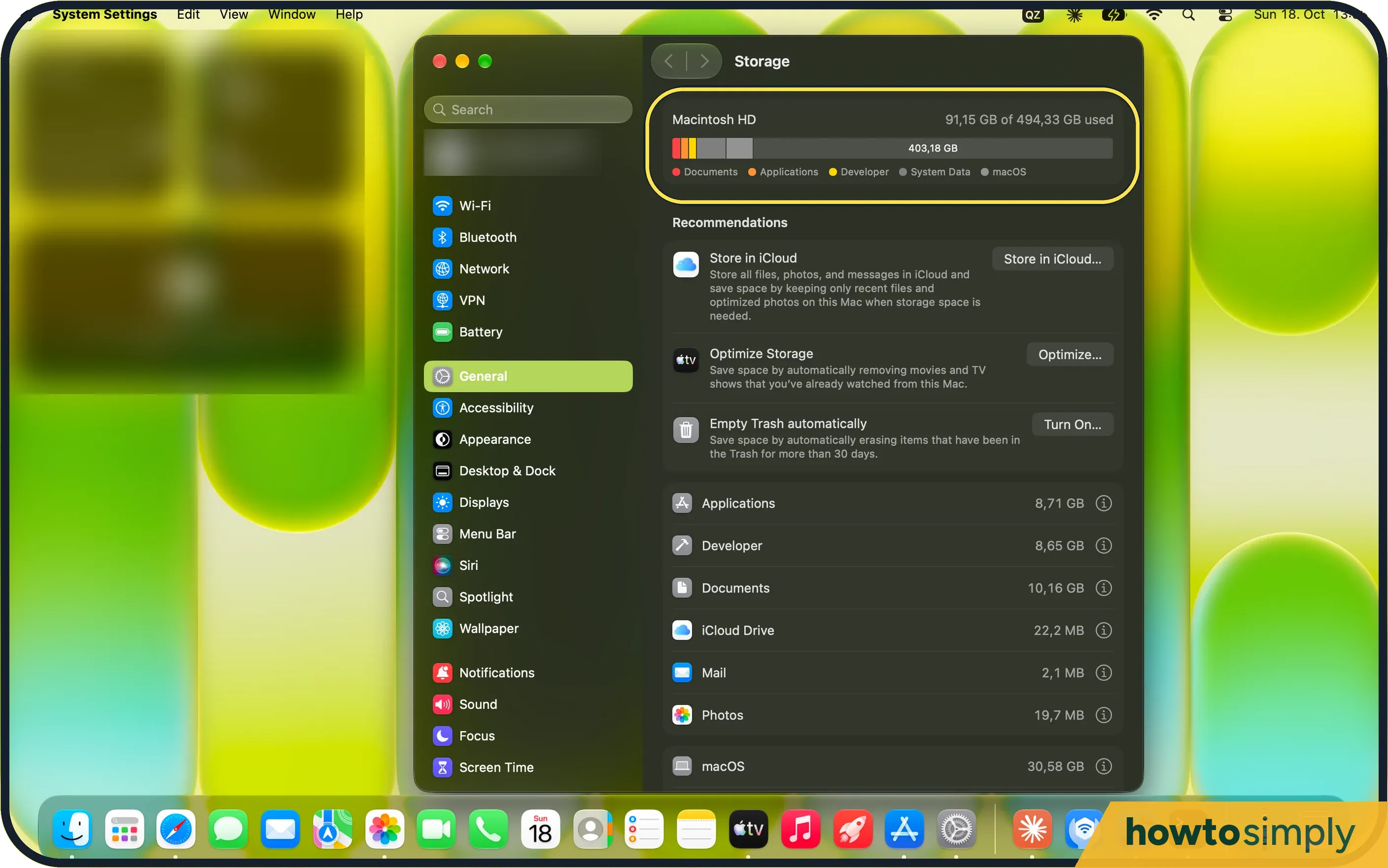
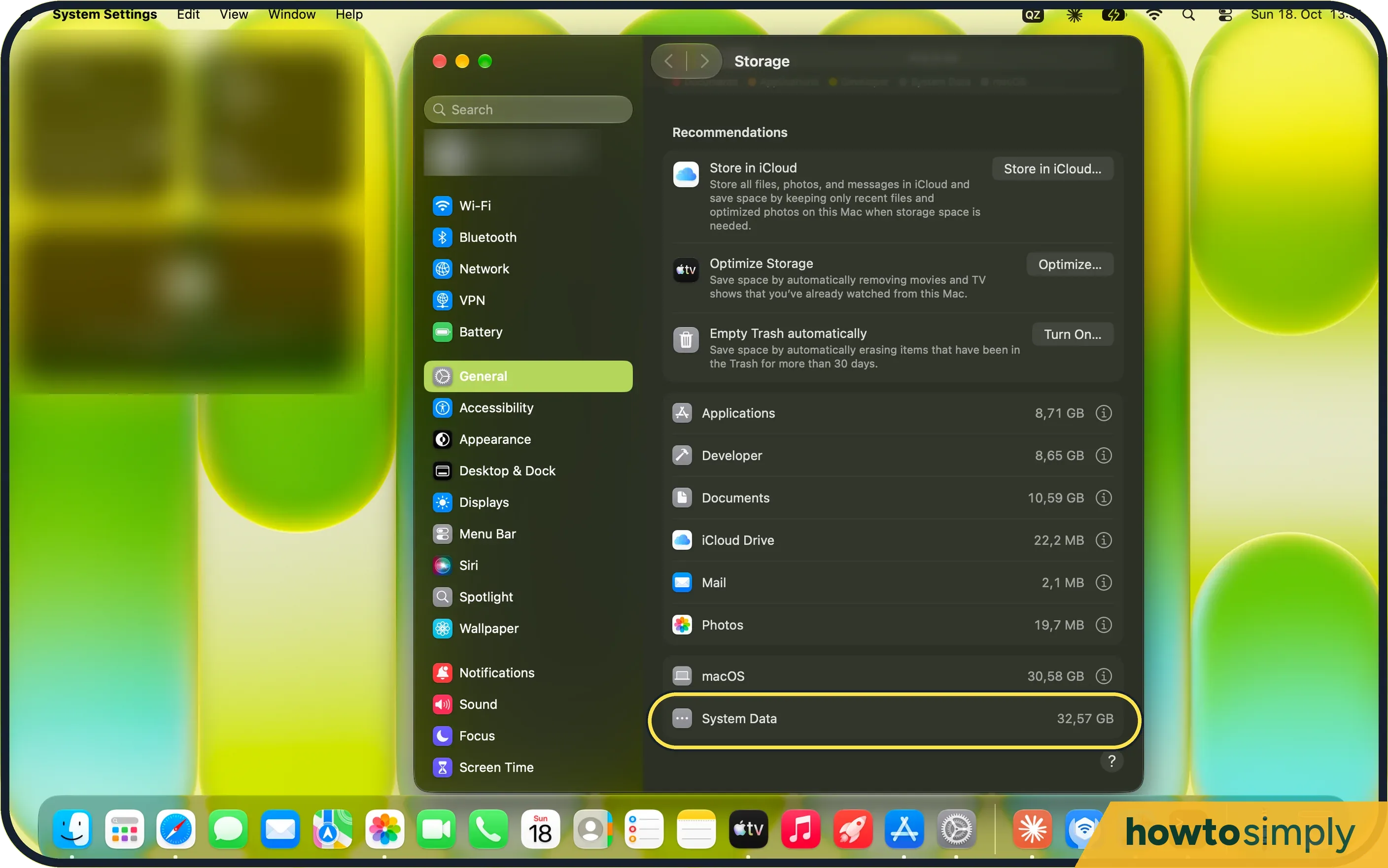
Open System Settings, General, Storage. The bar shows what fills the disk; Recommendations and the (i) buttons free space. System Data is the last row and has no (i) button. On ours it was 32.57 GB, more than macOS itself (30.58 GB).
Steps
- 1
Open Storage
Choose Apple menu, System Settings, General, Storage. Wait for the bar to finish.
- 2
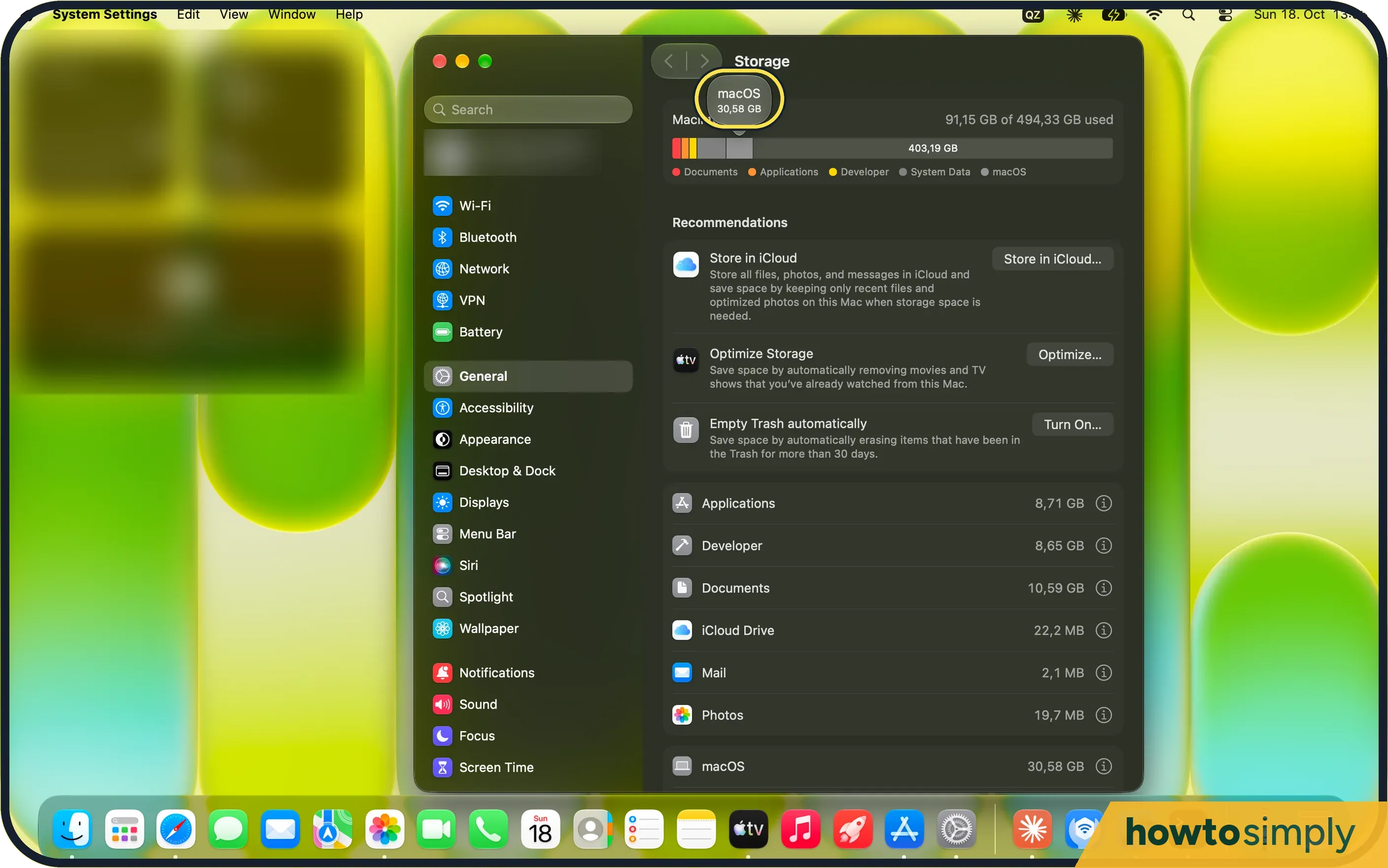
Hover over the bar
Each colour shows its size. macOS was 30.58 GB on ours.
- 3
Find System Data
It is the last row, with no (i) button: you cannot open it.
- 4
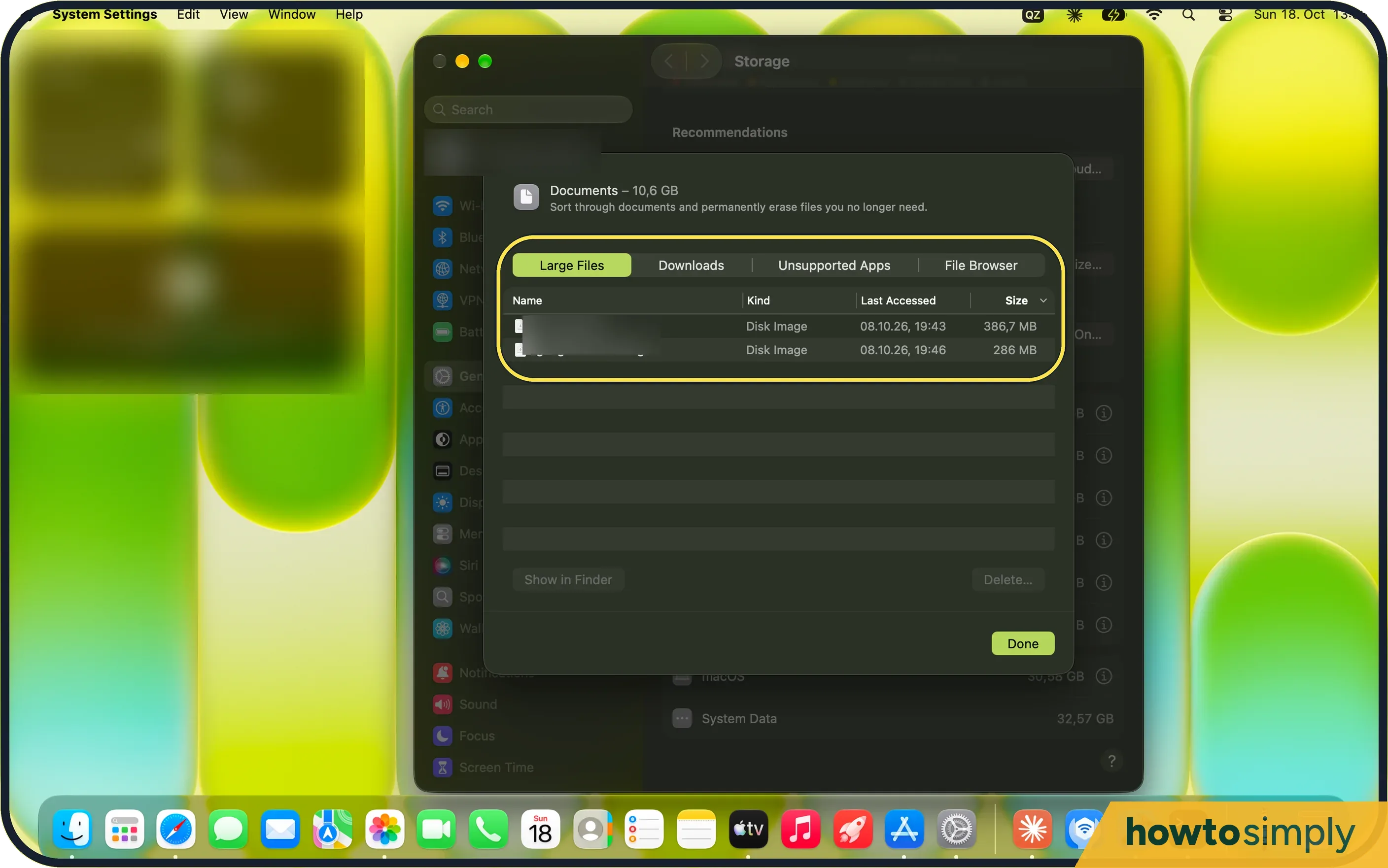
Free space elsewhere
Click (i) next to Documents. Large Files lists the biggest files; ours were two disk images (.dmg).


If you do not see this option
- No System Data row? Scroll the list to the bottom and wait until Storage finishes calculating.
- Called Other? Apple names this category System Data (or Other). Source: Free up storage space on Mac
- There is no Storage under General. Apple says that on macOS versions before Ventura you choose Apple menu, About This Mac, then Storage. Source: Free up storage space on Mac
If this does not work
- System Data keeps growing? Apple says your Mac comes with its own tools that quickly show you which files are using up space. Apple also suggests emptying the Trash, deleting files you no longer need from Downloads, and moving large files such as a Photos library to an external drive.
- Old iPhone or iPad backups? Apple lists deleting backups you no longer need as a way to free space.
- Still large? Apple says starting up in safe mode clears some system caches. Restart normally afterwards.
- Deleted files, but no space came back? Apple says dragging a file to the Trash doesn't free the space until the Trash is emptied. Check the Trash for anything you still need first, then empty it.
- Mail takes a lot of room? Apple suggests choosing Mailbox, Erase Junk Mail and Mailbox, Erase Deleted Items in Mail. Look through Junk first.
- Files you keep but rarely open? Apple suggests compressing them and expanding them again when you need them. See how to zip and unzip files on a Mac.
Good to know
Apps you no longer use: how to uninstall apps on a Mac.
As you free up space, the Storage information updates automatically. Anything you keep in iCloud counts towards your iCloud storage plan.
If the Mac also feels slow, more free space is only one of the things to check: Mac running slow.
About this guide
System Data is the storage that macOS does not put in another category.
- Device
- Mac
- Shown on
- macOS 27.0.1 (MacBook Neo)
- App
- System Settings
- Path
- System Settings › General › Storage
- Real screenshots
- 4 of 4 steps
- Checked
- October 2026
- Sources
- 1 official, linked below
The screenshots are from our MacBook Neo with macOS 27.0.1, taken on 18 October 2026. Ours had 91.15 GB of 494.33 GB used.
Sources
Links checked October 2026. Menus and features can change with updates.What to do next
Free up and look after your Mac storage Step 1 of 4
Did this guide work for you?
Sorry about that. What happened?
Get new guides by email
Our newest guides, sent to your inbox. Free, and you can unsubscribe in one click.
We'll email you to confirm. How we use your email
Follow howtosimply on Facebook
We share our new guides on our Facebook page, so the next fix turns up in your feed.
Follow on Facebook