How to lock the screen on a Mac
- Shown on
- MacBook Neo
- Software
- macOS 27.0.1More macOS 27 guides
- Checked
- October 2026
- Real screenshots
- 5 of 6 steps
 Real screenshot · MacBook Neo, macOS 27.0.1
Quick answer
Press Control, Command and Q, or choose Lock Screen from the Apple menu. To lock automatically, open System Settings, Lock Screen, pick short Turn display off times and shorten Require password after screen saver begins or display is turned off.
Steps
- 1
Lock it with the keyboard
Press Control, Command and Q at the same time. The Mac locks straight away.
- 2
Or choose Lock Screen from the Apple menu
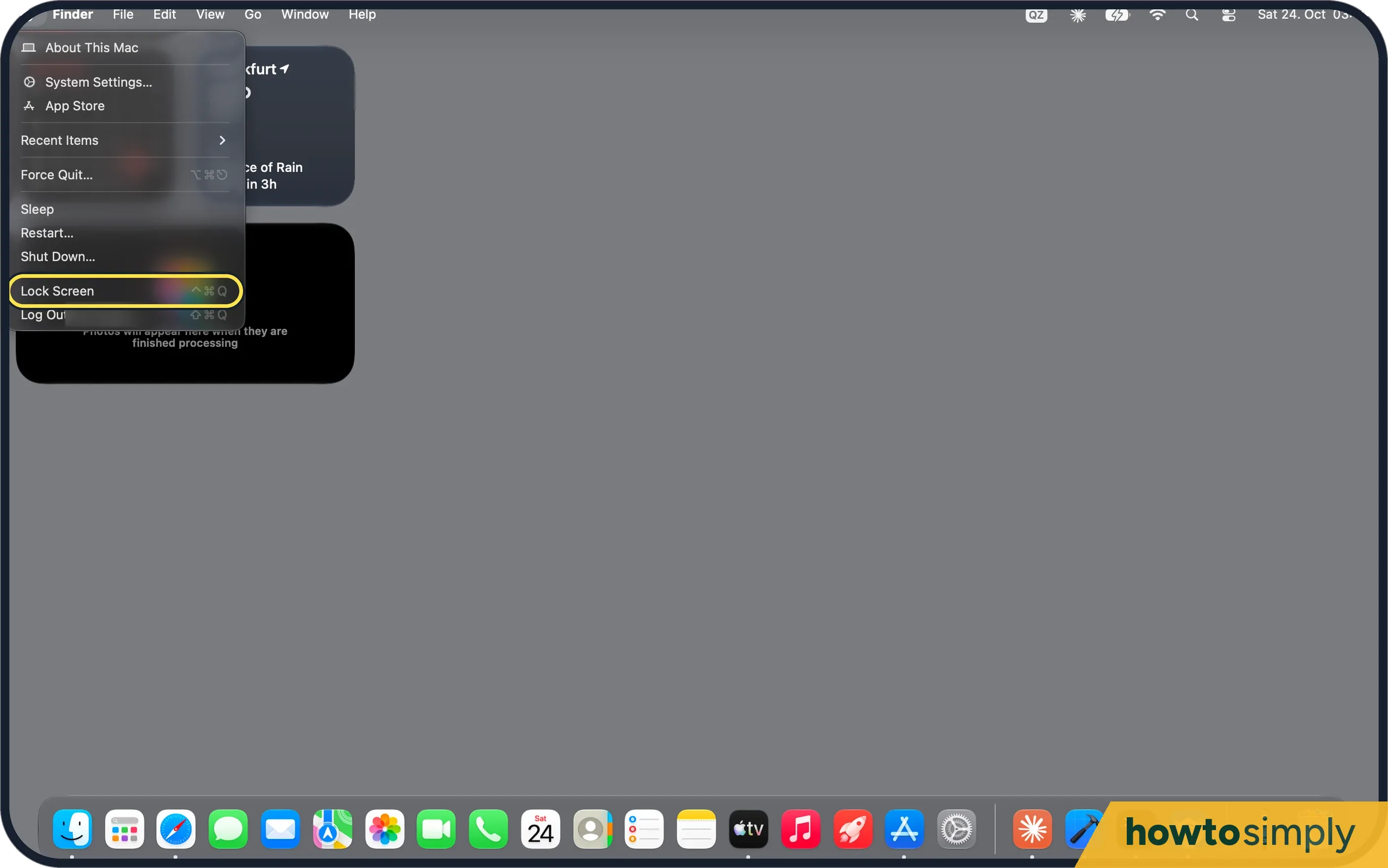
Click the Apple menu in the top left corner and choose Lock Screen.
On our MacBook Neo the menu shows the shortcut ^⌘Q next to Lock Screen, just above Log Out, which uses ⇧⌘Q instead.
- 3
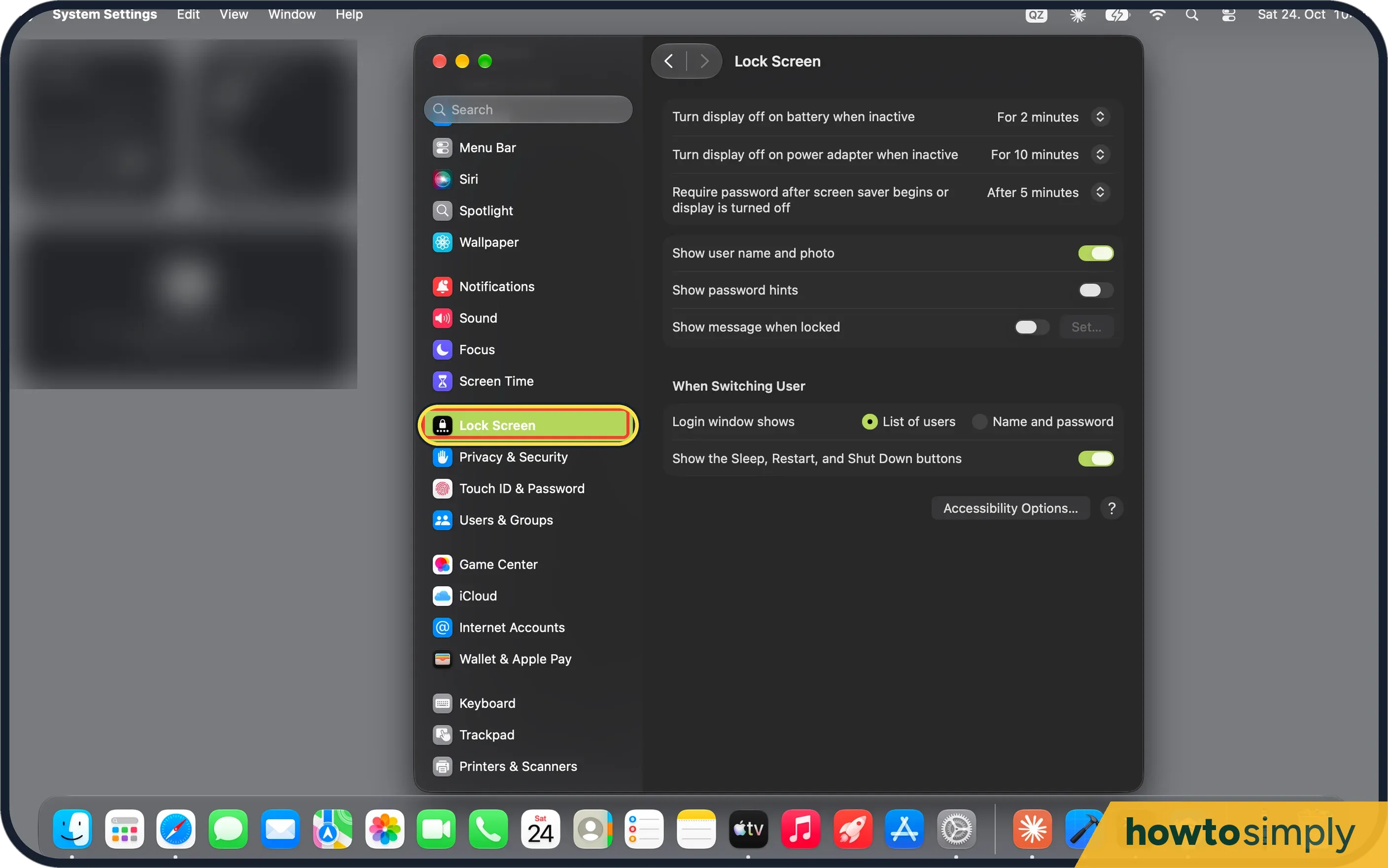
Open System Settings and click Lock Screen
From the Apple menu choose System Settings…, scroll down the sidebar and click Lock Screen. This page controls when the Mac locks by itself.
On our MacBook Neo Lock Screen sits just below Screen Time, above Privacy & Security.
- 4
Choose when the display turns off
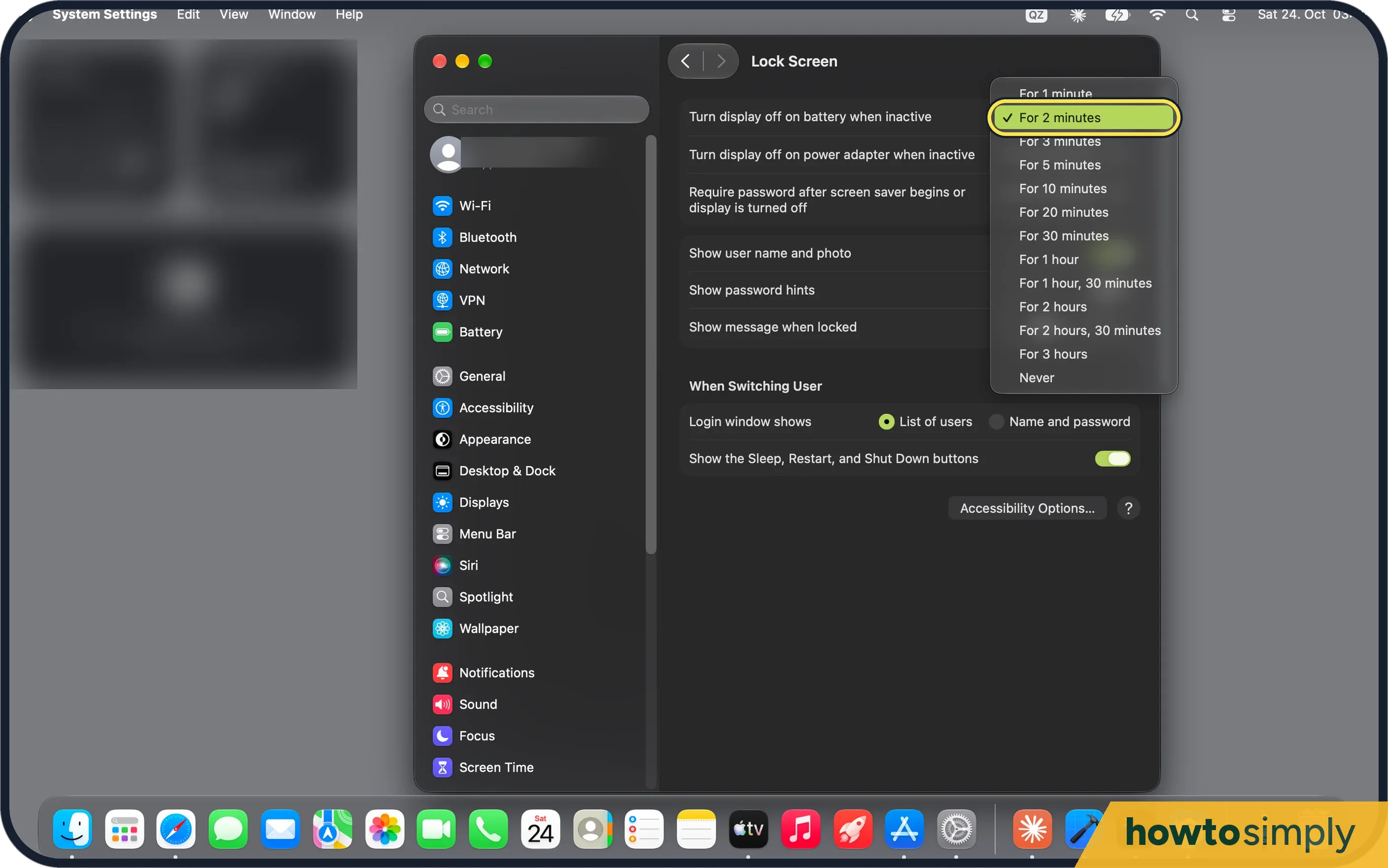
Click the menu next to Turn display off on battery when inactive and pick a short time, then do the same for Turn display off on power adapter when inactive.
On our MacBook Neo they were set to For 2 minutes and For 10 minutes; the menu runs from For 1 minute to For 3 hours, with Never at the bottom.
- 5
Open the password delay menu
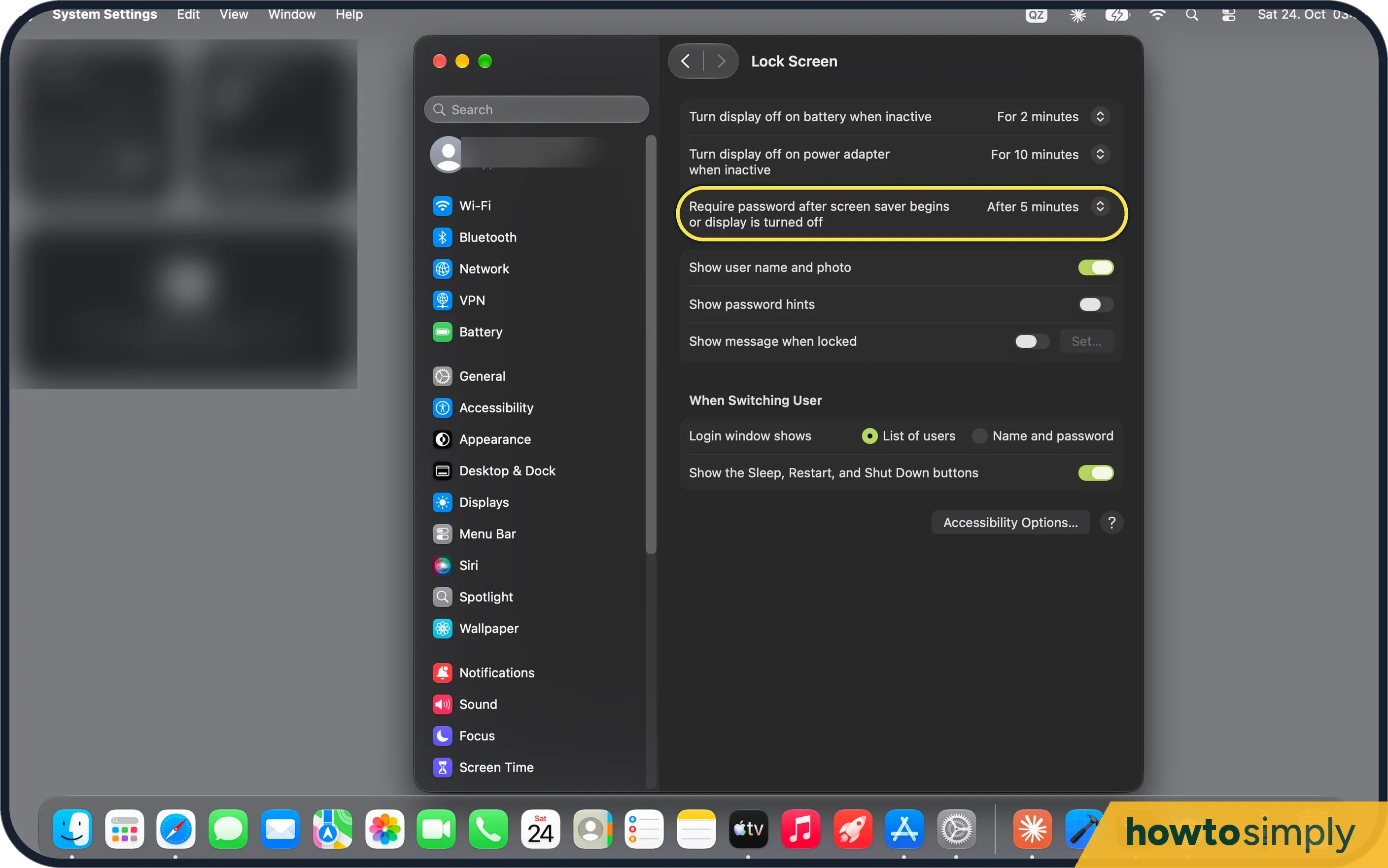
Click the menu next to Require password after screen saver begins or display is turned off.
On our MacBook Neo it was set to After 5 minutes.
- 6
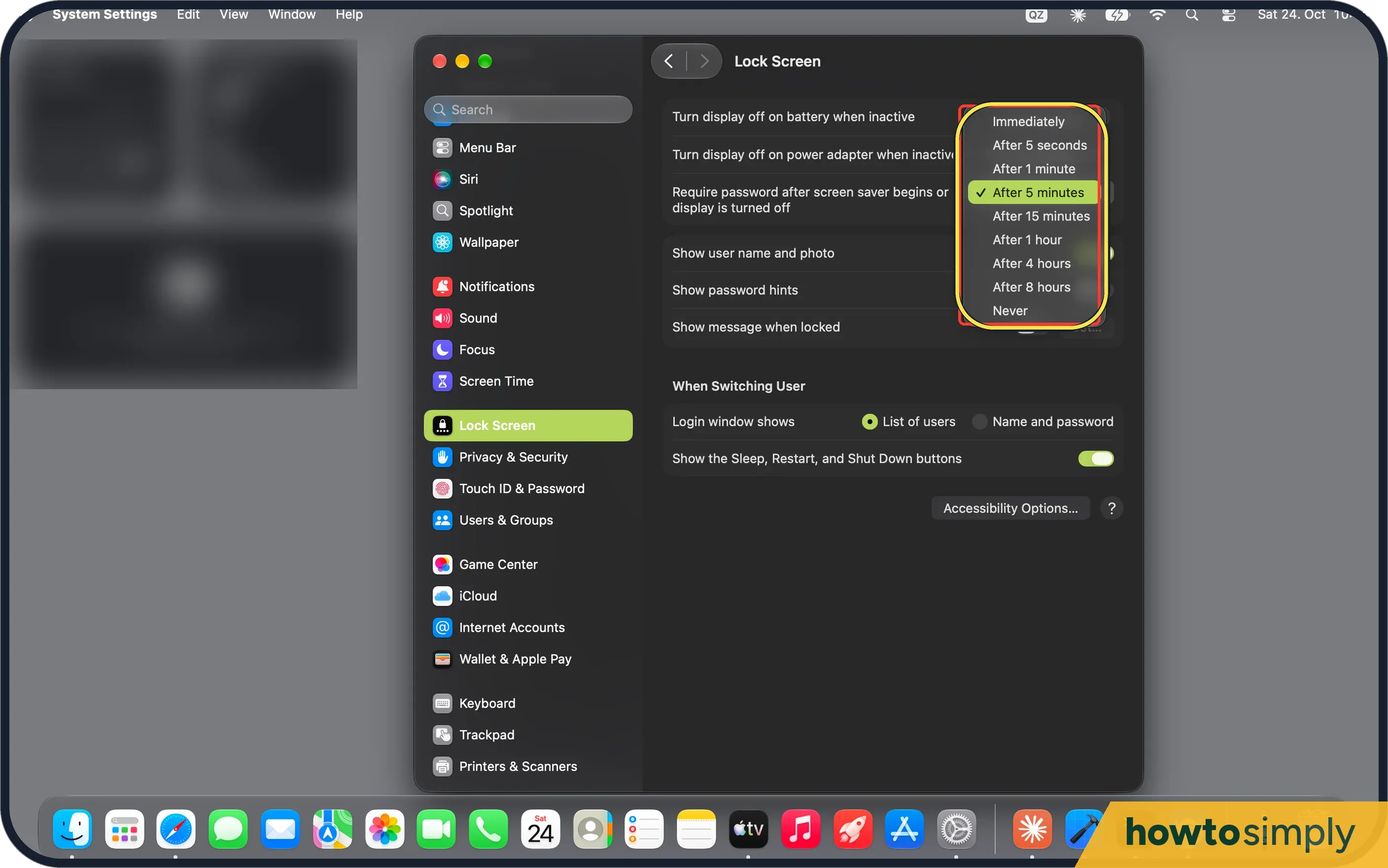
Choose a shorter delay
Pick a shorter delay from the list. Until that delay passes, anyone can wake the Mac without a password.
On our MacBook Neo the list runs from Immediately and After 5 seconds to After 8 hours, with Never at the bottom.


If you do not see this option
- Lock Screen is not in the sidebar On our MacBook Neo Lock Screen is below Screen Time, out of sight until you scroll the sidebar down. You can also type Lock Screen in the Search field at the top.
- Your Mac has System Preferences Apple says on earlier versions of macOS the password setting is in System Preferences, Security & Privacy, as Require password after sleep or screen saver begins. Sources: Change Lock Screen settings on Mac, Mac keyboard shortcuts, How to log in automatically to a Mac user account
- The password setting cannot be changed Apple says Require password after screen saver begins or display is turned off can't be changed if iPhone Mirroring is set to authenticate automatically. Sources: Change Lock Screen settings on Mac, Mac keyboard shortcuts, How to log in automatically to a Mac user account
If this does not work
- The Mac never locks by itself Check both Turn display off menus are not set to Never, the last option in the list. With Never, the display stays awake the whole time you are away and waits patiently for anyone who sits down. Choose a time in both.
- The Mac wakes without asking for the password The Require password delay may be too long. On our MacBook Neo it was After 5 minutes; choose a shorter delay, or Immediately at the top of the list.
- You forget the password at the login window The Mac can drop you a hint, if you let it. Apple says with Show password hints on, the hint appears after three wrong passwords in a row, or when you click the question mark. On our MacBook Neo Show password hints was switched off.
Good to know
A hot corner set to Lock Screen locks the Mac when you push the pointer into that corner.
Show message when locked puts a line of text on the login window. It can also show your contact details if the Mac goes missing.
When a MacBook goes to sleep, it asks for the password according to the same setting. So if you often leave your Mac asleep, make sure that delay is a short one.
macOS 27 compared with macOS 26: We rewrote this guide on macOS 27.0.1 (MacBook Neo): it now has 6 steps instead of 5. The macOS 26 page keeps the steps and screenshots as they were.
Version history: the macOS 26 version of this guide, with its own screenshots.
About this guide
Well, every office seems to have one prankster who waits for an unlocked Mac so they can announce to the whole team that the cakes are on you. Locking the screen helps protect your Mac from tampering while you are away from the desk.
- Device
- Mac
- Shown on
- macOS 27.0.1 (MacBook Neo)
- App
- System Settings
- Real screenshots
- 5 of 6 steps
- Checked
- October 2026
- Sources
- 3 official, linked below
Sources
Links checked October 2026. Menus and features can change with updates.What to do next
Sort out sleep and charging on a Mac Step 4 of 4
Did this guide work for you?
Sorry about that. What happened?
Get new guides by email
Our newest guides, sent to your inbox. Free, and you can unsubscribe in one click.
We'll email you to confirm. How we use your email
Follow howtosimply on Facebook
We share our new guides on our Facebook page, so the next fix turns up in your feed.
Follow on Facebook