How to turn off the startup sound on a Mac
- Shown on
- MacBook Pro
- Software
- macOS 26
- Checked
- October 2026
- Real screenshots
- 3 of 3 steps
- Where it is
- System Settings › Sound
 Real screenshot · MacBook Pro, macOS 26
Quick answer
Open System Settings, click Sound, and switch off Play sound on startup. The Mac then starts without the startup chime. Switch it on again to hear the chime when you restart.
Steps
- 1
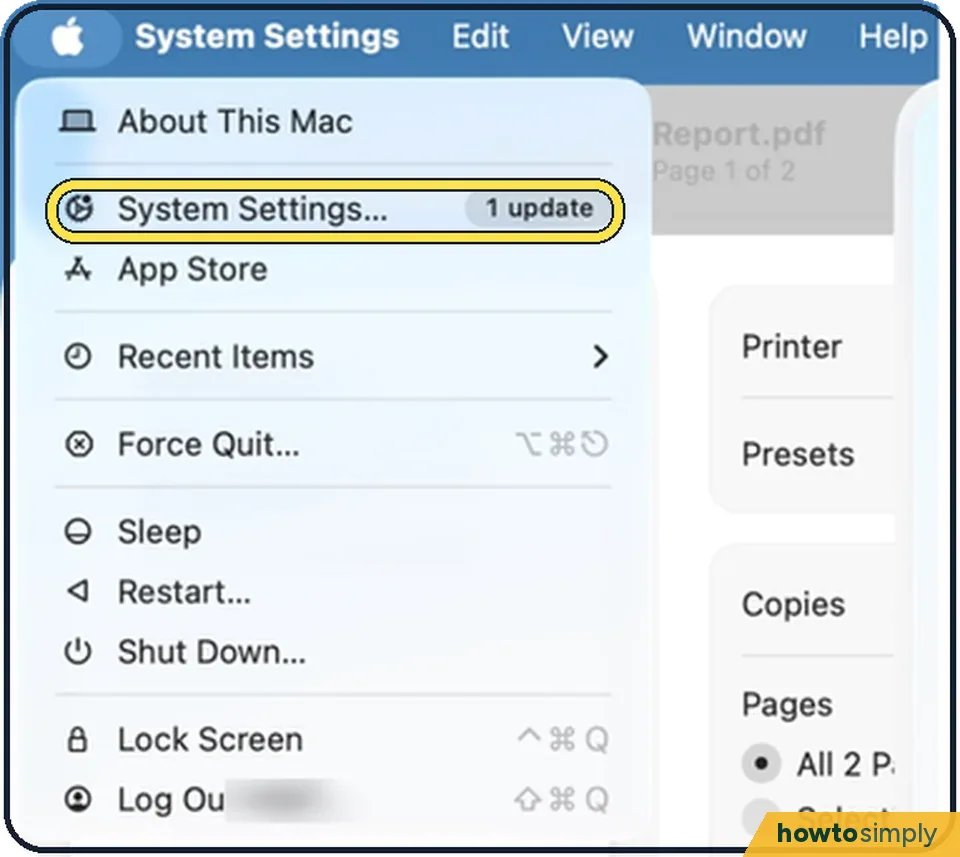
Open System Settings
Click the Apple menu in the top left corner of the screen and choose System Settings.
- 2
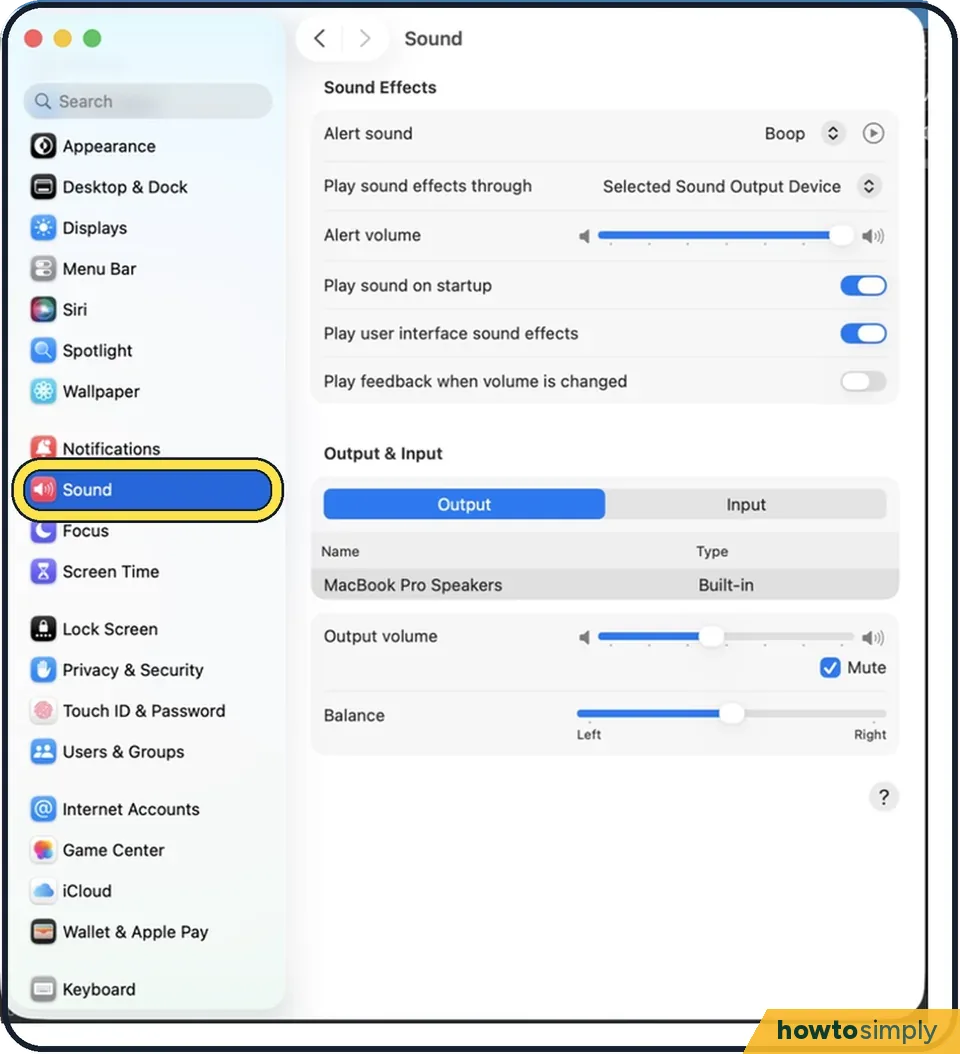
Click Sound in the sidebar
Sound is in the group with Notifications and Focus. You may need to scroll down in the sidebar.
- 3
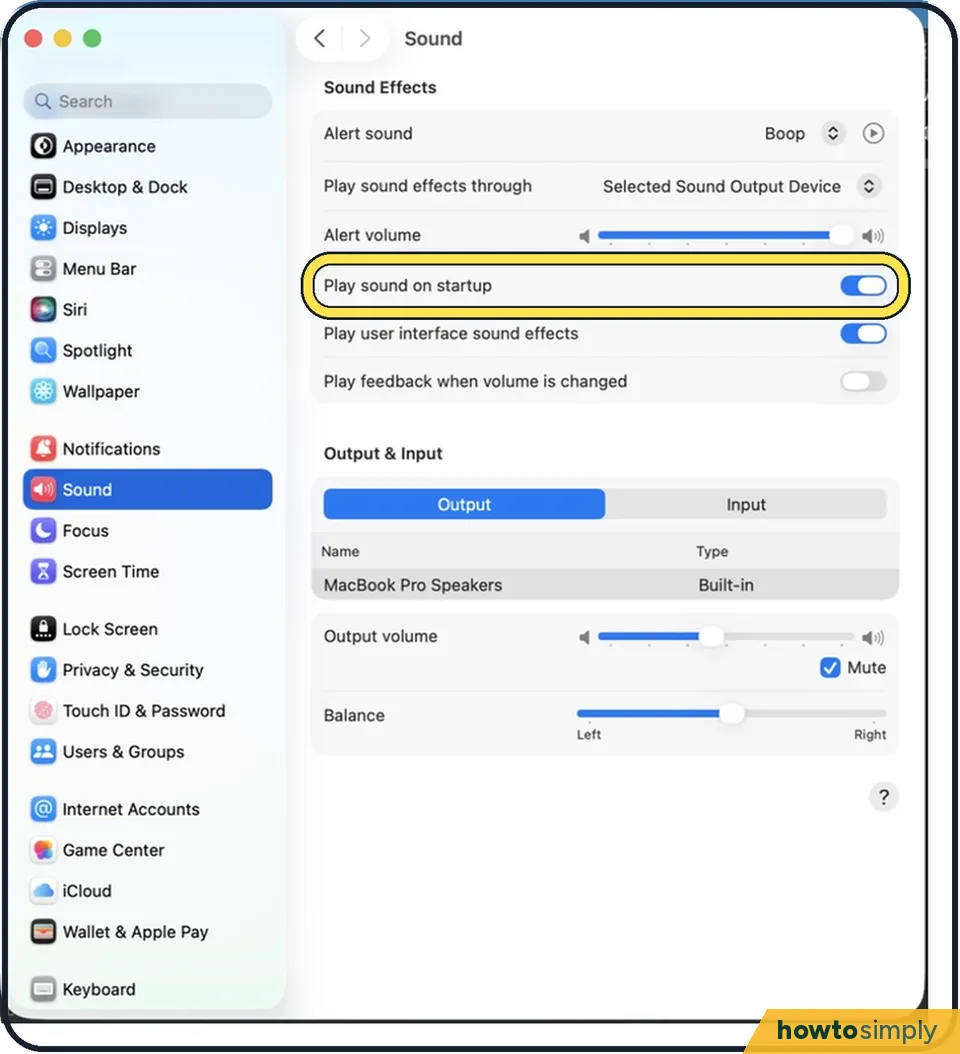
Switch off Play sound on startup
It is in the Sound Effects group. In the picture it is on.

If you do not see this option
- Your Mac has System Preferences, not System Settings. Apple says that on macOS Monterey 12 and Big Sur 11 you choose System Preferences, click Sound and use Play sound on startup in the Sound Effects pane. Source: Turn the Mac startup sound on or off
- There is no startup sound setting at all. Apple says versions of macOS before Big Sur 11 do not offer a setting for the startup sound. Source: Turn the Mac startup sound on or off
If this does not work
- The Mac still makes sounds after it starts. The switches underneath cover other sounds: Play user interface sound effects, which you hear when you do things like drop a file in the Trash, and Play feedback when volume is changed. Switch them off as well if you do not want those sounds.
- Alert sounds are still too loud. Apple says alerts play at a level tied to your Mac's main volume. Lower the Alert volume slider in the same Sound Effects group, or the Mac volume.
- The switch is on again after an update? Open Sound settings and check Play sound on startup once more. Then restart to confirm the Mac starts in silence.
- Alerts play through the wrong speaker? That is a separate menu in the same Sound Effects group. Apple says Play sound effects through chooses the output device for sound effects.
- You want the chime back for one restart? There is no one-off option on this page. Switch Play sound on startup on, restart, then switch it off again.
Good to know
Apple notes that not all options on this page appear on all Mac models.
The two switches underneath cover other sounds: Play user interface sound effects, which you hear when you do things like drop a file in the Trash, and Play feedback when volume is changed.
Only the chime goes. Every other sound, such as music, calls and alerts, plays as before. To bring the chime back, return to Sound and switch Play sound on startup on again. Apple describes it as the startup chime you hear when you restart your Mac.
If your Mac has gone silent in general rather than just at startup, that is a different problem: no sound on your Mac.
About this guide
Depending on your Mac and its version of macOS, you may hear a chime soon after pressing the power button. In a library, a lecture or a bedroom at night that is unwelcome. The switch for it is in the Sound settings, under Sound Effects.
The screenshots show System Settings on macOS Tahoe 26.
- Device
- Mac
- Shown on
- macOS Tahoe 26 (MacBook Pro)
- App
- System Settings
- Path
- System Settings › Sound
- Real screenshots
- 3 of 3 steps
- Checked
- October 2026
- Sources
- 2 official, linked below
Sources
Links checked October 2026. Menus and features can change with updates.Did this guide work for you?
Sorry about that. What happened?
Get new guides by email
Our newest guides, sent to your inbox. Free, and you can unsubscribe in one click.
We'll email you to confirm. How we use your email
Follow howtosimply on Facebook
We share our new guides on our Facebook page, so the next fix turns up in your feed.
Follow on Facebook