How to make a Mac ask for both name and password at login
- Shown on
- MacBook Pro
- Software
- macOS 26
- Checked
- October 2026
- Real screenshots
- 4 of 4 steps
- Where it is
- System Settings › Lock Screen
 Real screenshot · MacBook Pro, macOS 26
Quick answer
Open System Settings, click Lock Screen, and under When Switching User set Login window shows to Name and password. The login window then no longer lists the users of the Mac. Everyone has to type a user name and a password.
Steps
- 1
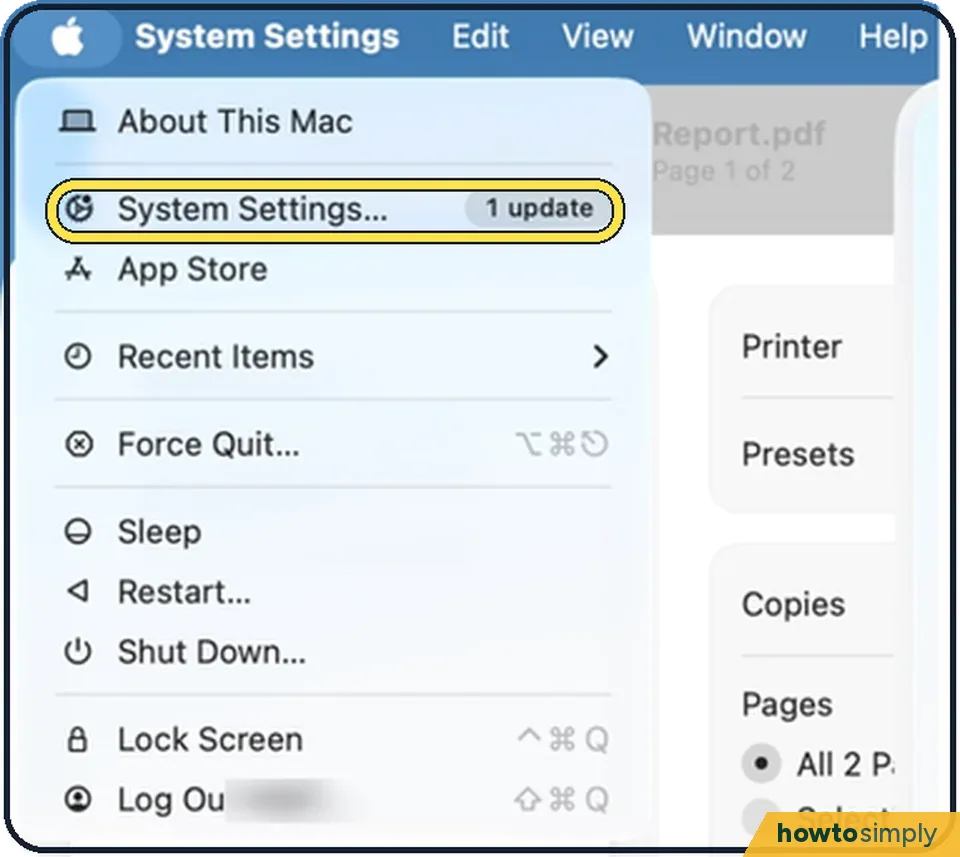
Open System Settings
Click the Apple menu in the top left corner of the screen and choose System Settings.
- 2
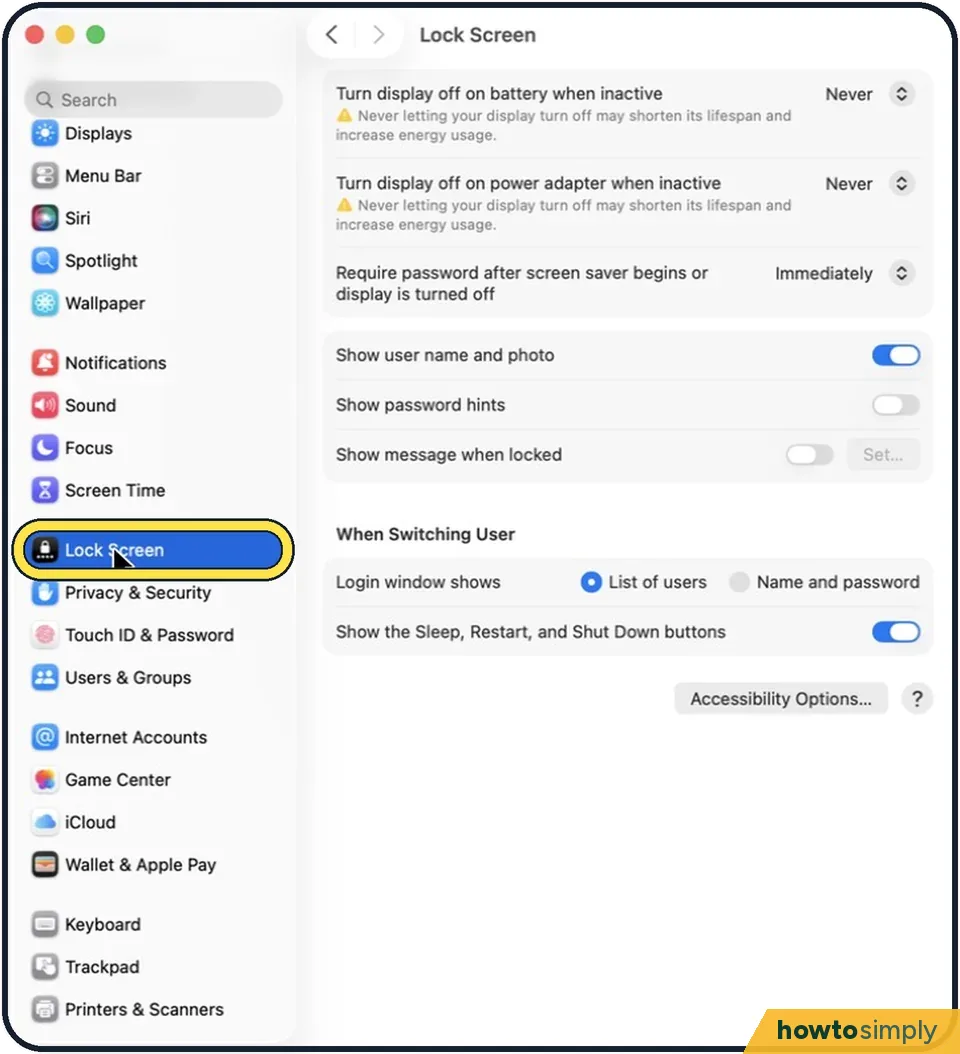
Click Lock Screen in the sidebar
Lock Screen is in the group with Privacy & Security. Scroll down in the sidebar to find it.
- 3
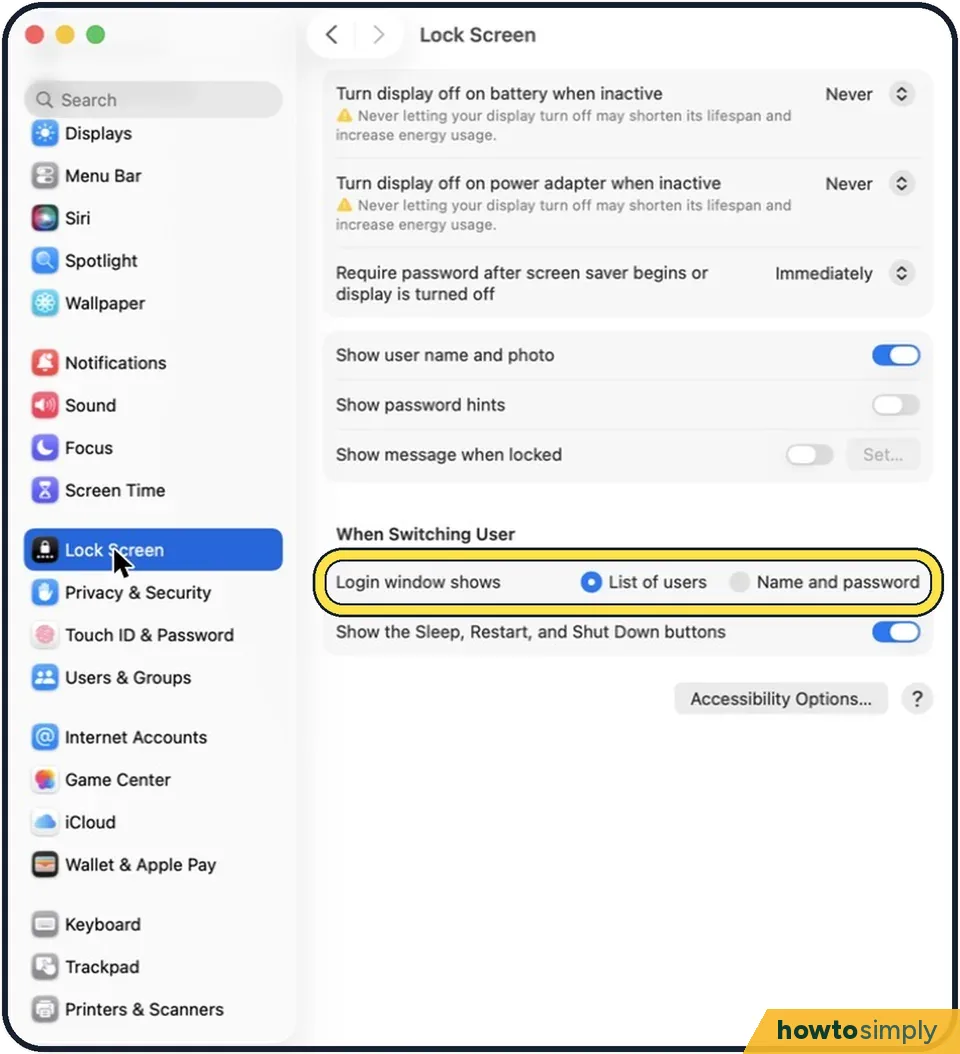
Select Name and password
The row is called Login window shows. In the picture, List of users is selected.
- 4
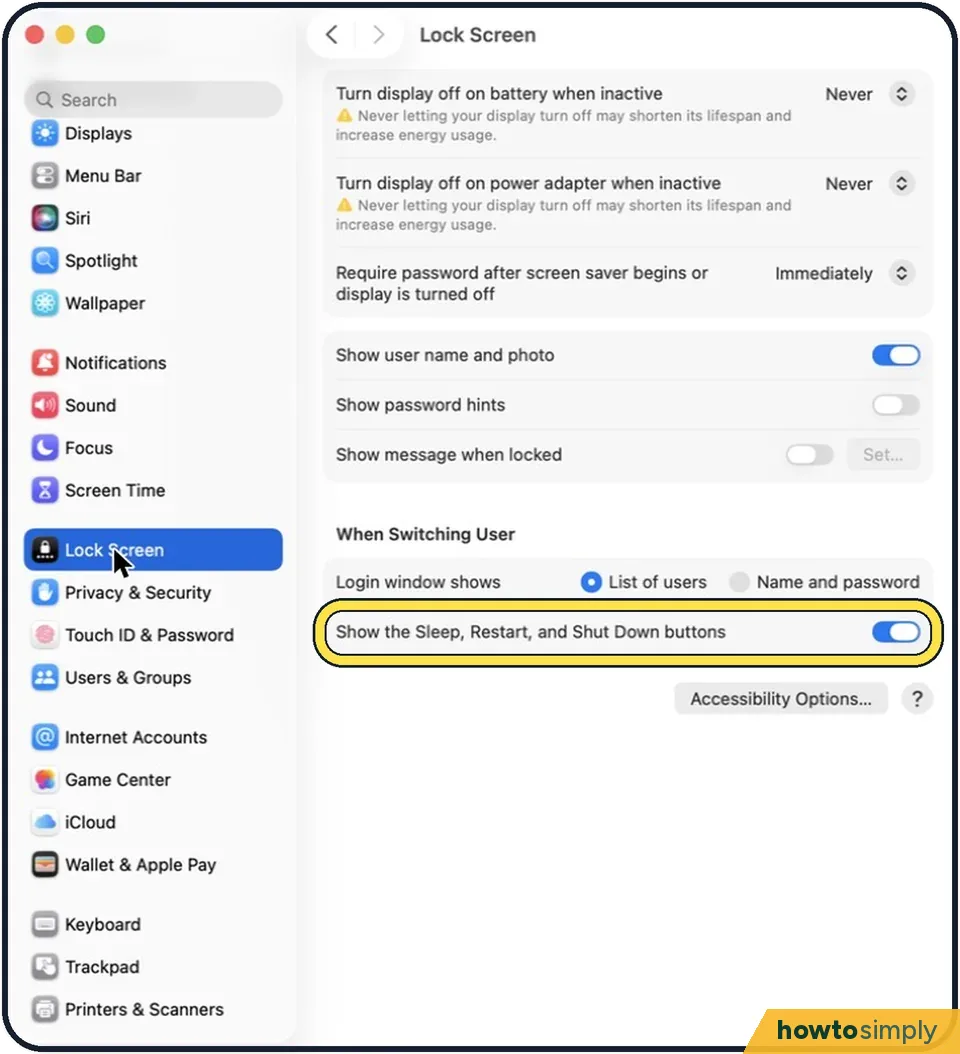
Decide about the buttons
Show the Sleep, Restart, and Shut Down buttons displays these buttons in the login window. In the picture it is on.

If you do not see this option
- Lock Screen is not in view Apple says you might have to scroll the sidebar to find it. In our picture Lock Screen sits above Privacy & Security. Source: Change Lock Screen settings on Mac
- Your Mac has System Preferences Apple's guide for macOS Monterey 12 says an administrator sets how the login window looks in System Preferences, Users & Groups, Login Options. If the padlock in the bottom-left corner is shut, click it first. Source: Set up other users on your Mac (macOS Monterey 12)
If this does not work
- The Mac logs in to an account by itself at startup Automatic login is on. Apple says the Mac then logs in to that account at startup; the setting is the Automatically log in as menu in Users & Groups.
- Someone forgets their password Apple says with Show password hints on, the hint appears after three wrong passwords in a row, or when the question mark is clicked.
- Not sure of the exact account name? Before you switch, each person should check the name of their account in Users & Groups. With Name and password selected, everyone has to enter their username as well as their password, and guessing your own account name at the login window is nobody's idea of fun.
- Want contact details on the login window? A Mac cannot find its own way home, but it can carry a note. Apple describes Show message when locked on the same page, a short message in the login window that can include contact details for a lost Mac. See how to show a message on the Mac lock screen.
Good to know
How soon the Mac asks for the password after the screen saver or sleep begins is set on the same page: how to lock the screen on a Mac.
From now on everyone has to enter both their username and password at the login window. That is all that changes: accounts, passwords and files stay as they were. If the household misses the friendly faces, open Lock Screen again and choose List of users under Login window shows.
Apple also lists Accessibility Options on the same page, to make logging in easier for people who rely on accessibility features.
About this guide
It is a bit like pinning the guest list to the front door. The login window of a Mac can show a list of its users, so people simply choose their username from that list when logging in. The other choice, Name and password, makes everyone type both their username and password.
The screenshots show System Settings on macOS Tahoe 26.
- Device
- Mac
- Shown on
- macOS Tahoe 26 (MacBook Pro)
- App
- System Settings
- Path
- System Settings › Lock Screen
- Real screenshots
- 4 of 4 steps
- Checked
- October 2026
- Sources
- 3 official, linked below
Sources
Links checked October 2026. Menus and features can change with updates.Did this guide work for you?
Sorry about that. What happened?
Get new guides by email
Our newest guides, sent to your inbox. Free, and you can unsubscribe in one click.
We'll email you to confirm. How we use your email
Follow howtosimply on Facebook
We share our new guides on our Facebook page, so the next fix turns up in your feed.
Follow on Facebook