How to turn on subtitles and captions on an iPhone
- Shown on
- iPhone 17e
- Software
- iOS 27.0.1More iOS 27 guides
- Checked
- October 2026
- Real screenshots
- 5 of 5 steps
- Where it is
- Settings › Accessibility › Subtitles & Captioning
Quick answer
Open Settings, tap Accessibility, scroll to Hearing and tap Subtitles & Captioning. Switch on Closed Captions + SDH. After that, whenever a video has closed captions or subtitles for the deaf and hard of hearing, the iPhone uses them first.
Watch these steps
 Watch on YouTubeA video of this task from our YouTube channel · opens YouTube
Steps
- 1
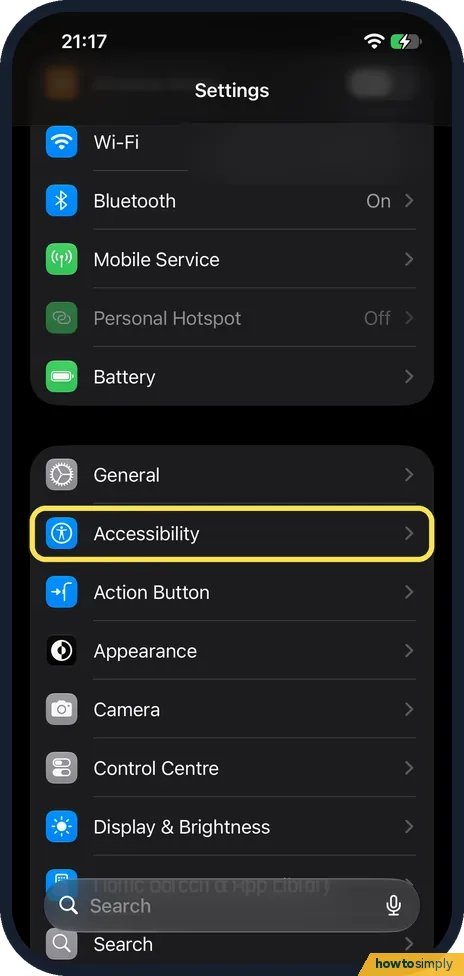
Open Settings and tap Accessibility
Open Settings and scroll down past Battery.
On our iPhone 17e Accessibility sat directly below General and above Action Button. Tap it.
- 2
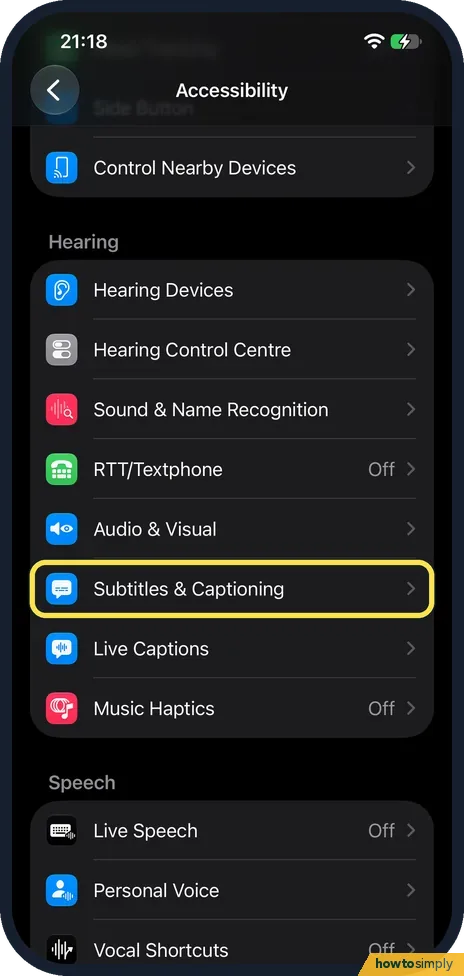
Scroll to Hearing and tap Subtitles & Captioning
On our iPhone 17e the Hearing group had eight rows, from Hearing Devices to Music Haptics, above Speech.
Subtitles & Captioning was between Audio & Visual and Live Captions. Tap it.
- 3
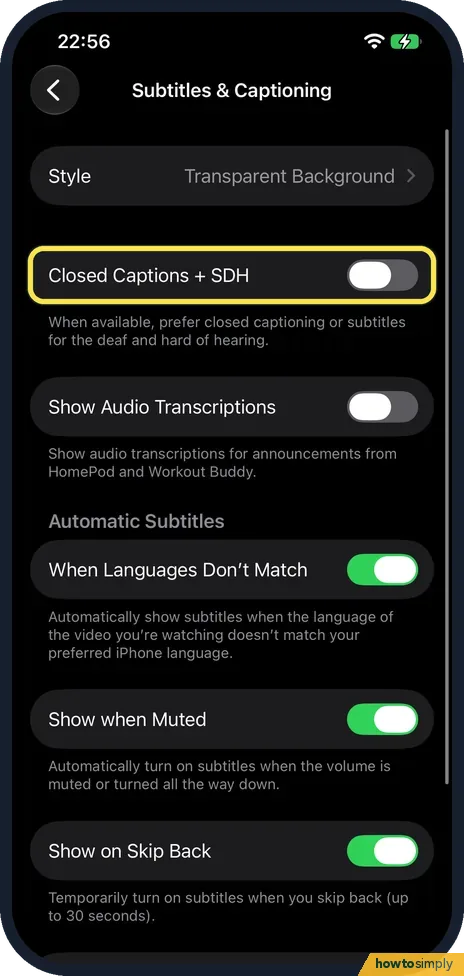
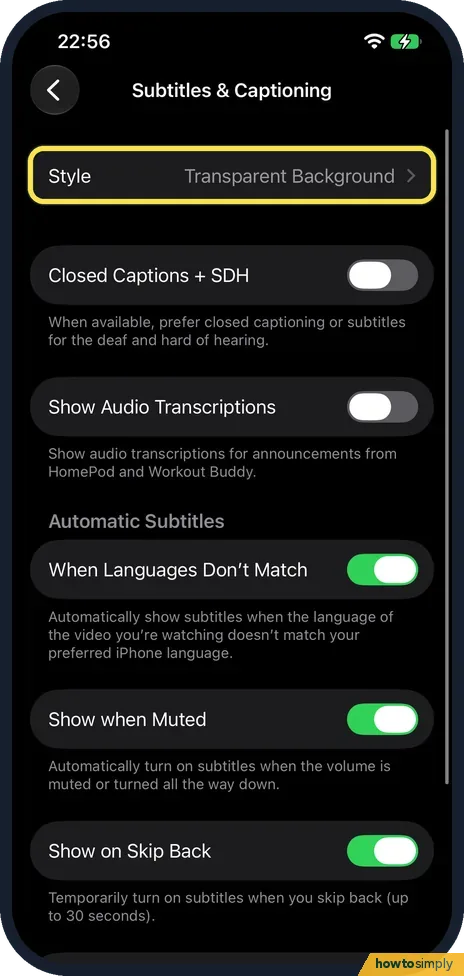
Switch on Closed Captions + SDH
The note under it says the iPhone will choose closed captioning or subtitles for the deaf and hard of hearing whenever they're offered.
On our iPhone 17e it was off.
Show Audio Transcriptions, the next switch, is for announcements from HomePod and Workout Buddy, and was off too.
- 4
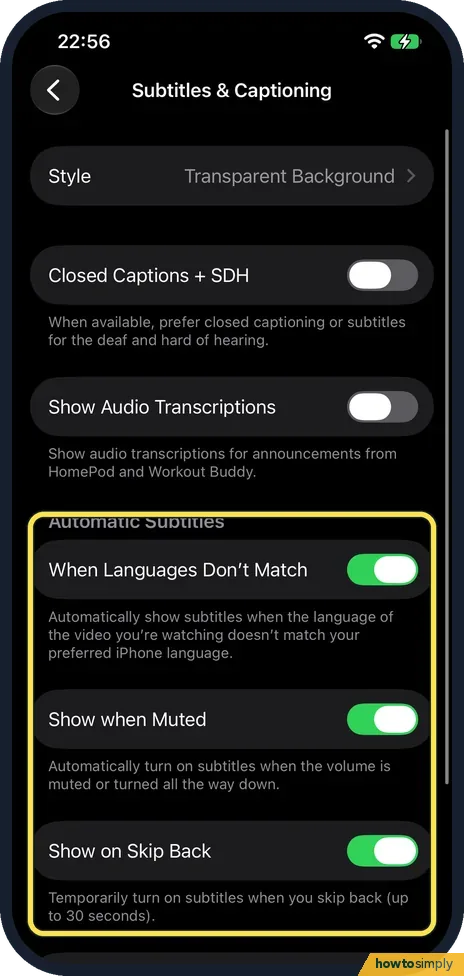
Check the automatic subtitles
On our iPhone 17e the three switches under Automatic Subtitles were on: When Languages Don't Match, Show when Muted and Show on Skip Back.
They show subtitles when the video's language does not match your preferred iPhone language, when the volume is muted or turned all the way down, and for up to 30 seconds when you skip back.
Apple says automatic subtitles also include generated subtitles for videos in Photos and Messages.
- 5
Change how the captions look
Tap Style at the top of the page to pick how subtitles look.
On our iPhone 17e it was set to Transparent Background.
If you do not see this option
- You cannot find Subtitles & Captioning. It is in the Hearing group of Accessibility. On our iPhone 17e it was the sixth of eight rows, between Audio & Visual and Live Captions.
- Your iPhone does not show generated subtitles. Apple says generated subtitles, and subtitles in more than one language, need iOS 27 or newer on an iPhone 15 Pro, iPhone 15 Pro Max or an iPhone 16 model or later. By Apple's wording this includes the iPhone 17e. Generated subtitles are in English (US and Canada), for videos that have none. Sources: Display subtitles and captions on iPhone, Display subtitles and captions on iPhone (iOS 26), Accessibility features for hearing on iPhone
- The Automatic Subtitles switches are not on the page. Apple's guide puts them behind an Automatic Subtitles row: tap it to see the three switches. On our iPhone 17e they were on the Subtitles & Captioning page itself, under the Automatic Subtitles heading. Sources: Display subtitles and captions on iPhone, Display subtitles and captions on iPhone (iOS 26), Accessibility features for hearing on iPhone
- Your iPhone runs iOS 26. Apple's iOS 26 guide lists only Closed Captions + SDH and Style on this page, not the Automatic Subtitles switches. Sources: Display subtitles and captions on iPhone, Display subtitles and captions on iPhone (iOS 26), Accessibility features for hearing on iPhone
If this does not work
- No captions appear in a video. Apple says supported apps let you switch on subtitles and closed captions when the video comes with them, and some iPhones can make English subtitles when it doesn't (see above). Check the list under Subtitles in the player.
- You cannot pick a translated language. Apple says translated subtitles need English subtitles in the video and more than one preferred language in Settings. If either is missing, the choice is simply not offered, so it is nothing you did wrong. Then tap Languages in the player and choose one.
- Subtitles appear when you did not ask for them. On our iPhone 17e When Languages Don't Match, Show when Muted and Show on Skip Back were all on. If your habit is to watch with the phone muted, Show when Muted is the one doing it. Switch off the ones you do not want on the Subtitles & Captioning page.
Good to know
In an app that supports it, tap the subtitles button on the player during playback, tap Subtitles and pick the subtitles or captions you want. Subtitles made from spoken audio are labelled Transcribed, and translated ones Translated.
Under Style you can use an existing caption style or create your own, with font, size, colour, background and opacity, so if the standard look is hard to read on a busy picture, you are not stuck with it.
Text too small in general? How to make text bigger on an iPhone.
About this guide
Missing what is said in a video is tiring, whether you cannot hear well, the room is loud or the sound has to stay off. That is when subtitles help. The iPhone has one switch for captions in general and three more that bring subtitles up by themselves in certain moments. Knowing about the automatic ones saves you a puzzle later, when subtitles turn up on a video you never asked them for.
- Device
- iPhone
- Shown on
- iOS 27.0.1 (iPhone 17e)
- App
- Settings
- Path
- Settings › Accessibility › Subtitles & Captioning
- Real screenshots
- 5 of 5 steps
- Checked
- October 2026
- Sources
- 3 official, linked below
What changed: the screenshots are now our own iPhone 17e on iOS 27.0.1, dark mode, and the wording is checked against those screens and Apple's iOS 27 guide.
Sources
Links checked October 2026. Menus and features can change with updates.Did this guide work for you?
Sorry about that. What happened?
Get new guides by email
Our newest guides, sent to your inbox. Free, and you can unsubscribe in one click.
We'll email you to confirm. How we use your email
Follow howtosimply on Facebook
We share our new guides on our Facebook page, so the next fix turns up in your feed.
Follow on Facebook