iPhone screen zoomed in and stuck? How to turn Zoom off
- Shown on
- iPhone 17e
- Software
- iOS 27.0.1More iOS 27 guides
- Checked
- October 2026
- Real screenshots
- 4 of 4 steps
- Where it is
- Settings › Accessibility › Zoom
Quick answer
Double-tap the screen with three fingers. The picture returns to normal size. Then open Settings, Accessibility, Zoom and switch Zoom off. The three-finger gestures then no longer zoom the screen.
Watch these steps
 Watch on YouTubeA video of this task from our YouTube channel · opens YouTube
Steps
- 1
Double-tap with three fingers
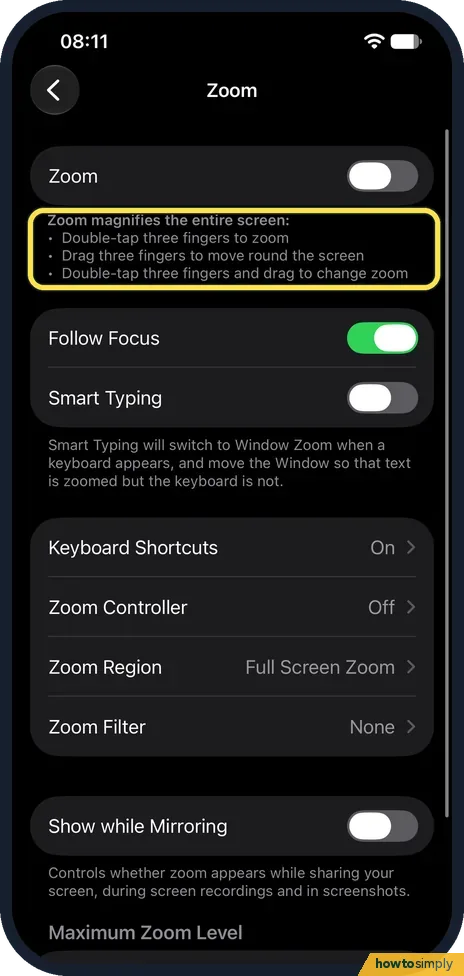
Tap the screen twice, quickly, with three fingers at the same time. The screen zooms out to its normal size. Our picture is not a zoomed-in screen: it shows the note on the Zoom settings page of our iPhone 17e with iOS 27, which lists this gesture under the switch: Double-tap three fingers to zoom.
- 2
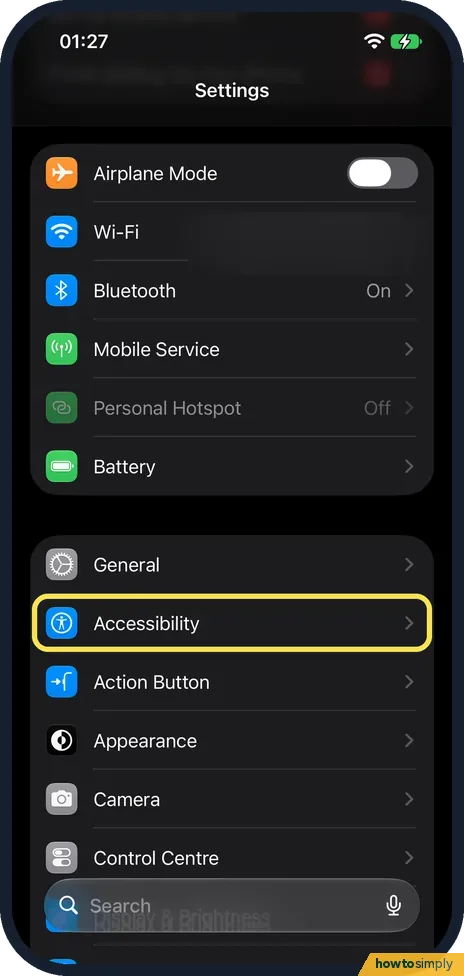
Open Settings and tap Accessibility
Now that you can see the whole screen, switch the feature off. On our iPhone 17e with iOS 27, Accessibility was just below General.
- 3
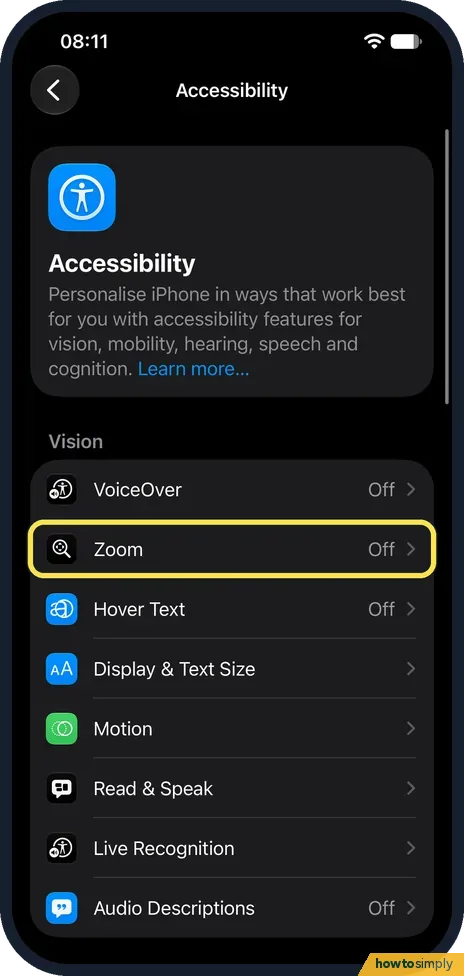
Tap Zoom
It is the second row in the Vision group, under VoiceOver. On our iPhone 17e with iOS 27 it showed Off.
- 4
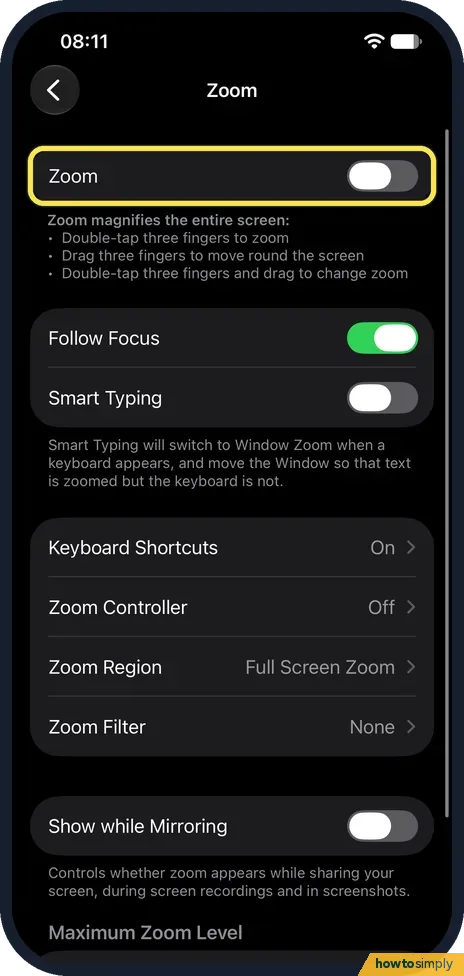
Switch Zoom off
Turn off the Zoom switch at the top. The three-finger gestures described under it then no longer do anything, so the screen cannot zoom in by accident. On our iPhone 17e with iOS 27 Zoom was off, and the page also listed Follow Focus, Smart Typing, Keyboard Shortcuts, Zoom Controller, Zoom Region and Zoom Filter.
If you do not see this option
- Zoom is Off but everything is still large Check Display Zoom, which Apple lists under Magnify the entire iPhone screen. Apple's iOS 27 guide puts it under Settings, Appearance, Display Zoom. Choose Default there for the normal size; our Display Zoom guide shows that page on the iPhone 17e. Source: Adjust iPhone display and text settings (iOS 27)
- The magnified screen hides the Settings rows Double-tap with three fingers first, then open Settings. On our iPhone 17e the note on the Zoom page said: Double-tap three fingers to zoom, and Drag three fingers to move round the screen.
If this does not work
- Only part of the screen is magnified, in a window That is Window Zoom. On our iPhone 17e the Zoom page had Zoom Region set to Full Screen Zoom, and a Smart Typing switch with the note that it switches to Window Zoom when a keyboard appears. Switch Zoom off at the top of that page.
- Zoom keeps coming back Check the Accessibility Shortcut. Apple says triple-clicking the side button turns on or off the features chosen under Settings, Accessibility, Accessibility Shortcut. There, select the features you want.
- The three-finger double-tap does not zoom out Apple says you can also turn Zoom off from a computer: connect the iPhone, open Finder (macOS Catalina or later) or iTunes (macOS Mojave or earlier, or a PC), select it, select Configure Accessibility, deselect the Zoom checkbox and click OK.
Good to know
The note on the Zoom page of our iPhone 17e also says: Double-tap three fingers and drag to change zoom.
While Zoom is on, you move around the enlarged screen by dragging with three fingers.
Apple lists Display Zoom under Magnify the entire iPhone screen. Apple's iOS 27 guide puts it under Settings, Appearance, Display Zoom. Our screenshots of it are in how to change Display Zoom on an iPhone.
If you want larger text without magnifying everything: how to make text bigger on an iPhone.
About this guide
If your Home Screen icons look huge or blown up to fill the screen, Zoom may be switched on.
- Device
- iPhone
- Shown on
- iOS 27.0.1 (iPhone 17e)
- App
- Settings
- Path
- Settings › Accessibility › Zoom
- Real screenshots
- 4 of 4 steps
- Checked
- October 2026
- Sources
- 3 official, linked below
What changed: the screenshots are now our own iPhone 17e on iOS 27.0.1, dark mode, and the wording is checked against those screens and Apple's iOS 27 guide.
Sources
Links checked October 2026. Menus and features can change with updates.Did this guide work for you?
Sorry about that. What happened?
Get new guides by email
Our newest guides, sent to your inbox. Free, and you can unsubscribe in one click.
We'll email you to confirm. How we use your email
Follow howtosimply on Facebook
We share our new guides on our Facebook page, so the next fix turns up in your feed.
Follow on Facebook