How to turn on Live Captions on an iPhone
- Shown on
- iPhone 17e
- Software
- iOS 27.0.1More iOS 27 guides
- Checked
- October 2026
- Real screenshots
- 5 of 5 steps
- Where it is
- Settings › Accessibility › Live Captions
Quick answer
Open Settings, tap Accessibility, then Live Captions under Hearing, and switch on Live Captions. After that, the iPhone turns spoken audio into text in any app, for example FaceTime or Podcasts, and for conversations going on around you.
Watch these steps
 Watch on YouTubeA video of this task from our YouTube channel · opens YouTube
Steps
- 1
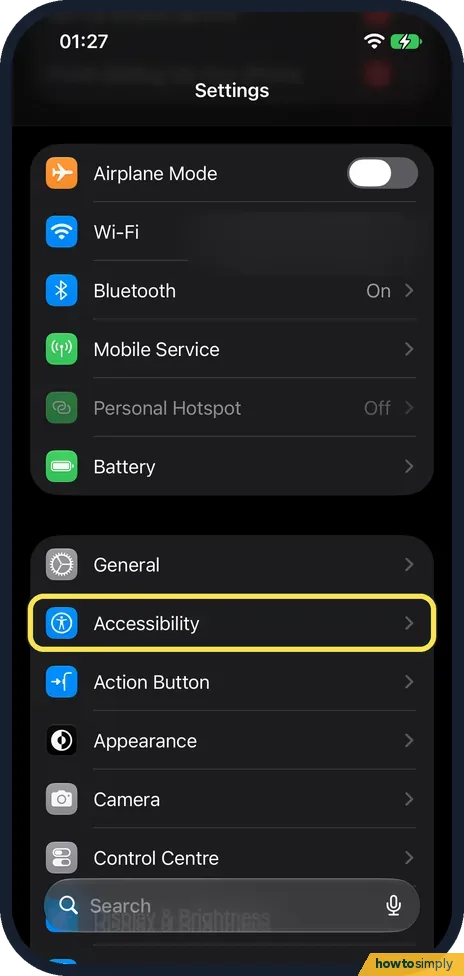
Open Accessibility
Open Settings and tap Accessibility. On our iPhone 17e with iOS 27, it is right below General.
- 2
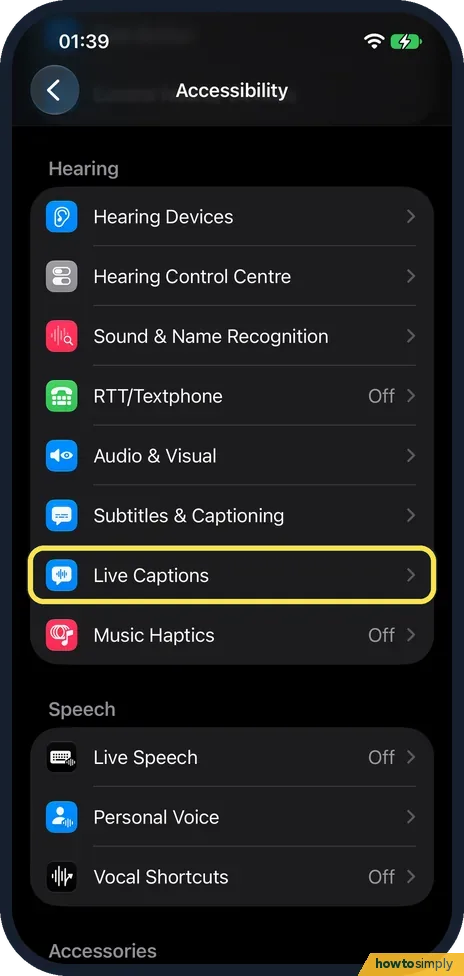
Tap Live Captions
Scroll down to the Hearing group. On our iPhone 17e with iOS 27, Live Captions is the second-last row of Hearing, below Subtitles & Captioning and above Music Haptics.
- 3
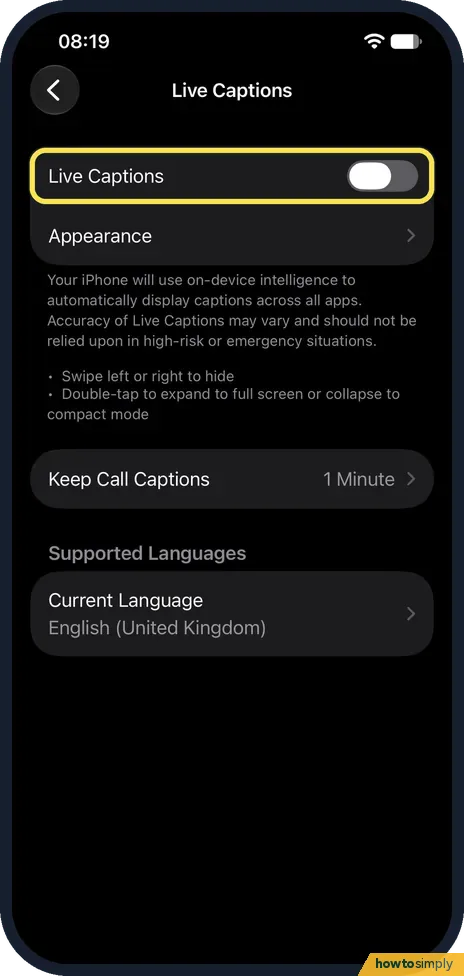
Switch on Live Captions
Tap the switch at the top. On our iPhone 17e with iOS 27 it was off in our picture, with Appearance below it. Apple says the iPhone then writes out spoken audio from apps, or from people talking near you, in a Live Captions window.
- 4
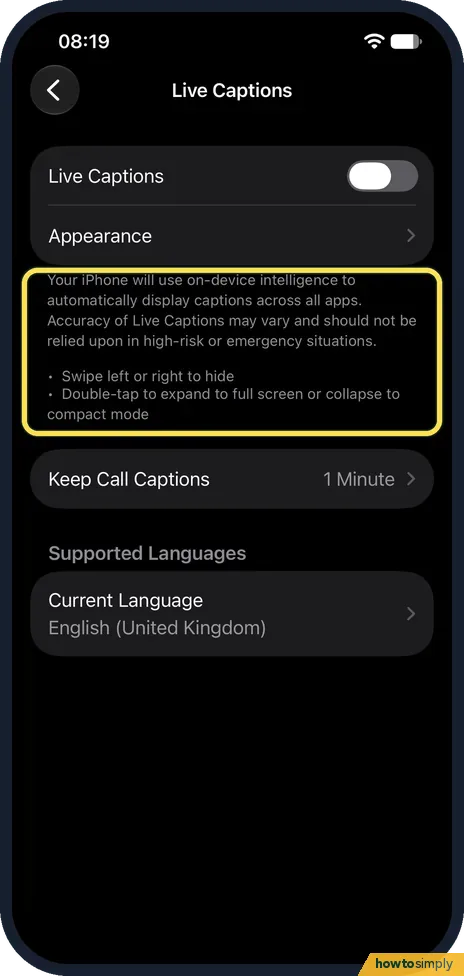
Learn the gestures
The note on the page explains them: swipe the panel left or right to hide it, double-tap it to switch between full screen and the small panel. Apple warns that the accuracy can vary. Apple adds that you can drag the window to move it, and tap Live Captions to choose Microphone for a conversation in the room or iPhone Audio for sound from the phone.
- 5
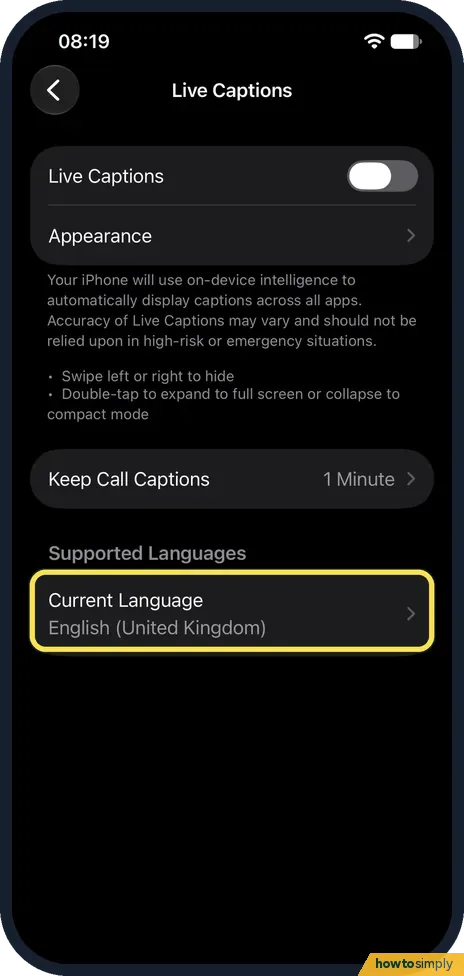
Check the language
Current Language shows what it listens for: English (United Kingdom) on our phone. Keep Call Captions sets how long call captions are kept. Apple says 1 Hour lets you copy or screenshot call captions and plays a short announcement to everyone on the call, while 1 Minute clears them when the call ends. On our iPhone 17e with iOS 27, it was set to 1 Minute.
If you do not see this option
- No Live Captions row Apple says Live Captions needs an iPhone 11 or newer and isn't offered in every language, country or region. On our iPhone 17e with iOS 27 it is under Accessibility, Hearing. Source: Get live captions of spoken audio on iPhone
- Your language is not offered Current Language shows the language it listens for. On our iPhone 17e with iOS 27 it read English (United Kingdom), under Supported Languages. Apple says Live Captions is not available in all languages. Source: Get live captions of spoken audio on iPhone
If this does not work
- The captions are wrong Apple says Live Captions won't always be accurate, so don't depend on it when the stakes are high or in an emergency.
- You cannot copy or screenshot call captions Apple says this works only with Keep Call Captions set to 1 Hour. On our iPhone 17e with iOS 27 it was set to 1 Minute.
- The caption window has gone Apple says the window hides by itself when no audio is detected, and a swipe left or right on it hides it too. Apple says you tap a button to restore it.
Good to know
Do not rely on Live Captions in emergencies or high-risk situations, as the page itself says.
About this guide
Live Captions turns speech into text on the screen as it happens: a FaceTime call, or someone talking next to you. The page says it uses on-device intelligence.
- Device
- iPhone
- Shown on
- iOS 27.0.1 (iPhone 17e)
- App
- Settings
- Path
- Settings › Accessibility › Live Captions
- Real screenshots
- 5 of 5 steps
- Checked
- October 2026
- Sources
- 1 official, linked below
What changed: the screenshots are now our own iPhone 17e on iOS 27.0.1, dark mode, and the wording is checked against those screens and Apple's iOS 27 guide.
Sources
Links checked October 2026. Menus and features can change with updates.Did this guide work for you?
Sorry about that. What happened?
Get new guides by email
Our newest guides, sent to your inbox. Free, and you can unsubscribe in one click.
We'll email you to confirm. How we use your email
Follow howtosimply on Facebook
We share our new guides on our Facebook page, so the next fix turns up in your feed.
Follow on Facebook