How to open Magnifier with the Action button on an iPhone
- Shown on
- iPhone 17e
- Software
- iOS 27.0.1More iOS 27 guides
- Checked
- October 2026
- Real screenshots
- 4 of 4 steps
- Where it is
- Settings › Action Button › Magnifier
Quick answer
Open Settings, tap Action Button and swipe through the choices until you reach Magnifier. Then press and hold the Action button to open Magnifier and drag its slider to zoom. The setting changes as soon as you swipe, so swipe back to Silent Mode to undo it.
Steps
- 1
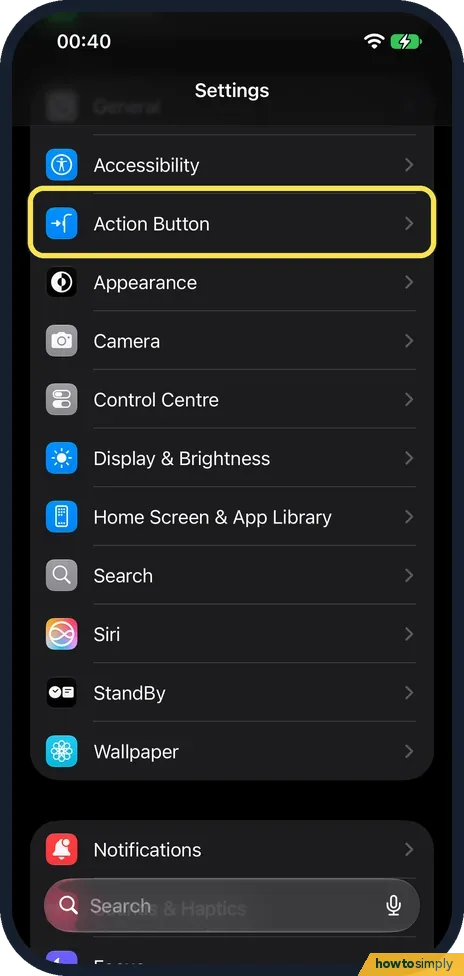
Tap Action Button in Settings
Action Button is near the top of Settings, under Accessibility.
- 2
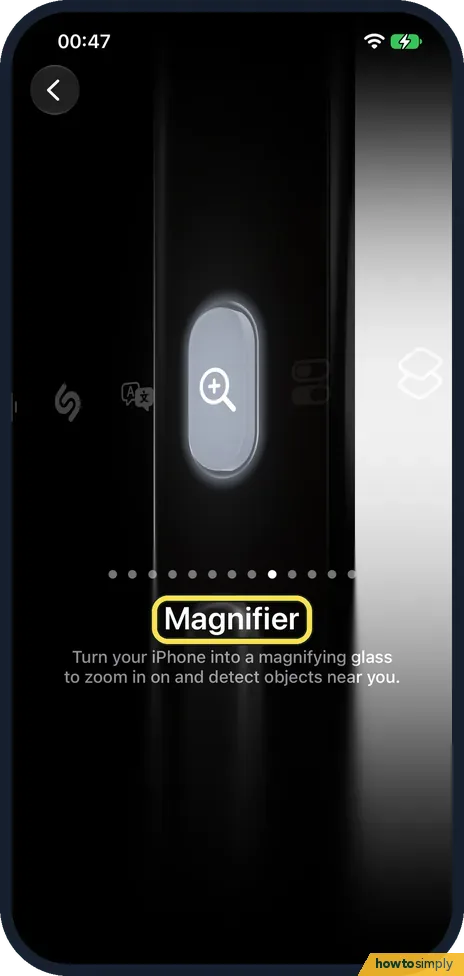
Swipe to Magnifier
Swipe left or right through the choices. Ours had 13: Silent Mode, Focus, Camera, Visual Intelligence, Torch, Voice Memo, Recognise Music, Translate, Magnifier, Controls, Shortcut, Accessibility and No Action. Stop on Magnifier, the ninth. The text under it reads: Turn your iPhone into a magnifying glass to zoom in on and detect objects near you.
- 3
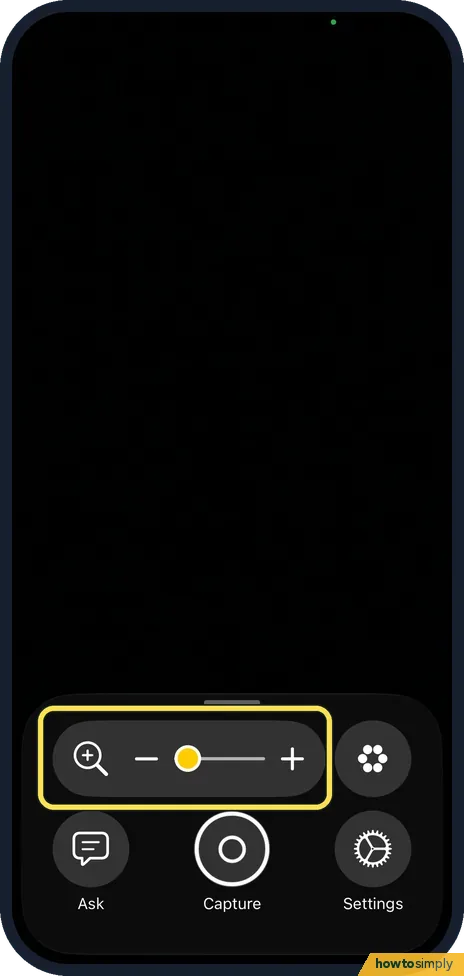
Press and hold the Action button
Magnifier opens with the camera view, a zoom slider and Ask, Capture and Settings buttons. Drag the slider to zoom.
- 4
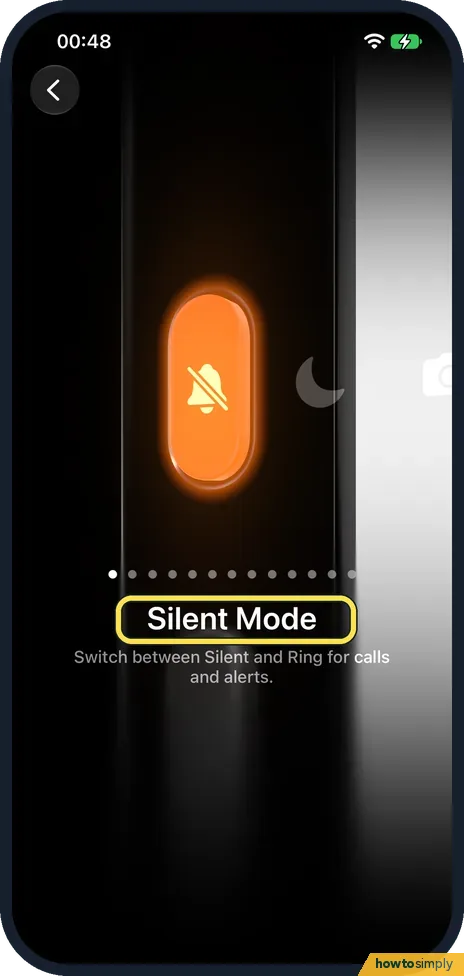
Swipe back to undo it
There is no Save button: whichever action is showing is the one in use. Ours is back on Silent Mode.
If you do not see this option
- No Action Button row in Settings? Only some iPhones have it: Apple names the Action button on iPhone 15 Pro models, iPhone 16e and iPhone 17e, and iPhone 16 and newer models that have Camera Control. Apple says Magnifier can open from a shortcut on an iPhone button, from a tap on the back of the phone, or from Control Centre. On supported models, the Camera Control can open Magnifier too. Source: Magnify or get information about things around you with Magnifier on iPhone
- Magnifier is not the choice showing? Swiping changes the button straight away, and there is no Save button. Swipe back until the name under the picture reads Magnifier.
If this does not work
- Magnifier is dark? Hold the iPhone so its camera points at the words or thing you want to enlarge. Ours was dark with nothing in front of the camera.
- The button still silences the phone? Open Settings, Action Button again and check Magnifier is the one showing.
- A quick press does nothing? The Action button needs a press and hold, as in step 3. Keep holding until Magnifier opens rather than tapping it.
- Small print is still blurry? With the camera on the text, slide the zoom control to get closer or further away.
Good to know
To hold the picture still, Apple says to tap the capture button to freeze the frame for a moment; it is not saved to Photos.
For other uses of the button, see how to change what the Action button does on an iPhone.
While Magnifier is open it uses the camera, so the green dot appears in the status bar. Apple says green means the camera, or the camera and microphone, are in use by an app. That is expected here and goes away when you close Magnifier. For the other colour, see what the green and orange dots mean on an iPhone.
About this guide
Magnifier turns the camera into a magnifying glass for small print. You can choose what the Action button does.
- Device
- iPhone
- Shown on
- iOS 27.0.1 (iPhone 17e)
- App
- Settings
- Path
- Settings › Action Button › Magnifier
- Real screenshots
- 4 of 4 steps
- Checked
- October 2026
- Sources
- 4 official, linked below
The screenshots are from our iPhone 17e with iOS 27.0.1, in Dark mode. Ours was set to Silent Mode; we set it back afterwards.
Sources
- Apple iPhone User Guide: Magnify or get information about things around you with Magnifier on iPhone
- Apple Support: Use the volume buttons, side button, and other controls on your iPhone
- Apple Support: About the orange and green indicators in your iPhone status bar
- Apple iPhone User Guide: Silence iPhone
Did this guide work for you?
Sorry about that. What happened?
Get new guides by email
Our newest guides, sent to your inbox. Free, and you can unsubscribe in one click.
We'll email you to confirm. How we use your email
Follow howtosimply on Facebook
We share our new guides on our Facebook page, so the next fix turns up in your feed.
Follow on Facebook