Attention Aware features on iPhone: what they do and how to turn them off (iOS 27)
- Shown on
- iPhone 17e
- Software
- iOS 27.0.1More iOS 27 guides
- Checked
- October 2026
- Real screenshots
- 3 of 3 steps
- Where it is
- Settings › Accessibility › Face ID & Attention
Quick answer
Attention-Aware Features let the iPhone check that you are looking at it: it won't dim the display while you do, and it lowers the volume of some alerts. To turn them off, open Settings, Accessibility, Face ID & Attention, and switch off Attention-Aware Features.
Steps
- 1
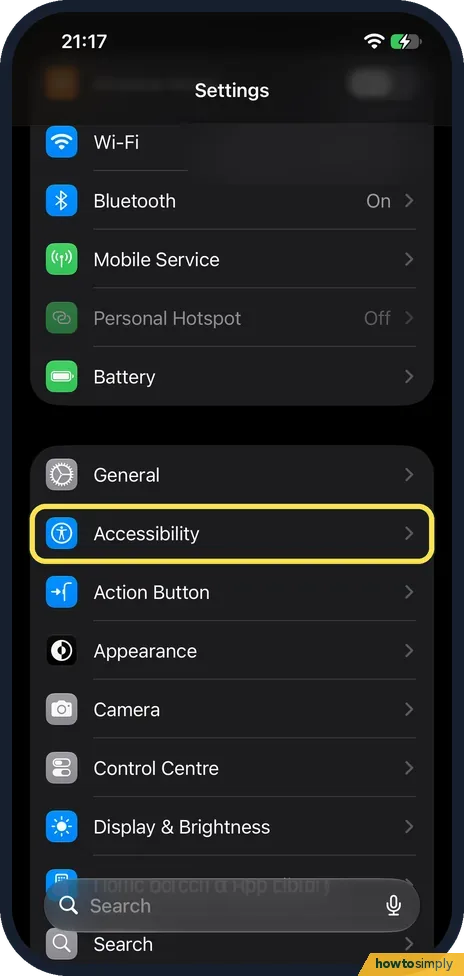
Open Settings and tap Accessibility
Scroll down the main Settings list to Accessibility, or type Accessibility into the Search field at the bottom of the screen.
On our iPhone 17e Accessibility is directly below General and above Action Button, in the same group.
- 2
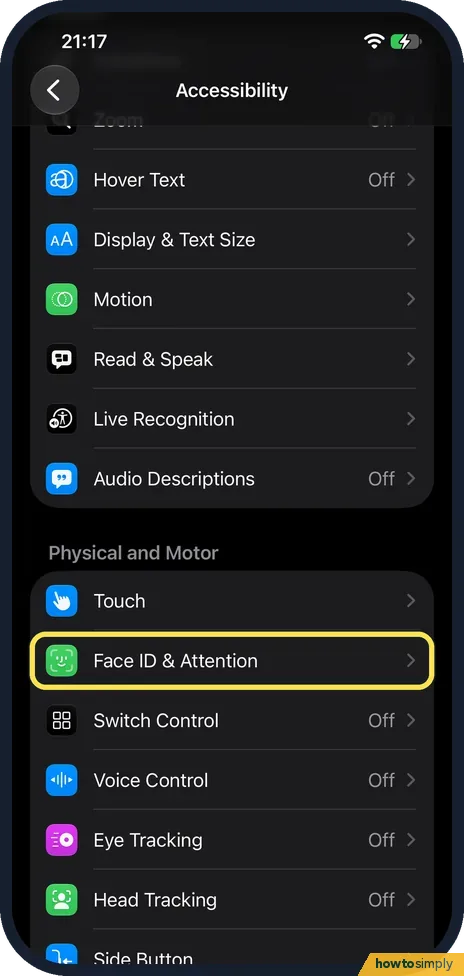
Tap Face ID & Attention
Scroll the Accessibility page down until you reach Physical and Motor.
On our iPhone 17e Face ID & Attention is the second row there, below Touch and above Switch Control.
- 3
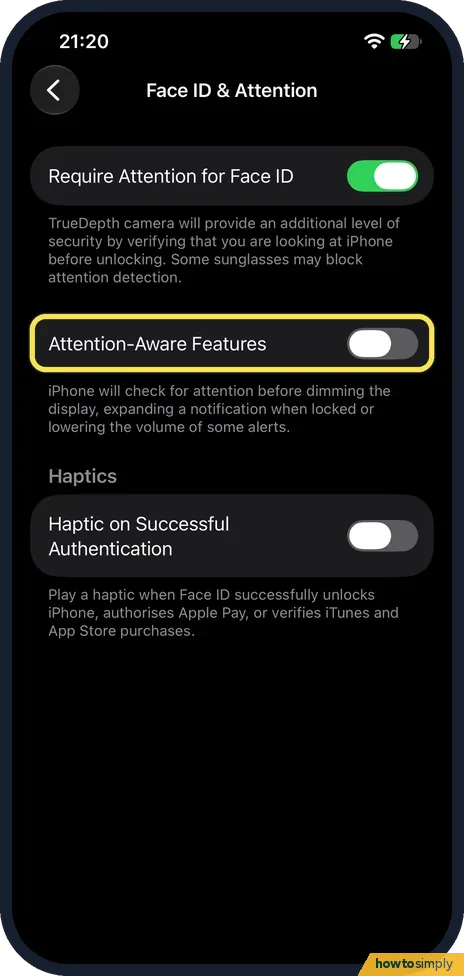
Switch off Attention-Aware Features
Tap the Attention-Aware Features switch so it turns grey. The note under it explains that the iPhone looks for your attention before it dims the screen, opens up a notification on the Lock Screen or turns down some alerts.
Leave Require Attention for Face ID, the switch above it, as it is: it is a separate security setting for unlocking.
On our iPhone 17e Attention-Aware Features was already off, Require Attention for Face ID was on and Haptic on Successful Authentication was off.
If you do not see this option
- You look under Face ID & Passcode. Apple's iOS 27 guide says the same switch is there as well and gives both paths: Settings, Accessibility, Face ID & Attention, and Settings, Face ID & Passcode. That page asks for your passcode first. Sources: Turn Attention Aware features on or off on your iPhone or iPad Pro, Change Face ID and attention settings on iPhone, Wake, unlock, and lock iPhone, Accessibility features for mobility on iPhone, Change Face ID and attention settings on iPhone (iOS 26), Keep the iPhone display on longer
- You set up the iPhone with VoiceOver on. Apple says these settings start off switched off if VoiceOver was on while the iPhone was being set up. Sources: Turn Attention Aware features on or off on your iPhone or iPad Pro, Change Face ID and attention settings on iPhone, Wake, unlock, and lock iPhone, Accessibility features for mobility on iPhone, Change Face ID and attention settings on iPhone (iOS 26), Keep the iPhone display on longer
- Your iPhone runs iOS 26. Apple's iOS 26 guide gives the same path: Settings, Accessibility, Face ID & Attention. Sources: Turn Attention Aware features on or off on your iPhone or iPad Pro, Change Face ID and attention settings on iPhone, Wake, unlock, and lock iPhone, Accessibility features for mobility on iPhone, Change Face ID and attention settings on iPhone (iOS 26), Keep the iPhone display on longer
If this does not work
- Alerts still get quieter while you look at the iPhone. Check that you switched off Attention-Aware Features and not Require Attention for Face ID, the switch above it. On our iPhone 17e the note under Attention-Aware Features says it is the one that lowers the volume of some alerts.
- The screen now locks while you are reading. Apple says Attention Aware Features keeps the iPhone from dimming or locking for as long as it can tell you're looking. You can choose how long the iPhone waits before it locks itself. Go to Settings, Display & Brightness, Auto-Lock and choose a longer time; Apple notes this may increase power use.
Good to know
Apple lists the feature for iPhone X and later, except iPhone SE, because it needs the TrueDepth camera.
About this guide
An iPhone with Face ID uses its TrueDepth camera to notice whether you are looking at the screen. While you look, it keeps the display from dimming and makes alerts quieter. Apple says this works even if Face ID itself is not set up. If alerts seem to get quieter on their own while you look at the iPhone, this switch can be the reason. Apple adds that Attention Aware features pick which device should answer when several of them, say a HomePod and an iPhone, hear you say "Hey Siri".
- Device
- iPhone
- Shown on
- iOS 27.0.1 (iPhone 17e)
- App
- Settings
- Path
- Settings › Accessibility › Face ID & Attention
- Real screenshots
- 3 of 3 steps
- Checked
- October 2026
- Sources
- 6 official, linked below
What changed: the screenshots are now our own iPhone 17e on iOS 27.0.1, dark mode, and the wording is checked against those screens and Apple's iOS 27 guide.
Sources
- Apple Support: Turn Attention Aware features on or off on your iPhone or iPad Pro
- Apple iPhone User Guide: Change Face ID and attention settings on iPhone
- Apple iPhone User Guide: Wake, unlock, and lock iPhone
- Apple iPhone User Guide: Accessibility features for mobility on iPhone
- Apple iPhone User Guide: Change Face ID and attention settings on iPhone (iOS 26)
- Apple iPhone User Guide: Keep the iPhone display on longer
Did this guide work for you?
Sorry about that. What happened?
Get new guides by email
Our newest guides, sent to your inbox. Free, and you can unsubscribe in one click.
We'll email you to confirm. How we use your email
Follow howtosimply on Facebook
We share our new guides on our Facebook page, so the next fix turns up in your feed.
Follow on Facebook