How to record video sound in stereo or mono on an iPhone
- Shown on
- iPhone 17e
- Software
- iOS 27.0.1More iOS 27 guides
- Checked
- October 2026
- Real screenshots
- 5 of 5 steps
- Where it is
- Settings › Camera › Record Sound
Quick answer
Open Settings, tap Camera, then Record Sound, and tap Stereo or Mono. iPhone 16 and later can also record Spatial Audio, which is then a third choice on the same page.
Watch these steps
 Watch on YouTubeA video of this task from our YouTube channel · opens YouTube
Steps
- 1
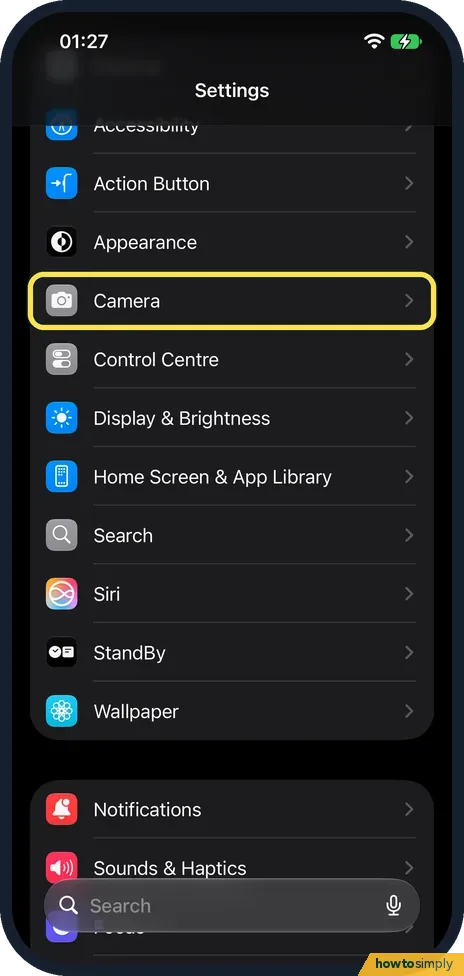
Open Settings and tap Camera
Tap Camera. On our iPhone 17e it is between Appearance and Control Centre.
- 2
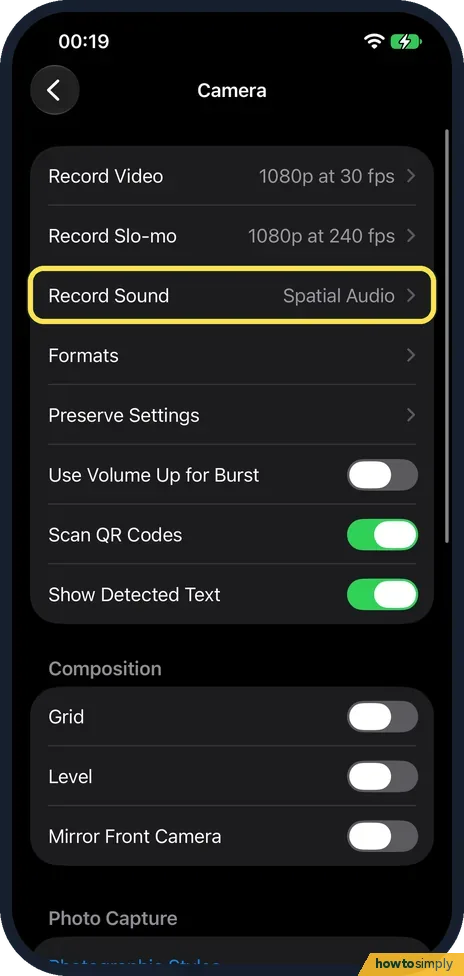
Tap Record Sound
The row shows the current setting at the right. It is the third row, below Record Video and Record Slo-mo. On our iPhone 17e it said Spatial Audio. Apple says that from iPhone 16 onward, Spatial Audio is how the camera records unless you change it.
- 3
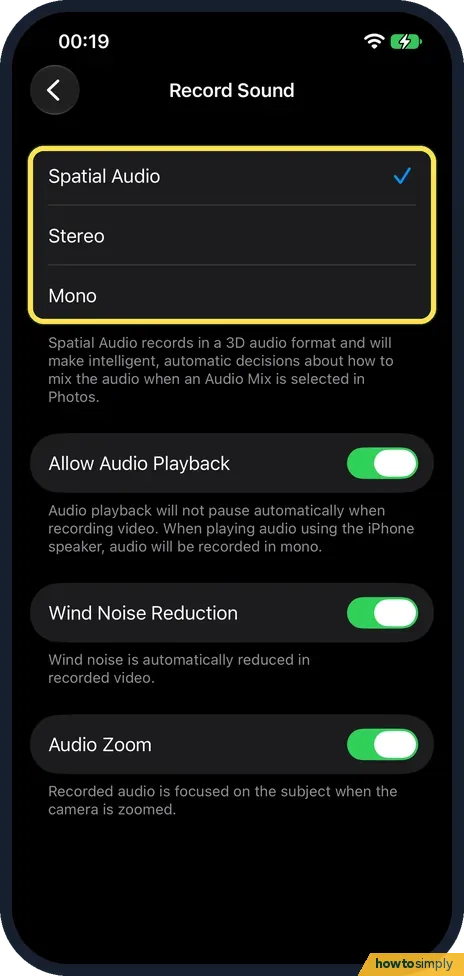
Tap Spatial Audio, Stereo or Mono
The tick shows the active one. Our iPhone 17e offers Spatial Audio, Stereo and Mono, with Spatial Audio ticked. The note below reads: "Spatial Audio records in a 3D audio format and will make intelligent, automatic decisions about how to mix the audio when an Audio Mix is selected in Photos." Apple says earlier iPhone models record in Stereo.
- 4
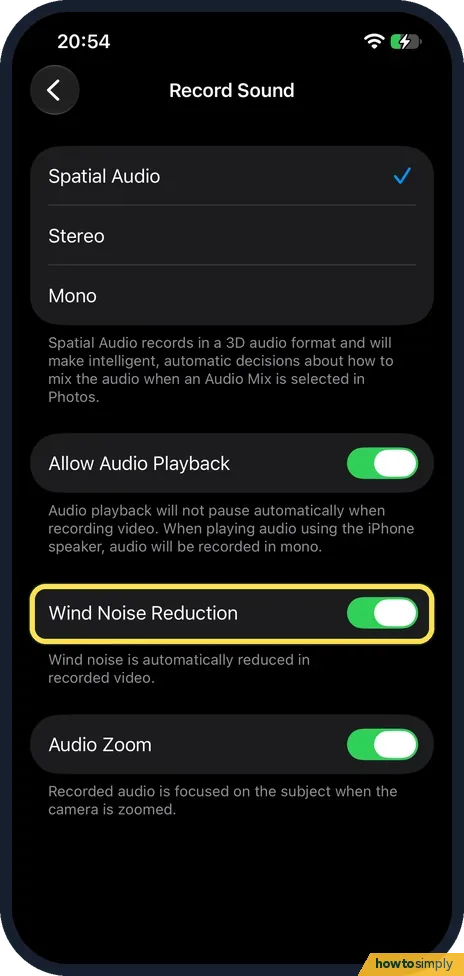
iPhone 16 and later: Wind Noise Reduction
It is on the same Record Sound page, below Allow Audio Playback. On our iPhone 17e it was on, with the note: "Wind noise is automatically reduced in recorded video."
Apple says the reduction applies when you record with Spatial Audio or Stereo.
- 5
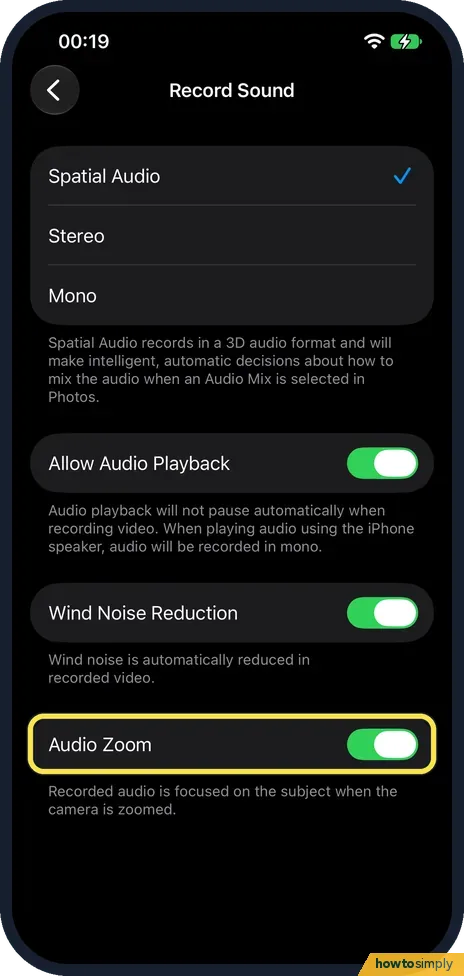
Decide about Audio Zoom
Audio Zoom is the last switch on the same Record Sound page. On our iPhone 17e it was on, with the note: "Recorded audio is focused on the subject when the camera is zoomed." Apple's iPhone User Guide does not describe Audio Zoom, so that on-screen note is all we have.
If you do not see this option
- No Spatial Audio choice Apple says iPhone 16 or later records video in Spatial Audio, and earlier iPhone models record in Stereo. Apple's page on video recording settings also mentions a Record Stereo Sound switch under Settings, Camera, which you turn off to stop stereo recording. Apple does not say which iPhones show it. Our iPhone 17e shows the Record Sound page instead. Sources: Change sound recording options on iPhone, Change video recording settings on iPhone, Trim video length, adjust speed, and edit audio on iPhone
- No Wind Noise Reduction switch Apple describes the switch for iPhone 16 or later. On our iPhone 17e it sits below Allow Audio Playback. Sources: Change sound recording options on iPhone, Change video recording settings on iPhone, Trim video length, adjust speed, and edit audio on iPhone
If this does not work
- The video sounds mono with Stereo or Spatial Audio ticked If music or other audio was playing through the iPhone speaker, that is expected. The note under Allow Audio Playback on our iPhone 17e says audio will then be recorded in mono.
- Wind is still loud in the video Check that Wind Noise Reduction is on. Apple says iPhone 16 and newer cut down wind noise by themselves when you film in Spatial Audio or Stereo. It does not say this for Mono.
- There is no Audio Mix option in Photos Apple says Audio Mix in the Photos app works on videos recorded with Spatial Audio, on supported models. A video recorded in Stereo or Mono will not have it. Set Record Sound back to Spatial Audio for the next video.
Good to know
Music stopping when you start to film is a different switch on this page: how to keep music playing while recording video on an iPhone.
Resolution and frame rate are set under Record Video, at the top of the Camera page: how to change the video resolution and frame rate on an iPhone.
About this guide
Apple describes the three choices by how they play back. On devices that support it, Spatial Audio plays back sound that surrounds you from every direction. Stereo is separated between the left and right ear. Mono is the same in both ears. Apple says videos filmed with Spatial Audio can have their sound adjusted with Audio Mix in the Photos app, on models that support it. Apple lists the Audio Mix choices as Standard, In-Frame, Studio and Cinematic. A Stereo or Mono video does not get Audio Mix. If a video is going into an editing program or onto a device that expects ordinary sound, stereo or mono can be the simpler choice.
- Device
- iPhone
- Shown on
- iOS 27.0.1 (iPhone 17e)
- App
- Settings
- Path
- Settings › Camera › Record Sound
- Real screenshots
- 5 of 5 steps
- Checked
- October 2026
- Sources
- 3 official, linked below
What changed: the screenshots are now our own iPhone 17e on iOS 27.0.1, dark mode, and the wording is checked against those screens and Apple's iOS 27 guide.
Sources
Links checked October 2026. Menus and features can change with updates.Did this guide work for you?
Sorry about that. What happened?
Get new guides by email
Our newest guides, sent to your inbox. Free, and you can unsubscribe in one click.
We'll email you to confirm. How we use your email
Follow howtosimply on Facebook
We share our new guides on our Facebook page, so the next fix turns up in your feed.
Follow on Facebook