How to play background sounds like rain on a Mac
- Shown on
- MacBook Neo
- Software
- macOS 27.0.1More macOS 27 guides
- Checked
- October 2026
- Real screenshots
- 8 of 8 steps
 Real screenshot · MacBook Neo, macOS 27.0.1
Quick answer
Open System Settings, click Accessibility, then Audio under Hearing, and switch on Background sounds. Click Choose… next to Background sound to pick a sound such as Rain, then drag the Background sounds volume slider.
Steps
- 1
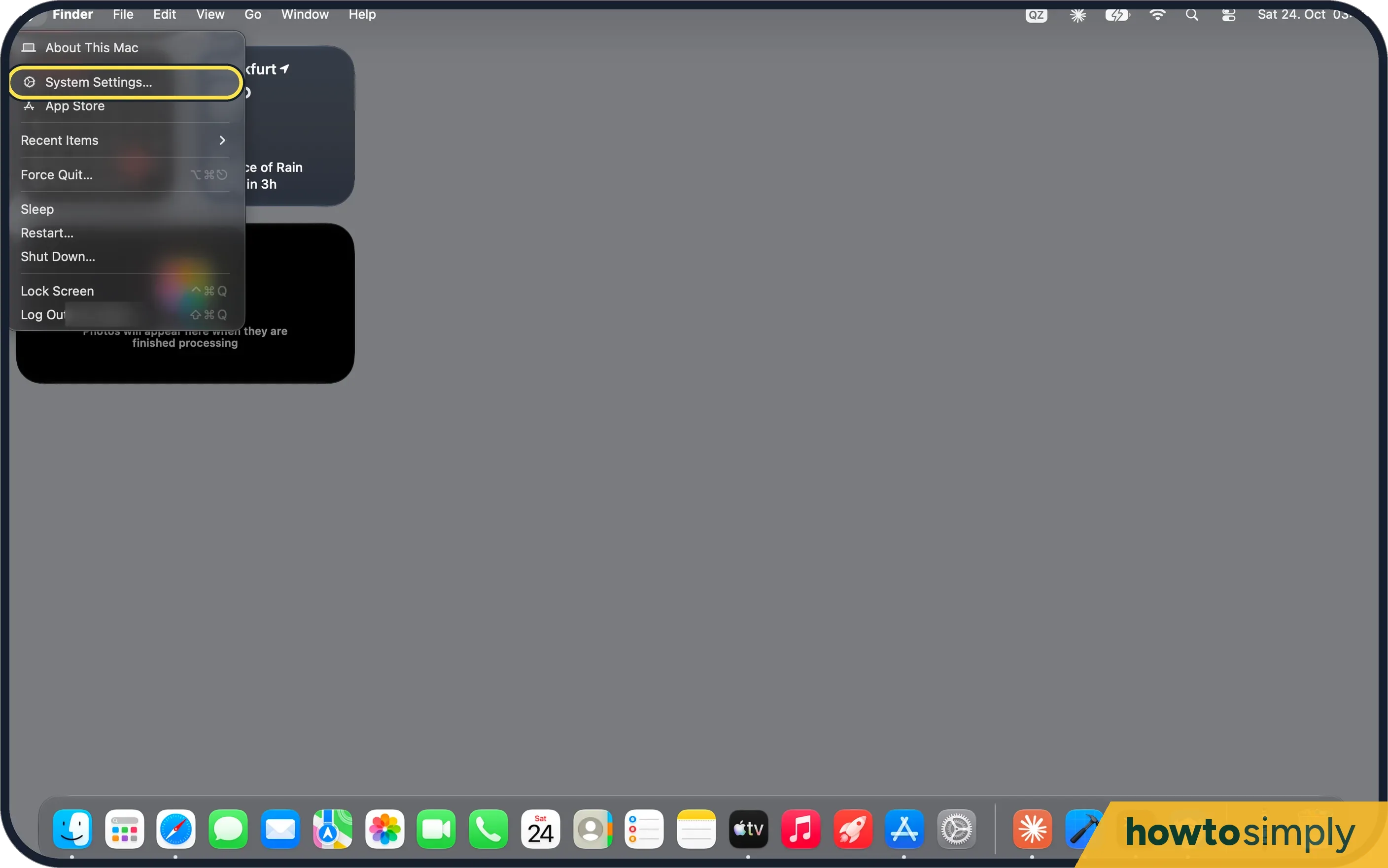
Open System Settings
Click the Apple menu in the top left corner of the screen and choose System Settings….
- 2
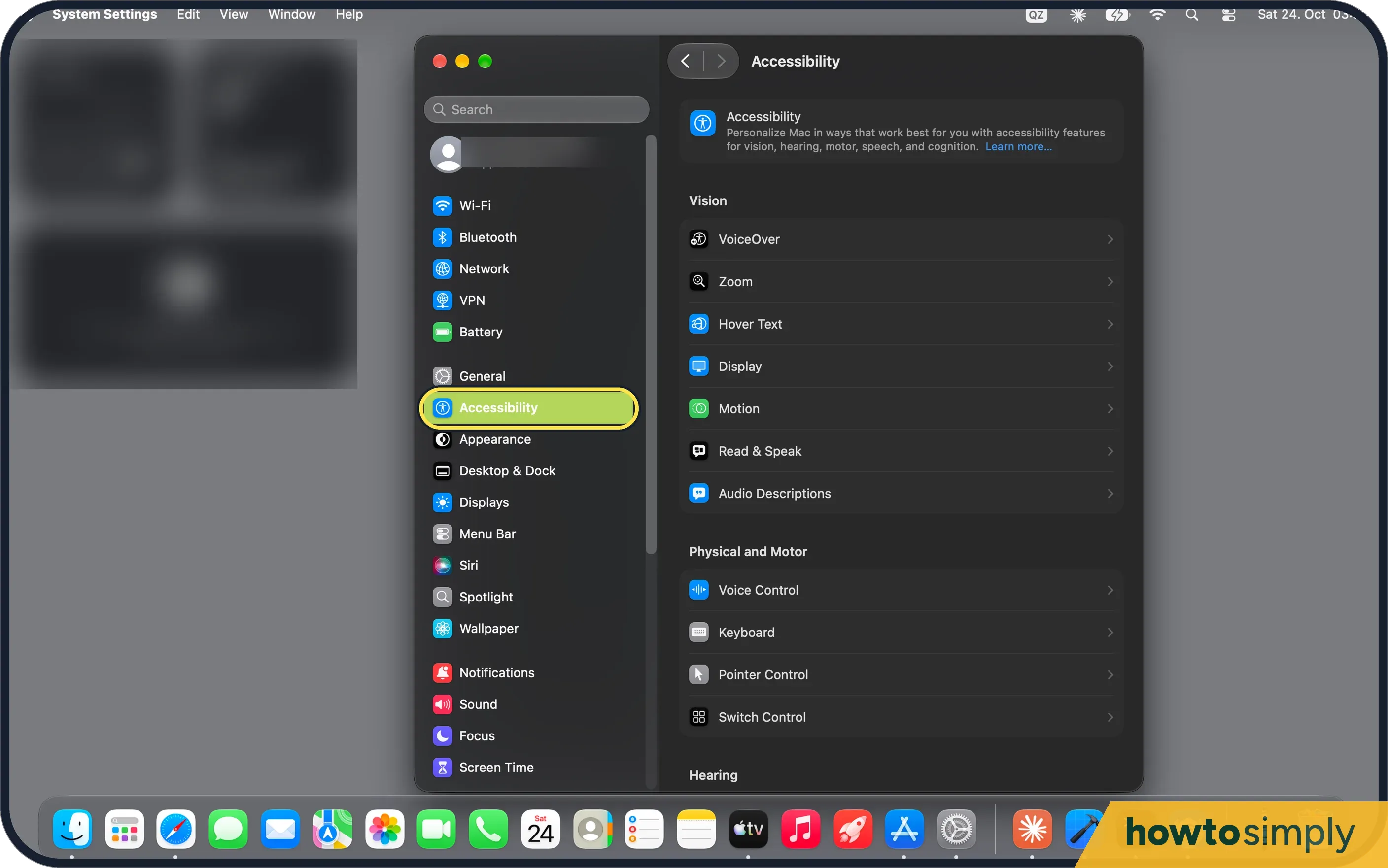
Click Accessibility
Click Accessibility in the sidebar.
- 3
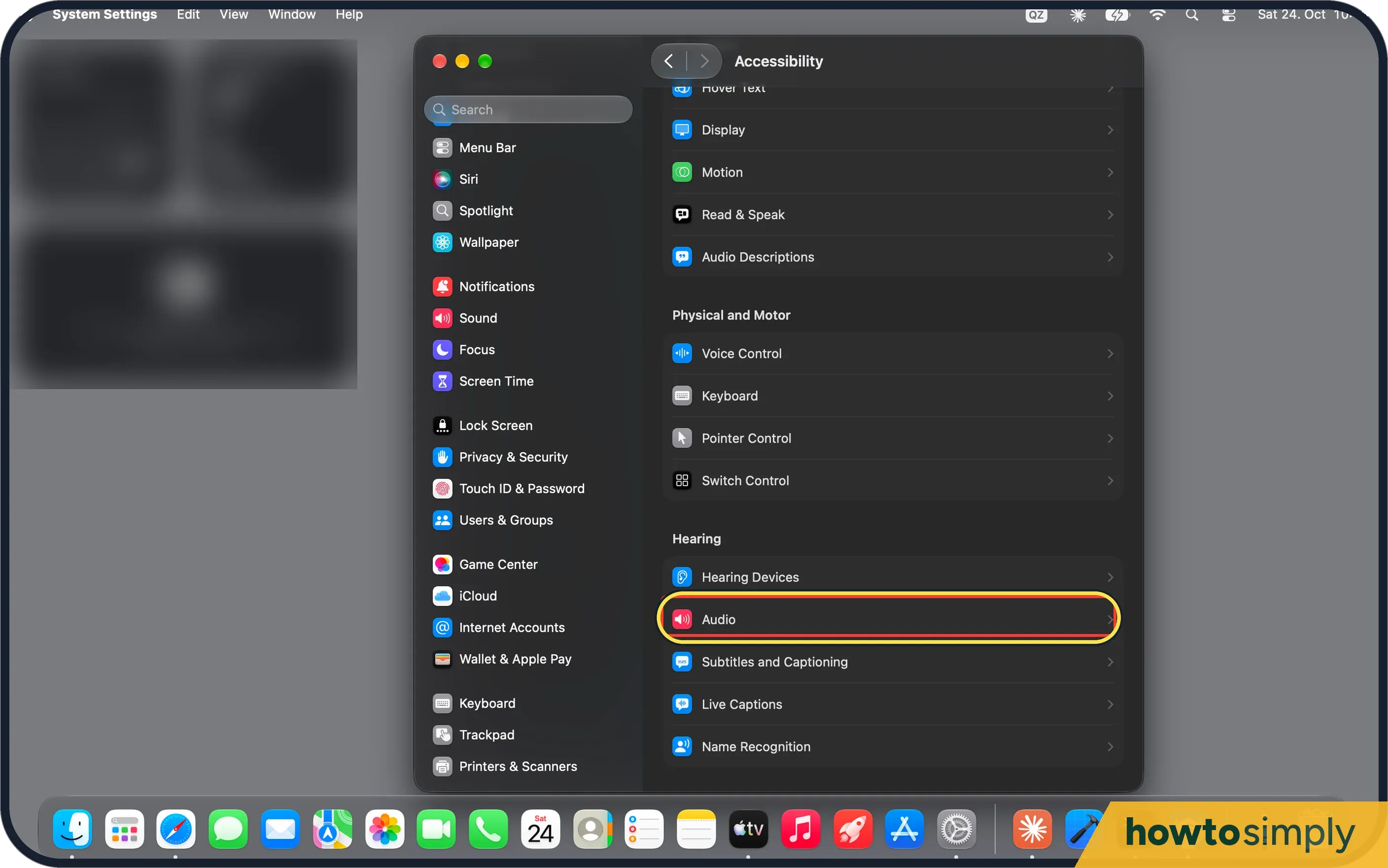
Click Audio
Scroll down the Accessibility page and click Audio under Hearing.
On our MacBook Neo, Audio is the second row in the Hearing group, after Hearing Devices.
- 4
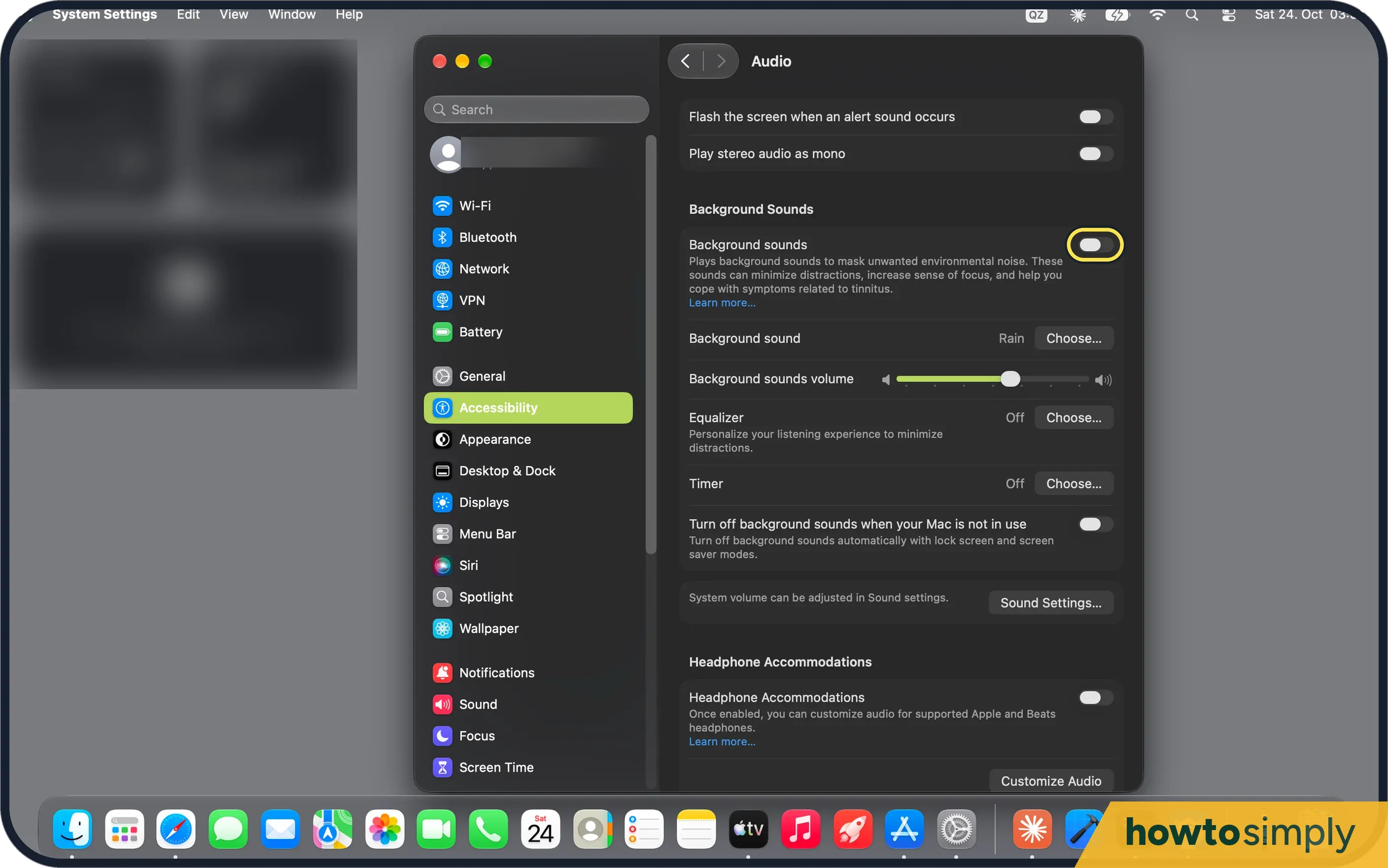
Switch on Background sounds
It is the first row of the Background Sounds group. In the picture it is off.
- 5
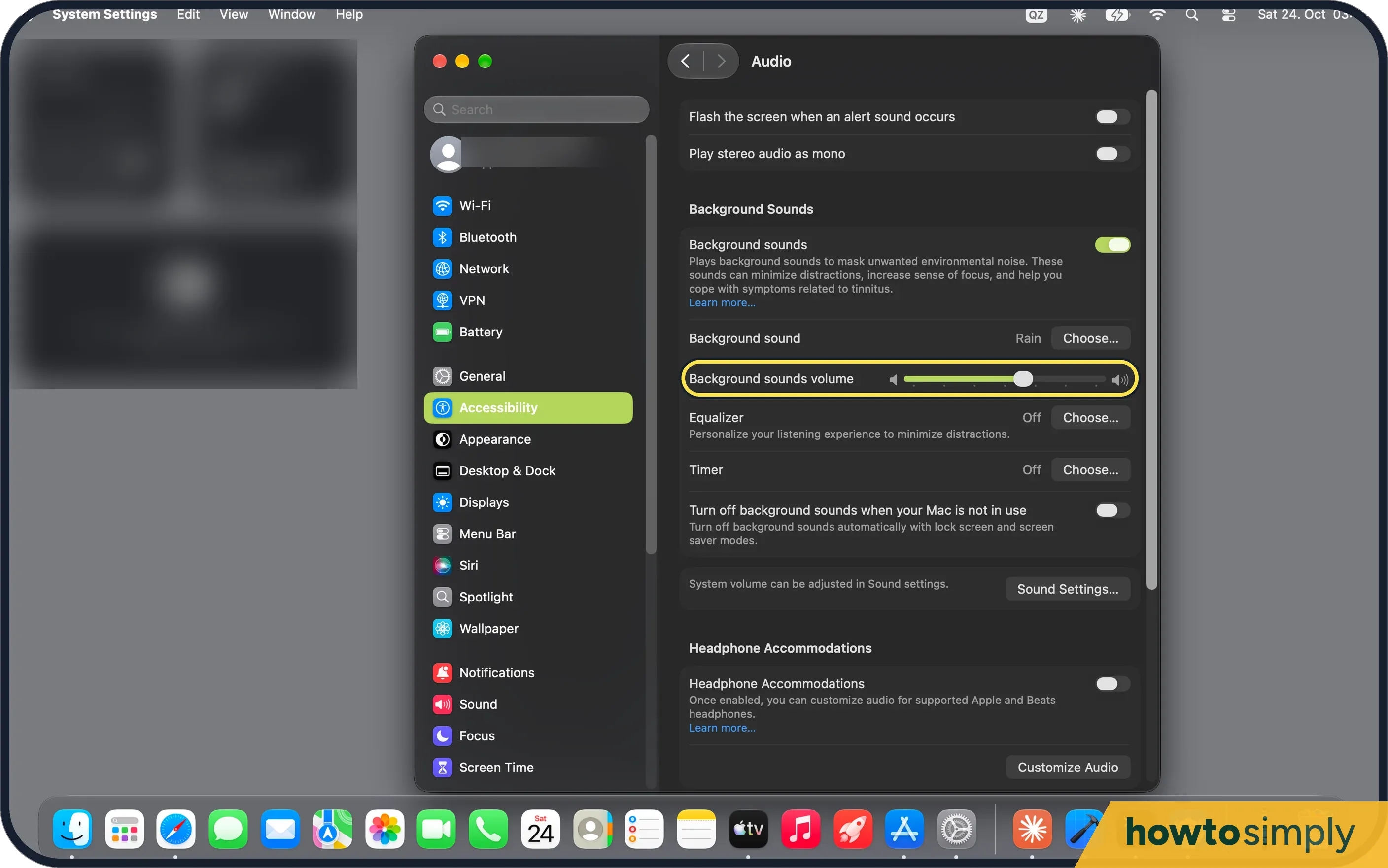
Set the volume
Drag the Background sounds volume slider. The page notes that system volume can be adjusted in Sound settings.
- 6
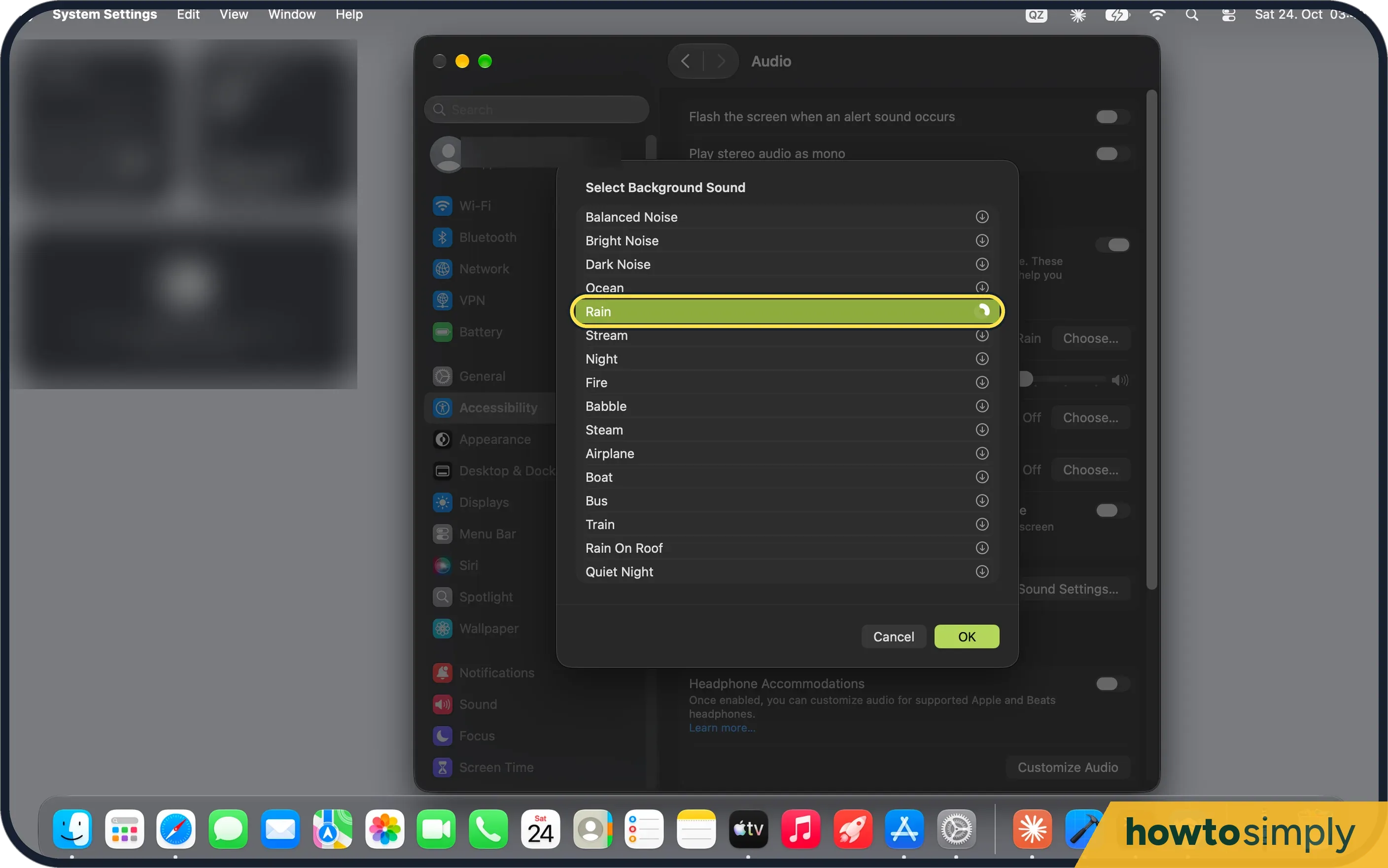
Choose the sound
Click Choose… in the Background sound row, select a sound in the Select Background Sound list, then click OK.
On our MacBook Neo the list has 16 sounds, from Balanced Noise to Quiet Night, including Rain and Rain On Roof.
- 7
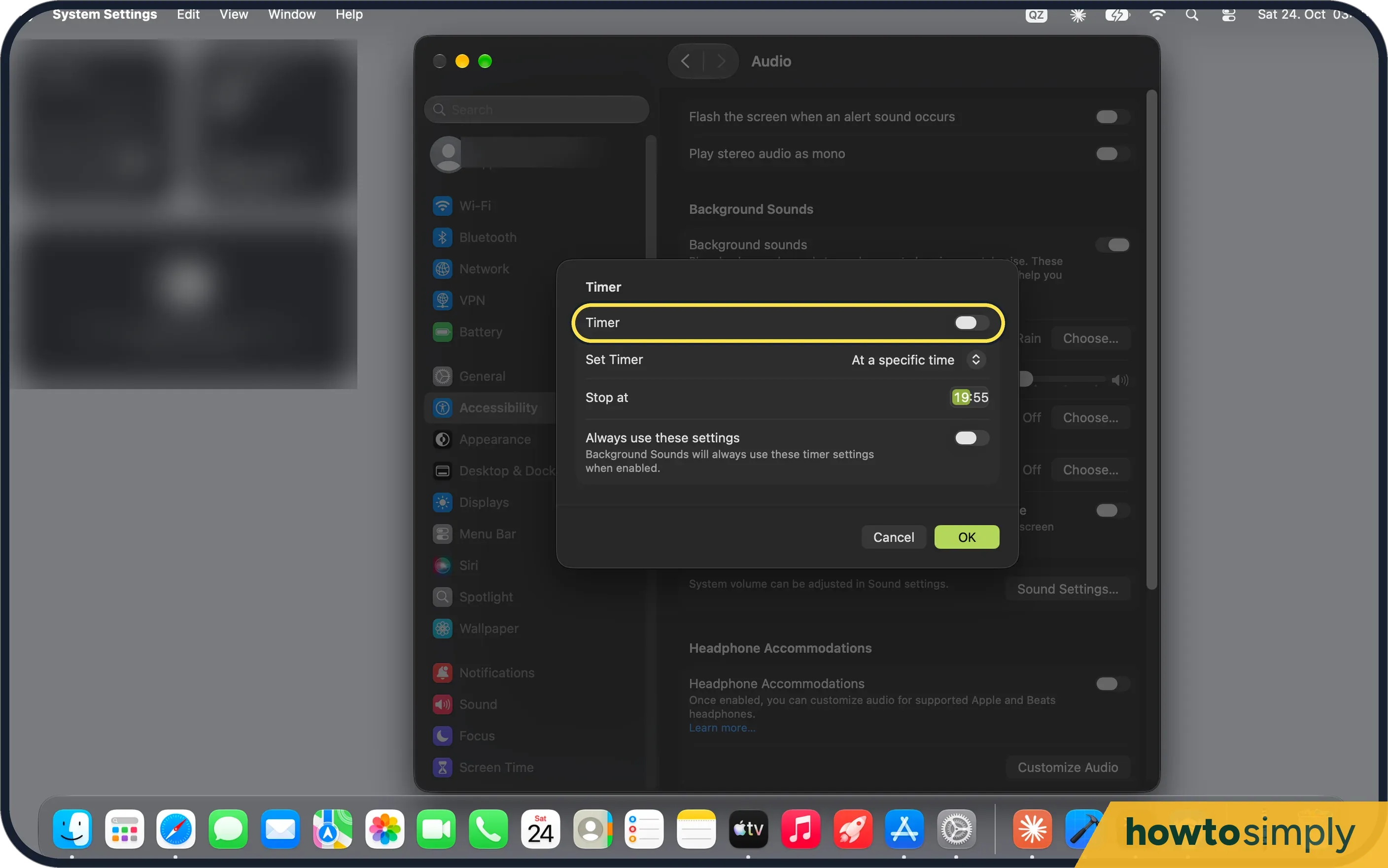
Set a timer
Click Choose… in the Timer row, switch on Timer, then use Set Timer and Stop at to choose when the sounds end. Click OK.
On our MacBook Neo, Set Timer showed At a specific time, and Always use these settings keeps the timer for every session.
- 8
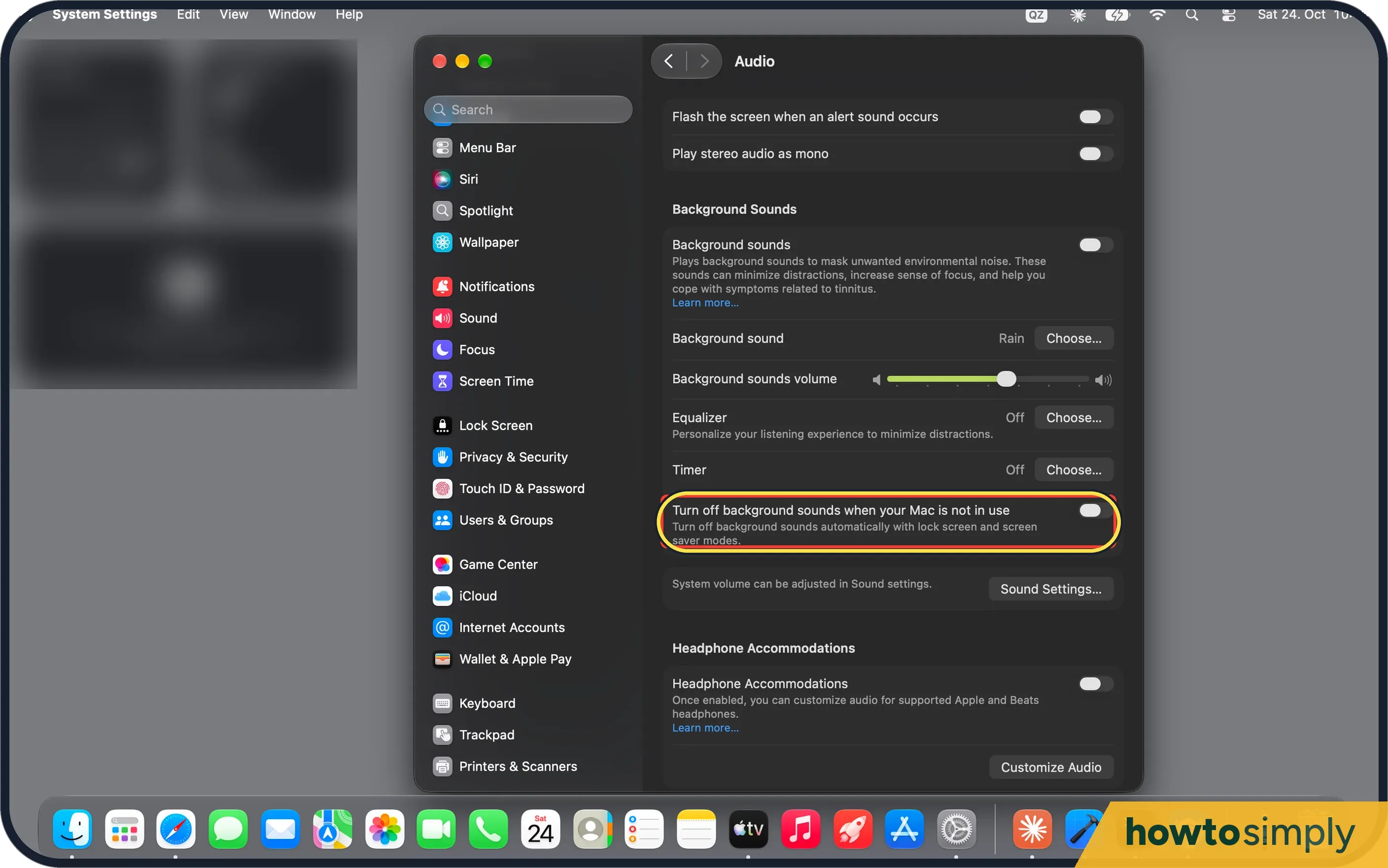
Let it stop when you leave
Switch on Turn off background sounds when your Mac is not in use. The page says this turns them off automatically with lock screen and screen saver modes.
In the picture it is still off.


If you do not see this option
- There are no Tone or Balance settings. Apple says Tone and Balance only appear after you click Choose… next to Equalizer and turn Equalizer on. Sources: Change Audio settings for accessibility on Mac, Play background sounds on Mac, Use Background Sounds to help with sleep, focus, and more
- You want it in the menu bar instead. Apple says you can add the Hearing control: in System Settings click Menu Bar, Add Controls, Hearing, then Add to Menu Bar or Add to Control Center. From there you start and stop the sounds and change the volume. Sources: Change Audio settings for accessibility on Mac, Play background sounds on Mac, Use Background Sounds to help with sleep, focus, and more
- There is no Equalizer row. Apple says you need macOS Tahoe or newer for the Background Sounds Equalizer setting. On our MacBook Neo with macOS 27 the Equalizer row sits below Background sounds volume. Sources: Change Audio settings for accessibility on Mac, Play background sounds on Mac, Use Background Sounds to help with sleep, focus, and more
If this does not work
- The sound is only a short sample. Each sound in the Select Background Sound list has a download button next to it. Apple says this downloads a high-quality version, which needs an internet connection, and a sample stays if you remove it.
- The sounds stop when you leave the Mac. Switch off Turn off background sounds when your Mac is not in use. Apple says it cuts them when the Mac sleeps, the screen saver comes on or the screen locks.
- You cannot hear anything. Raise the Background sounds volume slider first, then click Sound Settings… at the bottom of the group to check the system volume. Apple says other sound settings on the Mac can change how background sounds come out.
Good to know
Equalizer lets you turn different frequency ranges of the background sound up or down.
On our MacBook Neo, Equalizer and Timer both showed Off until changed.
macOS 27 compared with macOS 26: We rewrote this guide on macOS 27.0.1 (MacBook Neo): it now has 8 steps instead of 6. The macOS 26 page keeps the steps and screenshots as they were.
Version history: the macOS 26 version of this guide, with its own screenshots.
About this guide
macOS has a built-in noise player. On our MacBook Neo the Audio page says it plays background sounds to mask unwanted environmental noise and can help you cope with symptoms related to tinnitus.
- Device
- Mac
- Shown on
- macOS 27.0.1 (MacBook Neo)
- App
- System Settings
- Real screenshots
- 8 of 8 steps
- Checked
- October 2026
- Sources
- 3 official, linked below
Sources
Links checked October 2026. Menus and features can change with updates.Did this guide work for you?
Sorry about that. What happened?
Get new guides by email
Our newest guides, sent to your inbox. Free, and you can unsubscribe in one click.
We'll email you to confirm. How we use your email
Follow howtosimply on Facebook
We share our new guides on our Facebook page, so the next fix turns up in your feed.
Follow on Facebook