How to play stereo sound as mono on a Mac
- Shown on
- MacBook Neo
- Software
- macOS 27.0.1More macOS 27 guides
- Checked
- October 2026
- Real screenshots
- 6 of 6 steps
 Real screenshot · MacBook Neo, macOS 27.0.1
Quick answer
Open System Settings, click Accessibility, then Audio under Hearing, and switch on Play stereo audio as mono. Apple says your Mac will then send stereo tracks to both the left and right speakers or headphones as mono.
Steps
- 1
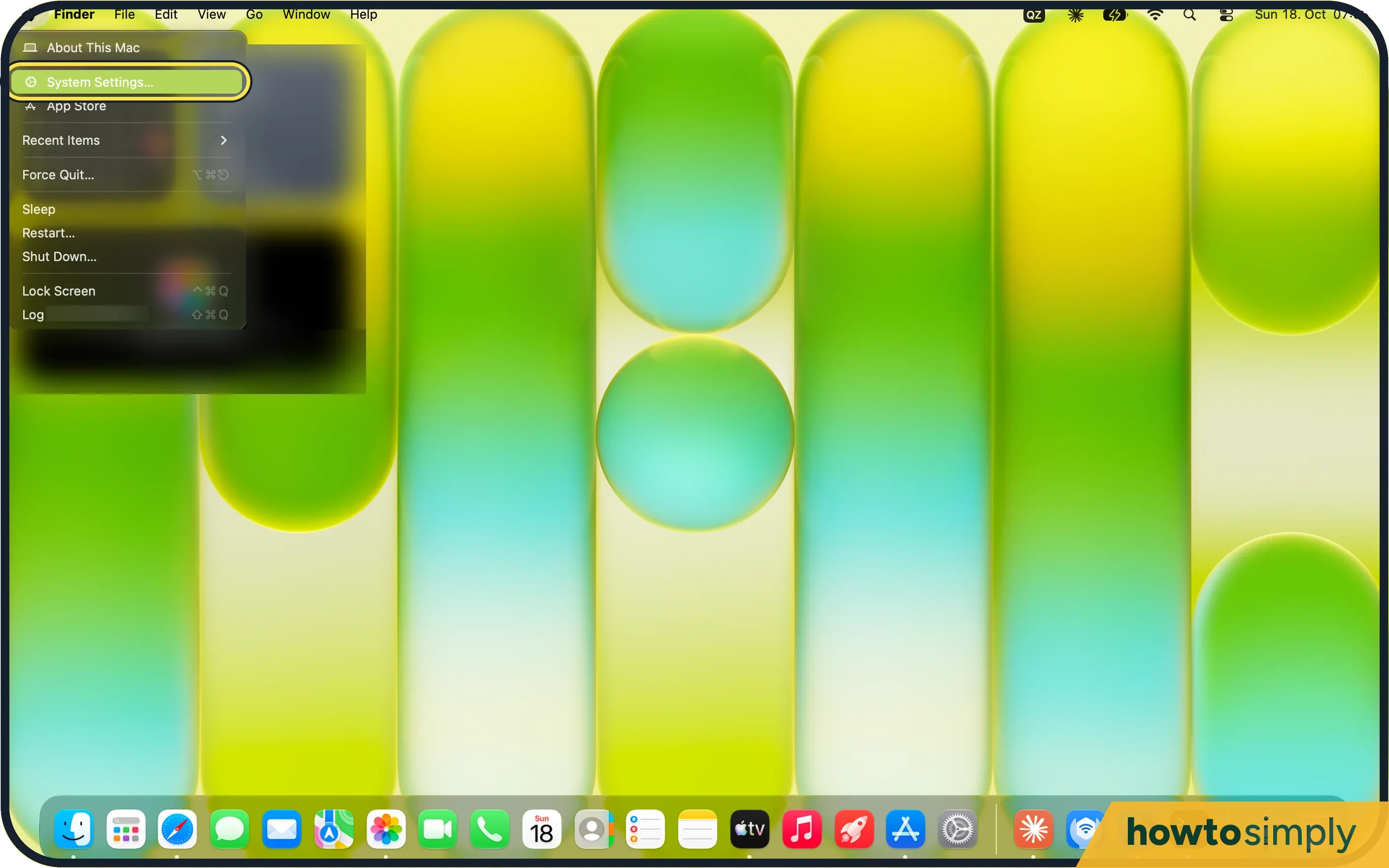
Open System Settings
Click the Apple menu in the top left corner of the screen and choose System Settings.
- 2
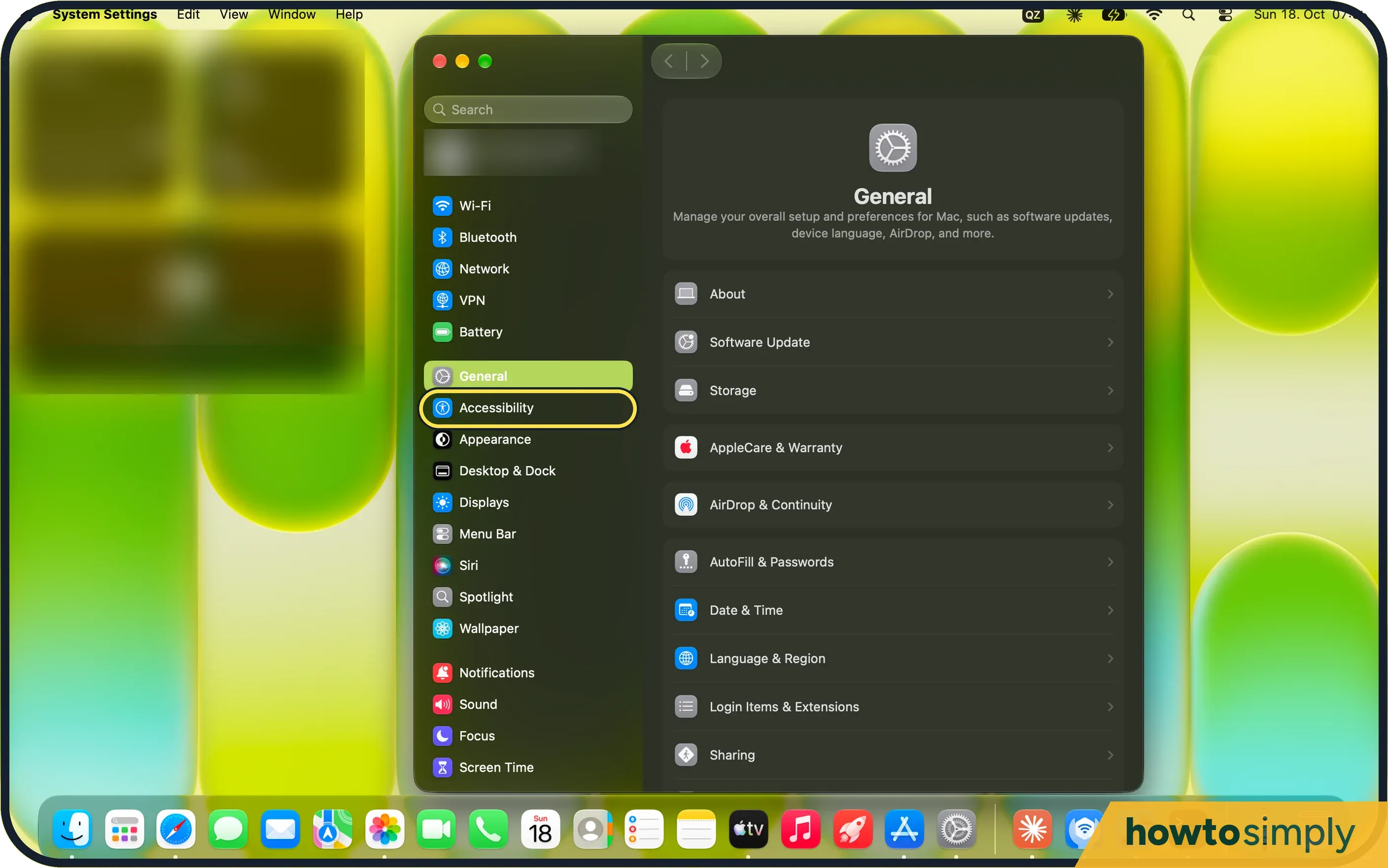
Click Accessibility in the sidebar
On our MacBook Neo, Accessibility is near the top of the sidebar, just below General.
- 3
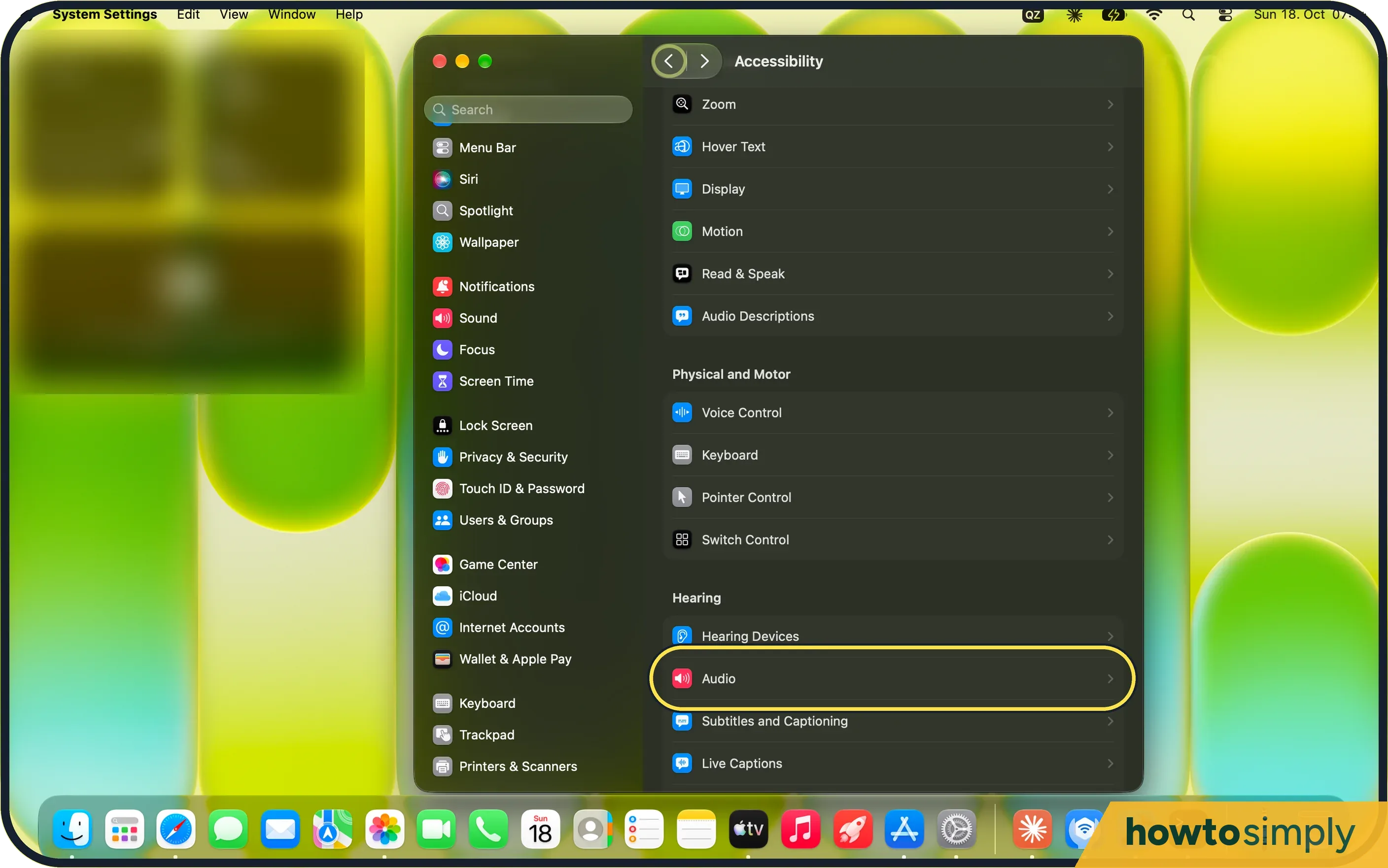
Click Audio
Scroll down to the Hearing group on the right and click Audio.
On our MacBook Neo, Audio is the second row under Hearing, below Hearing Devices and above Subtitles and Captioning and Live Captions.
- 4
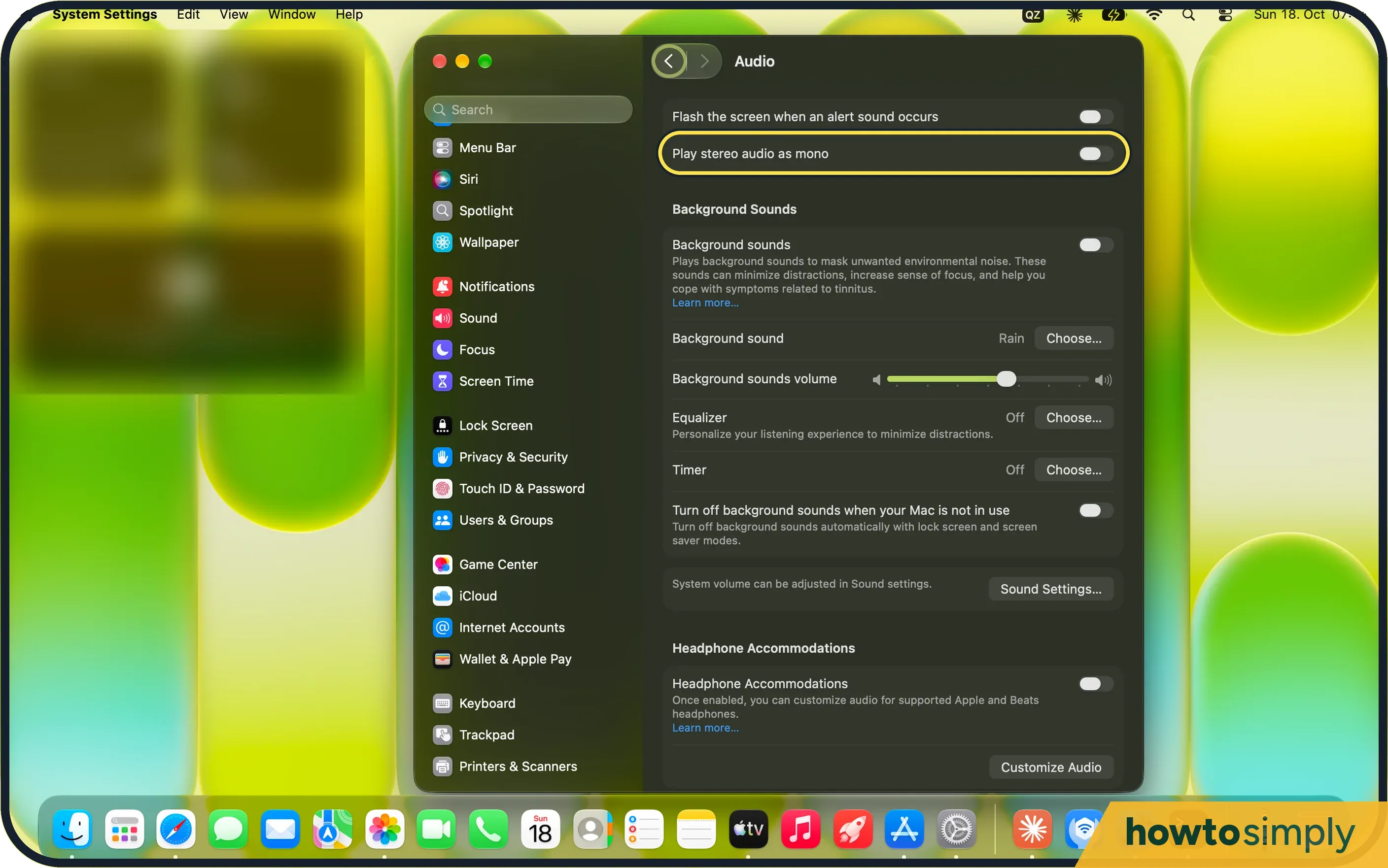
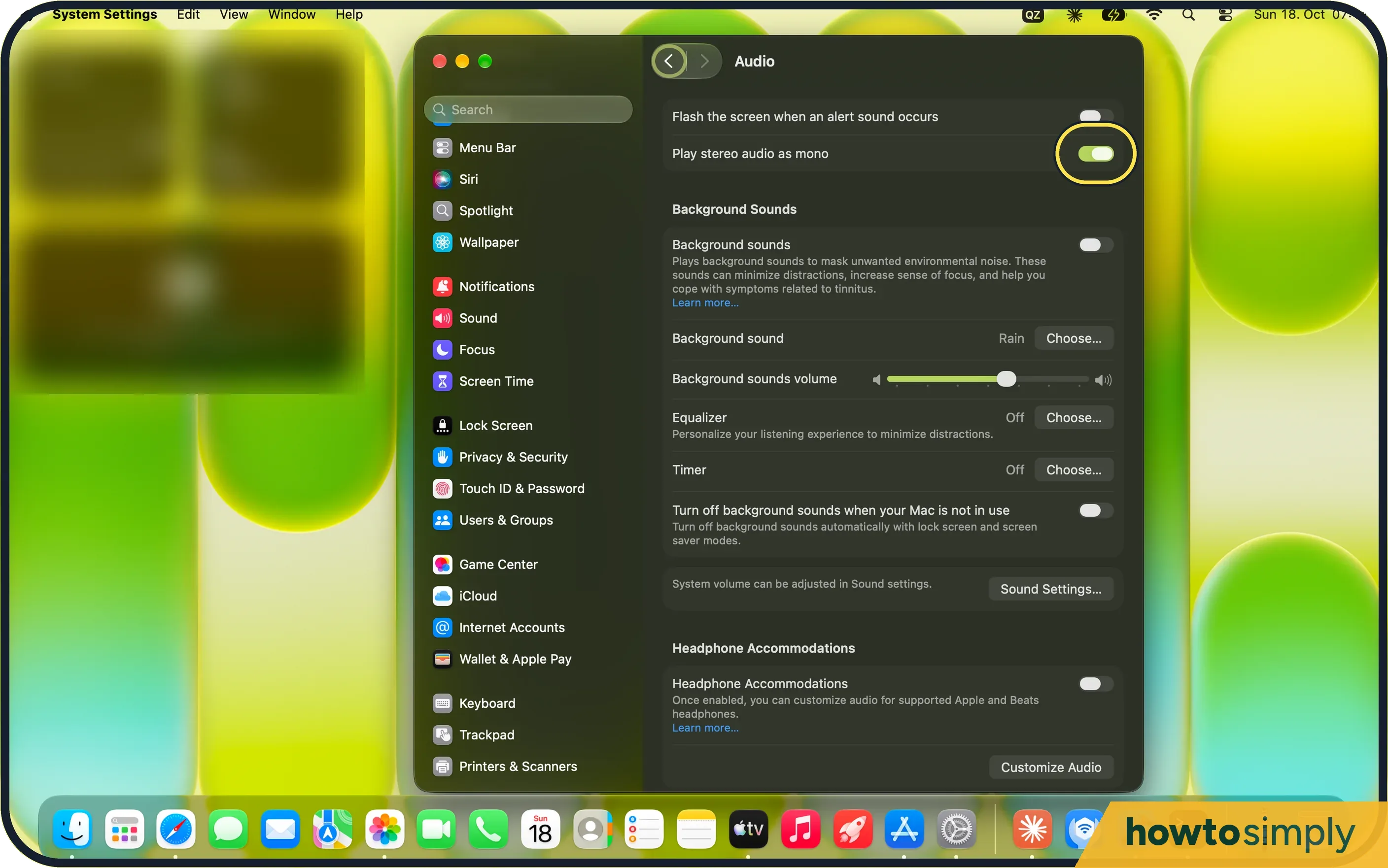
Switch on Play stereo audio as mono
It is the second switch at the top of the Audio page, below Flash the screen when an alert sound occurs.
On our MacBook Neo it was off to start with.
- 5
Check that the switch is on
The switch turns green when mono audio is on. Play some music to check that both sides now carry the whole sound.
- 6
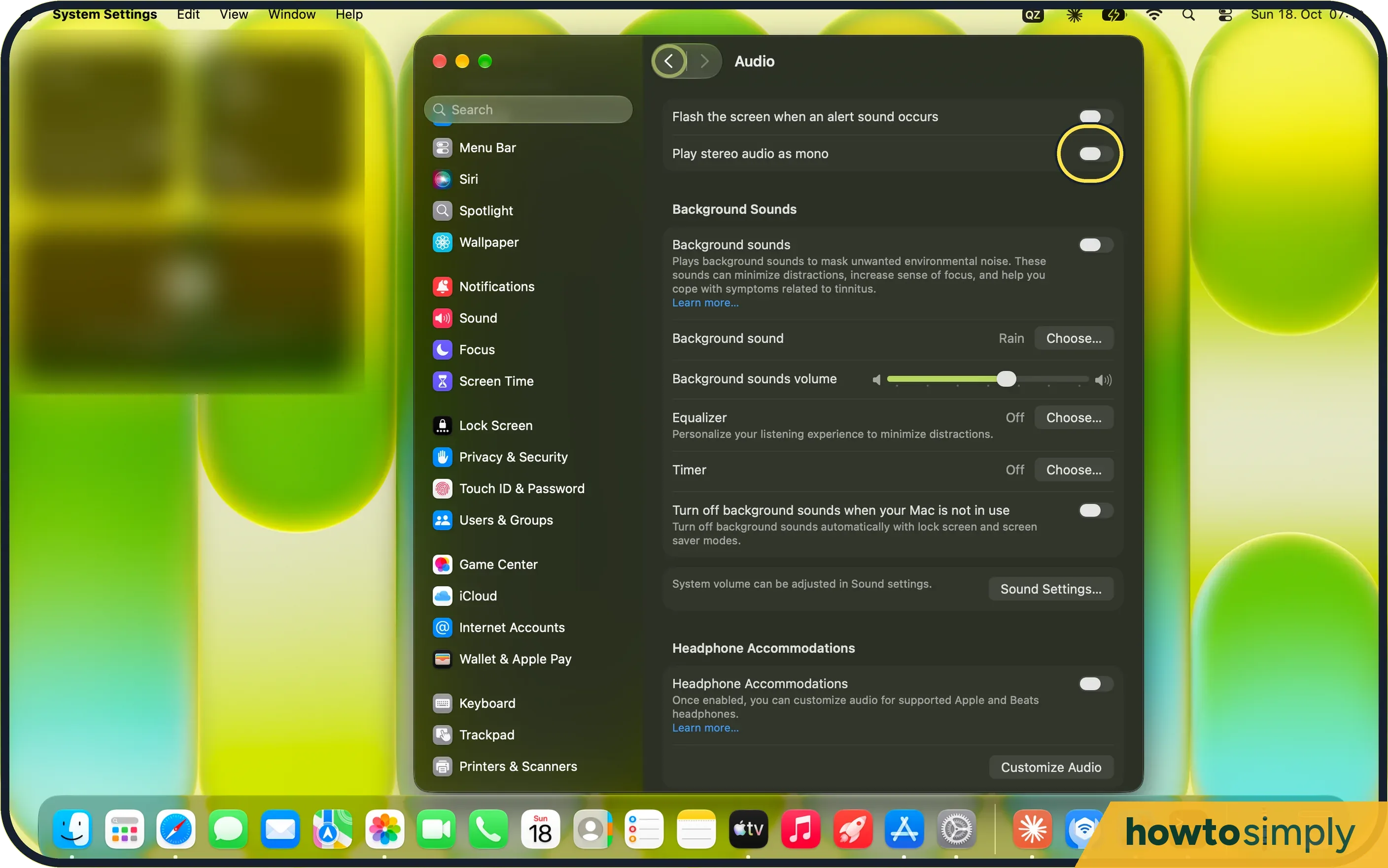
Switch it off to go back to stereo
Click the same switch again. It turns grey and the Mac plays stereo as before.


If you do not see this option
- Audio is not in the list The Accessibility page is long. Scroll down past Physical and Motor until you reach the Hearing group, where Audio sits below Hearing Devices.
- You opened the wrong page Use the back arrow next to the page title at the top of the window to return to Accessibility, then click Audio.
If this does not work
- You still hear only one side Check that the Play stereo audio as mono switch is green. Apple says switching it on sends stereo tracks out as one mono mix through both the left and right speakers or headphones.
- The sound is too quiet Click Sound Settings… on the Audio page to change the system volume and the output device.
- You hear rain or other noise Background Sounds on the same page can play sounds such as Rain or Balanced Noise. Make sure the Background sounds switch is off if you do not want it.
Good to know
The system volume and the output device are in Sound settings. The Sound Settings… button further down the Audio page opens them.
On our MacBook Neo, the line next to that button reads "System volume can be adjusted in Sound settings."
On our MacBook Neo, the same Audio page also holds Background Sounds (set to Rain, switched off) and Headphone Accommodations.
Mono applies to every app, and you lose the left and right separation in music and films while it is on, so if you only need it for one earbud, switch it off again when both are back in. On the same Audio page, Apple lists Spatial audio follows head movements for an Apple silicon Mac with compatible headphones. If one side is simply louder, see how to fix sound that is louder on one side on a Mac.
macOS 27 compared with macOS 26: We rewrote this guide on macOS 27.0.1 (MacBook Neo): it now has 6 steps instead of 3. The macOS 26 page keeps the steps and screenshots as they were.
Version history: the macOS 26 version of this guide, with its own screenshots.
About this guide
Mono sends stereo tracks out as one mono mix through both the left and right speakers or headphones.
- Device
- Mac
- Shown on
- macOS 27.0.1 (MacBook Neo)
- App
- System Settings
- Real screenshots
- 6 of 6 steps
- Checked
- October 2026
- Sources
- 1 official, linked below
Sources
Links checked October 2026. Menus and features can change with updates.Did this guide work for you?
Sorry about that. What happened?
Get new guides by email
Our newest guides, sent to your inbox. Free, and you can unsubscribe in one click.
We'll email you to confirm. How we use your email
Follow howtosimply on Facebook
We share our new guides on our Facebook page, so the next fix turns up in your feed.
Follow on Facebook