How to turn off swipe typing on an iPhone
- Shown on
- iPhone 17e
- Software
- iOS 27.0.1More iOS 27 guides
- Checked
- October 2026
- Real screenshots
- 4 of 4 steps
- Where it is
- Settings › General › Keyboard
Quick answer
Open Settings, tap General, then Keyboard, scroll down and switch off Slide to Type. The keyboard then only takes single taps, and sliding from letter to letter no longer types a word.
Steps
- 1
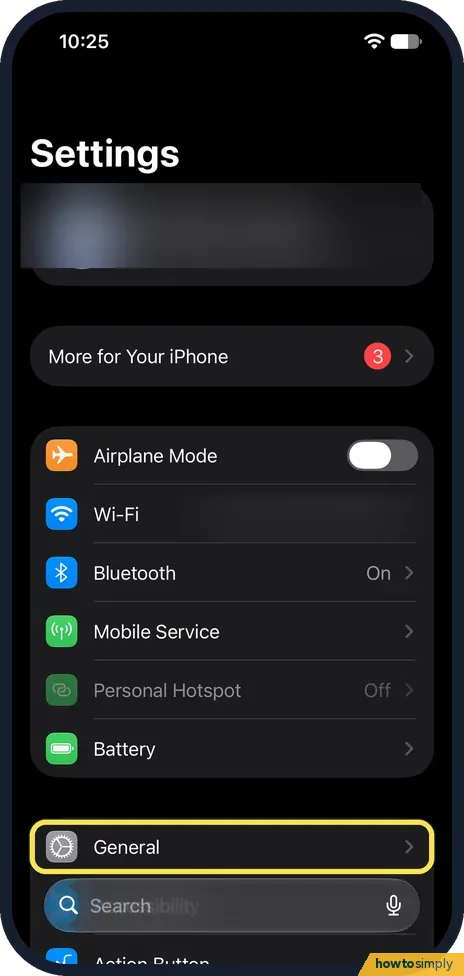
Open Settings and tap General
General is in the main Settings list.
- 2
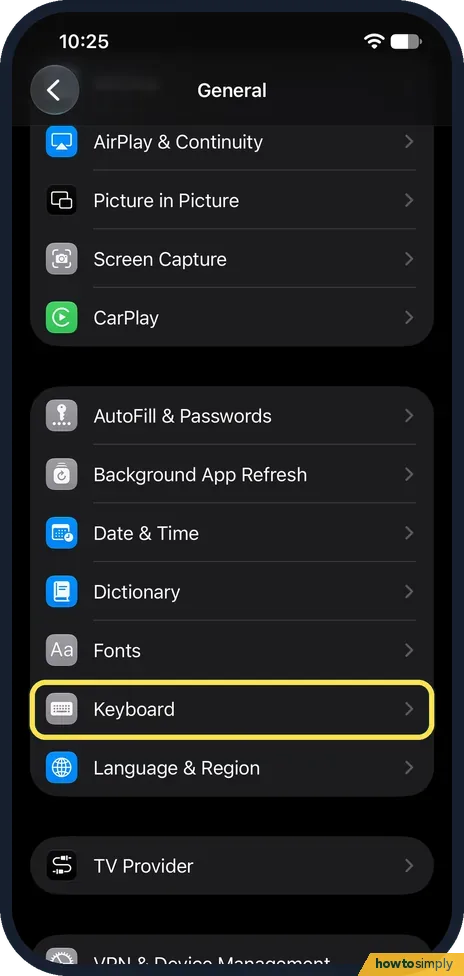
Tap Keyboard
It is on the General page. On our iPhone, Keyboard sits between Fonts and Language & Region.
- 3
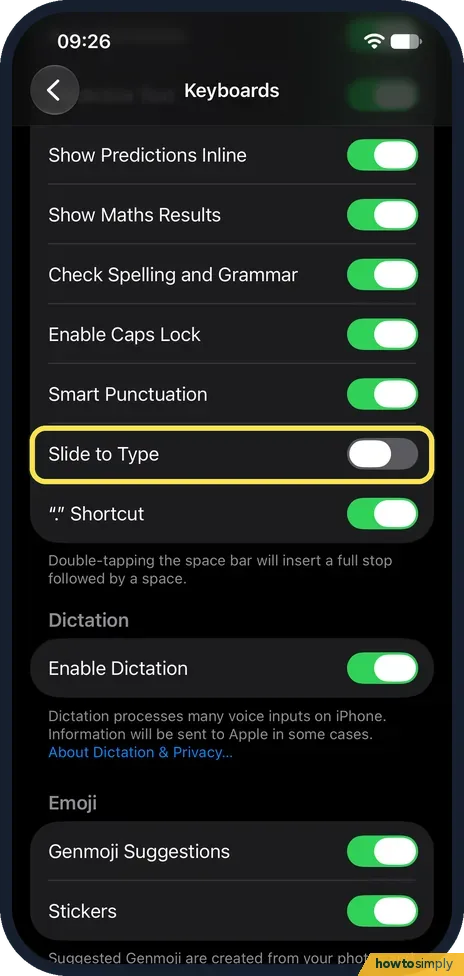
Scroll down and switch off Slide to Type
The page that opens is titled Keyboards. Slide to Type is in the list of switches, below Smart Punctuation.
On our iPhone, once Slide to Type was off, the Delete Slide-to-Type by Word row no longer appeared and “.” Shortcut came next.
- 4
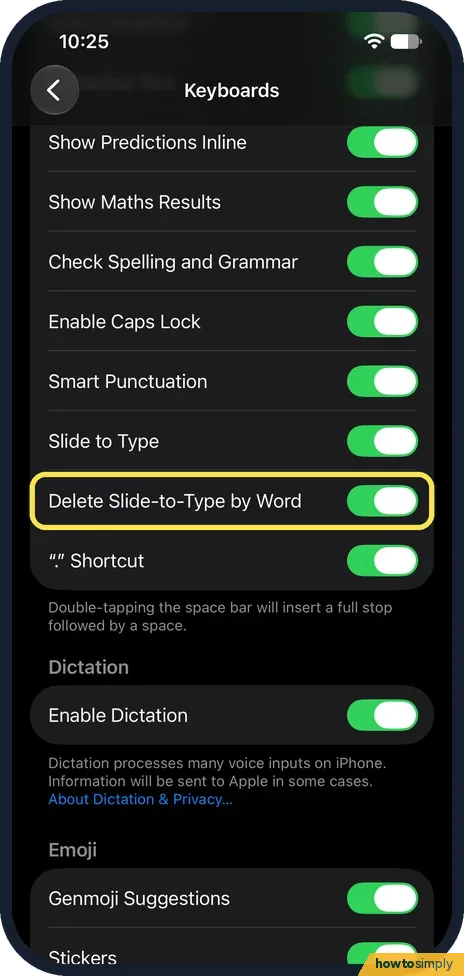
Or keep it and look at the switch below
Delete Slide-to-Type by Word is the next row while Slide to Type is on. On our iPhone, both switches were on.
If you do not see this option
- Sliding does not work in your language. Apple says sliding to type (QuickPath) doesn't work in every language (Apple Support: Type with the onscreen keyboard on iPhone). Source: Type with the onscreen keyboard on iPhone
- You cannot find the Keyboard page. Apple says that while using the onscreen keyboard you can touch and hold the key shown in its guide, then tap Keyboard Settings (Apple Support: Type with the onscreen keyboard on iPhone). Source: Type with the onscreen keyboard on iPhone
- Delete Slide-to-Type by Word is not in the list. It only shows while Slide to Type is on. On our iPhone, the row disappeared once Slide to Type was switched off.
If this does not work
- It is the typing sounds or vibrations that bother you. Apple says those are in Settings, Sounds & Haptics, Keyboard Feedback, where you can turn Sound or Haptic off (Apple Support: Type with the onscreen keyboard on iPhone).
- Words still appear when you slide. Apple says the typing features below All Keyboards are turned on and off in Settings, General, Keyboard. Check that the Slide to Type switch there is off.
- Still sliding in a downloaded keyboard? Slide to Type controls Apple's own keyboard. A keyboard you installed from the App Store has its own options, usually in that keyboard's app, so turn swiping off there as well.
- The cursor moves when you slide? That is a different feature: touching and holding the Space bar turns the keyboard into a trackpad. Slide to Type does not change it. See how to use the iPhone space bar as a trackpad.
Good to know
However, if you only wanted to tame it rather than lose it, remember that with the feature on you can mix both ways of typing, even in the middle of a sentence.
The setting covers all of your Apple keyboards, so you do not need to change it for each language. Apple groups these typing features below All Keyboards. To turn sliding back on, switch Slide to Type on again.
About this guide
Say you are typing a quick reply, your thumb drags a little across the keys, and a word you never meant to write turns up in the middle of it. On the iPhone keyboard you can spell a word by gliding your finger across the letters without lifting it. If you never type that way, you can switch it off, as we did on our iPhone. The feature has its own switch, and on our iPhone it was on.
- Device
- iPhone
- Shown on
- iOS 27.0.1 (iPhone 17e)
- App
- Settings
- Path
- Settings › General › Keyboard
- Real screenshots
- 4 of 4 steps
- Checked
- October 2026
- Sources
- 1 official, linked below
The screenshots are from our iPhone 17e on iOS 27.0.1, in dark mode.
What changed: every screenshot is now our own iPhone 17e on iOS 27.0.1, dark mode, and the wording is checked against those screens.
Sources
Links checked October 2026. Menus and features can change with updates.Did this guide work for you?
Sorry about that. What happened?
Get new guides by email
Our newest guides, sent to your inbox. Free, and you can unsubscribe in one click.
We'll email you to confirm. How we use your email
Follow howtosimply on Facebook
We share our new guides on our Facebook page, so the next fix turns up in your feed.
Follow on Facebook