How to show only capital letters on the iPhone keyboard
- Shown on
- iPhone 17e
- Software
- iOS 27.0.1More iOS 27 guides
- Checked
- October 2026
- Real screenshots
- 4 of 4 steps
- Where it is
- Settings › Accessibility › Keyboards & Typing
Quick answer
Open Settings, tap Accessibility, then Keyboards & Typing, and switch off Show Lowercase Keys. The switch is on at first. According to the note on the page, it affects keyboards that use the Shift key to switch between uppercase and lowercase letters.
Steps
- 1
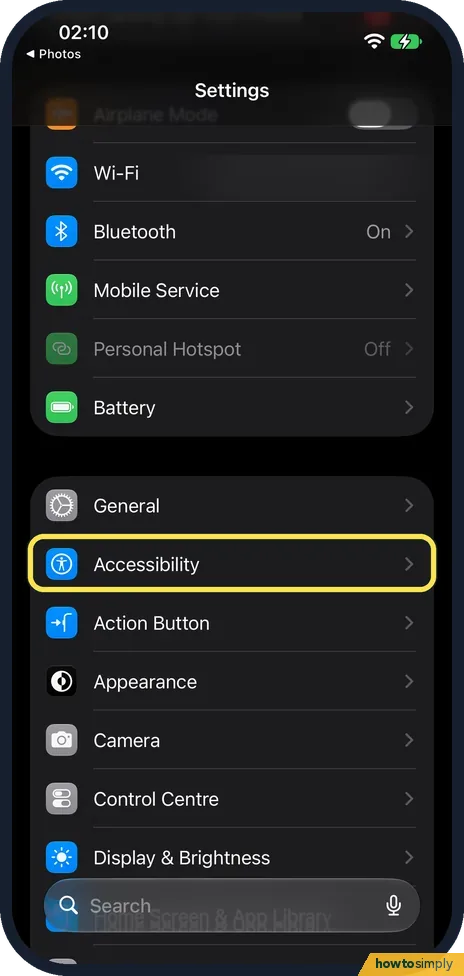
Open Settings and tap Accessibility
Accessibility is in the group below Battery, just under General.
- 2
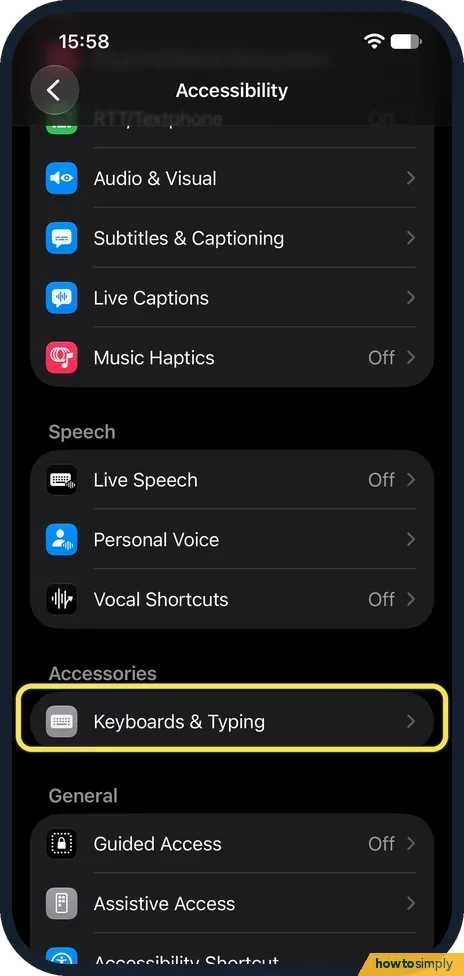
Scroll down and tap Keyboards & Typing
It is under the heading Accessories, near the bottom of the page.
- 3
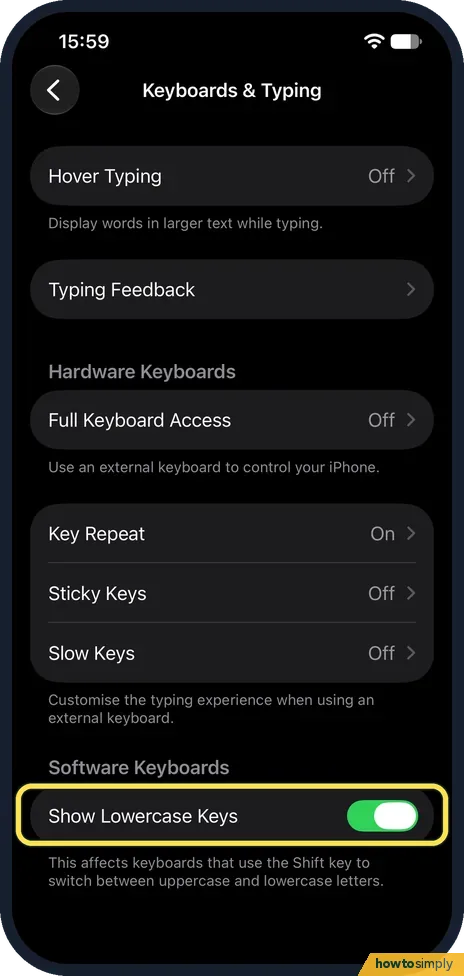
Switch off Show Lowercase Keys
It is under the heading Software Keyboards at the bottom of the page. It was on on our iPhone 17e.
- 4
Check the keyboard
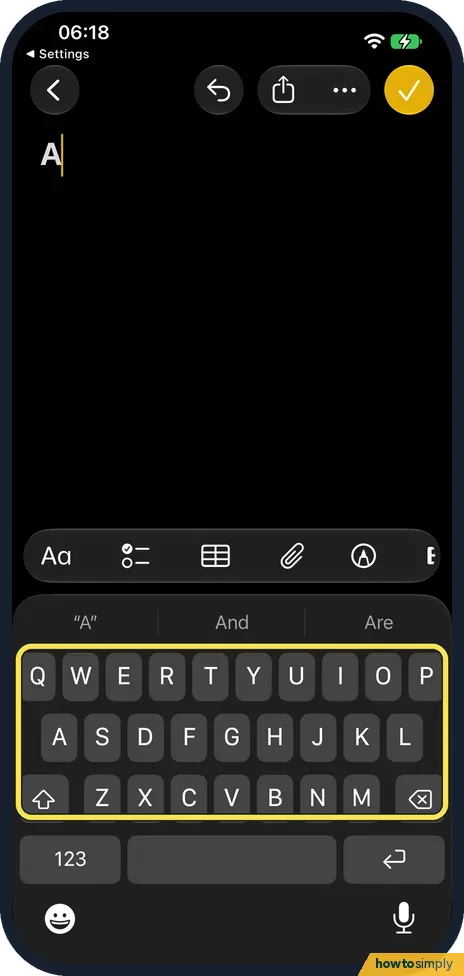
The keys now show capital letters all the time. Look at the Shift key to see whether the next letter will be a capital: on ours, after typing one letter, Shift was off and the keys still showed capitals.
If you do not see this option
- Your keyboard has no Shift key. The note under the switch says it affects keyboards that use the Shift key to switch between uppercase and lowercase letters.
- You want bigger keys instead. Apple's tip: turn the iPhone sideways and many apps, Mail, Messages, Notes and Safari among them, give you a bigger keyboard. Source: Adjust the onscreen and external keyboard settings for accessibility on iPhone
If this does not work
- You still type small letters. The switch stops the onscreen keyboard displaying lowercase letters.
- The letters are still hard to read. Hover Typing, at the top of the same page and Off on ours, displays words in larger text while you type.
- A password keeps being rejected? Once lowercase keys are hidden, the keyboard on screen only shows capital letters.
- A keyboard app still shows small letters? The switch is under Software Keyboards and, according to its note, affects keyboards that switch between uppercase and lowercase with the Shift key. A keyboard from the App Store may draw its keys its own way, so check that app's settings.
Good to know
More on this page: Hover Typing shows what you type in larger text: how to see what you type in larger text on an iPhone.
Now the keyboard on screen only shows capital letters. Because the switch is under the Software Keyboards heading, it concerns the onscreen keyboard rather than a keyboard you connect. To bring the lowercase labels back, return to Settings, Accessibility, Keyboards & Typing and switch Show Lowercase Keys on again.
About this guide
The iPhone keyboard can be a bit fidgety. Its keys change between small and capital letters each time Shift is on or off, as if they cannot quite make up their minds. Some people read capital letters more easily. One switch decides whether the keys show lowercase letters, so this is a quick one.
- Device
- iPhone
- Shown on
- iOS 27.0.1 (iPhone 17e)
- App
- Settings
- Path
- Settings › Accessibility › Keyboards & Typing
- Real screenshots
- 4 of 4 steps
- Checked
- October 2026
- Sources
- 1 official, linked below
The screenshots are our own, taken on an iPhone 17e running iOS 27.0.1, in dark mode. Ours had Show Lowercase Keys on.
What changed: the screenshots are now our own iPhone 17e on iOS 27.0.1, dark mode, and the wording is checked against those screens.
Sources
Links checked October 2026. Menus and features can change with updates.Did this guide work for you?
Sorry about that. What happened?
Get new guides by email
Our newest guides, sent to your inbox. Free, and you can unsubscribe in one click.
We'll email you to confirm. How we use your email
Follow howtosimply on Facebook
We share our new guides on our Facebook page, so the next fix turns up in your feed.
Follow on Facebook