How to see what you type in larger text on an iPhone
- Shown on
- iPhone 17e
- Software
- iOS 27.0.1More iOS 27 guides
- Checked
- October 2026
- Real screenshots
- 5 of 5 steps
- Where it is
- Settings › Accessibility › Keyboards & Typing
Quick answer
Open Settings, tap Accessibility, then Keyboards & Typing, then Hover Typing, and switch it on. The iPhone then displays the words you type in larger text. On the same page you choose where the large text sits, its font, size and colours.
Watch these steps
 Watch on YouTubeA video of this task from our YouTube channel · opens YouTube
Steps
- 1
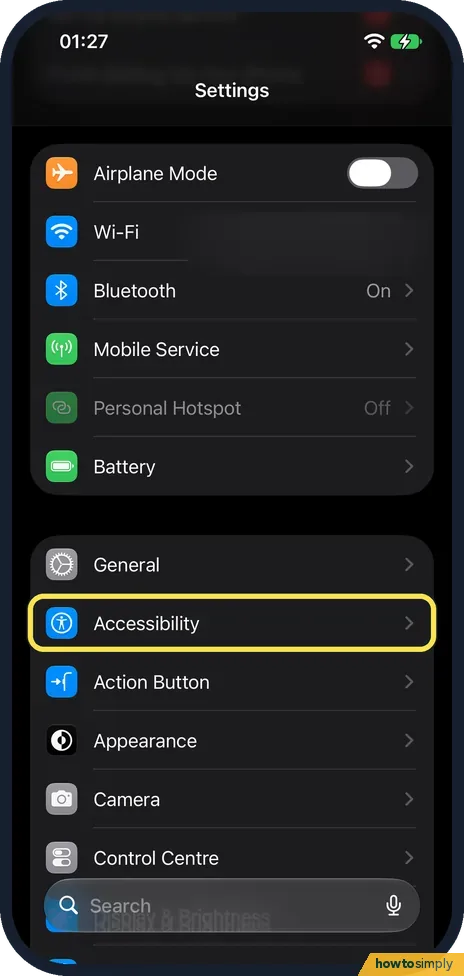
Open Settings and tap Accessibility
On our iPhone 17e with iOS 27, Accessibility was in the second group of the main Settings list, just below General.
- 2
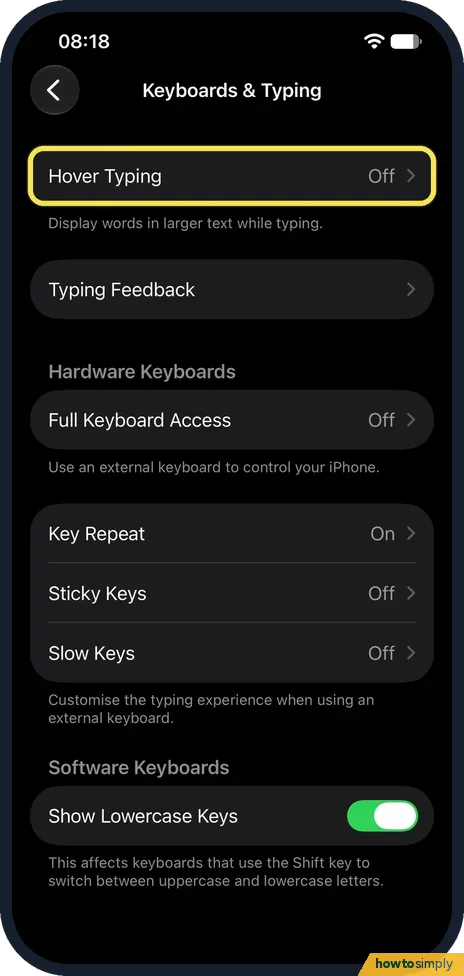
Tap Keyboards & Typing, then Hover Typing
On the Accessibility page, scroll down and tap Keyboards & Typing. Apple's iOS 27 guide says Accessibility, Hover Text, Hover Typing. On our iPhone 17e, Hover Typing was the first row of Keyboards & Typing, showing Off, and the note below it read: Display words in larger text while typing.
- 3
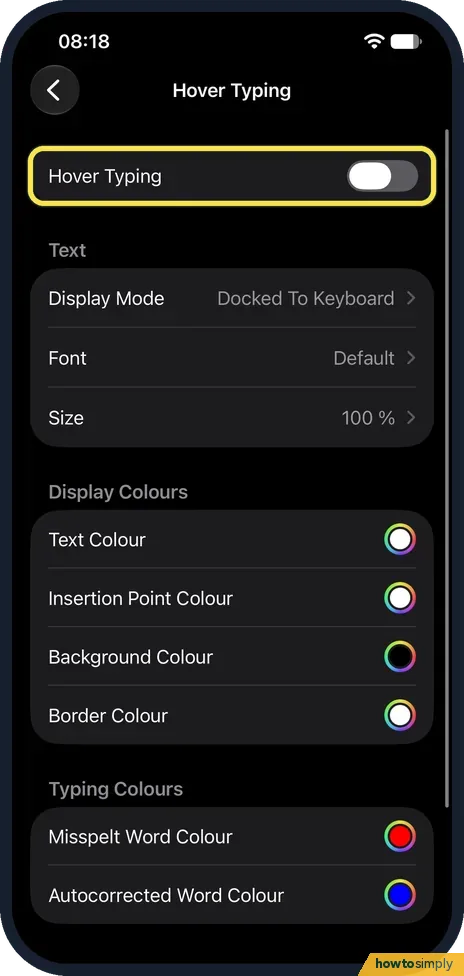
Switch on Hover Typing
The switch is at the top of the page. Apple says a bigger copy of your typing then appears as you type in a text field. On our iPhone 17e with iOS 27, it was off.
- 4
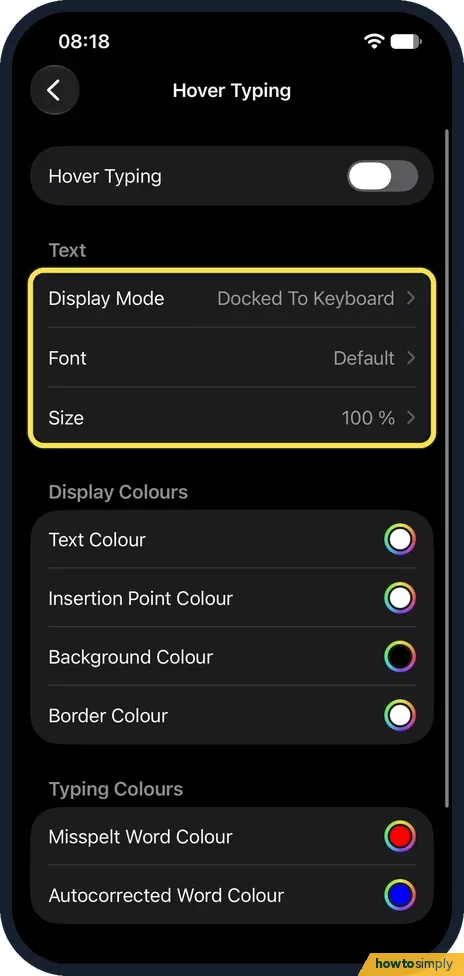
Choose position, font and size
Display Mode sets where the large text window appears, Apple says: next to the cursor (inline), along the top of the screen, or just above the onscreen keyboard. On our iPhone 17e, Display Mode was set to Docked To Keyboard, Font to Default and Size to 100 %. Tap a row to change it.
- 5
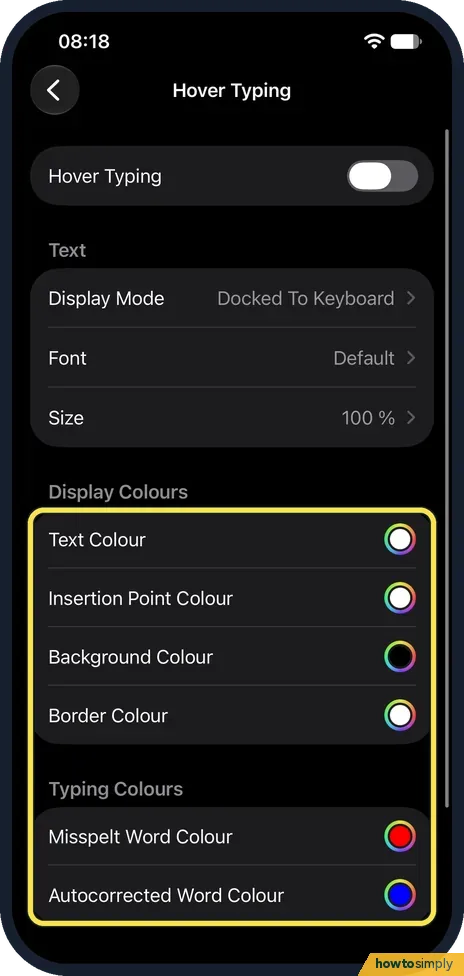
Choose the colours
Under Display Colours you set the colour of the text, the insertion point, the background and the border. Under Typing Colours, Misspelt Word Colour and Autocorrected Word Colour set their own colours. Apple says you pick each colour by Grid, Spectrum or Sliders.
If you do not see this option
- You cannot find Hover Typing. Apple's iOS 27 guide gives the path Accessibility, Hover Text, Hover Typing. On our iPhone 17e with iOS 27.0.1 we found it under Accessibility, Keyboards & Typing, as the first row. If it is not in one place, look in the other. Source: View a larger version of text you're reading or typing on iPhone
- There is no Size slider. Apple describes a slider for Size. On our iPhone 17e Size was a row showing 100 %; tap it to change the size. Source: View a larger version of text you're reading or typing on iPhone
If this does not work
- The large text window is in the way. Apple says you can swipe on the Hover Typing window to hide it for a moment. It comes back when you start typing again.
- No large text appears when you type. Check the Hover Typing switch at the top of the page. On our iPhone 17e it was off at first. Apple says the bigger text appears while you type in a text box.
- You think you need a mouse or trackpad. Apple says Hover Typing works without any pointing device attached. Apple says Hover Text only works with a pointing device, like a trackpad or mouse, connected.
Good to know
To hide the large text for a moment, swipe on it. It comes back when you start typing again.
Display Mode gives you three spots: inline beside the cursor, along the top of the screen, or right above the keyboard.
Apple's user guide reaches the same page by another way: Settings, Accessibility, Hover Text, Hover Typing. On our iPhone with iOS 27.0.1, Hover Typing is listed at the bottom of the Hover Text page. No mouse or trackpad is needed for Hover Typing.
To make all text on the iPhone larger, not only what you type: how to make text bigger on an iPhone.
The iPhone can also say each word aloud while you type: how to make an iPhone speak words as you type.
About this guide
Hover Typing shows a larger version of what you type in a separate window.
- Device
- iPhone
- Shown on
- iOS 27.0.1 (iPhone 17e)
- App
- Settings
- Path
- Settings › Accessibility › Keyboards & Typing
- Real screenshots
- 5 of 5 steps
- Checked
- October 2026
- Sources
- 1 official, linked below
The screenshots are our own, taken on an iPhone 17e running iOS 27.0.1.
What changed: the screenshots are now our own iPhone 17e on iOS 27.0.1, dark mode, and the wording is checked against those screens and Apple's iOS 27 guide.
Sources
Links checked October 2026. Menus and features can change with updates.Did this guide work for you?
Sorry about that. What happened?
Get new guides by email
Our newest guides, sent to your inbox. Free, and you can unsubscribe in one click.
We'll email you to confirm. How we use your email
Follow howtosimply on Facebook
We share our new guides on our Facebook page, so the next fix turns up in your feed.
Follow on Facebook