How to stop the iPhone typing a full stop after two spaces
- Shown on
- iPhone 17e
- Software
- iOS 27.0.1More iOS 27 guides
- Checked
- October 2026
- Real screenshots
- 3 of 3 steps
- Where it is
- Settings › General › Keyboard
Quick answer
Open Settings, tap General, then Keyboard, scroll down and switch off “.” Shortcut. After that, a double tap on the space bar no longer inserts a full stop followed by a space.
Steps
- 1
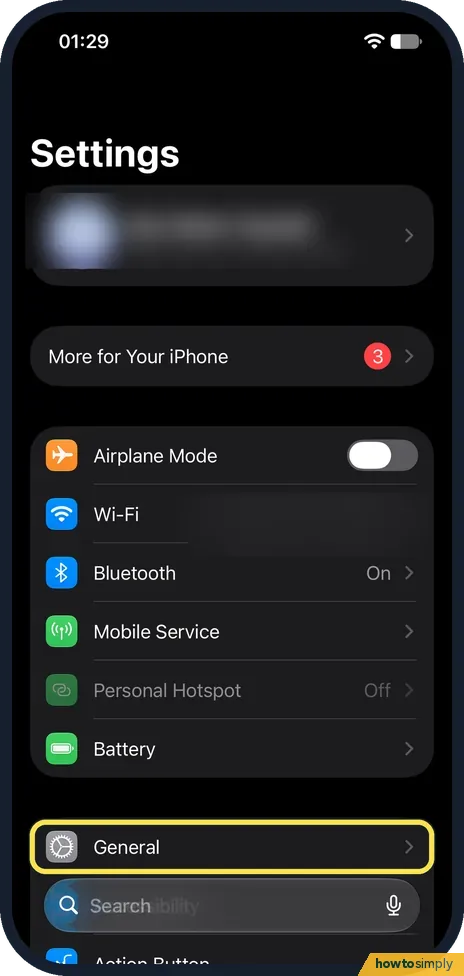
Open Settings and tap General
Scroll down the main Settings list. On our iPhone, General is the first row of the group below Battery.
- 2
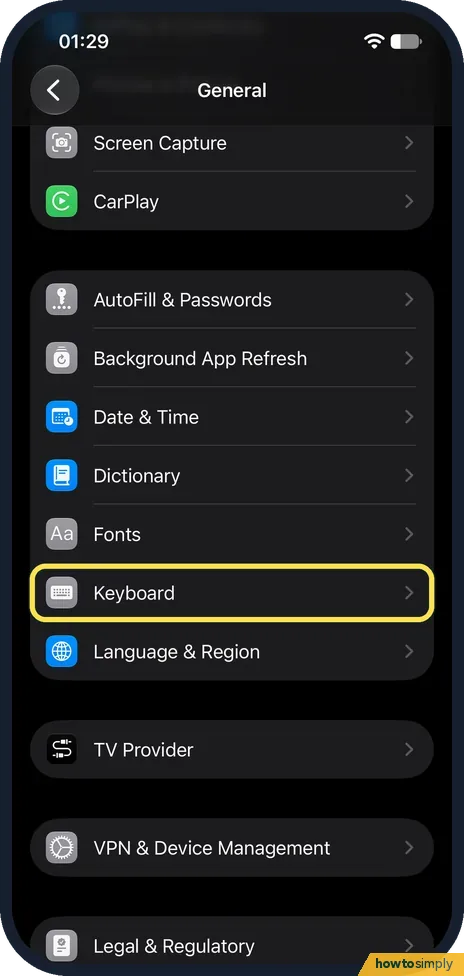
Tap Keyboard
Scroll down the General page if needed. On our iPhone, Keyboard is between Fonts and Language & Region.
- 3
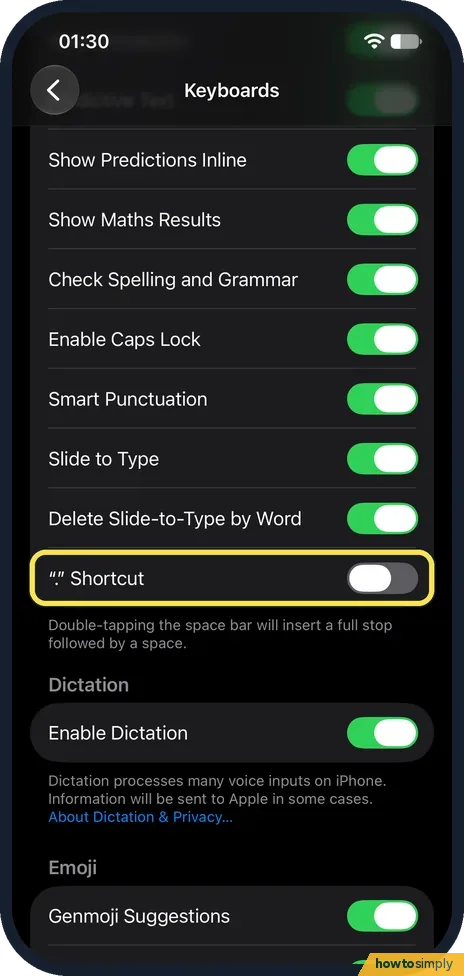
Scroll down and switch off “.” Shortcut
It is the last switch in the group, below Delete Slide-to-Type by Word. The note below it reads: Double-tapping the space bar will insert a full stop followed by a space.
On our iPhone, the switch turns grey when it is off.
If you do not see this option
- Keyboard is not in view Scroll down the General page. On our iPhone, it sits between Fonts and Language & Region.
- The switch is not on the Keyboards page Scroll further down. On our iPhone, “.” Shortcut is the last switch before the Dictation heading.
- You are looking for a row called Full Stop There is none. The switch is named “.” Shortcut, a full stop in quotation marks.
If this does not work
- A full stop still appears Go back to Keyboards and check that the “.” Shortcut switch is grey, not green.
- Other punctuation still changes as you type Other typing features are switched on or off on the same Keyboards page. On our iPhone, Smart Punctuation is on.
- Want to change it without leaving the app? Apple's tip: you can reach keyboard settings straight from the onscreen keyboard by pressing and holding the key pictured in Apple's guide, then tapping Keyboard Settings.
- The next word still starts with a capital? Auto-Capitalization is a separate switch on the same Keyboards page. Apple lists it with Auto-Correction and Check Spelling and Grammar as features you can turn on or off.
Good to know
To get the shortcut back, switch it on again in the same place.
Other automatic changes are on the same page: how to turn off autocorrect on iPhone.
Apple describes the feature as a quick way to end a sentence: double-tap the space bar to get a full stop and a space. Turning it off matters when you type tables, poems or code, or when you simply type fast and hit the space bar twice. Nothing else on the keyboard changes.
If you liked the speed but not the surprises, text replacement can give you a shortcut of your own instead, for example a short code that expands into your sign-off. See create text shortcuts on an iPhone. For quieter typing on the same theme, see turn off keyboard clicks on an iPhone.
About this guide
On iPhone, a double tap on the space bar inserts a full stop followed by a space. That is a quick way to end a sentence. The switch for it has an unusual name: a full stop in quotation marks.
On our iPhone, the row in General is called Keyboard, but the page it opens is headed Keyboards.
- Device
- iPhone
- Shown on
- iOS 27.0.1 (iPhone 17e)
- App
- Settings
- Path
- Settings › General › Keyboard
- Real screenshots
- 3 of 3 steps
- Checked
- October 2026
- Sources
- 3 official, linked below
What changed: the screenshots are now our own iPhone 17e on iOS 27.0.1, dark mode, and the wording is checked against those screens.
Sources
Links checked October 2026. Menus and features can change with updates.Did this guide work for you?
Sorry about that. What happened?
Get new guides by email
Our newest guides, sent to your inbox. Free, and you can unsubscribe in one click.
We'll email you to confirm. How we use your email
Follow howtosimply on Facebook
We share our new guides on our Facebook page, so the next fix turns up in your feed.
Follow on Facebook