How to make an iPhone speak words as you type
- Shown on
- iPhone 17e
- Software
- iOS 27.0.1More iOS 27 guides
- Checked
- October 2026
- Real screenshots
- 7 of 7 steps
- Where it is
- Settings › Accessibility › Keyboards & Typing › Typing Feedback
Quick answer
Open Settings, tap Accessibility, then Keyboards & Typing, then Typing Feedback, and switch on Speak Words. The iPhone then speaks each whole word while you type. Speak Auto-text reads out auto-corrections and auto-capitalisations too.
Watch these steps
 Watch on YouTubeA video of this task from our YouTube channel · opens YouTube
Steps
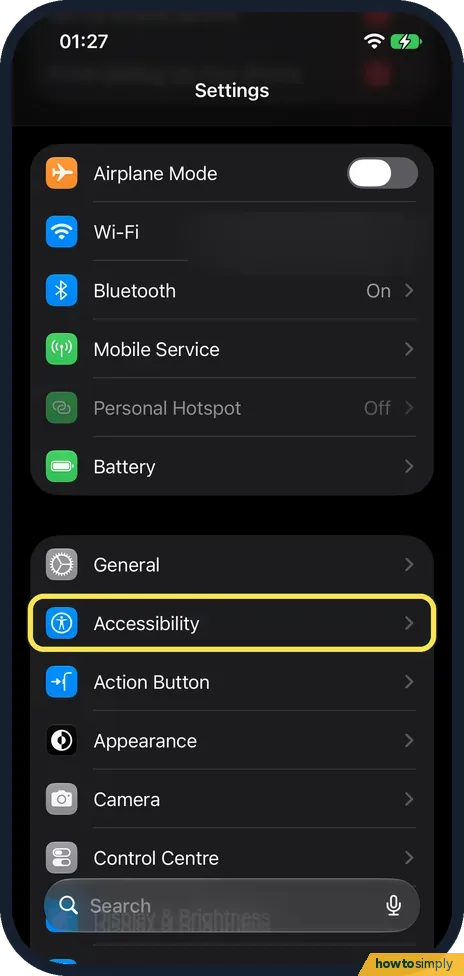
- 1
Open Settings and tap Accessibility
Scroll down a little and tap Accessibility, directly below General in the same group, or type Accessibility into the Search field at the bottom of the screen.
- 2
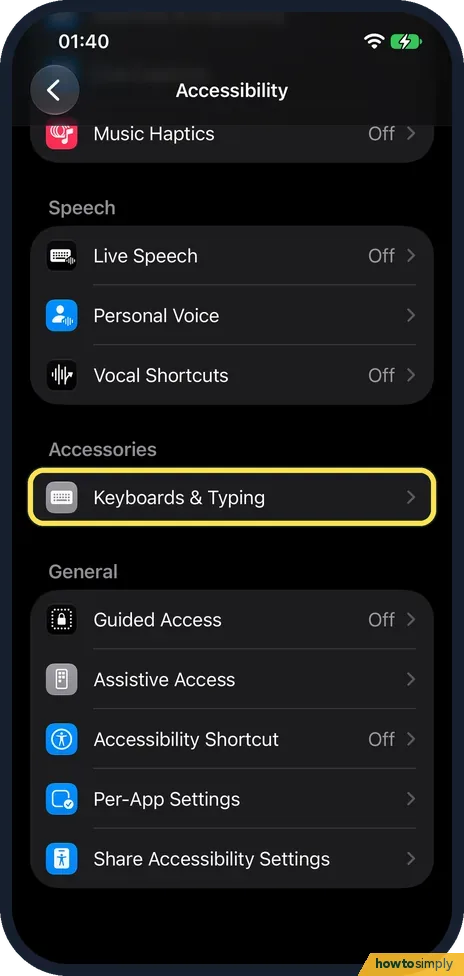
Scroll down and tap Keyboards & Typing
Scroll down the Accessibility page to find it. On our iPhone 17e it was the only row under Accessories, below the Speech group.
- 3
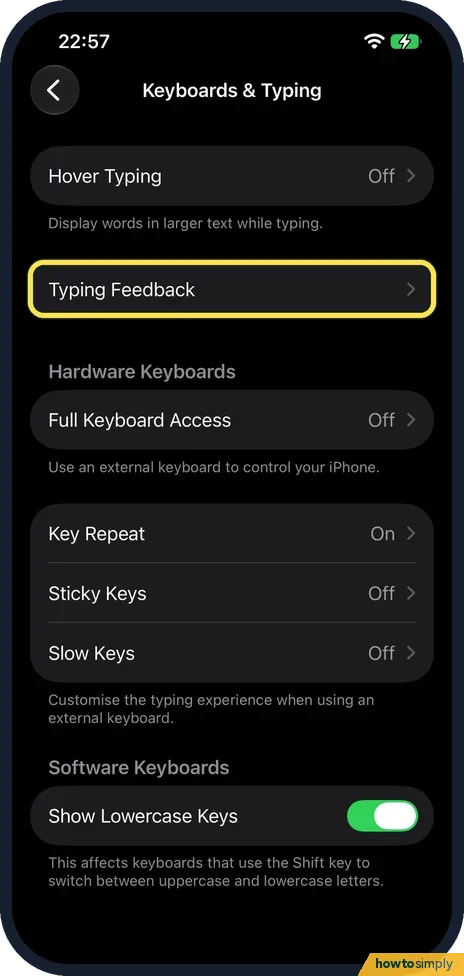
Tap Typing Feedback
It is the second row of the page, below Hover Typing.
- 4
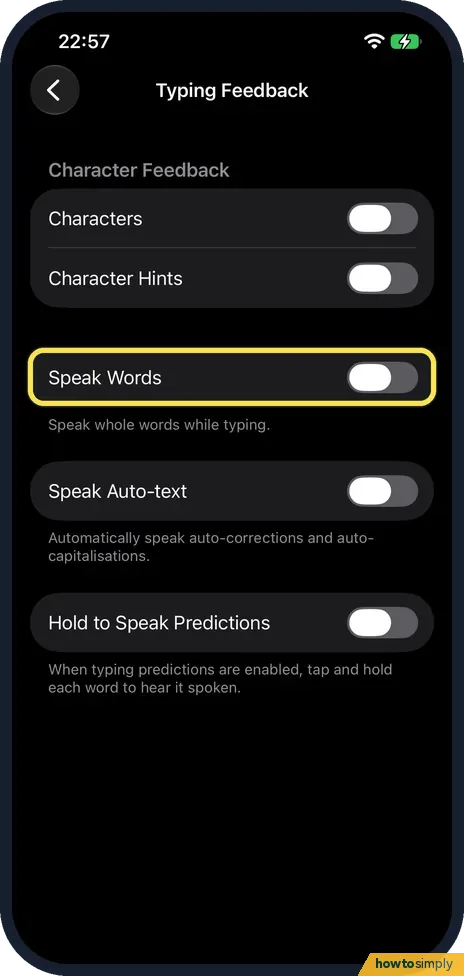
Switch on Speak Words
The note below says: speak whole words while typing. On our iPhone 17e it was off.
- 5
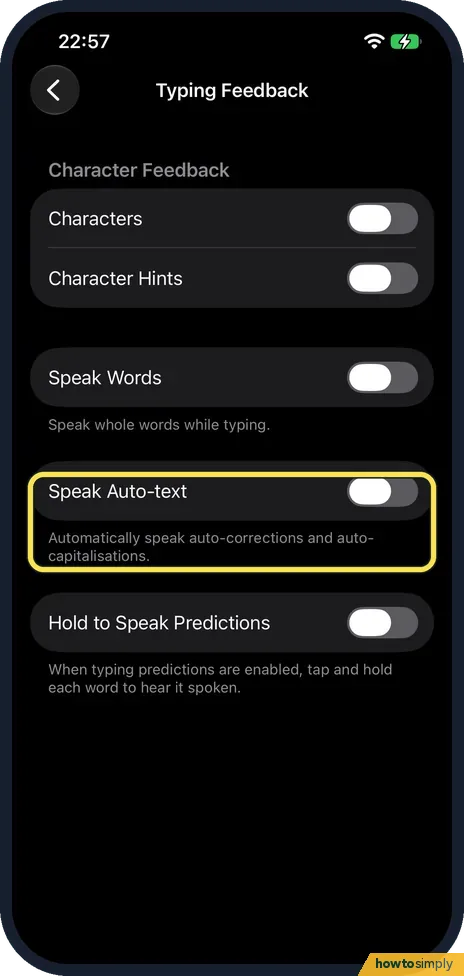
Switch on Speak Auto-text if you like
The iPhone then speaks auto-corrections and auto-capitalisations automatically, so you hear when it changes a word.
- 6
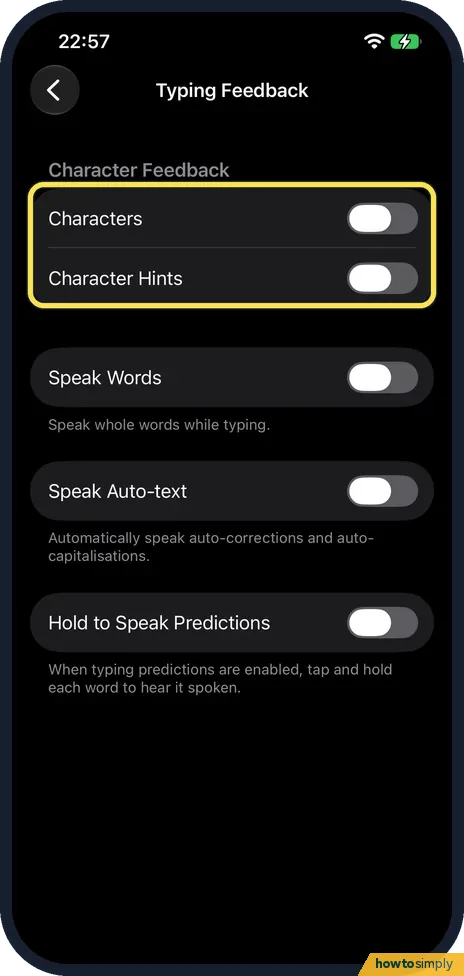
Decide about single letters
Characters makes the iPhone speak each letter as you type it. Character Hints adds the phonetic name of the letter. These two switches are at the top of the page, under the heading Character Feedback.
- 7
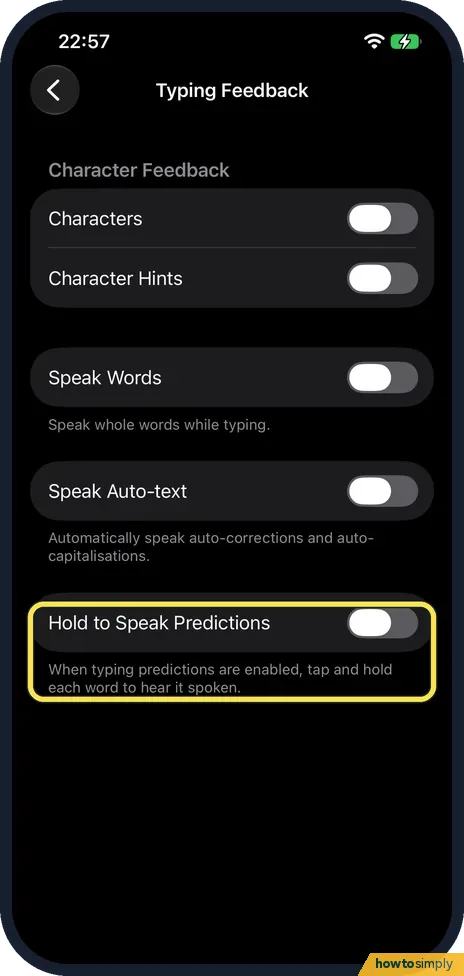
Hear the suggested words
With Hold to Speak Predictions on, and typing predictions enabled, you touch and hold a suggested word to hear it spoken. Typing predictions are the suggestions above the keyboard. Their switch is Predictive Text, in Settings, General, Keyboard, under All Keyboards.
If you do not see this option
- You look under Spoken Content. Apple's Typing Feedback article puts it under Accessibility, Spoken Content, Typing Feedback. Apple's iOS 27 guide calls that page Read & Speak, and on our iPhone 17e with iOS 27.0.1 Typing Feedback is under Accessibility, Keyboards & Typing. Sources: Use Typing Feedback on your iPhone, iPad, or iPod touch, Hear iPhone speak the screen, selected text, and typing feedback
- You look under Read & Speak. On iOS 27, Read & Speak has the voice, speaking rate and Speak Screen settings. Typing Feedback has its own row on the Keyboards & Typing page, below Hover Typing. Source: Hear iPhone speak the screen, selected text, and typing feedback
If this does not work
- Hold to Speak Predictions does nothing. Press and hold a word while you type to hear the suggested words read out.
- The voice is hard to follow. You are not stuck with the first voice you hear. Apple puts the voice and speaking rate for spoken content under Accessibility, Read & Speak. Change Voices or Speaking Rate there until it sounds comfortable to you.
Good to know
If you would rather see what you type in larger text than hear it, here is how to see what you type in larger text on an iPhone.
The words are spoken aloud through the iPhone speaker, so people near you can hear what you type, including private messages. Use headphones in public, because otherwise a quiet train carriage hears every word of your messages along with you.
About this guide
It is a horrible feeling to spot a wrong word only after the message has gone. Autocorrect changes words while your eyes are on the keys, and it does not stop to ask whether you agree. With Speak Auto-text on, the iPhone speaks auto-corrections and auto-capitalisations as they appear. On our iPhone 17e all five switches were off.
- Device
- iPhone
- Shown on
- iOS 27.0.1 (iPhone 17e)
- App
- Settings
- Path
- Settings › Accessibility › Keyboards & Typing › Typing Feedback
- Real screenshots
- 7 of 7 steps
- Checked
- October 2026
- Sources
- 3 official, linked below
What changed: the screenshots are now our own iPhone 17e on iOS 27.0.1, dark mode, and the wording is checked against those screens and Apple's iOS 27 guide.
Sources
Links checked October 2026. Menus and features can change with updates.Did this guide work for you?
Sorry about that. What happened?
Get new guides by email
Our newest guides, sent to your inbox. Free, and you can unsubscribe in one click.
We'll email you to confirm. How we use your email
Follow howtosimply on Facebook
We share our new guides on our Facebook page, so the next fix turns up in your feed.
Follow on Facebook