How to turn off autocorrect on iPhone
- Shown on
- iPhone 17e
- Software
- iOS 27.0.1More iOS 27 guides
- Checked
- October 2026
- Real screenshots
- 4 of 4 steps
- Where it is
- Settings › General › Keyboard
Quick answer
Open Settings, tap General, then Keyboard, and switch off Auto-Correction. The iPhone stops changing words as you type but still underlines spelling mistakes.
Watch these steps
 Watch on YouTubeA video of this task from our YouTube channel · opens YouTube
Steps
- 1
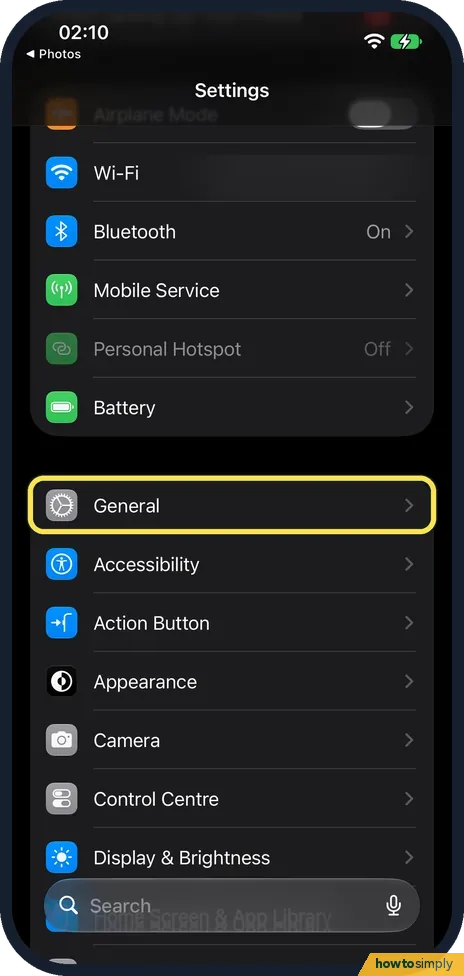
Open Settings and tap General
Open the grey Settings icon and tap General.
- 2
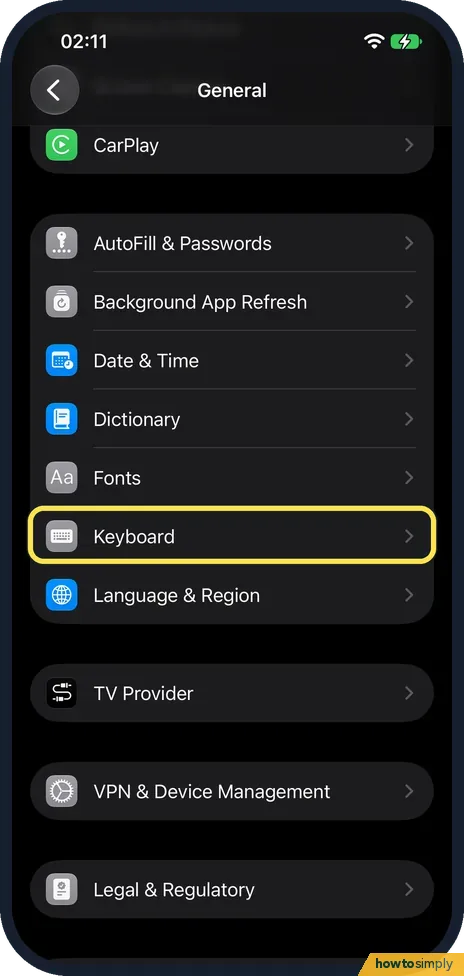
Tap Keyboard
It is in the group with Fonts, Dictionary and Language & Region. The page that opens is titled Keyboards.
- 3
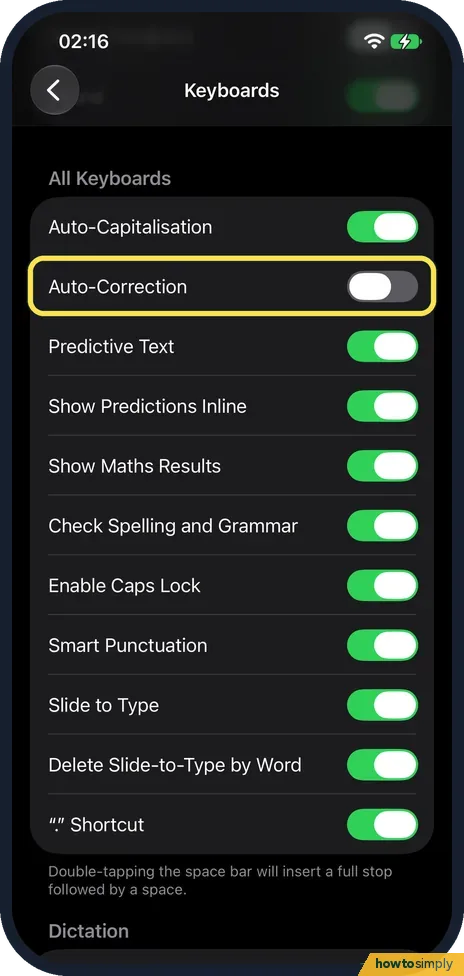
Switch off Auto-Correction
Scroll to the All Keyboards section. Tap the switch next to Auto-Correction so it turns grey. The picture shows ours after we switched it off.
- 4
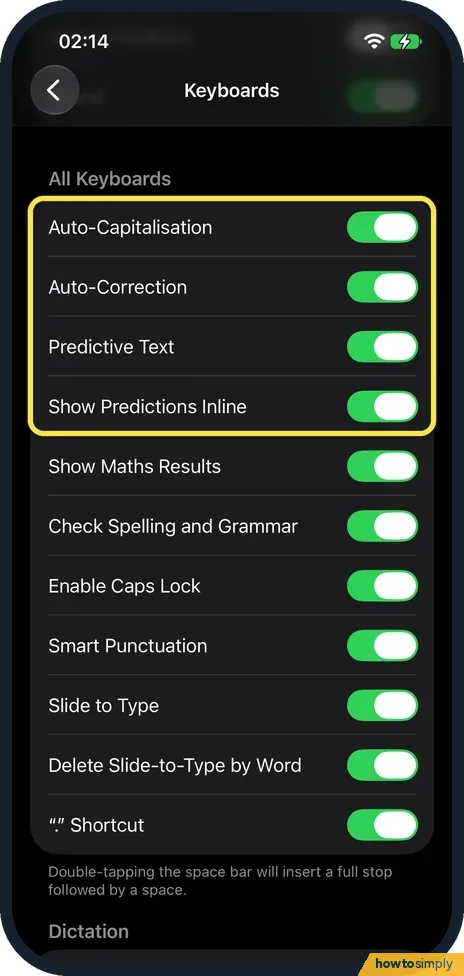
Decide about the other helpers
Predictive Text shows word suggestions above the keyboard. Show Predictions Inline writes a grey suggestion ahead of your cursor. Auto-Capitalisation starts sentences with a capital letter. Each has its own switch in the same list. This picture was taken before we switched off Auto-Correction, so its switch is still green here.
If you do not see this option
- Open Keyboard Settings from the keyboard. While typing, touch and hold the emoji or globe key and tap Keyboard Settings. On our iPhone 17e the menu listed Keyboard Settings, English (US) and Emoji. Source: Use Auto-Correction and predictive text on your iPhone
- No underline on corrected words? Apple says the underline on corrected words, which you tap to undo a correction, came with iOS 17. Source: Use Auto-Correction and predictive text on your iPhone
- You use a keyboard app from the App Store. This switch is for the Apple keyboard. A keyboard app such as Gboard has its own autocorrect setting inside that app.
If this does not work
- Spelling mistakes are still underlined. That is Check Spelling and Grammar, a separate switch in the same list. It was on on our iPhone.
- A word is still replaced. It could be a text replacement: Apple says typing a shortcut swaps it straight for the word or phrase you linked to it. Check Text Replacement on the Keyboards page: a shortcut listed there is replaced by its phrase.
- The keyboard keeps suggesting a wrong word. Settings, General, Transfer or Reset iPhone, Reset, Reset Keyboard Dictionary. Apple warns that this deletes all custom words and shortcuts.
- Corrections still appear with Predictive Text off? Apple says you may still see corrections for misspelled words with Predictive Text off. Tap the x to reject one; after a few rejections of the same suggestion, Apple says the iPhone stops suggesting it.
- Grey words keep appearing ahead of the cursor? Those are inline predictions, not autocorrect. Turn off Show Predictions Inline, or Predictive Text, which Apple says turns off both kinds.
Good to know
To make one, go to the Keyboards page, tap Text Replacement, tap the Add button, type the phrase and its shortcut, then tap Save.
If autocorrect swaps a word, tap the word with the line under it and pick from the menu that pops up.
Auto-Correction is what automatically corrects misspelled words, so with it off, read messages through before sending. It sits under All Keyboards, so it covers every Apple keyboard language you added. For the suggestions above the keyboard, see how to turn off predictive text on an iPhone.
About this guide
Autocorrect is helpful until "see you at Nani's" goes out as "see you at Nanny's", or it keeps swapping a name, a word in another language or slang for something you did not mean. You can switch it off completely, or keep it on.
- Device
- iPhone
- Shown on
- iOS 27.0.1 (iPhone 17e)
- App
- Settings
- Path
- Settings › General › Keyboard
- Real screenshots
- 4 of 4 steps
- What we did
- Performed: we made the change on our device and show the result
- Checked
- October 2026
- Sources
- 2 official, linked below
The screenshots are our own, taken on an iPhone 17e running iOS 27.0.1, in dark mode.
What changed: the screenshots are now our own iPhone 17e on iOS 27.0.1, dark mode, and the wording is checked against those screens.
Sources
Links checked October 2026. Menus and features can change with updates.Did this guide work for you?
Sorry about that. What happened?
Get new guides by email
Our newest guides, sent to your inbox. Free, and you can unsubscribe in one click.
We'll email you to confirm. How we use your email
Follow howtosimply on Facebook
We share our new guides on our Facebook page, so the next fix turns up in your feed.
Follow on Facebook