How to sync the Desktop and Documents folders with iCloud on a Mac
- Shown on
- MacBook Neo
- Software
- macOS 27.0.1More macOS 27 guides
- Checked
- October 2026
- Real screenshots
- 4 of 6 steps
 Real screenshot · MacBook Neo, macOS 27.0.1
Quick answer
Open System Settings, click your name, choose iCloud, then Drive. With Sync this Mac on, switch on Desktop & Documents Folders and click Done. Apple says the files then move to iCloud Drive.
Steps
- 1
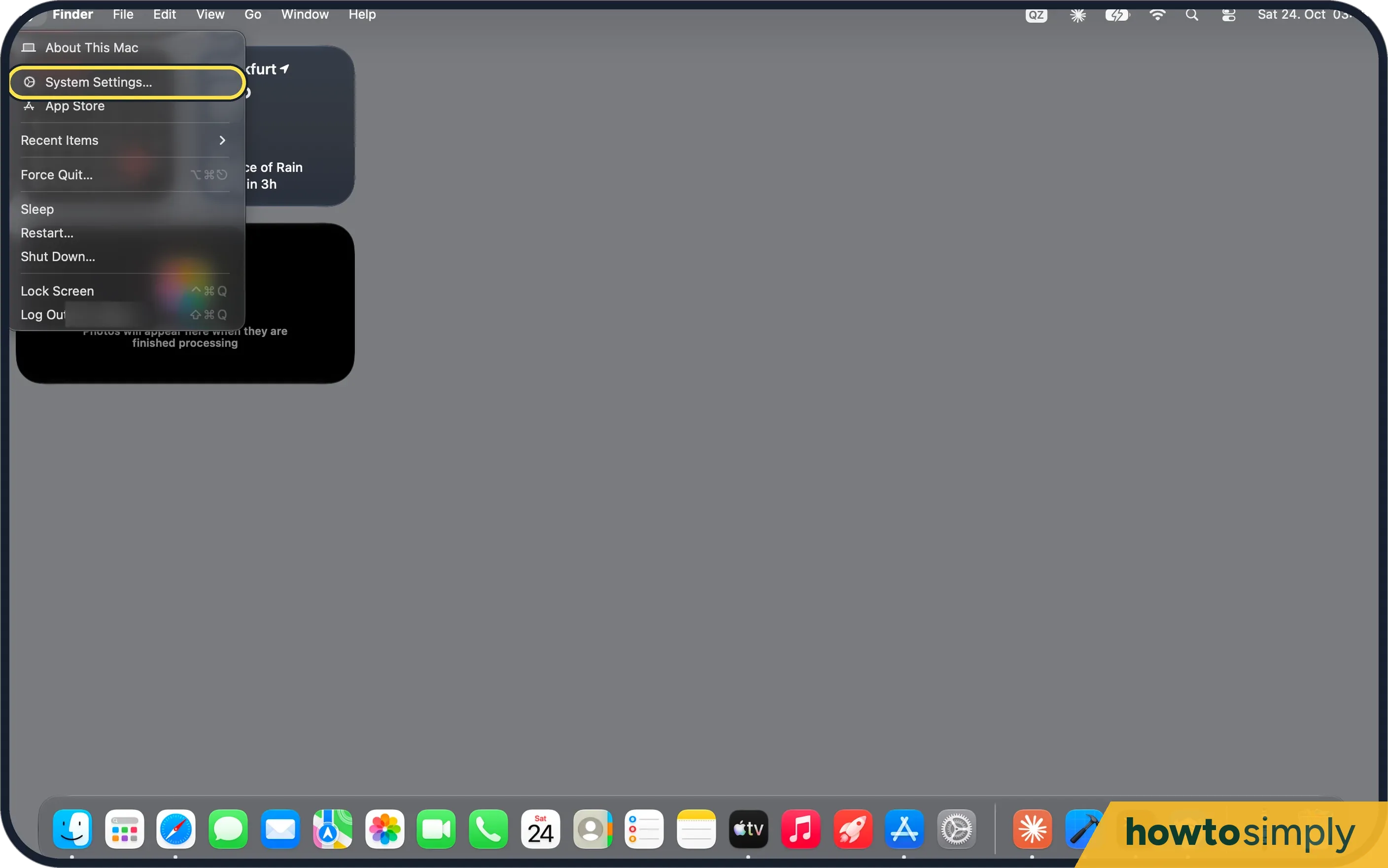
Open System Settings
Click the Apple menu and choose System Settings….
- 2
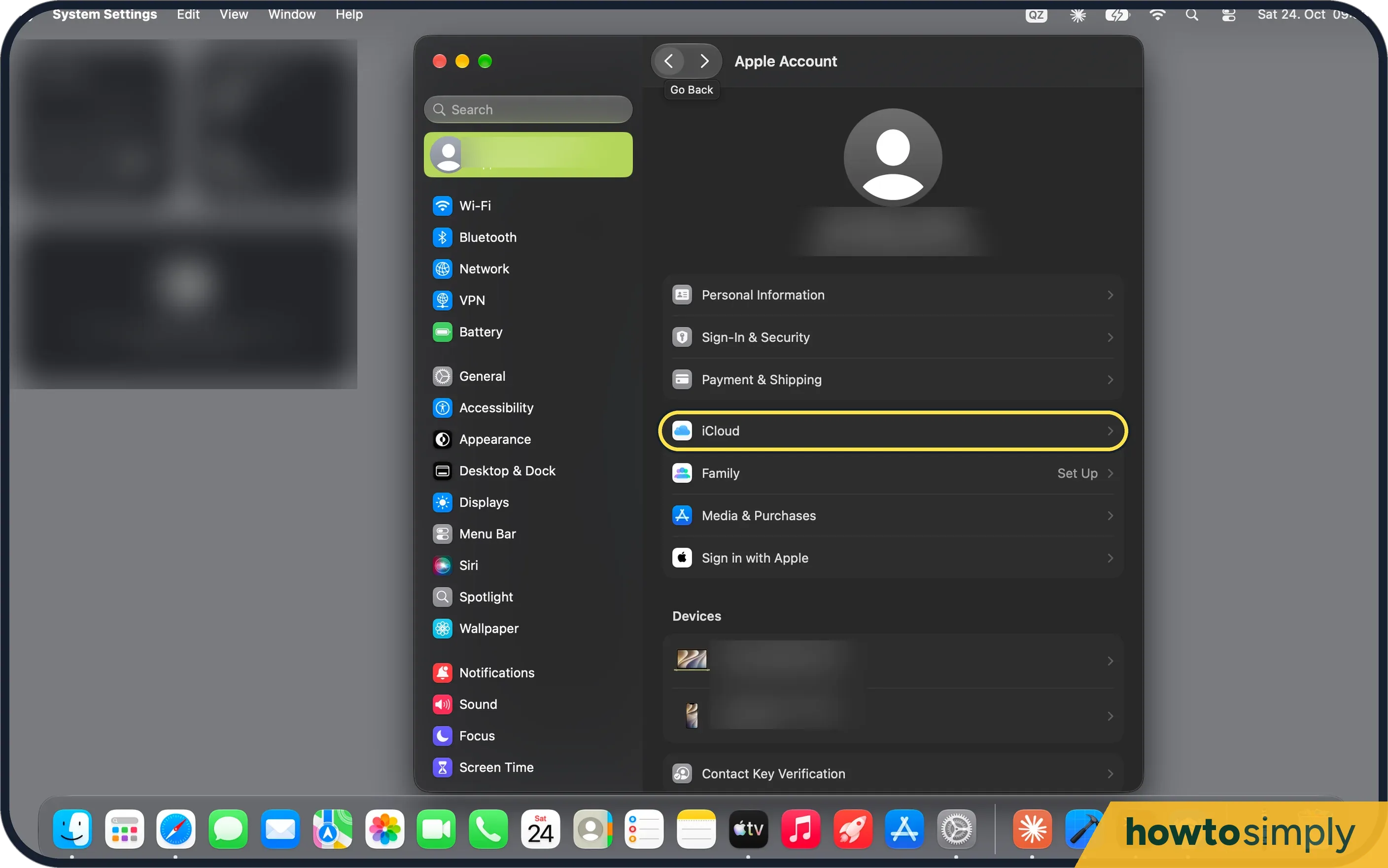
Click your name, then iCloud
Click your name at the top of the sidebar to open the Apple Account page, then click iCloud.
On our MacBook Neo, macOS 27 titles this page Apple Account; iCloud sits below Personal Information, Sign-In & Security and Payment & Shipping.
- 3
Check your storage and click Drive
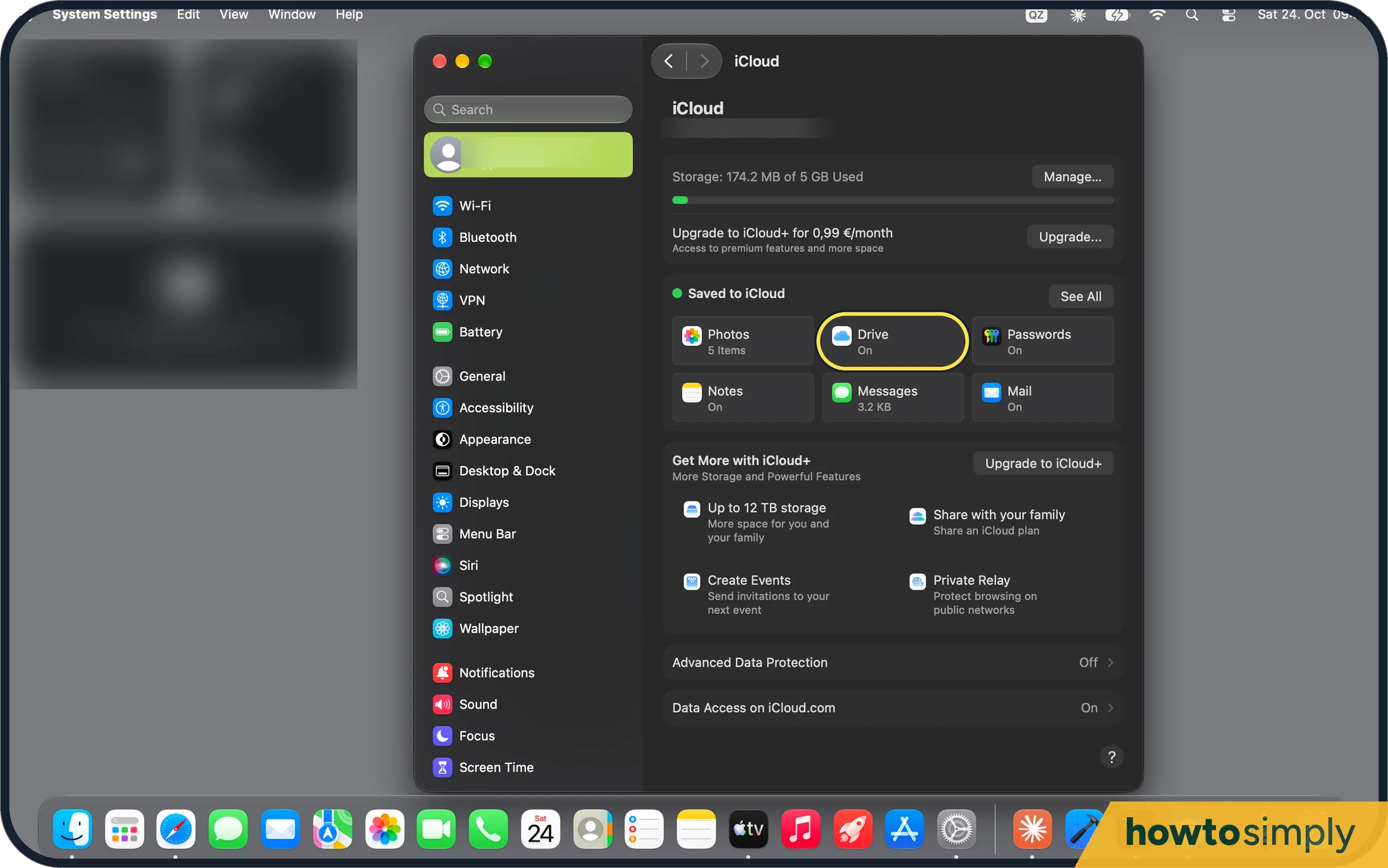
The Storage bar shows how much iCloud space you use; make sure it has room for both folders. Then click Drive under Saved to iCloud.
On our MacBook Neo the bar read Storage: 174.2 MB of 5 GB Used, and the Drive tile showed On even though the two folders were not yet synced.
- 4
Switch on Desktop & Documents Folders
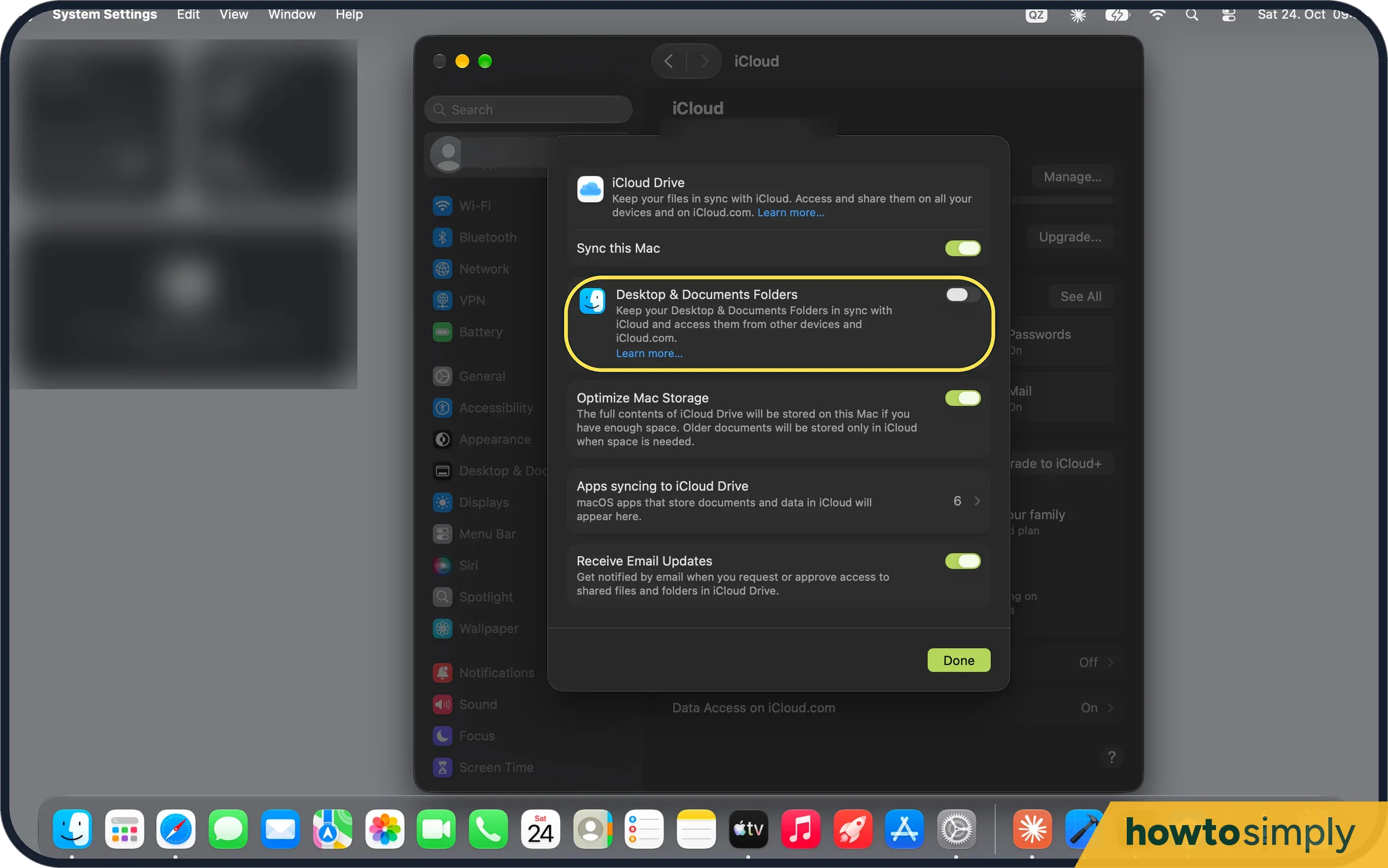
In the iCloud Drive sheet, make sure Sync this Mac is on, then switch on Desktop & Documents Folders and click Done.
On our MacBook Neo Sync this Mac was already on and Desktop & Documents Folders was off; the same sheet lists Optimize Mac Storage (on) and Apps syncing to iCloud Drive (6).
- 5
Open the files on other devices
Apple says that on an iPhone or iPad you open the Files app, tap Browse, iCloud Drive and then Desktop or Documents. On any computer, sign in at icloud.com and open iCloud Drive.
- 6
Repeat on a second Mac
Apple says that if you switch the setting on for a second Mac, its files sit in the Desktop folder in iCloud Drive, inside a folder named after that Mac. You can then sort them in.


If you do not see this option
- No name at the top of the sidebar Apple says iCloud has to be set up on every one of your devices first. On our MacBook Neo the name sits above Wi-Fi in the System Settings sidebar. Source: Add your Desktop and Documents files to iCloud Drive
- No Desktop & Documents Folders switch It is part of iCloud Drive: click Drive on the iCloud page and look directly below Sync this Mac in the iCloud Drive sheet. Apple says Sync this Mac must be on. Source: Add your Desktop and Documents files to iCloud Drive
- The tile is called iCloud Drive, not Drive Apple says to click Drive (or iCloud Drive) on the iCloud page. Source: Add your Desktop and Documents files to iCloud Drive
- You cannot find the folders in the Finder Apple says that in macOS Tahoe 26 or later they are in iCloud Drive under Favorites in the Finder sidebar, each with a cloud icon. On older versions you'll find them under iCloud in the sidebar. Source: Add your Desktop and Documents files to iCloud Drive
If this does not work
- Not enough iCloud storage Apple says these files use your iCloud storage. On our MacBook Neo the iCloud page offers Upgrade… with Upgrade to iCloud+ for 0,99 €/month, and Manage… to free up space.
- A file is not stored on the Mac With Optimize Mac Storage on, the sheet says older documents will be stored only in iCloud when space is needed. That is a space-saving choice, not a lost file: the document is still in iCloud. Turn it off in the iCloud Drive sheet to keep everything on the Mac.
- Another cloud service manages these folders Apple says to turn off other cloud services that also manage the Desktop and Documents folders. If your habit is to keep a second sync app on the same folders just to be safe, that extra safety net is exactly what causes the clash.
- A Photos or iMovie library does not sync Apple says iMovie, Photos and Aperture libraries in these folders are not uploaded and are labelled Ineligible in the Finder.
Good to know
Deleting a file deletes it on every device signed in with the same Apple Account, so a quick tidy-up of the Desktop on one Mac empties it everywhere. If you get it wrong, don't panic: the file waits for 30 days in Recently Deleted, which you can open from iCloud.com or the Files app.
iMovie, Photos and Aperture libraries in these folders are not uploaded to your other devices. Switch off anything from another cloud service that syncs or looks after these folders; Apple says Desktop & Documents Folders won't work until you do.
Switch the setting off later and your files stay put in iCloud Drive, while the Mac makes fresh, empty Desktop and Documents folders in your home folder.
iCloud sync is not a backup of old versions, because a change made on one device is simply copied to the others. Keep a Time Machine backup as well: how to back up a Mac with Time Machine. To see what fills the Mac: how to check and free up storage on a Mac.
About this guide
It is a small joy to open a file on your iPhone and find it is the very one you left on the Mac's Desktop. This setting stores your Desktop and Documents folders in iCloud Drive so they match on your other Apple devices. These files use your iCloud storage.
- Device
- Mac
- Shown on
- macOS 27.0.1 (MacBook Neo)
- App
- System Settings
- Real screenshots
- 4 of 6 steps
- Checked
- October 2026
- Sources
- 1 official, linked below
Sources
Links checked October 2026. Menus and features can change with updates.What to do next
Free up and look after your Mac storage Step 2 of 4
Did this guide work for you?
Sorry about that. What happened?
Get new guides by email
Our newest guides, sent to your inbox. Free, and you can unsubscribe in one click.
We'll email you to confirm. How we use your email
Follow howtosimply on Facebook
We share our new guides on our Facebook page, so the next fix turns up in your feed.
Follow on Facebook