How to change the title bar double-click action on a Mac
- Shown on
- MacBook Neo
- Software
- macOS 27.0.1More macOS 27 guides
- Checked
- October 2026
- Real screenshots
- 3 of 3 steps
 Real screenshot · MacBook Neo, macOS 27.0.1
Quick answer
Open System Settings, click Desktop & Dock, then choose Fill, Zoom, Minimize or No Action from the menu in the Window title bar double-click action row.
Steps
- 1
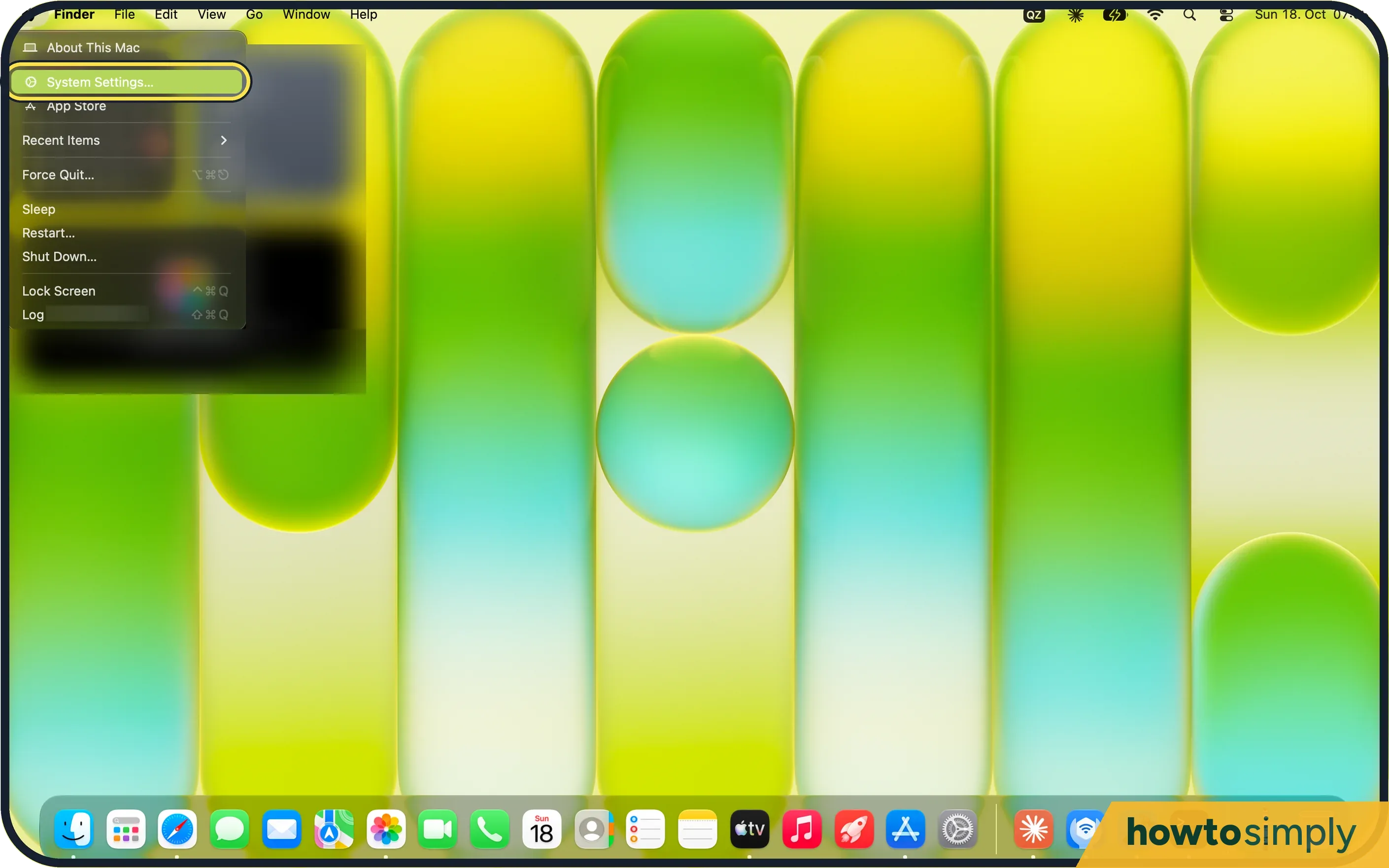
Open System Settings
Click the Apple menu in the top-left corner of the screen and choose System Settings.
- 2
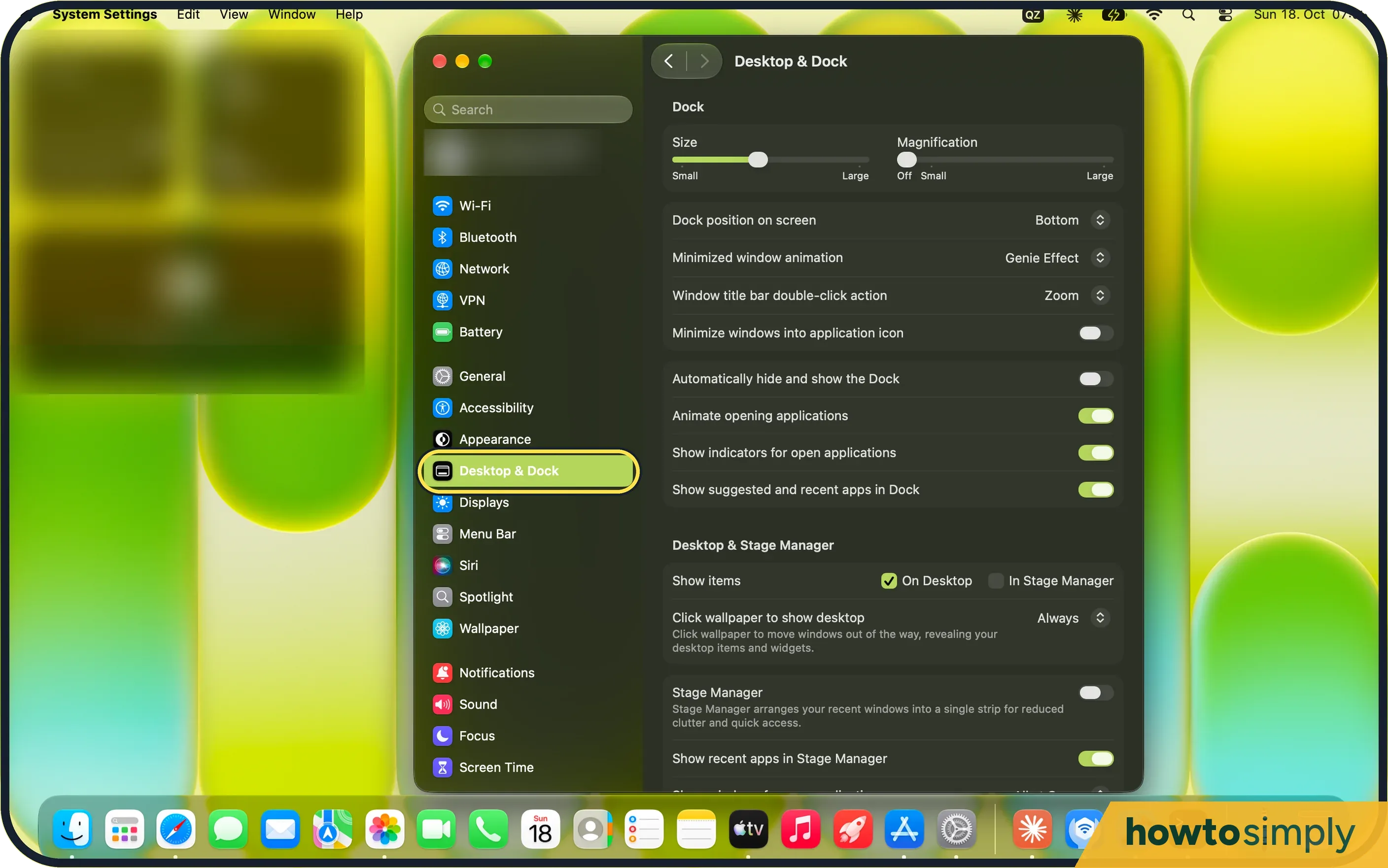
Click Desktop & Dock in the sidebar
It is just below Appearance. You may need to scroll down in the sidebar.
On our MacBook Neo the setting sits in the Dock section at the top, in the row Window title bar double-click action.
- 3
Choose the action
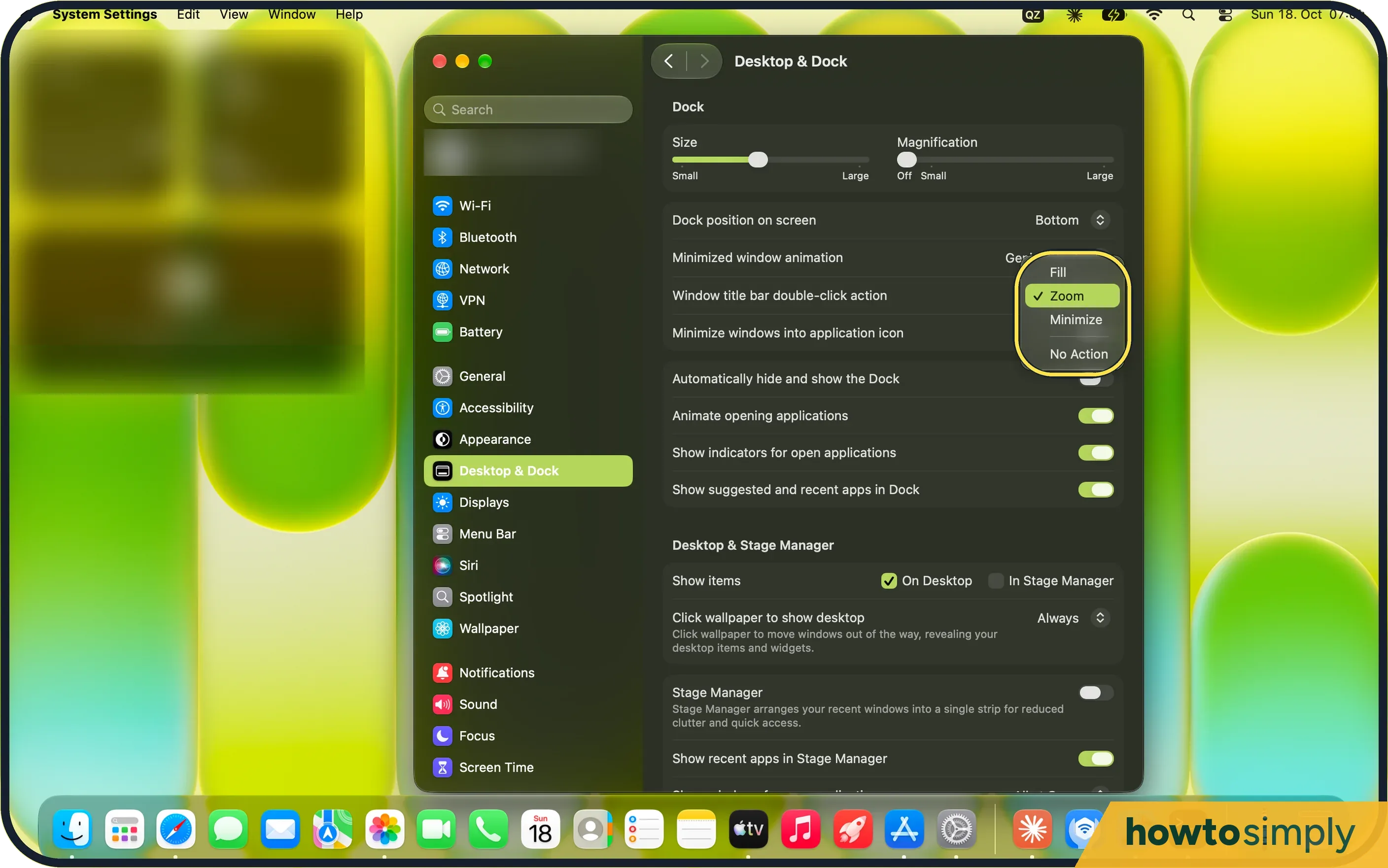
Click the menu at the right of the Window title bar double-click action row, then choose Fill, Zoom, Minimize or No Action.
On our MacBook Neo it was set to Zoom, shown with a tick in the menu.


If you do not see this option
- Desktop & Dock is not in the sidebar Scroll down the sidebar.
- You cannot find the row It is in the Dock section near the top of Desktop & Dock, directly below Minimized window animation and above Minimize windows into application icon.
If this does not work
- Double-clicking the title bar does nothing Check the menu is not set to No Action; Apple says that option does nothing, and it does that job very well.
- The window fills the screen instead of zooming Apple says Fill makes the window take up everything from the menu bar down to the Dock. Choose Zoom if you want the zoom behaviour instead.
- The window disappears into the Dock The menu may be set to Minimize, which Apple says minimises an app window to the Dock. Choose Fill, Zoom or No Action instead.
- Minimised windows do not show in the Dock? Check Minimize windows into application icon, the next row down. Apple says it shrinks an app's window down into that app's icon in the Dock; with it off, the window goes to its own spot in the Dock. Click the app icon to bring it back.
- You want two windows side by side? Apple explains it as the setting for what a double-click on an app window's title bar does. For a split screen, see how to tile windows side by side on a Mac.
Good to know
Minimized window animation, the row just above, picks the effect you see as a window shrinks away.
On our MacBook Neo, Minimized window animation was set to Genie Effect, and the next row down, Minimize windows into application icon, was switched off.
The new action applies from the next double-click. To go back, choose the old option from the same menu; ours was Zoom. No Action is useful if you double-click title bars by accident while moving windows around.
If window effects in general feel slow or distracting, you can customise onscreen motion: how to reduce motion and animations on a Mac.
macOS 27 compared with macOS 26: We rewrote this guide on macOS 27.0.1 (MacBook Neo): it now has 3 steps instead of 4. The macOS 26 page keeps the steps and screenshots as they were.
Version history: the macOS 26 version of this guide, with its own screenshots.
About this guide
If you have ever double-clicked a title bar just to grab a window, you know this little setting can feel like it has a mind of its own. The good news is that you decide what it does. Double-clicking a window's title bar can do one of four things on a Mac. Apple says Fill stretches the window over everything from the menu bar down to the Dock, Zoom zooms it, Minimize tucks it into the Dock, and No Action leaves it as it is.
- Device
- Mac
- Shown on
- macOS 27.0.1 (MacBook Neo)
- App
- System Settings
- Real screenshots
- 3 of 3 steps
- Checked
- October 2026
- Sources
- 2 official, linked below
Sources
Links checked October 2026. Menus and features can change with updates.Did this guide work for you?
Sorry about that. What happened?
Get new guides by email
Our newest guides, sent to your inbox. Free, and you can unsubscribe in one click.
We'll email you to confirm. How we use your email
Follow howtosimply on Facebook
We share our new guides on our Facebook page, so the next fix turns up in your feed.
Follow on Facebook