How to move the Dock to the side of the screen on a Mac
- Shown on
- MacBook Pro
- Software
- macOS 26
- Checked
- October 2026
- Real screenshots
- 3 of 3 steps
- Where it is
- System Settings › Desktop & Dock
 Real screenshot · MacBook Pro, macOS 26
Quick answer
Open System Settings, click Desktop & Dock, and set Dock position on screen to Left or Right. The Dock can go on the screen's left, right or bottom edge.
Steps
- 1
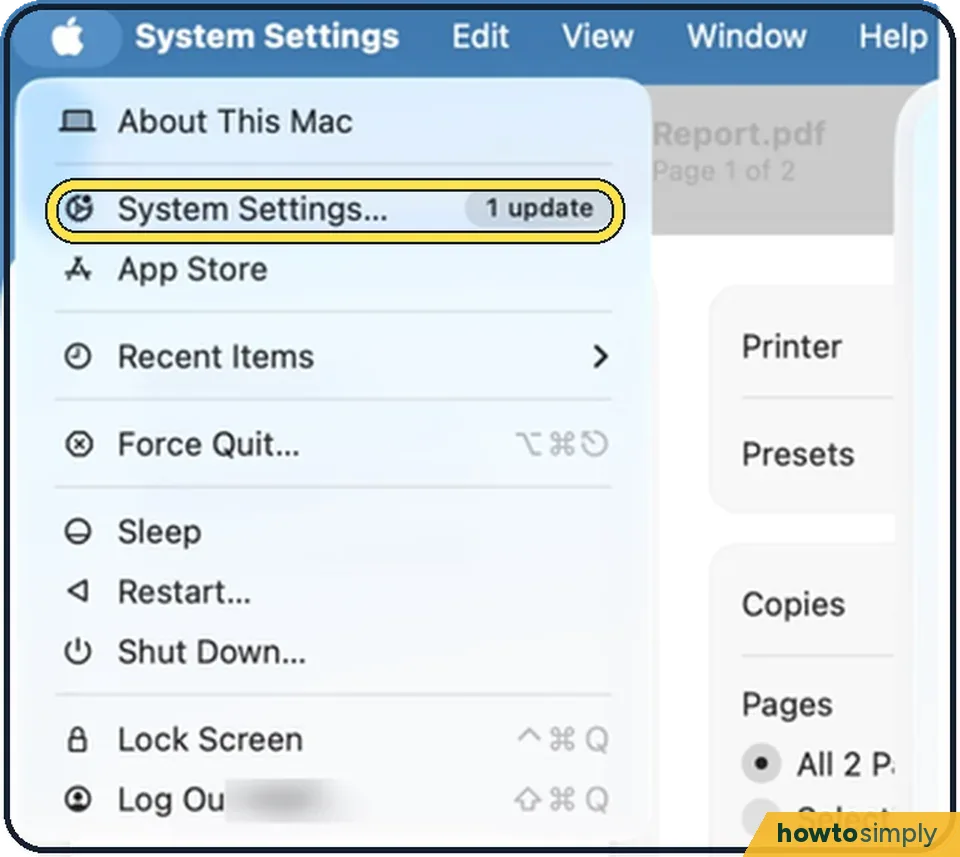
Open System Settings
Click the Apple menu in the top left corner of the screen and choose System Settings.
- 2
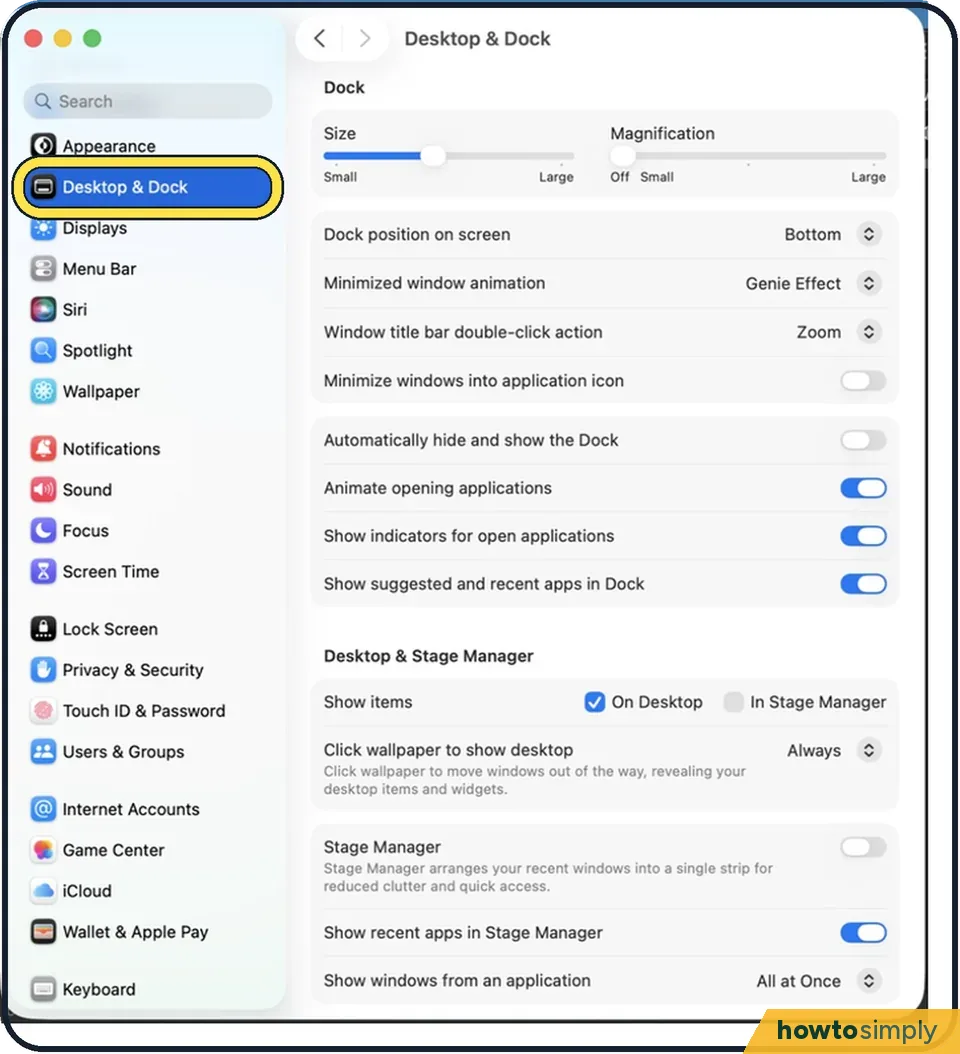
Click Desktop & Dock in the sidebar
It is below Appearance. You may need to scroll down in the sidebar.
- 3
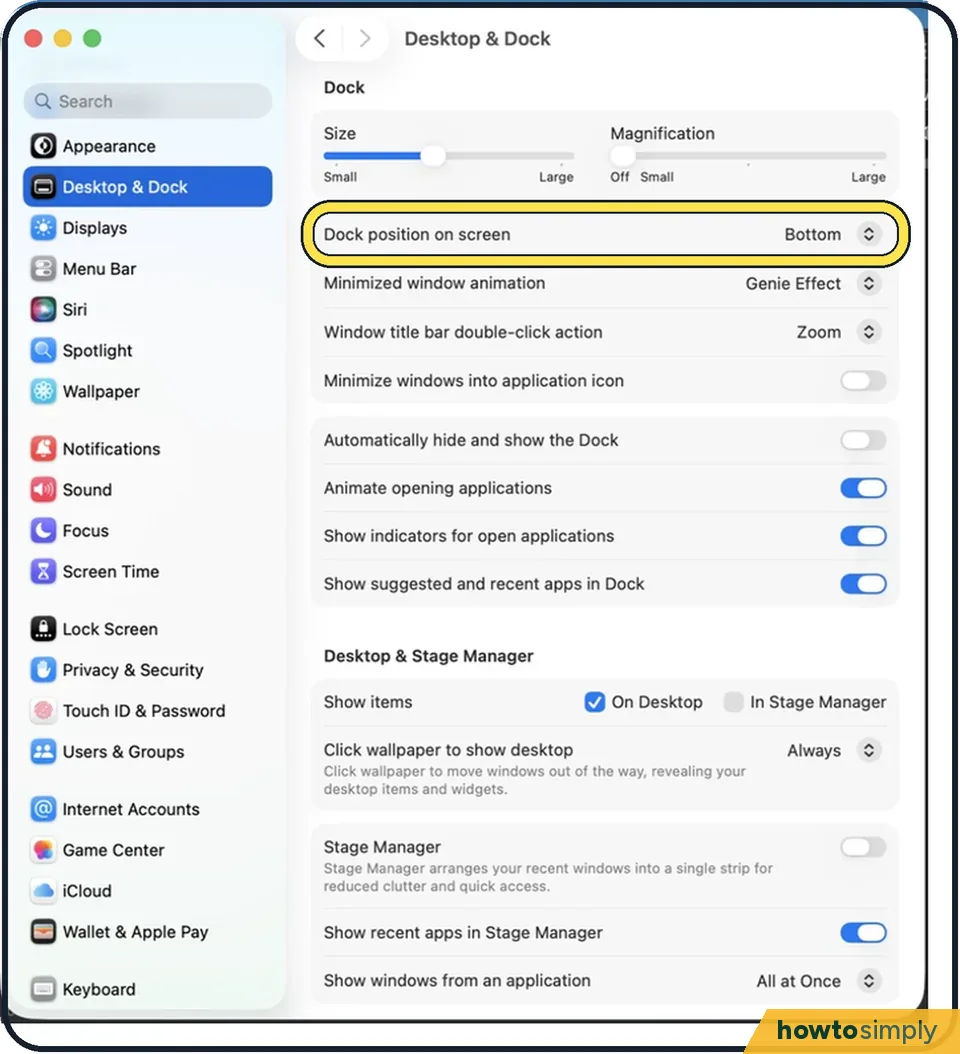
Set Dock position on screen
Click the menu in that row and choose Left, Bottom or Right. In the picture it is set to Bottom.

If you do not see this option
- Your Mac has System Preferences, not System Settings. Apple says that on macOS Monterey you choose System Preferences, Dock & Menu Bar. The setting there is called Position on screen. Source: Change Dock & Menu Bar preferences on Mac
- You cannot find Desktop & Dock in the sidebar. Apple says you can type a word, such as Dock, in the search field in System Settings and click the matching option. Source: Find options in System Settings on Mac
If this does not work
- The Dock has disappeared. It has not run away; it has just moved house. If Automatically hide and show the Dock is switched on, Apple says to push the pointer to the side of the screen where the Dock sits, which is now the left or right edge.
- The Dock is too big or too small at the side. Apple says you can drag the Size slider in Desktop & Dock, or drag the separator line in the Dock up or down when a double arrow appears.
- Want a quicker way than System Settings? Apple says you can Control-click the separator line in the Dock to reach other Dock actions from a shortcut menu. Use the settings page if you do not see a position choice there.
- Icons got smaller at the side? The side of the screen is shorter than the bottom, so a full Dock has less room. If you keep apps there just in case, clear out the ones you hardly open: Apple says to drag one off the Dock until you see Remove.
- Hard to reach the Dock with the keyboard? To reach the Dock from the keyboard, Apple lists Fn-Control-F3.
Good to know
To have it disappear when not in use: how to hide the Dock automatically on a Mac.
With the Dock at the side, windows gain height, which suits a wide laptop screen when you read long documents or web pages. Everything in the Dock stays the same: your apps, folders, the Trash and their order. To undo it, open Desktop & Dock again and set Dock position on screen to Bottom.
A side Dock is a good moment to clear out icons you do not use, including the recently used apps that macOS adds: how to remove recent apps from the Dock on a Mac.
About this guide
Apple says that with the Dock down one side, a filled window takes up the area under the menu bar and beside the Dock.
The screenshots show System Settings on macOS Tahoe 26.
- Device
- Mac
- Shown on
- macOS Tahoe 26 (MacBook Pro)
- App
- System Settings
- Path
- System Settings › Desktop & Dock
- Real screenshots
- 3 of 3 steps
- Checked
- October 2026
- Sources
- 5 official, linked below
Sources
Links checked October 2026. Menus and features can change with updates.Did this guide work for you?
Sorry about that. What happened?
Get new guides by email
Our newest guides, sent to your inbox. Free, and you can unsubscribe in one click.
We'll email you to confirm. How we use your email
Follow howtosimply on Facebook
We share our new guides on our Facebook page, so the next fix turns up in your feed.
Follow on Facebook