How to stop a click on the desktop hiding windows on a Mac
- Shown on
- MacBook Neo
- Software
- macOS 27.0.1More macOS 27 guides
- Checked
- October 2026
- Real screenshots
- 4 of 4 steps
 Real screenshot · MacBook Neo, macOS 27.0.1
Quick answer
Open System Settings, click Desktop & Dock, and under Desktop & Stage Manager set Click wallpaper to show desktop to Only in Stage Manager. A click on the wallpaper then no longer moves your windows aside unless Stage Manager is on.
Steps
- 1
Open System Settings
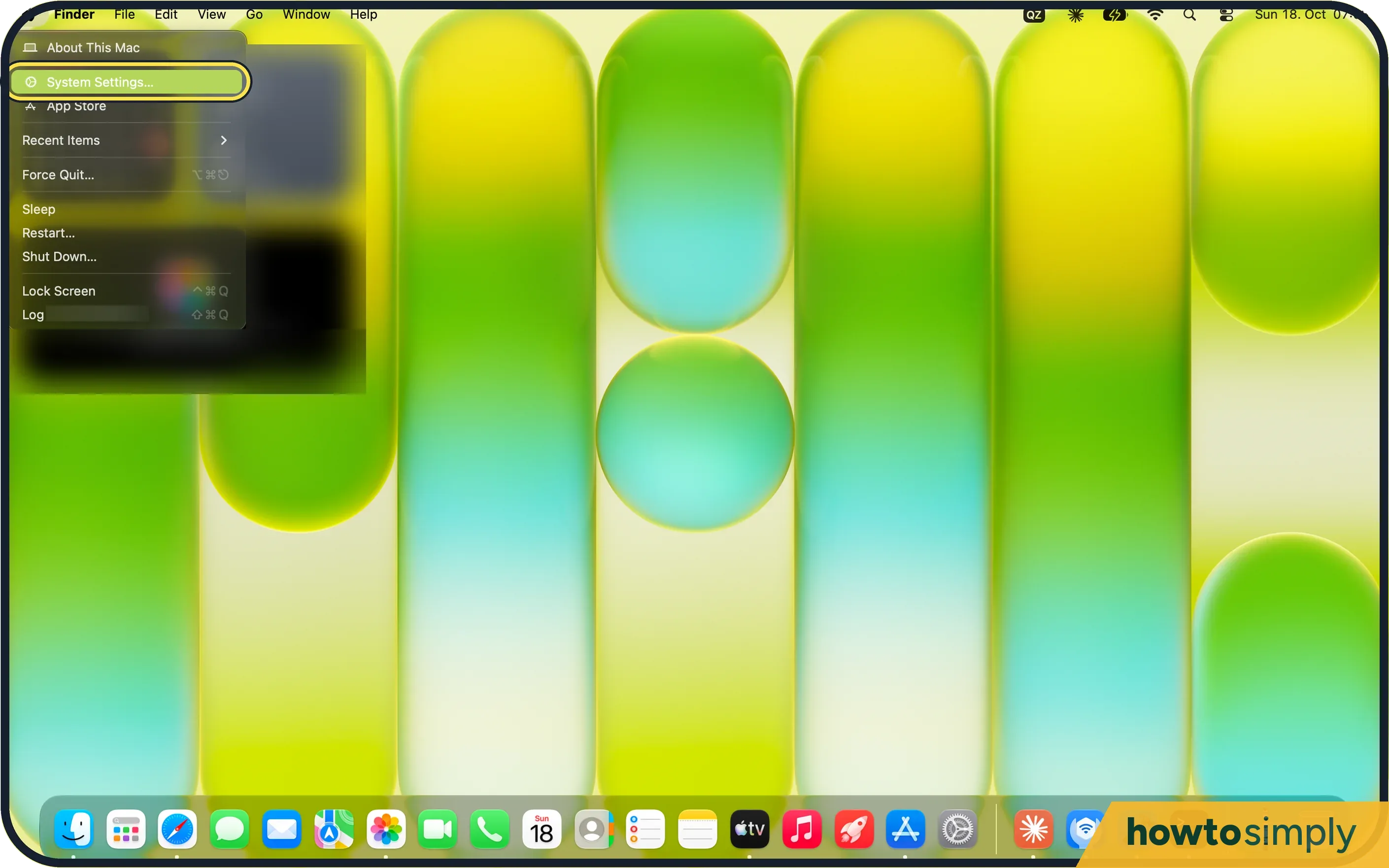
Click the Apple menu in the top-left corner of the screen and choose System Settings….
- 2
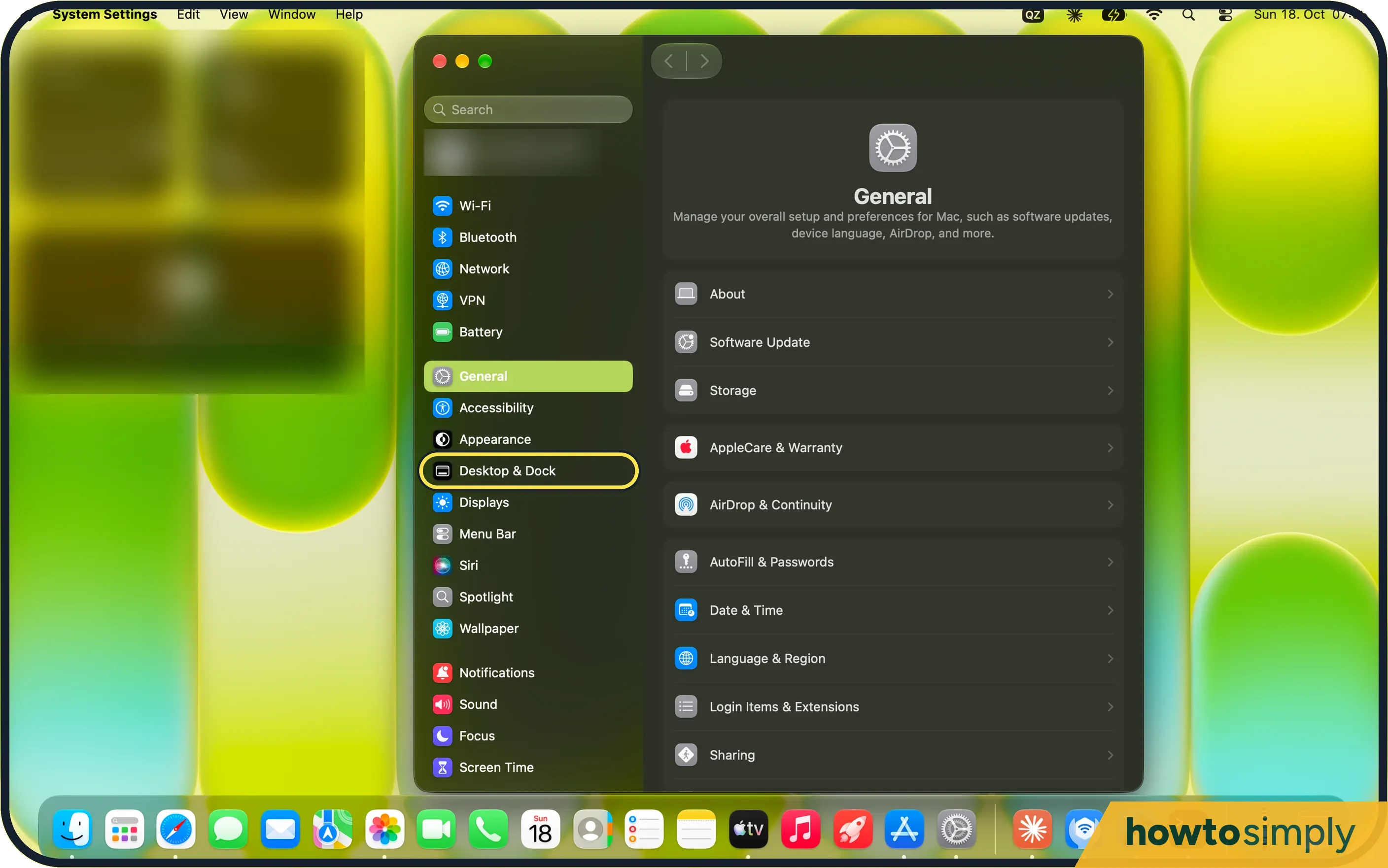
Click Desktop & Dock in the sidebar
On our MacBook Neo, System Settings opened on General, and Desktop & Dock sits directly below Appearance, visible without scrolling.
- 3
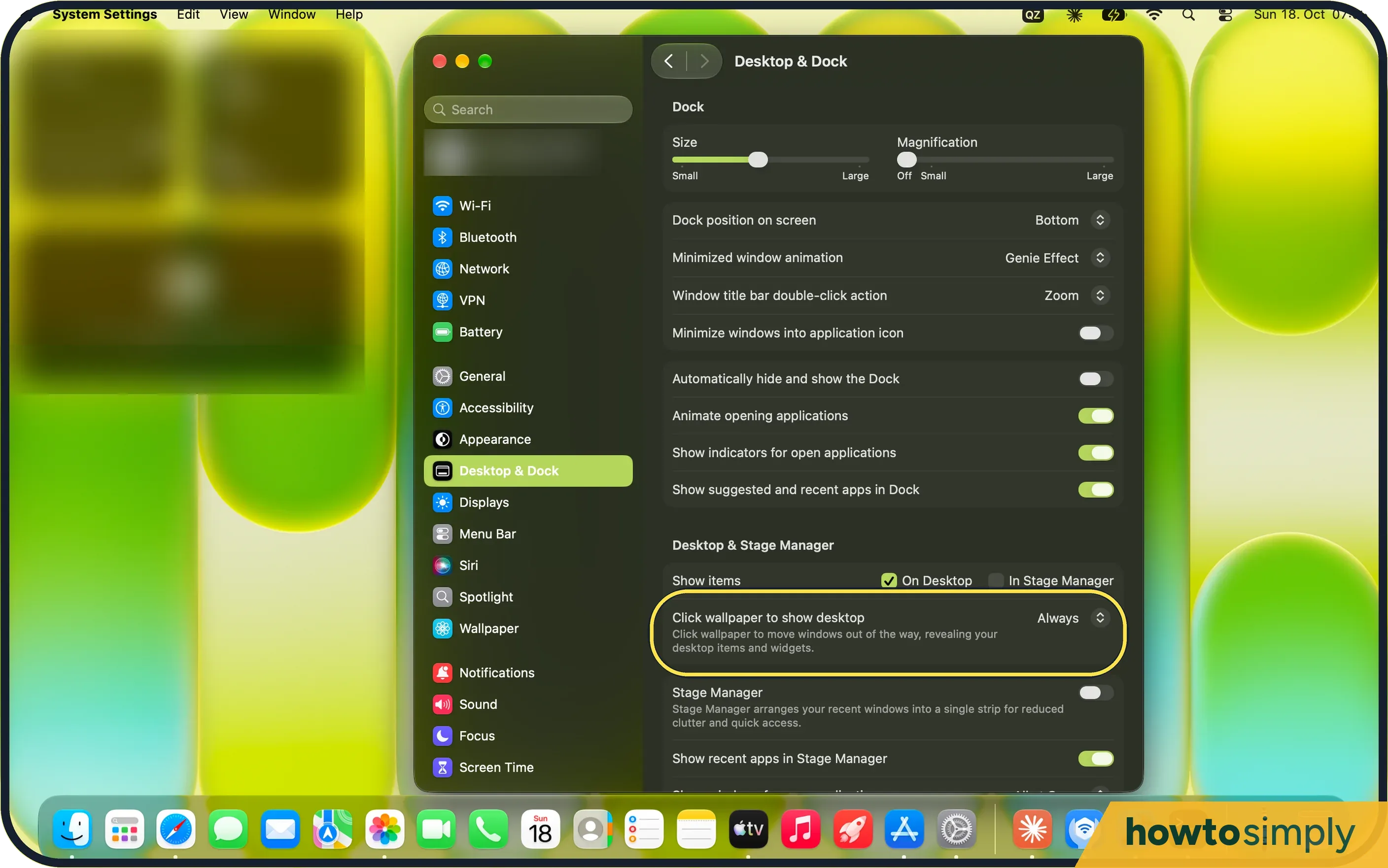
Find Click wallpaper to show desktop
It is in the Desktop & Stage Manager group, below the Dock settings. On our MacBook Neo it was set to Always, with the note "Click wallpaper to move windows out of the way, revealing your desktop items and widgets."
Click the menu in that row.
- 4
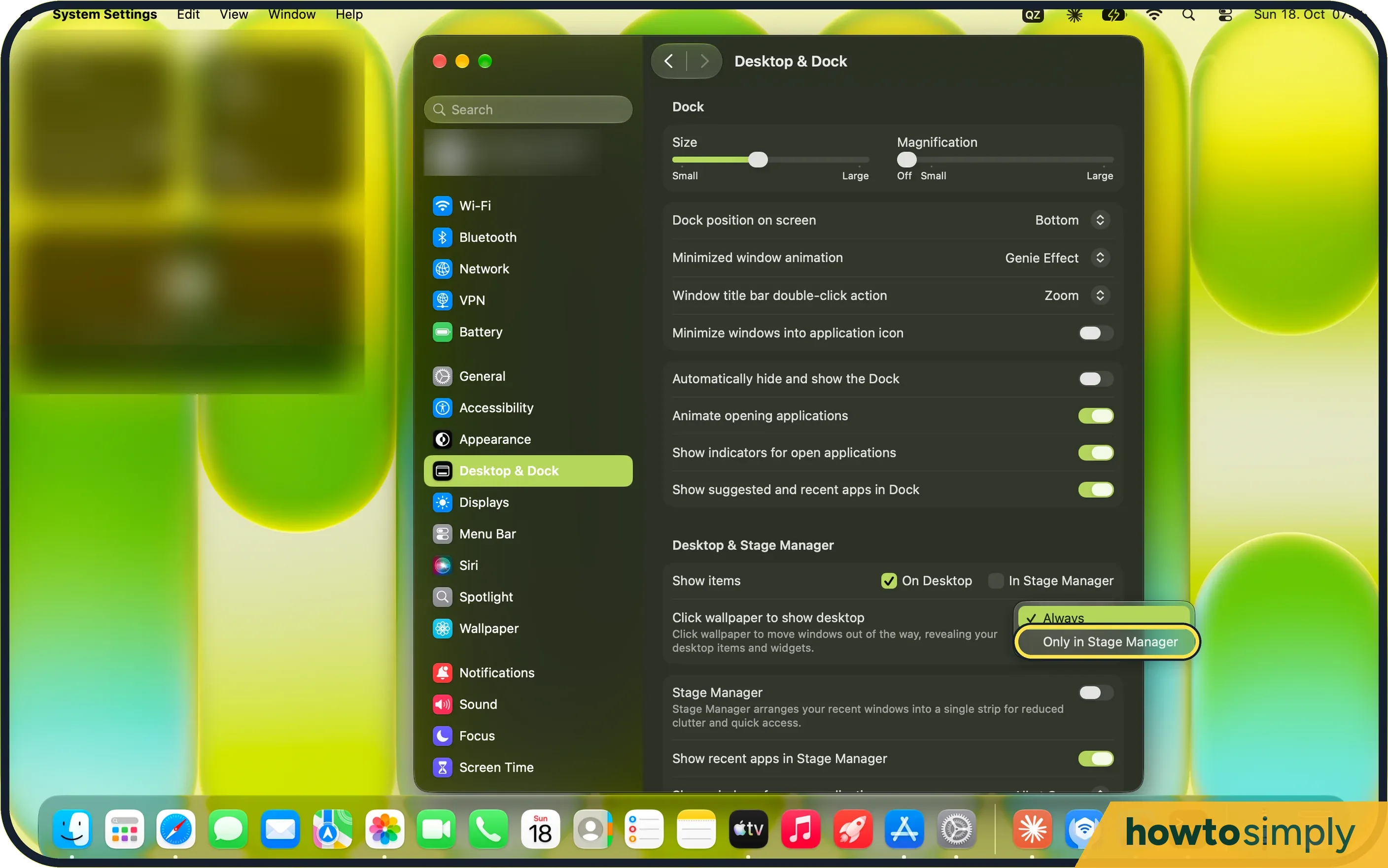
Choose Only in Stage Manager
On our MacBook Neo the menu has just two choices: Always and Only in Stage Manager. Choose Only in Stage Manager so a click on the wallpaper leaves your windows alone while Stage Manager is off.


If you do not see this option
- Desktop & Dock is not in the sidebar Scroll down the System Settings sidebar: Apple notes that you may need to scroll down to find Desktop & Dock.
- You cannot see the Click wallpaper row Scroll down on the Desktop & Dock page past the Dock settings to the Desktop & Stage Manager heading; the row is directly below Show items.
If this does not work
- Windows still move aside when you click the wallpaper Check the Stage Manager switch just below the setting, because it is easy to miss. With Only in Stage Manager chosen, a wallpaper click still reveals the desktop while Stage Manager is on.
- Files on the desktop are not showing Make sure On Desktop is ticked in the Show items row above; that row, not this setting, controls whether desktop files appear.
- You want the old behaviour back Open the same menu and choose Always. It is that easy.
- Stage Manager will not switch on? Apple says it needs Displays have separate Spaces, in the Mission Control group of Desktop & Dock. Switch that on, then try Stage Manager again.
- Windows vanished after a wallpaper click? It looks worse than it is: they only moved aside. Apple says a second click on the wallpaper brings your windows back.
Good to know
Show items, the row above, decides whether files on the desktop are shown at all.
On our MacBook Neo, Show items had On Desktop ticked and In Stage Manager unticked, and the Stage Manager switch just below was off.
You do not lose the feature. With Only in Stage Manager chosen, you can still show the desktop on purpose. The Shortcuts button at the bottom of Desktop & Dock shows the keyboard shortcut for revealing the desktop and lets you change it, and Hot Corners lets you set what happens when the pointer hits a corner of the screen: how to set up hot corners on a Mac.
macOS 27 compared with macOS 26: We rewrote this guide on macOS 27.0.1 (MacBook Neo): it now has 4 steps instead of 3. The macOS 26 page keeps the steps and screenshots as they were.
Version history: the macOS 26 version of this guide, with its own screenshots.
About this guide
Well, it is quite a fright when every window you were working in suddenly disappears from the screen. The reason it happens is that a single click on the wallpaper can push every window aside to reveal your desktop items and widgets, so a stray click makes your windows seem to vanish. The good news is that one setting in Desktop & Dock limits this to Stage Manager.
- Device
- Mac
- Shown on
- macOS 27.0.1 (MacBook Neo)
- App
- System Settings
- Real screenshots
- 4 of 4 steps
- Checked
- October 2026
- Sources
- 2 official, linked below
Sources
Links checked October 2026. Menus and features can change with updates.Did this guide work for you?
Sorry about that. What happened?
Get new guides by email
Our newest guides, sent to your inbox. Free, and you can unsubscribe in one click.
We'll email you to confirm. How we use your email
Follow howtosimply on Facebook
We share our new guides on our Facebook page, so the next fix turns up in your feed.
Follow on Facebook