How to stop Dock icons bouncing on a Mac
- Shown on
- MacBook Neo
- Software
- macOS 27.0.1More macOS 27 guides
- Checked
- October 2026
- Real screenshots
- 4 of 4 steps
 Real screenshot · MacBook Neo, macOS 27.0.1
Quick answer
Open System Settings, click Desktop & Dock, and switch off Animate opening applications in the Dock group. After that, opening an app no longer makes its Dock icon bounce.
Steps
- 1
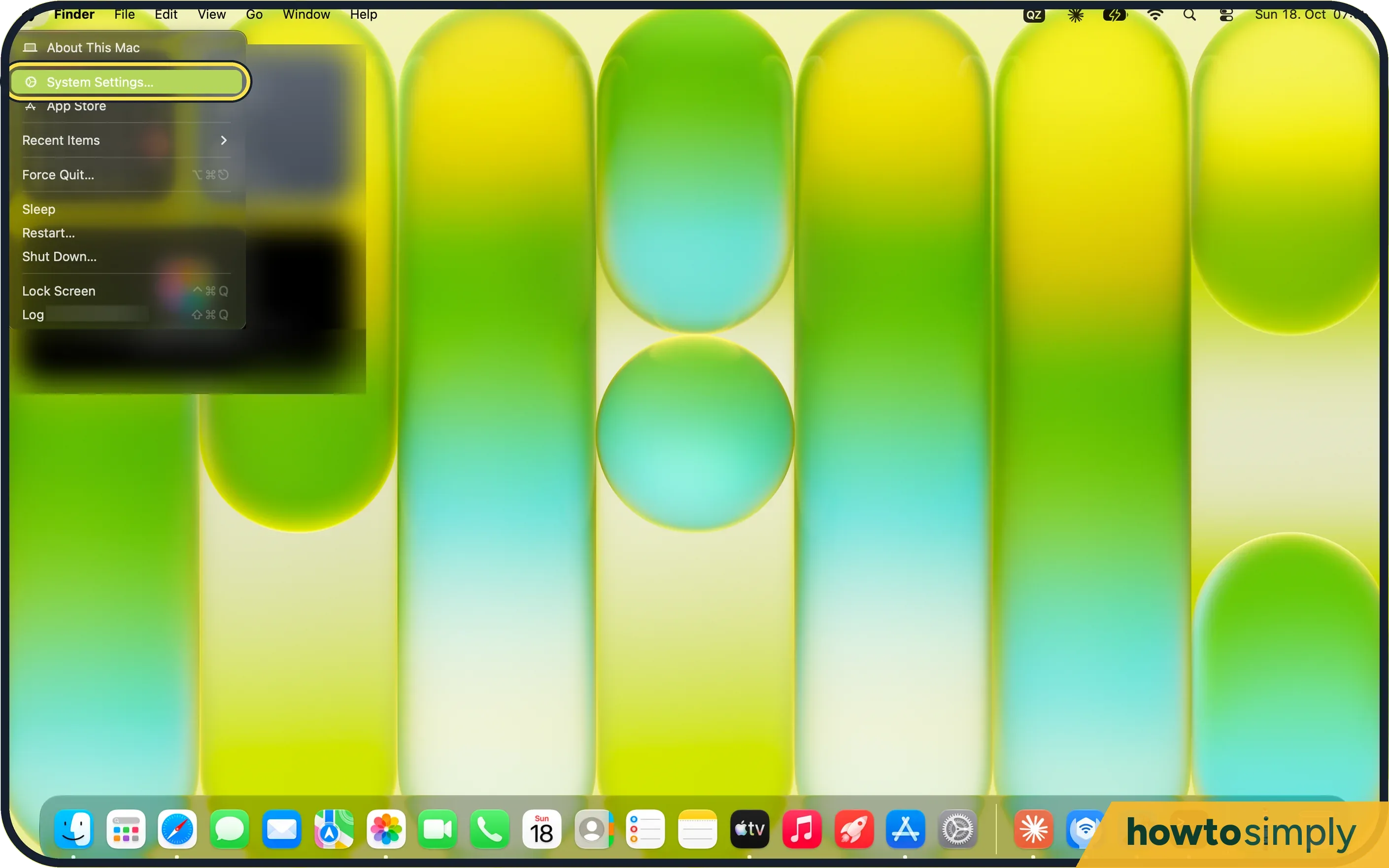
Open System Settings
Click the Apple menu in the top left corner of the screen and choose System Settings.
- 2
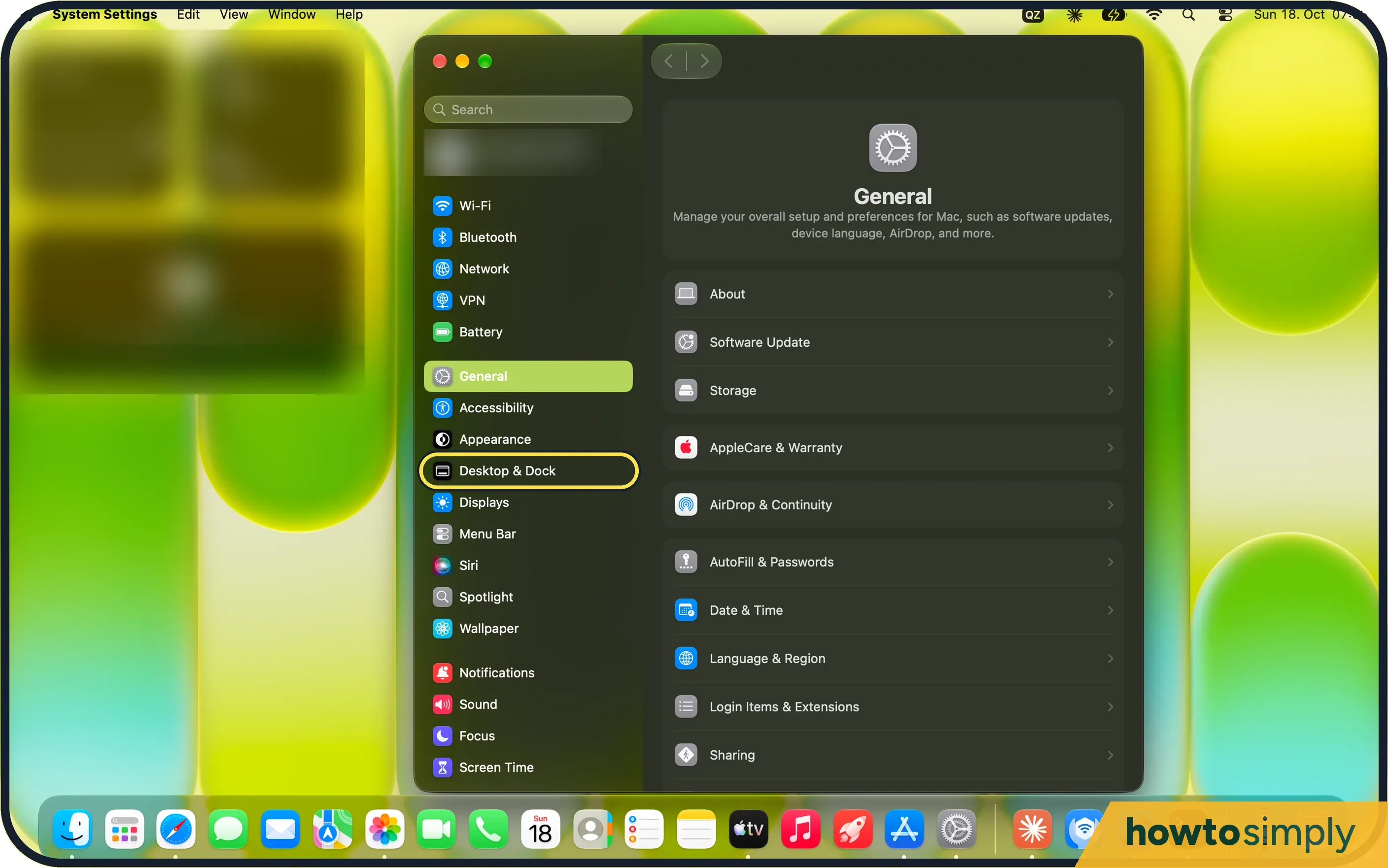
Click Desktop & Dock in the sidebar
On our MacBook Neo it is below Appearance and was visible without scrolling.
- 3
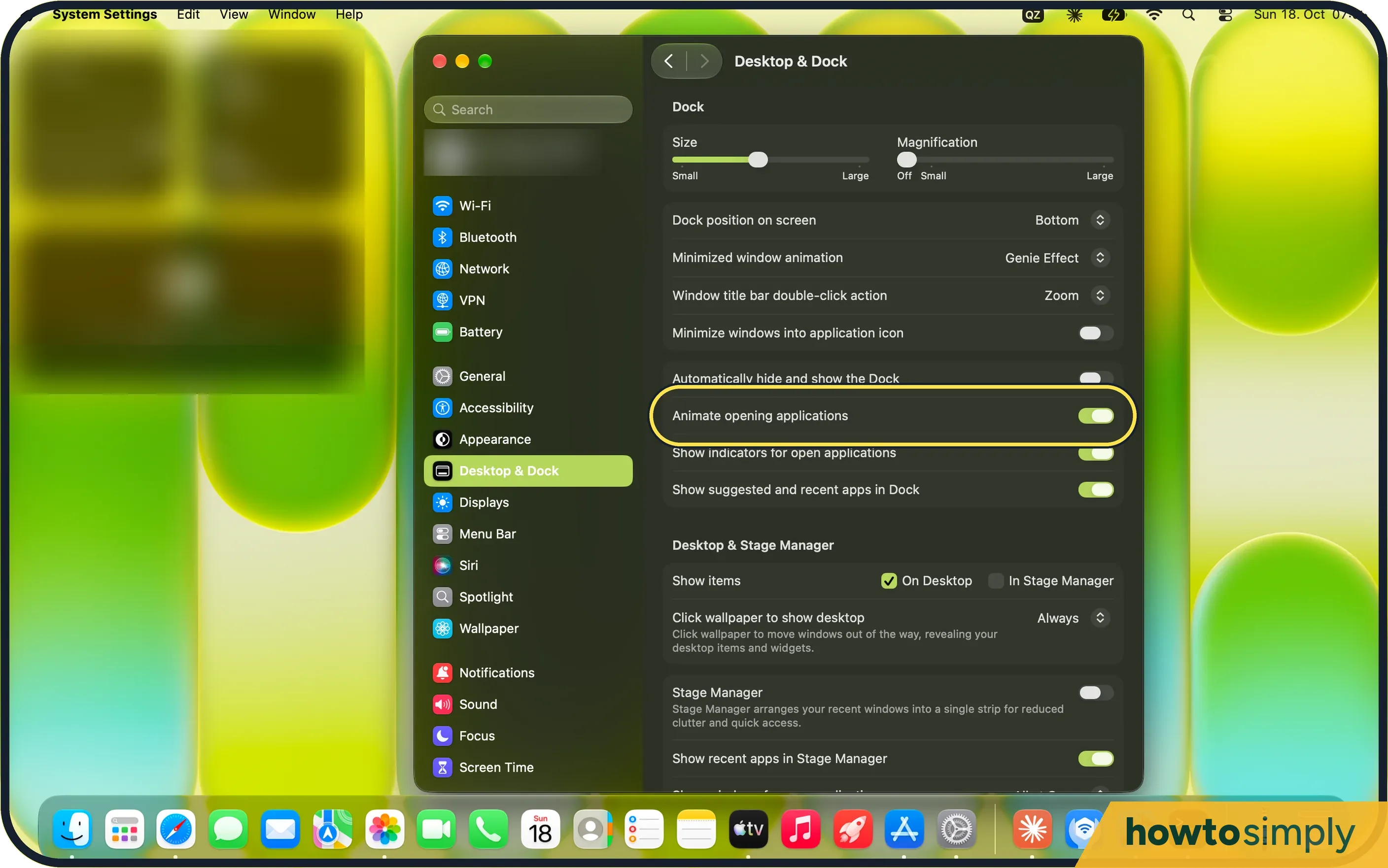
Switch off Animate opening applications
It is in the Dock group, below Automatically hide and show the Dock. On our MacBook Neo it was on; click the switch so it turns grey.
- 4
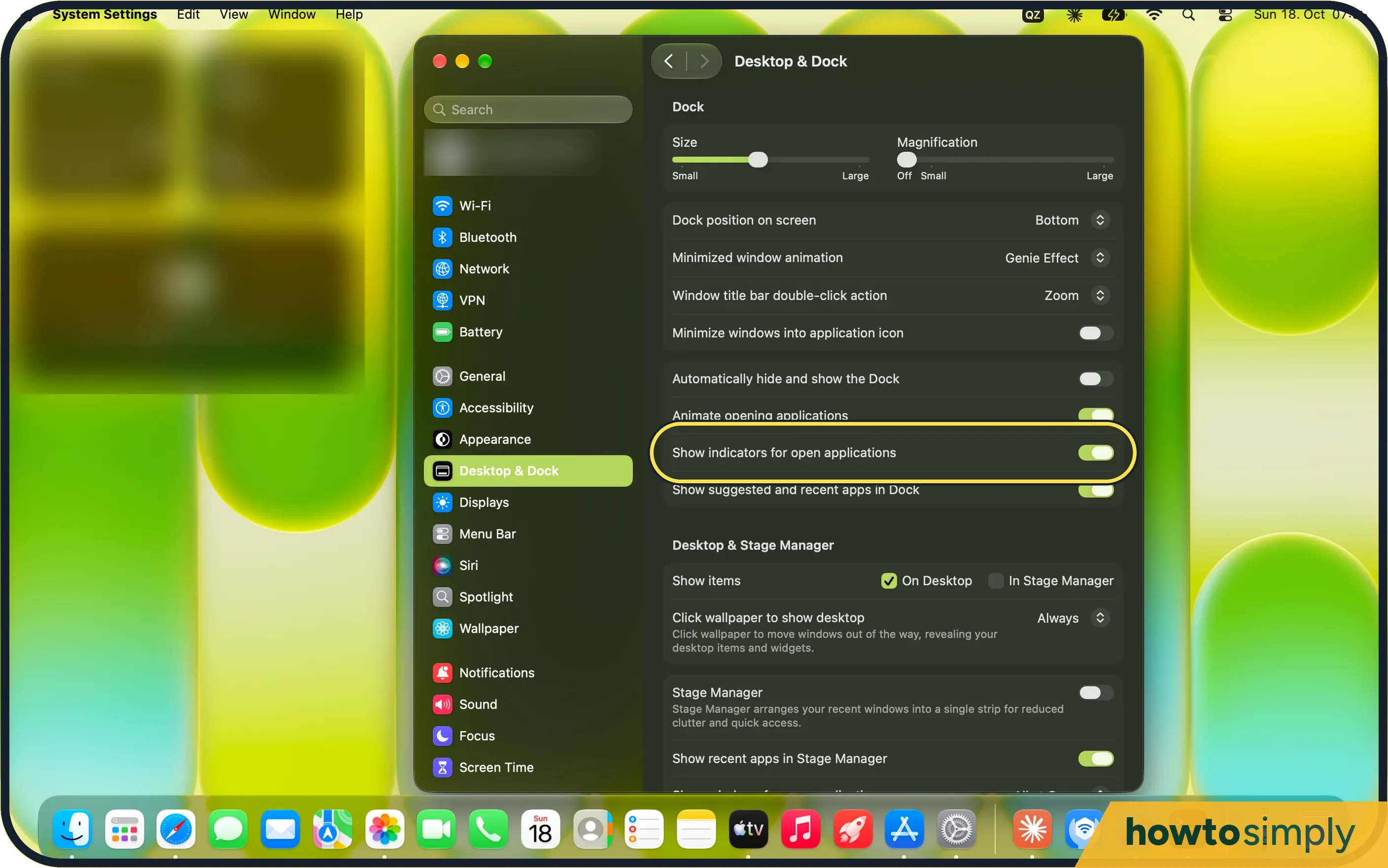
Decide about the dots and recent apps
Show indicators for open applications shows a small dot below the icon of an open app. Show suggested and recent apps in Dock adds suggested and recently opened apps to the Dock. On our MacBook Neo both were on. To clear the recent apps out of the Dock, switch Show suggested and recent apps in Dock off.


If you do not see this option
- Desktop & Dock is not in the sidebar You may need to scroll down the System Settings sidebar to see it. On our MacBook Neo the row sits between Appearance and Displays.
- You cannot find the switch Look in the Dock group at the top of Desktop & Dock. On our MacBook Neo Animate opening applications is directly below Automatically hide and show the Dock.
If this does not work
- Icons still bounce Check that Animate opening applications is grey, like Automatically hide and show the Dock when it is off. A green switch is still on, however firmly you are sure you clicked it.
- Dots under the icons are still there Those are not part of the animation. Switch off Show indicators for open applications, just below Animate opening applications.
- Extra apps still appear in the Dock Switch off Show suggested and recent apps in Dock, the last row of the Dock group.
- A red badge appears on an icon? Apple says a red badge on a Dock icon means something needs doing in that app or in System Settings.
- Icons still grow when you point at them? That is Magnification, a separate setting. Apple says it makes icons grow as the pointer passes over them.
Good to know
More animation settings: how to reduce motion and animations on a Mac.
With the switch off, Dock icons no longer bounce when you open apps. If Show indicators for open applications is on, the small dot below the icon tells you the app is open. To bring the bounce back, switch Animate opening applications on again; nothing else is affected. I hope your Dock feels a lot calmer from now on.
If you want a quieter screen in general, the Dock can also stay out of sight until you need it: how to hide the Dock automatically on a Mac.
macOS 27 compared with macOS 26: We rewrote steps 2, 3 and 4 to match the macOS 27 screens. The macOS 26 page keeps the steps and screenshots as they were.
Version history: the macOS 26 version of this guide, with its own screenshots.
About this guide
When you open an app, its Dock icon bounces, a bit like it is jumping up and down to say it heard you. That is sweet the first few times, but if you find the movement distracting, one switch stops it.
- Device
- Mac
- Shown on
- macOS 27.0.1 (MacBook Neo)
- App
- System Settings
- Real screenshots
- 4 of 4 steps
- Checked
- October 2026
- Sources
- 3 official, linked below
Sources
Links checked October 2026. Menus and features can change with updates.Did this guide work for you?
Sorry about that. What happened?
Get new guides by email
Our newest guides, sent to your inbox. Free, and you can unsubscribe in one click.
We'll email you to confirm. How we use your email
Follow howtosimply on Facebook
We share our new guides on our Facebook page, so the next fix turns up in your feed.
Follow on Facebook