How to create text shortcuts on iPhone
2 min read · 5 steps · Updated 2 October 2026
Open Settings, tap General, Keyboard, then Text Replacement. Tap the plus sign, type the full phrase and a short code such as "omw" or "@@", and tap Save. Typing the code now inserts the phrase.
Text replacement lets a few letters expand into something long: your email address, your home address, a bank number or a sentence you type every day. It works in every app and syncs to your other Apple devices through iCloud.
These screens are from iOS 26 on an iPhone 17. On older versions the rows are in the same place, with a slightly different look.
Step by step
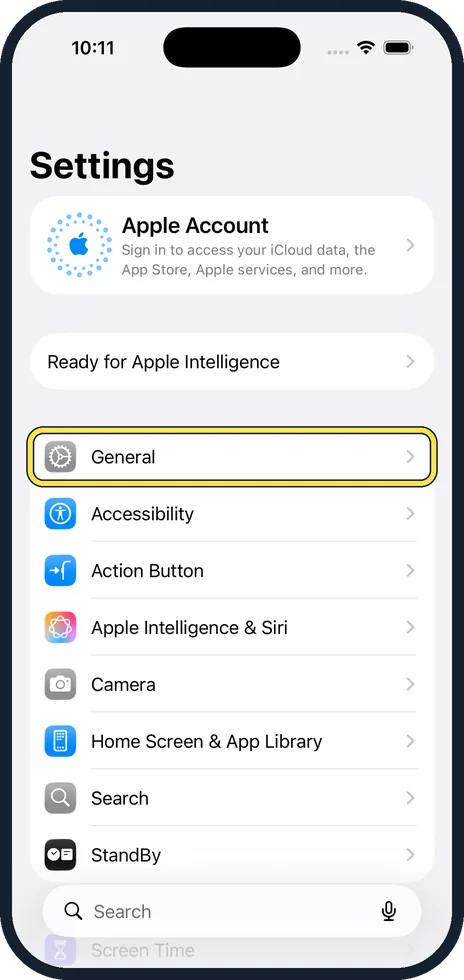
Open Settings and tap General
Open the grey Settings icon and tap General.
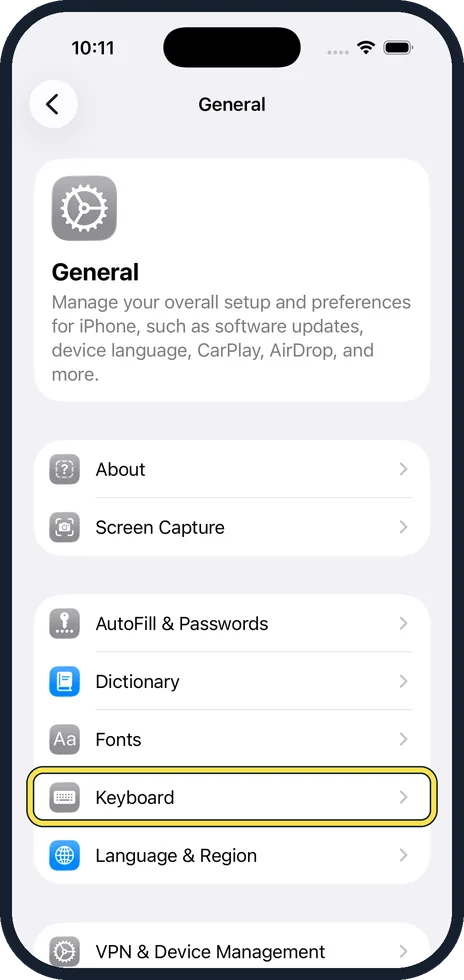
Tap Keyboard
It is in the group with Fonts, Dictionary and Language & Region.
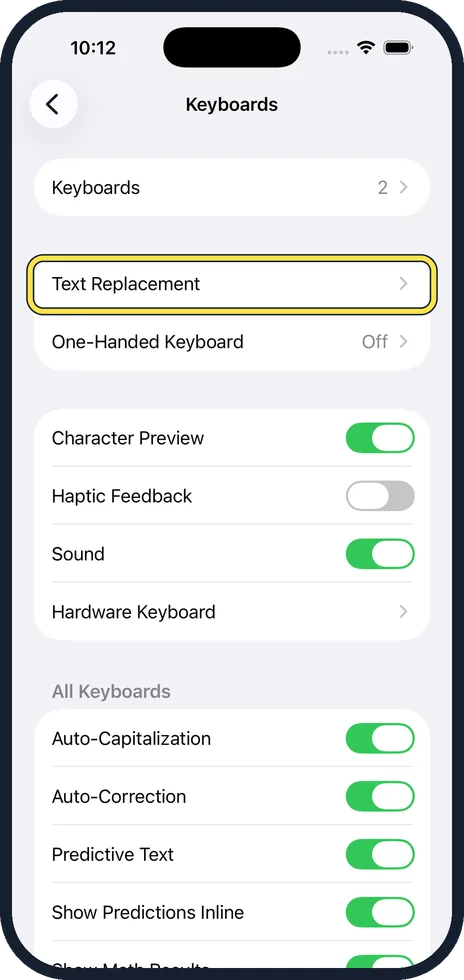
Tap Text Replacement
It is the second row on the Keyboard page.
Tap the plus sign and fill in both fields
Phrase is the full text you want to appear. Shortcut is what you will type. Choose a shortcut that is not a real word, for example "@@" for your email address or "addr" for your street address. Tap Save.
Try it
Open Messages or Notes and type the shortcut followed by a space. The phrase replaces it.
Good to know
To change or delete a shortcut, open Text Replacement, tap Edit, then tap the red minus next to it.
Shortcuts ignore capital letters, so "Addr" and "addr" behave the same.
Do not store passwords as text replacements. Anyone holding your unlocked phone could trigger them.
In short: Settings, General, Keyboard, Text Replacement, plus sign, Phrase and Shortcut, Save.
- Apple Support: Save keystrokes with text replacements on iPhone
Rules and prices change. Check the official source before you act.