How to find your IP address on a Mac (macOS 27)
- Shown on
- MacBook Neo
- Software
- macOS 27.0.1More macOS 27 guides
- Checked
- October 2026
- Real screenshots
- 3 of 3 steps
- Where it is
- System Settings › Wi-Fi › Details
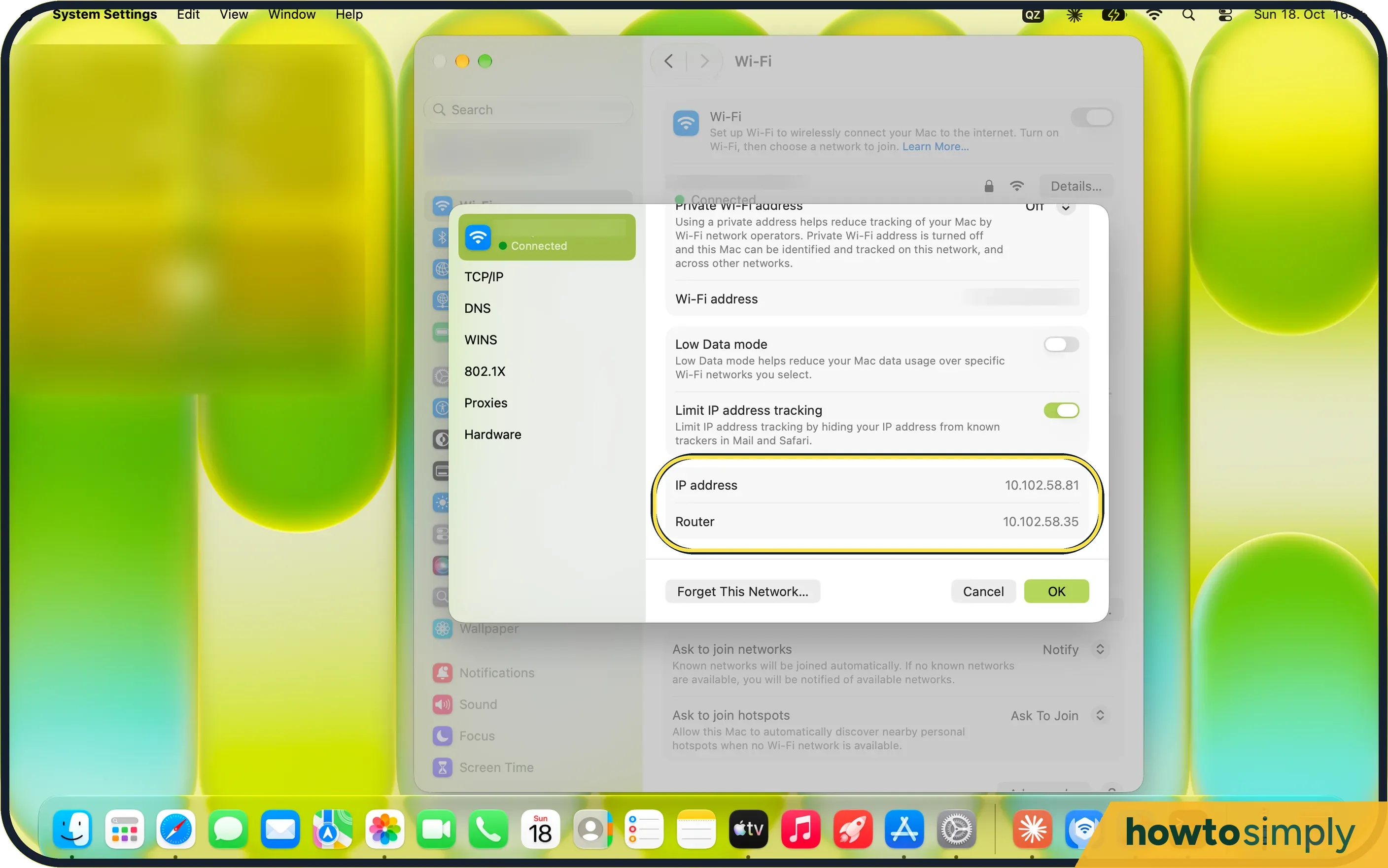 Real screenshot · MacBook Neo, macOS 27.0.1
Quick answer
Open System Settings, Wi-Fi and click Details next to your network. The IP address and Router rows are near the bottom; TCP/IP shows the subnet mask too. That is the address on your home network, not the one websites see.
Steps
- 1
Open Wi-Fi Details
In System Settings, Wi-Fi, click Details next to the connected network and scroll down. Ours showed IP address 10.102.58.81 and Router 10.102.58.35.
- 2
Check TCP/IP
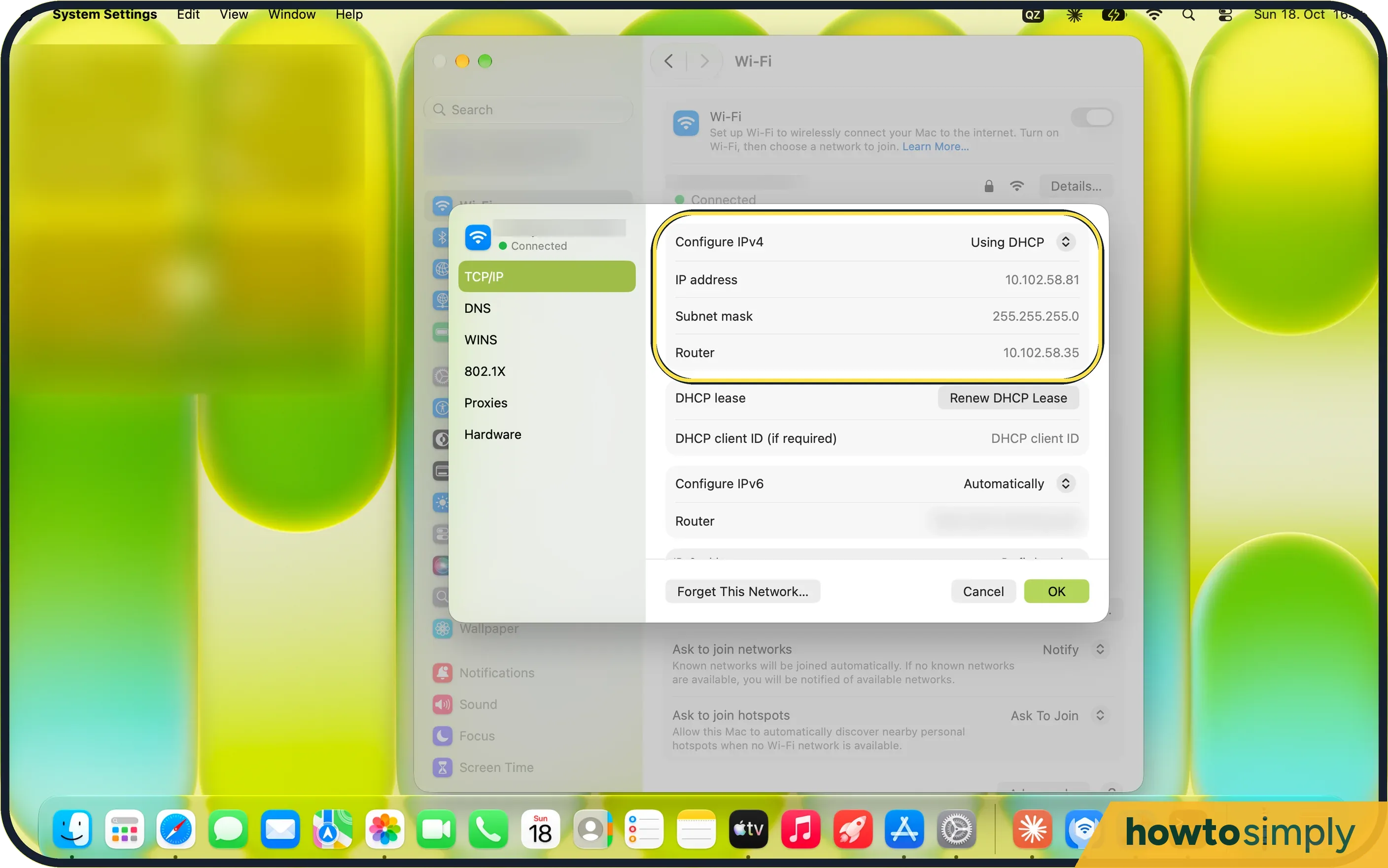
Click TCP/IP in the sheet. Configure IPv4 said Using DHCP: the router hands out the address. The subnet mask was 255.255.255.0.
- 3
Private Wi-Fi address and Limit IP address tracking
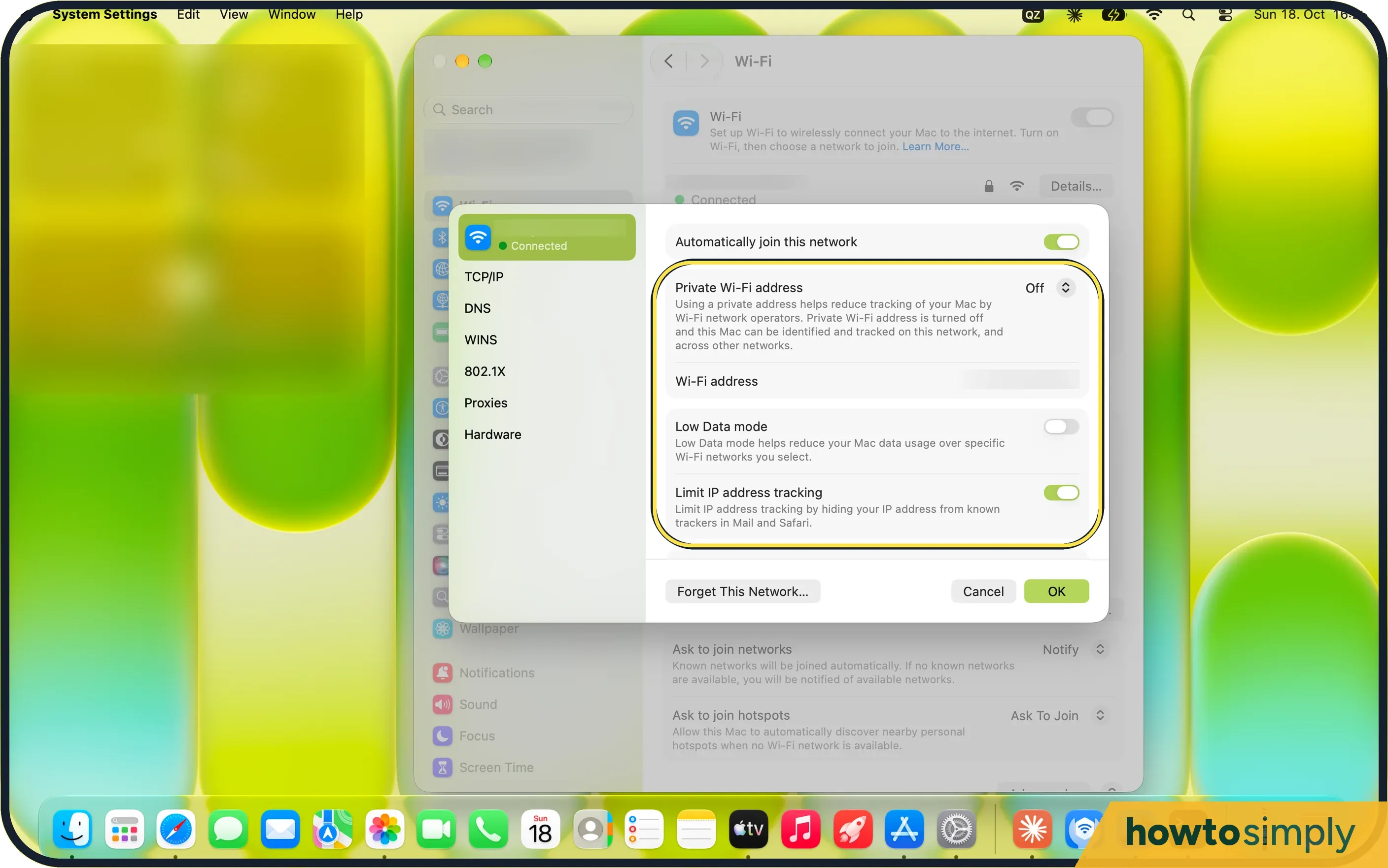
Higher up, Private Wi-Fi address changes the hardware (Wi-Fi) address the network sees, not the IP address. Ours was Off. Underneath is Limit IP address tracking, which stops known trackers in Mail and Safari from seeing your IP address. It was on for ours.


If you do not see this option
- No IP address row? Join the network first.
- Using Ethernet? Apple says to use System Settings, Network, the service, Details, then TCP/IP. Source: Change TCP/IP settings on Mac
If this does not work
- The address starts with 169.254? In TCP/IP, click Renew DHCP Lease.
- Need the public address? Ours started with 10., a private range used only inside the network. The public address belongs to the router; its own settings page shows it.
- Alternative method: Terminal Open Terminal, type ipconfig getifaddr en0 and press Return. On our MacBook Neo with macOS 27.2, on 27 October 2026, it printed just the address, 10.88.97.86. networksetup -getinfo Wi-Fi gave the same IP address plus the subnet mask (255.255.255.0) and the Router (10.88.97.65).
- The address keeps changing? Apple says pick Using DHCP if your ISP hands you an IPv4 address by itself, and Using DHCP with manual address if your ISP gave you a fixed IP address and also uses DHCP.
- Private Wi-Fi address cannot be changed? Apple says that on a Mac managed by a school or organisation you may not be able to change it. Contact the administrator who provided the computer.
- Need the IPv6 address? The TCP/IP sheet also has Configure IPv6. Apple says pick Automatically if your ISP hands you an IPv6 address by itself.
Good to know
Check and free up storage on a Mac.
Looking up the address changes nothing, so there is nothing to undo. Apple says that with Private Wi-Fi address set to Off, the Mac can be tracked on this network and across others. Rotating makes you harder to track, both on this network and on others.
If the IP address row is empty or starts with 169.254 and a renewal does not help, the problem is the connection itself: Mac won't connect to Wi-Fi.
About this guide
Wi-Fi Details on a Mac shows the IP and router addresses for your connection.
- Device
- Mac
- Shown on
- macOS 27.0.1 (MacBook Neo)
- App
- System Settings
- Path
- System Settings › Wi-Fi › Details
- Real screenshots
- 3 of 3 steps
- Checked
- October 2026
- Sources
- 3 official, linked below
The screenshots are from our MacBook Neo with macOS 27.0.1, taken on 18 October 2026. Ours had 10.102.58.81 on a private network; we blurred the network name and the Wi-Fi address.
Sources
Links checked October 2026. Menus and features can change with updates.Did this guide work for you?
Sorry about that. What happened?
Get new guides by email
Our newest guides, sent to your inbox. Free, and you can unsubscribe in one click.
We'll email you to confirm. How we use your email
Follow howtosimply on Facebook
We share our new guides on our Facebook page, so the next fix turns up in your feed.
Follow on Facebook