How to let someone use your Mac safely with the Guest User
- Shown on
- MacBook Neo
- Software
- macOS 27.0.1More macOS 27 guides
- Checked
- October 2026
- Real screenshots
- 3 of 6 steps
 Real screenshot · MacBook Neo, macOS 27.0.1
Quick answer
Open System Settings, click Users & Groups and click the info button next to Guest User. Turn on Allow guests to log in to this computer, then click OK. An administrator must unlock the change.
Steps
- 1
Open System Settings
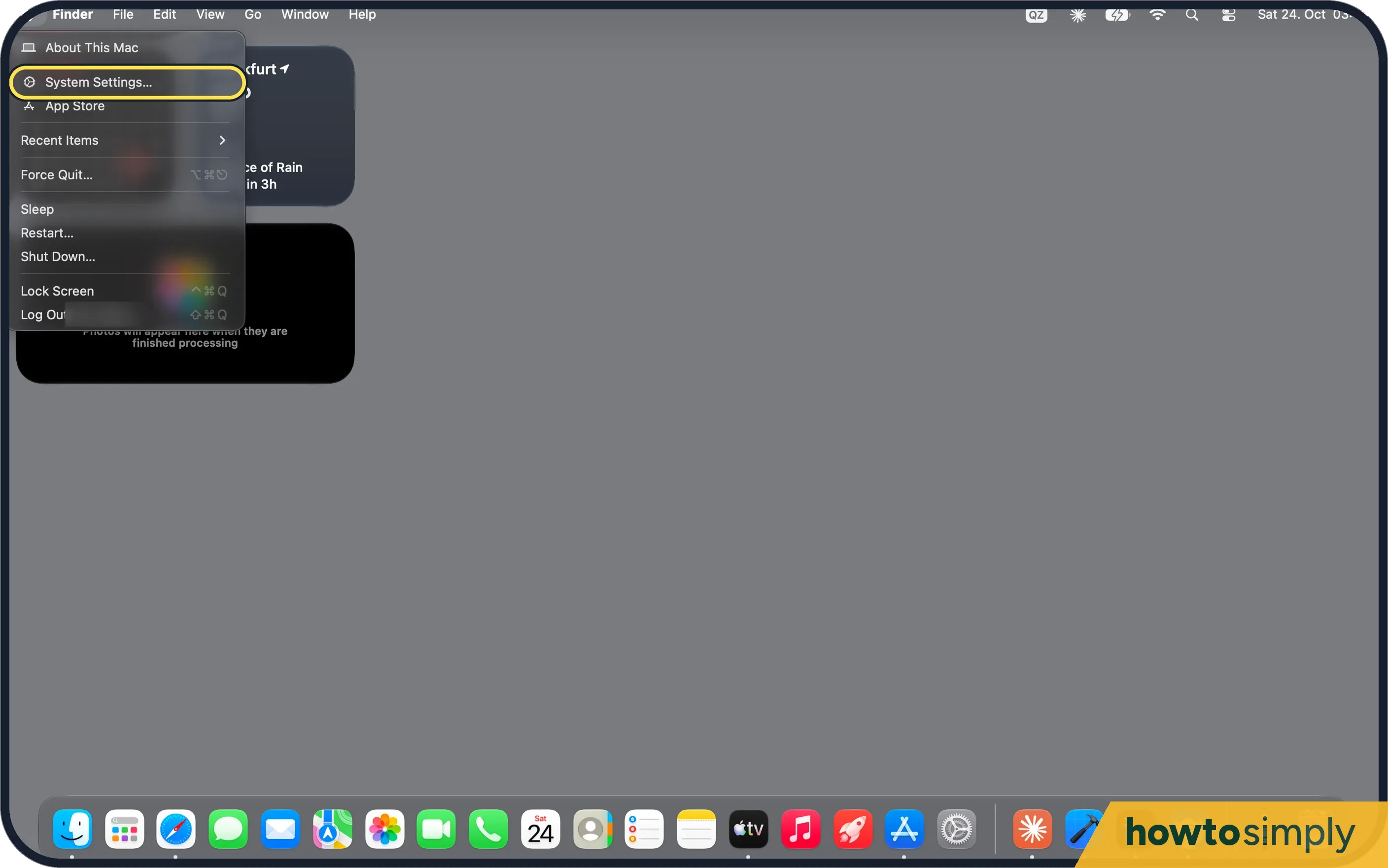
Click the Apple menu and choose System Settings….
- 2
Click the info button next to Guest User
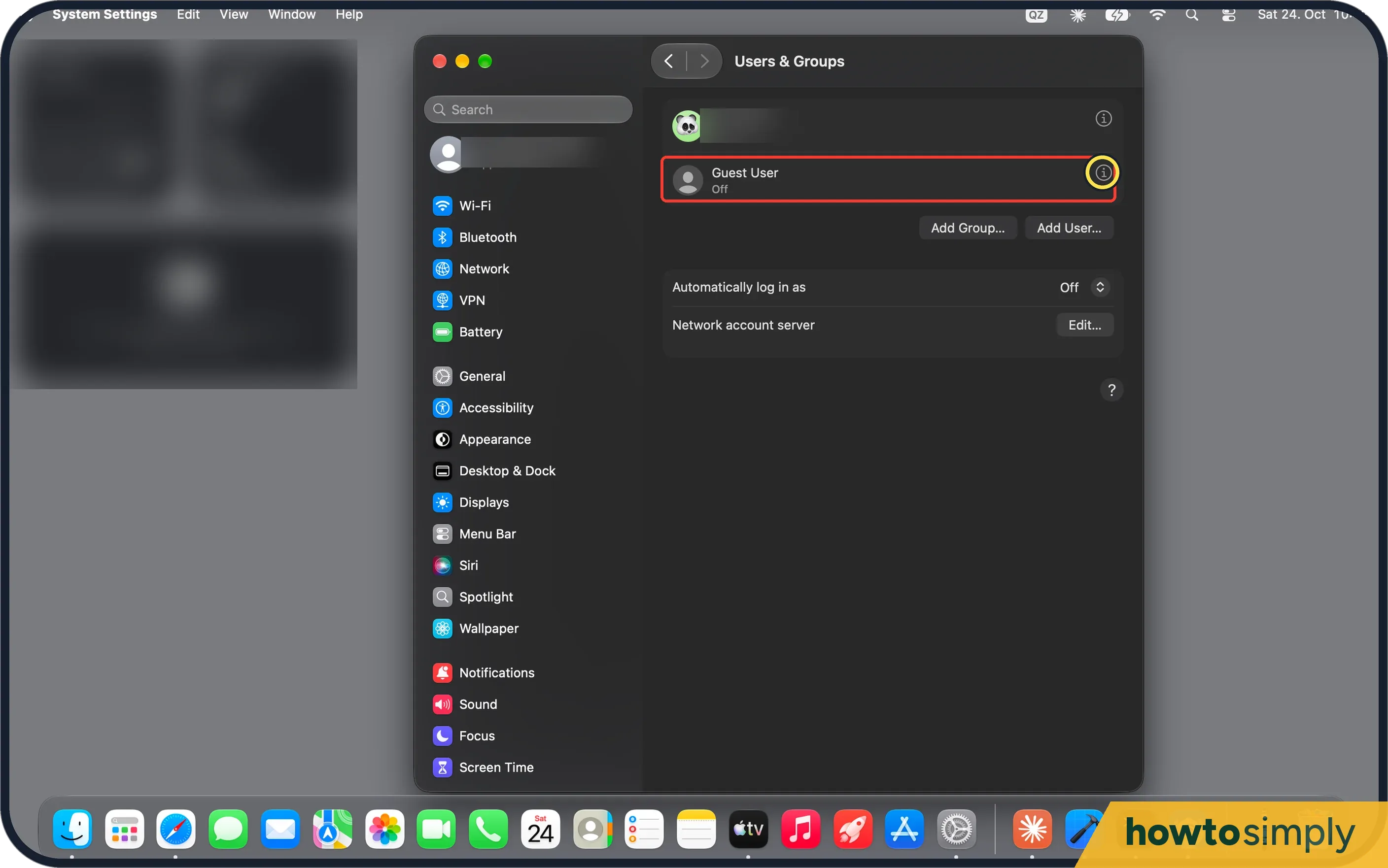
Click Users & Groups in the sidebar. It is below Screen Time, the last row in the picture, so scroll down or type Users & Groups into the Search field at the top of the sidebar.
Then click the small i at the right of the Guest User row. On our MacBook Neo, the Guest User row reads Off before guest access is turned on.
- 3
Turn on Allow guests to log in to this computer
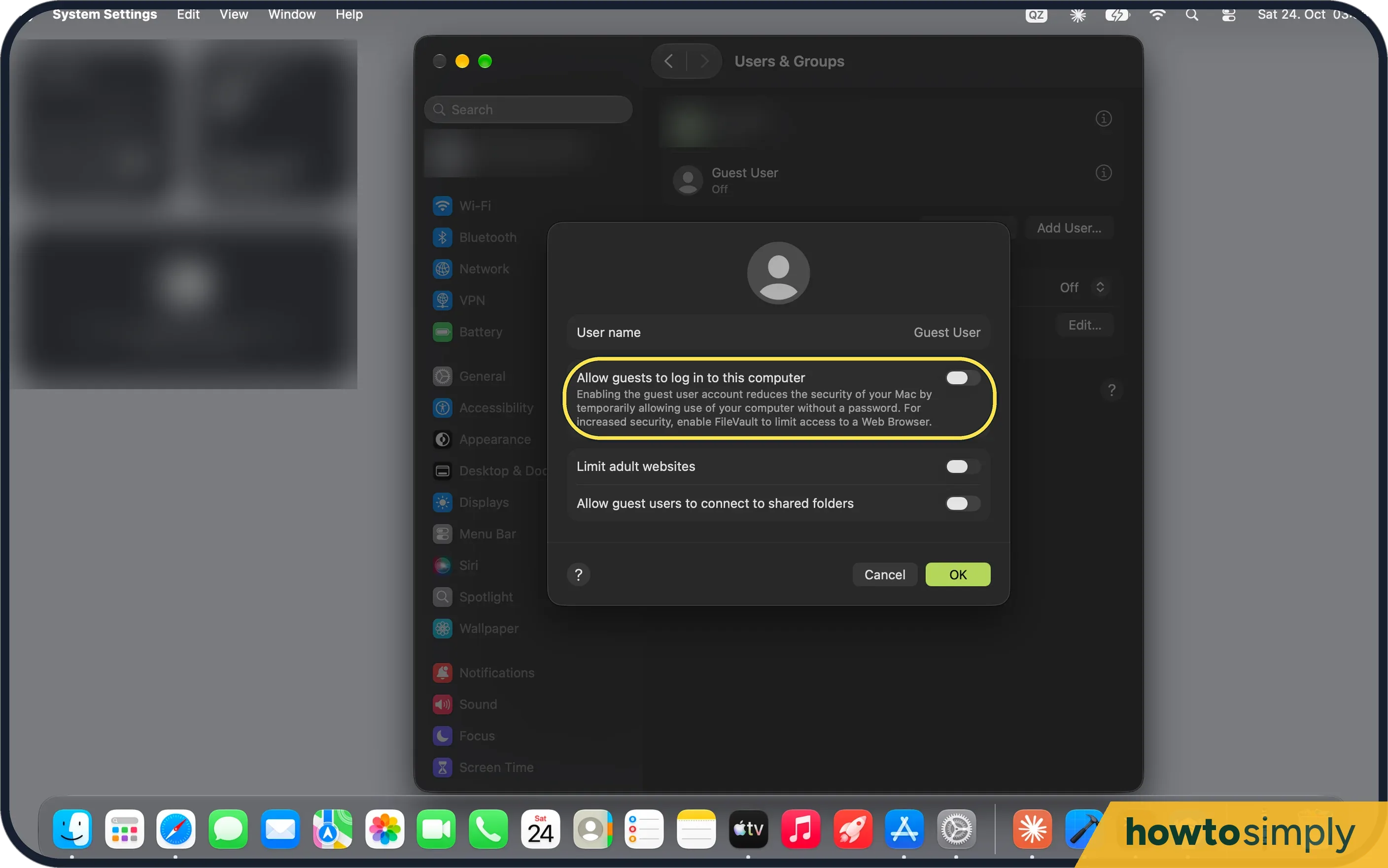
Click the switch. On our MacBook Neo, it was off. Apple says an administrator of the Mac can change these settings.
The text under the switch warns that the guest account reduces the security of your Mac. It suggests FileVault 'to limit access to a Web Browser'.
- 4
Choose the extras and click OK
Limit adult websites filters adult sites. Only switch on Allow guest users to connect to shared folders if your guest needs this Mac's shared folders from a different computer.
Click OK to save. On our MacBook Neo, both extras were off.
- 5
Switch to the guest
Apple says to choose Apple menu, Log Out, then pick Guest User in the login window. Log Out is in the same Apple menu as in the step 1 picture, where the text after it is blurred.
- 6
When the guest is done
Apple says that when the guest logs out, the Mac deletes the guest's files. Anything worth keeping must be saved elsewhere first, for example on a USB stick.


If you do not see this option
- You cannot find Users & Groups Apple says you might have to scroll the sidebar to find it. In our step 2 picture Screen Time is the last row in view, so scroll past it, or type Users & Groups into the Search field at the top of the sidebar. Sources: Change Guest User settings on Mac, How to log in automatically to a Mac user account
- You cannot select Guest User Apple says Guest User can't be chosen while a guest is still logged in. Sources: Change Guest User settings on Mac, How to log in automatically to a Mac user account
- The switch will not turn on Apple says an administrator of the Mac can change Guest User settings. Sources: Change Guest User settings on Mac, How to log in automatically to a Mac user account
If this does not work
- The guest can only use Safari Apple says with FileVault on, a guest can use Safari but can't reach the encrypted disk or create files.
- You want to be sure a guest cannot log in from another computer Apple says guests can't log in from another computer while remote login is off in Sharing settings, so keep Remote Login switched off.
- The Mac starts straight into your account Apple says that is automatic login. Apple adds that after you log out yourself, you may still have to log back in. On our MacBook Neo, the Automatically log in as row on the Users & Groups page reads Off.
- The guest cannot change a setting Apple says guests can't change user or computer settings.
Good to know
With FileVault switched on, a guest can use Safari but cannot reach the encrypted disk or create files. For a quick look at a website, that is all they need.
Guest access works with Find My too, which helps you track down your Mac if it goes missing. A finder who logs in as a guest and goes online with Safari lets the Mac report its position to Find My: how to turn on Find My Mac.
Guest User is for temporary use. To give someone their own access, add them as an individual user: how to add a user account on a Mac.
What FileVault is: how to turn on FileVault on a Mac.
macOS 27 compared with macOS 26: We rewrote steps 1, 2, 3, 4, 5 and 6 to match the macOS 27 screens. The macOS 26 page keeps the steps and screenshots as they were.
Version history: the macOS 26 version of this guide, with its own screenshots.
About this guide
The Guest User is a temporary account with no password, so a friend can use your Mac temporarily, without you adding them as an individual user.
- Device
- Mac
- Shown on
- macOS 27.0.1 (MacBook Neo)
- App
- System Settings
- Real screenshots
- 3 of 6 steps
- Checked
- October 2026
- Sources
- 2 official, linked below
Sources
Links checked October 2026. Menus and features can change with updates.Did this guide work for you?
Sorry about that. What happened?
Get new guides by email
Our newest guides, sent to your inbox. Free, and you can unsubscribe in one click.
We'll email you to confirm. How we use your email
Follow howtosimply on Facebook
We share our new guides on our Facebook page, so the next fix turns up in your feed.
Follow on Facebook