How to hide your IP address from trackers in Safari on an iPhone
- Shown on
- iPhone 17e
- Software
- iOS 27.0.1More iOS 27 guides
- Checked
- October 2026
- Real screenshots
- 5 of 5 steps
- Where it is
- Settings › Apps › Safari › Hide IP Address › From Trackers
Quick answer
Open Settings, tap Apps, then Safari, scroll to Privacy & Security, tap Hide IP Address and choose From Trackers. Safari then hides your IP address from known trackers, which otherwise can use it to work out roughly where you are.
Watch these steps
 Watch on YouTubeA video of this task from our YouTube channel · opens YouTube
Steps
- 1
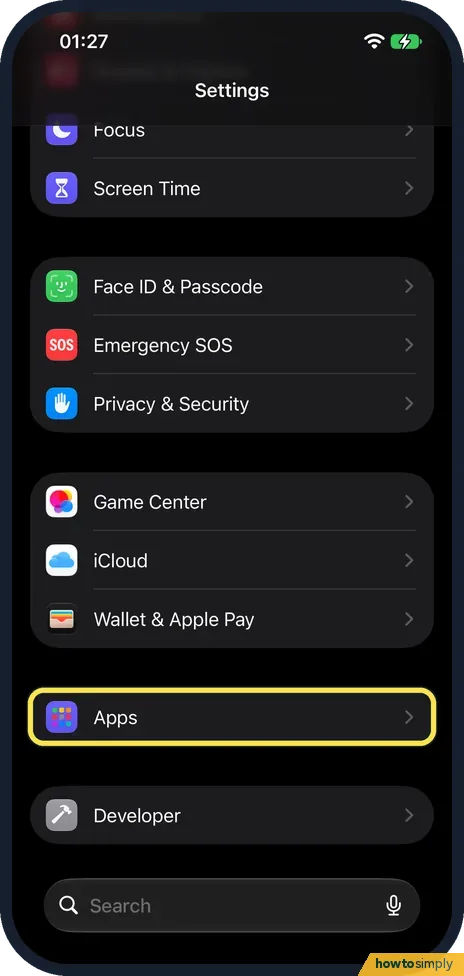
Open Settings and tap Apps
On our iPhone 17e with iOS 27, Apps has its own group below Wallet & Apple Pay, near the bottom of the main Settings list.
- 2
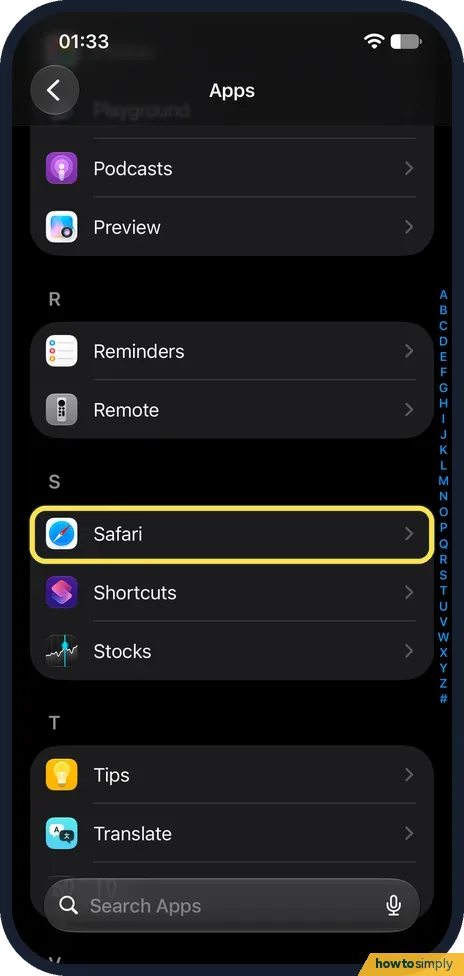
Tap Safari
The apps are in alphabetical order. On our iPhone 17e, letters A to Z run down the right edge; tap S to jump there.
Safari is the first app under S, above Shortcuts and Stocks.
- 3
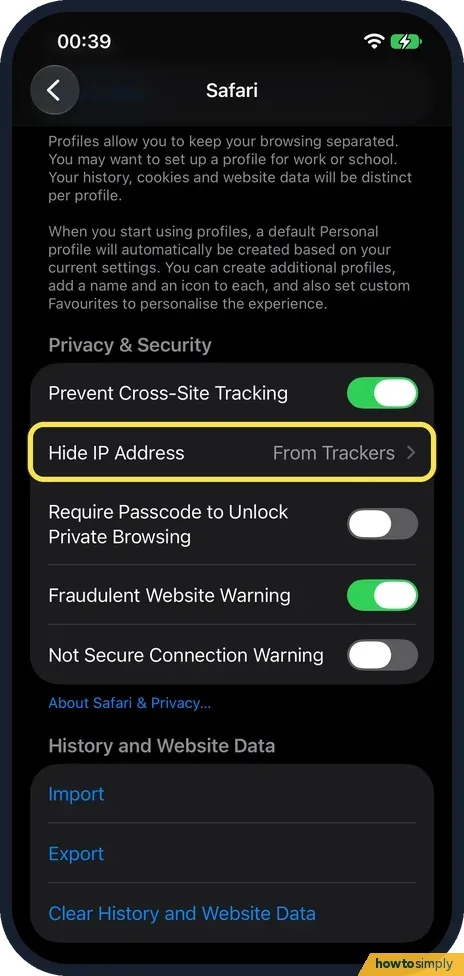
Scroll to Privacy & Security and tap Hide IP Address
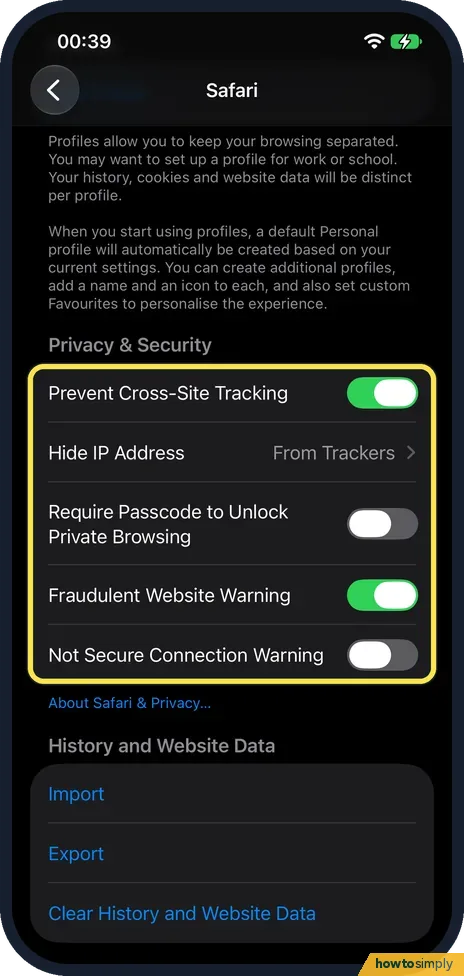
The row shows the current state at the right. On our iPhone 17e the Privacy & Security group came after the text about profiles, and Hide IP Address was the second row, below Prevent Cross-Site Tracking. Ours said From Trackers.
- 4
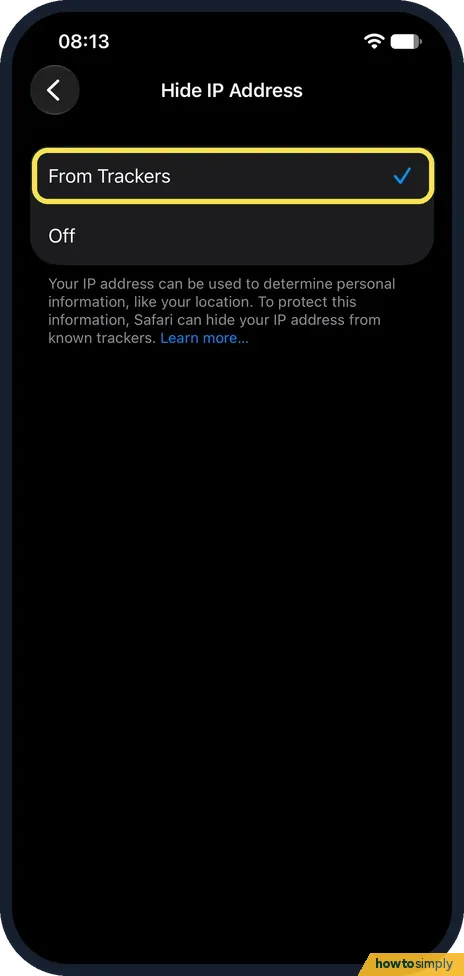
Tap From Trackers
Make sure the tick is next to From Trackers; ours was already set to it. On our iPhone 17e, From Trackers and Off were the only two choices.
- 5
Check the other switches in the group
On our iPhone 17e Prevent Cross-Site Tracking and Fraudulent Website Warning were on. By default Safari puts limits on third-party cookies and data, Apple says, and when Fraudulent Website Warning is on, it alerts you to suspected phishing websites.
Require Passcode to Unlock Private Browsing, off on ours, locks your private tabs; Apple says supported models offer Face ID or Touch ID for this instead. Not Secure Connection Warning is also here; on our iPhone it was off.
If you do not see this option
- Hide IP Address offers only From Trackers and Off Our iPhone 17e offered just these two choices. Apple says that if you have an eligible iCloud+ plan, Safari keeps your IP address away from trackers and websites. Sources: Browse the web privately in Safari on iPhone, Protect your web browsing with iCloud Private Relay on iPhone
- No Require Face ID to Unlock Private Browsing row Apple lists Require Passcode, Require Face ID (supported models) and Require Touch ID (supported models) for this switch. Our iPhone 17e showed Require Passcode to Unlock Private Browsing. Sources: Browse the web privately in Safari on iPhone, Protect your web browsing with iCloud Private Relay on iPhone
If this does not work
- Websites may still see your IP address Safari protects your IP address from known trackers. Apple says iCloud Private Relay, part of iCloud+, protects your address from websites as well.
- A website stops working with Private Relay Apple says a site that relies on IP filtering may need to see your address: on that site, tap the left side of the search field, tap Privacy & Security, then Show IP Address. It stays visible to that site until you leave it or close the tab.
Good to know
From Trackers hides the address from known trackers. Apple says that for eligible iCloud+ subscribers it is also hidden from websites as you browse in Safari.
More on private tabs: how to use Private Browsing in Safari on an iPhone.
Apps track in their own way: how to stop apps from tracking you on iPhone.
About this guide
With Hide IP Address switched off, sites can see your IP address. The Hide IP Address page on the iPhone explains why that matters: the address can be used to determine personal information, like your location. Safari can keep it from known trackers. This costs nothing and needs no extra app.
- Device
- iPhone
- Shown on
- iOS 27.0.1 (iPhone 17e)
- App
- Settings
- Path
- Settings › Apps › Safari › Hide IP Address › From Trackers
- Real screenshots
- 5 of 5 steps
- Checked
- October 2026
- Sources
- 2 official, linked below
The screenshots are our own, taken on an iPhone 17e running iOS 27.0.1.
What changed: the screenshots are now our own iPhone 17e on iOS 27.0.1, dark mode, and the wording is checked against those screens and Apple's iOS 27 guide.
Sources
Links checked October 2026. Menus and features can change with updates.What to do next
Tighten your iPhone privacy Step 5 of 7
Did this guide work for you?
Sorry about that. What happened?
Get new guides by email
Our newest guides, sent to your inbox. Free, and you can unsubscribe in one click.
We'll email you to confirm. How we use your email
Follow howtosimply on Facebook
We share our new guides on our Facebook page, so the next fix turns up in your feed.
Follow on Facebook