How to turn Private Browsing on or off in Safari on iPhone
- Shown on
- iPhone 17e
- Software
- iOS 27.0.1More iOS 27 guides
- Checked
- October 2026
- Real screenshots
- 4 of 5 steps
- Where it is
- Safari › Touch and hold Tabs › New Private Tab
Quick answer
Open Safari, touch and hold the Tabs button in the bottom right corner and tap New Private Tab. A Private Browsing page opens. To go back, touch and hold the Tabs button again and tap New Tab. On iOS 17 and earlier, tap the Tabs button and swipe to Private.
Steps
- 1
Open Safari
Any page will do.
- 2
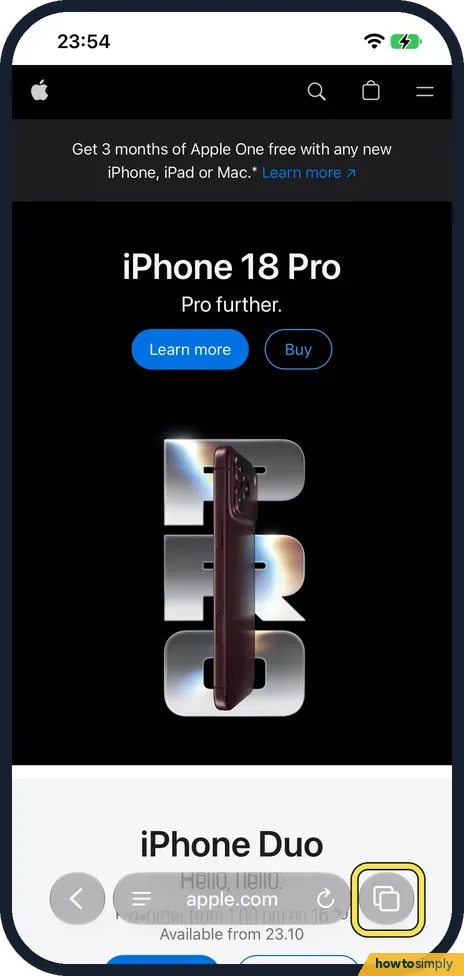
Touch and hold the Tabs button
It shows two squares and sits in the bottom right corner. A menu opens. On iOS 17 and earlier, tap the Tabs button.
- 3
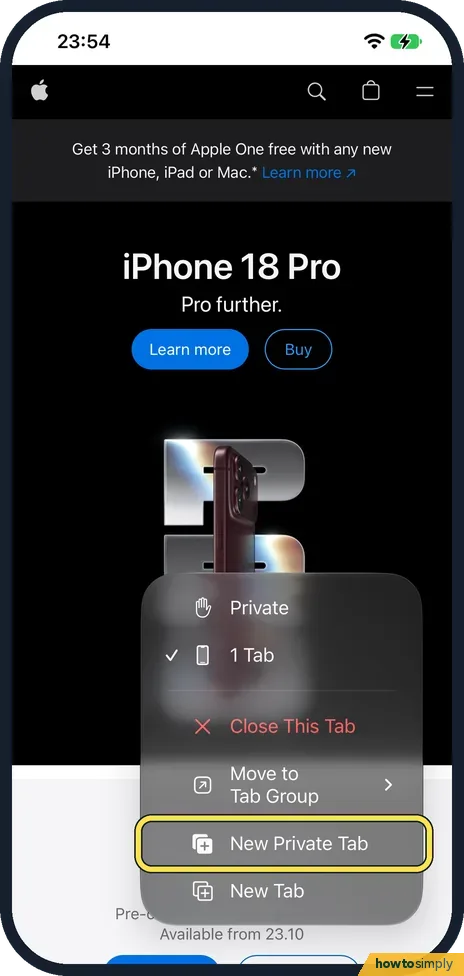
Tap New Private Tab
A private tab opens. Apple says Safari asks you about Locked Private Browsing the first time you open Private Browsing after updating to supported software. It hides your private tabs behind Face ID or your passcode. On our iPhone 17e it did not ask. On iOS 17 and earlier, swipe to the Private tab group and tap the tab.
- 4
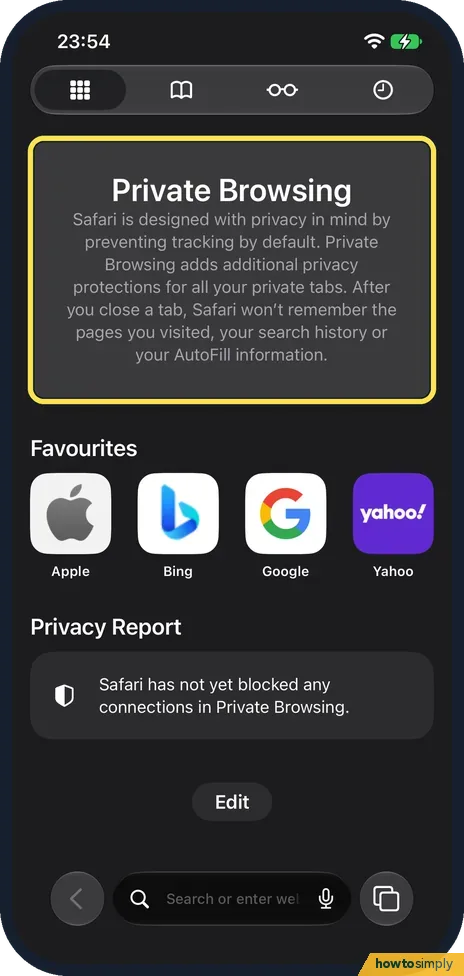
Check that you are browsing privately
A new private tab says Private Browsing at the top. Below it, Safari explains that after you close a tab, it won't remember the pages you visited, your search history or your AutoFill information. Touch and hold the Tabs button: Private has a tick. In light mode the address bar also turns dark; in dark mode both kinds of tab look dark, so use the tick.
- 5
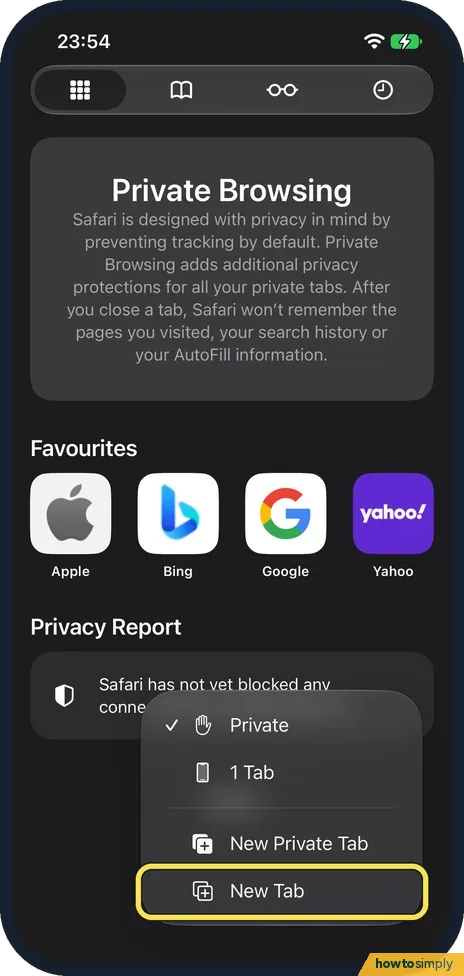
Return to normal tabs
Touch and hold the Tabs button and tap New Tab. Your private tabs stay open in the background until you close them.
What Private Browsing does and does not do
| In Private Browsing | |
|---|---|
| Pages, searches and AutoFill | Safari won't keep a record of pages you visit, what you search for, or your AutoFill details. |
| Trackers | Known trackers are blocked, tracking that identifies you is removed from links, and there are protections against advanced fingerprinting. |
| Your other Apple devices | Private tabs are not shared with them, even when they use the same Apple Account. |
| Locking | With a passcode set, private tabs lock when you are not using them. Turn this on or off under Settings, Apps, Safari, Require Face ID (or Touch ID or Passcode) to Unlock Private Browsing. From iOS 17. |
| How to tell it is on | The address bar is black or dark. When Private Browsing is off it is white or grey. |
| Extensions | Extensions that can see browsing data are turned off in Private Browsing until you allow them. |
Sources: Turn Private Browsing on or off on your iPhone; How to use Locked Private Browsing in Safari; Browse the web privately in Safari on iPhone
If you do not see this option
- New Private Tab is not in the menu. Apple's iOS 27 guide has another way: tap the Tabs button, then swipe right along the tab bar at the bottom until you reach Private Browsing. Source: Browse the web privately in Safari on iPhone
- Your iPhone runs iOS 26. Apple's iOS 26 guide says to open All Tabs (with the Bottom or Top tab layout, tap the Tabs button), then swipe right on the tab bar until Private Browsing opens. Source: Browse the web privately in Safari on iPhone (iOS 26)
- Apple's support article shows another way. Apple says you can also tap the More button (…) and tap New Private Tab. To leave, tap More and tap New Tab. Source: Turn Private Browsing on or off on your iPhone
If this does not work
- Private Browsing asks you to unlock. Apple says Private Browsing locks itself when you're not using it, as long as the iPhone has a passcode. Tap Unlock and use Face ID, Touch ID or your passcode.
- Private searches use a different search engine. Private Browsing can have its own. Go to Settings, Apps, Safari. Turn off Also Use in Private Browsing, tap Private Search Engine and choose a search engine.
- An extension stopped working. Apple says Private Browsing switches off any extension that can see your browsing data. You can turn one back on in Safari's extension settings.
Good to know
Private tabs can lock when you are not using them and open only with Face ID, Touch ID or your passcode. Apple says they lock when not in use if the iPhone has a passcode. The switch is under Settings, Apps, Safari: Require Passcode, Require Face ID or Require Touch ID to Unlock Private Browsing, depending on the phone.
Private Browsing does not make you invisible. Your internet provider, your employer's network and the websites themselves still see the visit.
Private tabs stay out of History and out of the tab list on your other Apple devices, even ones on the same Apple Account.
To remove what normal browsing has stored: how to clear Safari history on an iPhone.
About this guide
Private Browsing stops Safari keeping the pages you visit, what you searched for or your AutoFill details. Apple says it also strips tracking bits out of web addresses that could be used to pick you out. It is useful on a shared phone or when buying a present.
- Device
- iPhone
- Shown on
- iOS 27.0.1 (iPhone 17e)
- App
- Safari
- Path
- Safari › Touch and hold Tabs › New Private Tab
- Real screenshots
- 4 of 5 steps
- Checked
- October 2026
- Sources
- 4 official, linked below
The screenshots are our own, taken on an iPhone 17e running iOS 27.0.1, in dark mode.
What changed: added a table of what Private Browsing does and does not keep, and how to tell when it is on.
Sources
Links checked October 2026. Menus and features can change with updates.Did this guide work for you?
Sorry about that. What happened?
Get new guides by email
Our newest guides, sent to your inbox. Free, and you can unsubscribe in one click.
We'll email you to confirm. How we use your email
Follow howtosimply on Facebook
We share our new guides on our Facebook page, so the next fix turns up in your feed.
Follow on Facebook