How to clear Safari history and website data on iPhone
- Shown on
- iPhone 17e
- Software
- iOS 27.0.1More iOS 27 guides
- Checked
- October 2026
- Real screenshots
- 7 of 7 steps
- Where it is
- Settings › Apps › Safari › Clear History and Website Data
Quick answer
Go to Settings > Apps > Safari > Clear History and Website Data, choose how far back under Clear Timeframe, then tap Clear History. Apple says this also removes cookies, so websites may sign you out. Have your passwords ready.
Watch these steps
 Watch on YouTubeThe same task, recorded on our iPhone 17e · opens YouTube
Steps
- 1
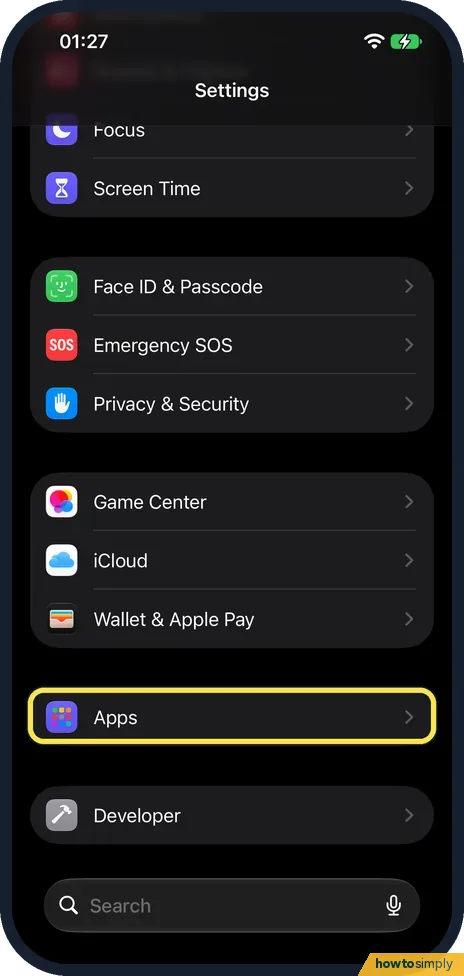
Open Settings and tap Apps
Scroll down the main Settings list and tap Apps. On our iPhone 17e it sits on its own, below Game Center, iCloud and Wallet & Apple Pay, and above Developer.
- 2
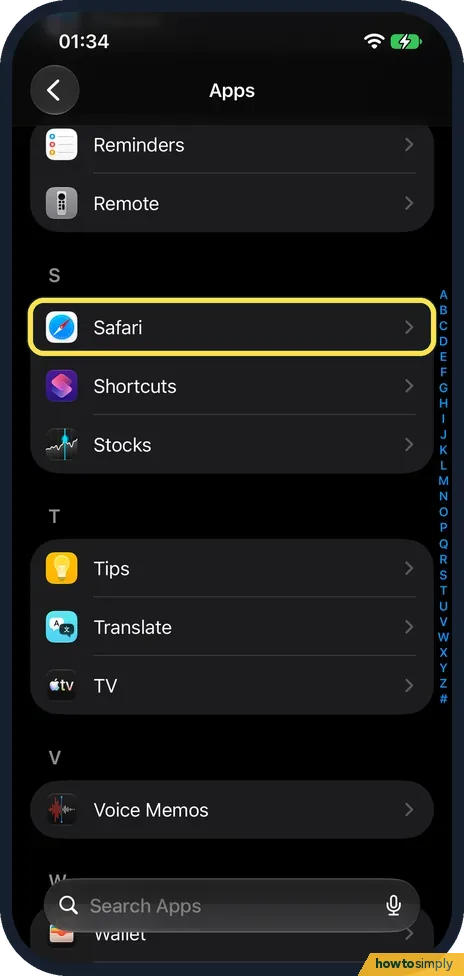
Tap Safari
The apps are in alphabetical order, below Default Apps. On our iPhone 17e Safari was the first app under S, after Reminders and Remote, and above Shortcuts and Stocks. The picture shows Safari boxed under S; the letter index is at the right edge. Scroll down to S, tap S in the letter index at the right edge, or type Safari in the Search Apps field at the bottom.
- 3
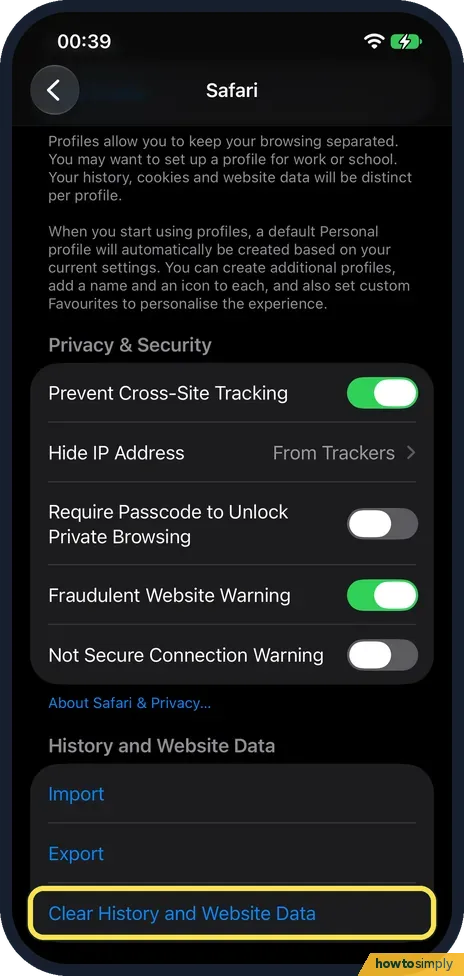
Tap Clear History and Website Data
Scroll down past Privacy & Security to the History and Website Data group. Clear History and Website Data is the blue row below Import and Export.
- 4
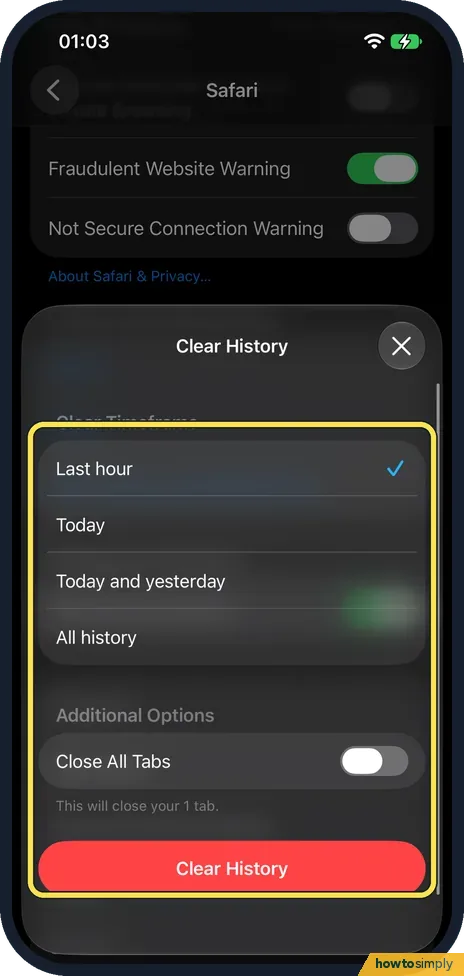
Choose a time range and confirm
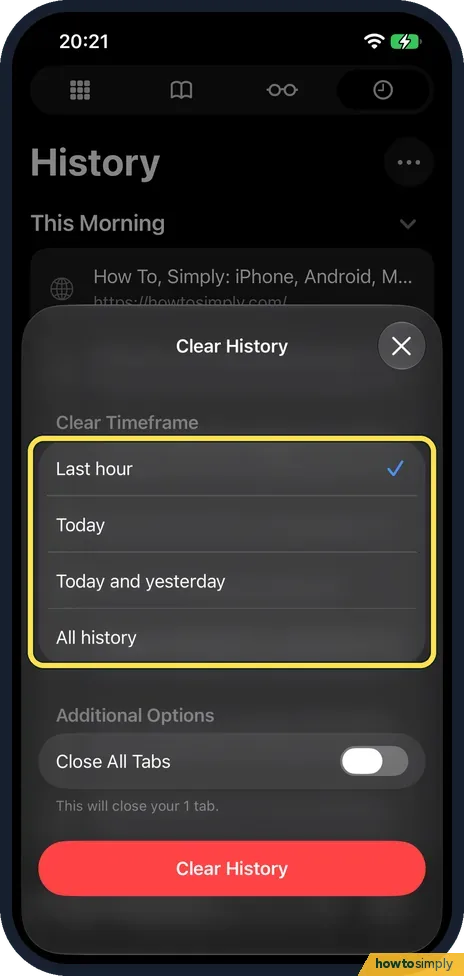
A Clear History sheet opens. Under Clear Timeframe, pick Last hour, Today, Today and yesterday or All history. On our iPhone 17e Last hour was ticked. Under Additional Options, switch on Close All Tabs if you also want to close your open tabs. It was off on ours, with the note "This will close your 1 tab." Then tap the red Clear History button. We closed the sheet without clearing.
- 5
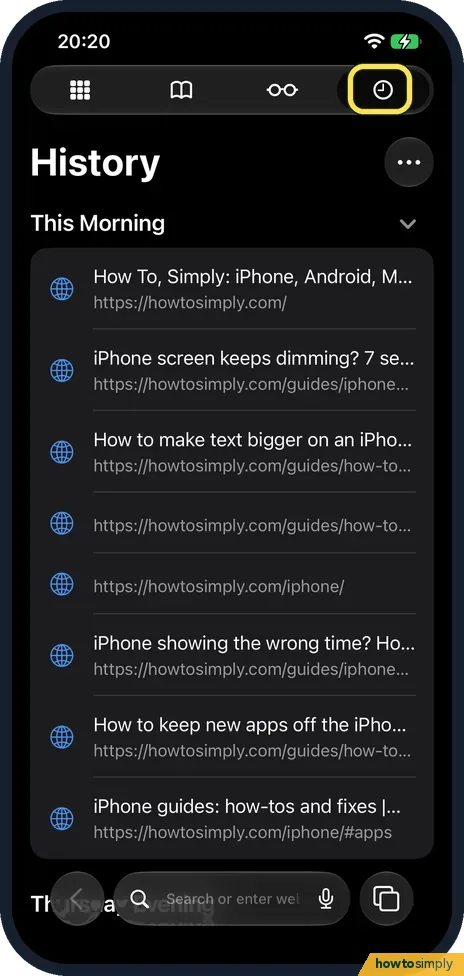
Or from inside Safari: open History
Safari has its own route. Open Safari and go to the start page. On our iPhone 17e History is the clock, the last of the four buttons in the row at the top. It lists the pages you visited, grouped by time, such as This Morning.
- 6
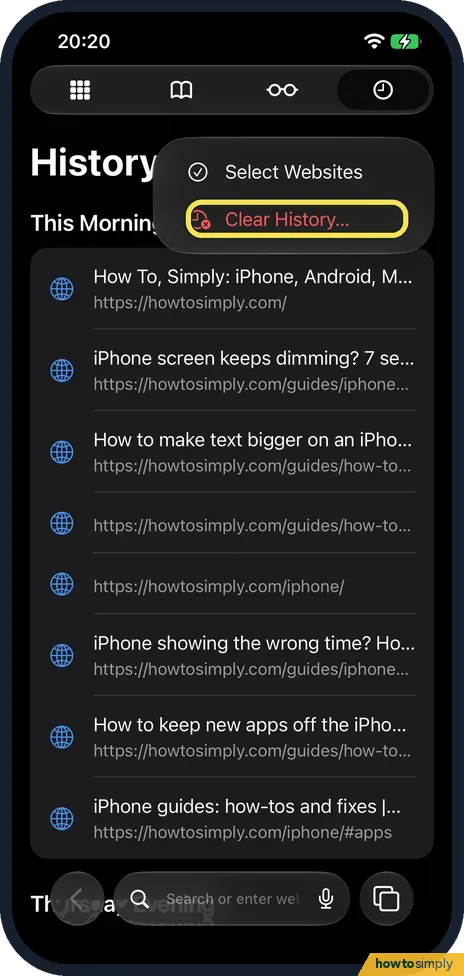
Tap More, then Clear History
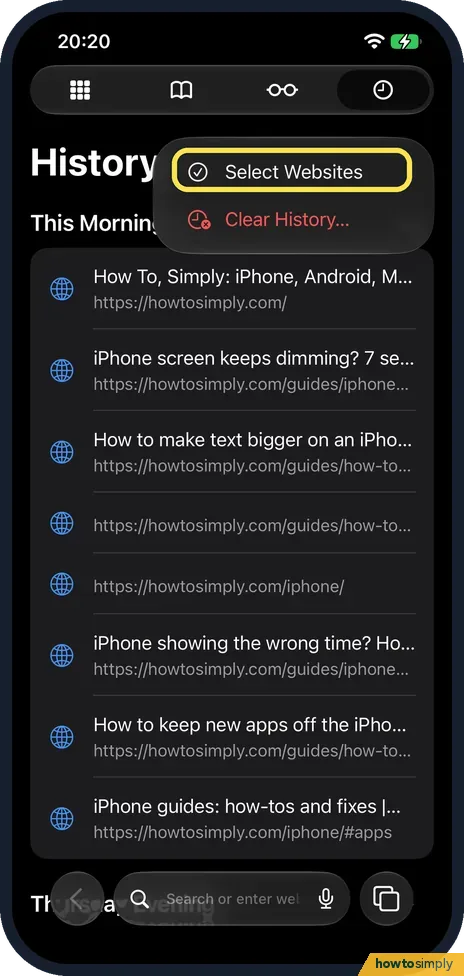
Tap the More button (…) next to the History heading. On our iPhone 17e the menu had two items, Select Websites and Clear History… in red. Tap Clear History….
- 7
Choose a time range and tap Clear History
On our iPhone 17e the sheet that opened from Safari was the same as in Settings: Last hour (ticked), Today, Today and yesterday and All history, then Close All Tabs and the red Clear History button. Our 17e had no Safari profiles set up, so the sheet offered no profile choice. We closed it without clearing.
Clear History is greyed out
- Nothing to clear. Apple says the button is grey when there is no history or website data to clear. Source: Delete your Safari history, cache, and cookies on iPhone
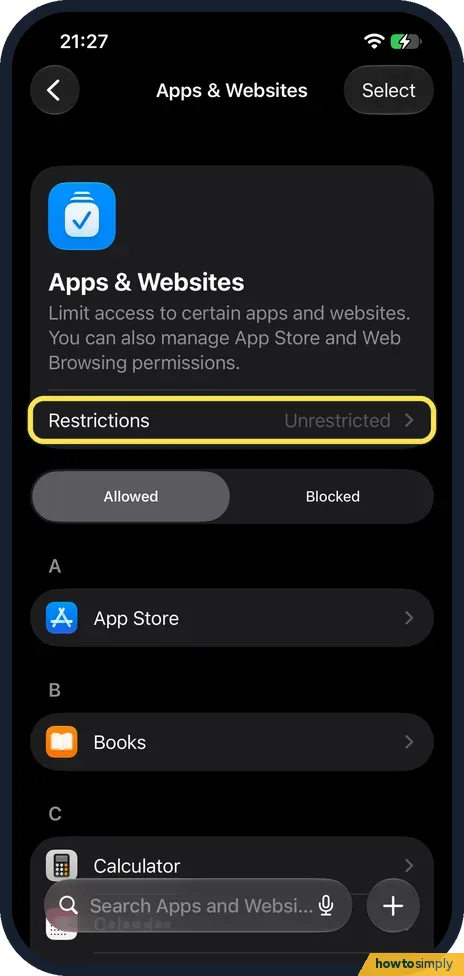
- Screen Time limits websites. Apple's other cause is a web content restriction in Screen Time. On our iPhone 17e with iOS 27 it sits under Settings, Screen Time, Apps & Websites, Restrictions (Unrestricted on ours). Apple's iOS 27 steps set the website filter there, under Filtering. Remove the filter with the Screen Time passcode, or ask whoever set it up. Not shown: we did not turn a restriction on, so we have no picture of the grey button. Sources: Delete your Safari history, cache, and cookies on iPhone, Use parental controls on your child's iPhone or iPad
Clear one website only
- From Safari History. Apple's steps: on Safari's start page tap History, then More, tap Select Websites, pick the sites and tap the Trash button. On our iPhone 17e the More menu showed Select Websites above Clear History. We opened it but did not delete a site. Source: Delete your Safari history, cache, and cookies on iPhone
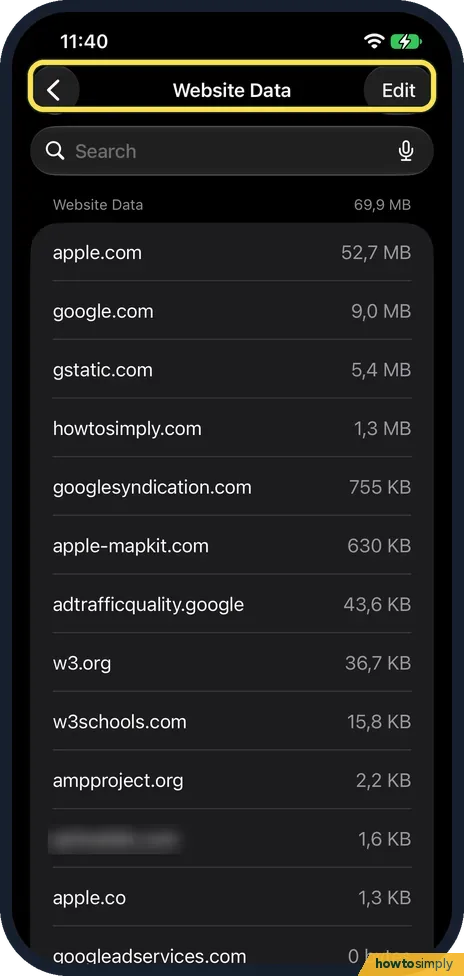
- A site's stored data, not its history. Settings, General, iPhone Storage, Safari, Website Data lists every site with its size; ours had Edit at the top right (iOS 27.2). Apple's own page only describes removing all of it: Settings, Apps, Safari, Advanced, Website Data, Remove All Website Data, which keeps your history. We have not shown removing a single site there. Source: Delete your Safari history, cache, and cookies on iPhone
What each option removes
| Option | What it removes | Good to know |
|---|---|---|
| Clear History and Website Data (Settings, Apps, Safari) | History, cookies and cache for the timeframe you pick | Your AutoFill information stays. |
| Remove All Website Data (Settings, Apps, Safari, Advanced, Website Data) | Cookies and cache: data used for tracking and by websites to keep you signed in | Your history stays. |
| Select Websites (Safari, History, More) | Only the websites you pick from your history | Tap the Trash button to delete them. |
| Block All Cookies (Settings, Apps, Safari, Advanced) | Every current cookie and all website data, and new cookies are stopped | Safari quits and reloads your tabs. Some sites may not let you sign in. |
Apple says a grey Clear History or Remove All Website Data button means there is nothing to clear, or a Screen Time web content restriction is on.
Source: Delete your Safari history, cache, and cookies on iPhone
If you do not see this option
- No profile choice on the sheet Apple says that if you use Safari profiles, you can pick one profile to clear just its history, or pick All Profiles. Our iPhone 17e had no profiles, so the sheet showed only Clear Timeframe and Additional Options. Source: Clear your cache and cookies on iPhone
- No row of four buttons on the start page Apple's iOS 27 guide starts with a different tap when your Tabs layout is Bottom or Top, and links to its Change the layout in Safari page. Source: Clear your cache and cookies on iPhone
If this does not work
- Older history is still there Nothing went wrong. Apple says you pick how far back to clear under Clear Timeframe. If you picked Last hour, Today or Today and yesterday, clear again and choose All history. It is that easy.
- A website or another app still shows your history That is normal, and it is not your phone. Apple says clearing Safari's history doesn't touch any history the websites keep themselves, or what other apps have recorded.
Good to know
Apple Support says: "This doesn't change your AutoFill information."
Apple says this also takes away any permission you gave sites to see your location or send notifications, so a few may ask you again. It does not clear histories that websites keep themselves, or your browsing history in other apps.
And if your habit is to clear your history every evening, there is an easier way. To avoid saving history at all, open Safari, tap the tabs button, and swipe right along the tab bar at the bottom until you reach Private Browsing. More in how to use Private Browsing in Safari on an iPhone.
Apple says that if all your devices use iCloud with the same Apple Account, your browsing history stays in step on each of them. Its clearing page does not say whether clearing here also clears those devices.
After the iOS 27.2 update, on 27 October 2026, the History and Website Data group on our iPhone 17e still read Import, Export and Clear History and Website Data, in that order, so the steps are the same on iOS 27.2.
If you use Safari profiles, how to create and delete Safari profiles on an iPhone explains how each profile keeps its own history.
About this guide
Well, sometimes a website just will not load properly, or you are about to hand your phone to someone and would rather they did not see where you have been. Clearing Safari removes the list of pages you visited, cookies and cached files. It does more than tidy up: it can fix websites that load wrongly and free some storage too. However, make sure your passwords are handy first, because you will be signed out of websites.
- Device
- iPhone
- Shown on
- iOS 27.0.1 (iPhone 17e)
- App
- Settings
- Path
- Settings › Apps › Safari › Clear History and Website Data
- Real screenshots
- 7 of 7 steps
- Checked
- October 2026
- Sources
- 4 official, linked below
What changed: added a table of what each Safari clearing option removes and what it keeps.
Sources
Links checked October 2026. Menus and features can change with updates.What to do next
Tighten your iPhone privacy Step 7 of 7
Did this guide work for you?
Sorry about that. What happened?
Get new guides by email
Our newest guides, sent to your inbox. Free, and you can unsubscribe in one click.
We'll email you to confirm. How we use your email
Follow howtosimply on Facebook
We share our new guides on our Facebook page, so the next fix turns up in your feed.
Follow on Facebook