How to make all websites larger in Safari on an iPhone
- Shown on
- iPhone 17e
- Software
- iOS 27.0.1More iOS 27 guides
- Checked
- October 2026
- Real screenshots
- 4 of 4 steps
- Where it is
- Settings › Apps › Safari › Page Zoom
Quick answer
Open Settings, tap Apps, then Safari, scroll to Settings for Websites and tap Page Zoom. Under Other Websites, tap a value above 100%, for example 125%. Every website then opens at that size. For one website only, use Page Zoom in the Page menu inside Safari.
Steps
- 1
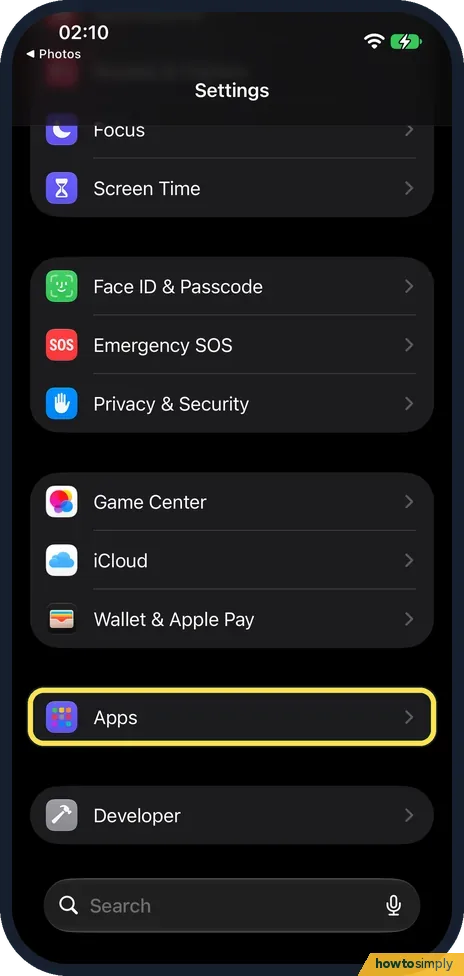
Open Settings and tap Apps
Apps is near the bottom of the main Settings list. On iOS 17 and earlier, Safari is in the main list itself.
- 2
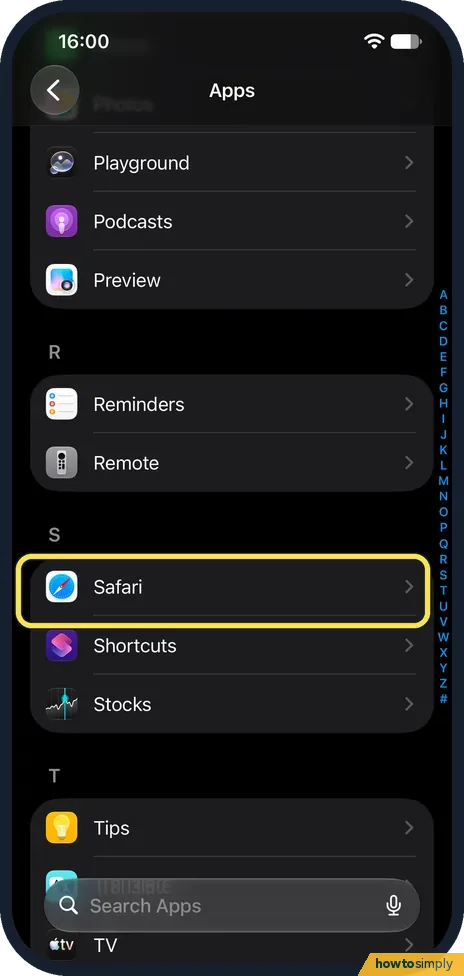
Tap Safari
The apps are in alphabetical order, so Safari is under S.
- 3
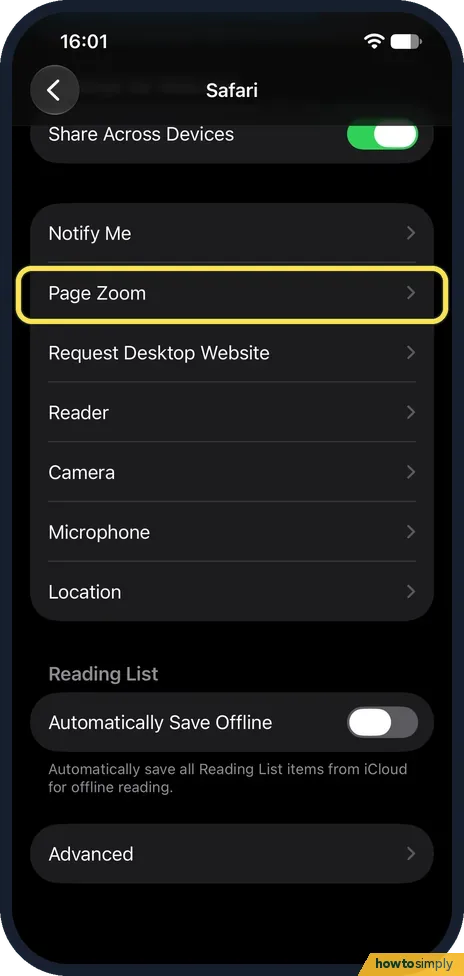
Scroll down to Settings for Websites and tap Page Zoom
The group is near the bottom of the Safari page, with Notify Me and Request Desktop Website.
- 4
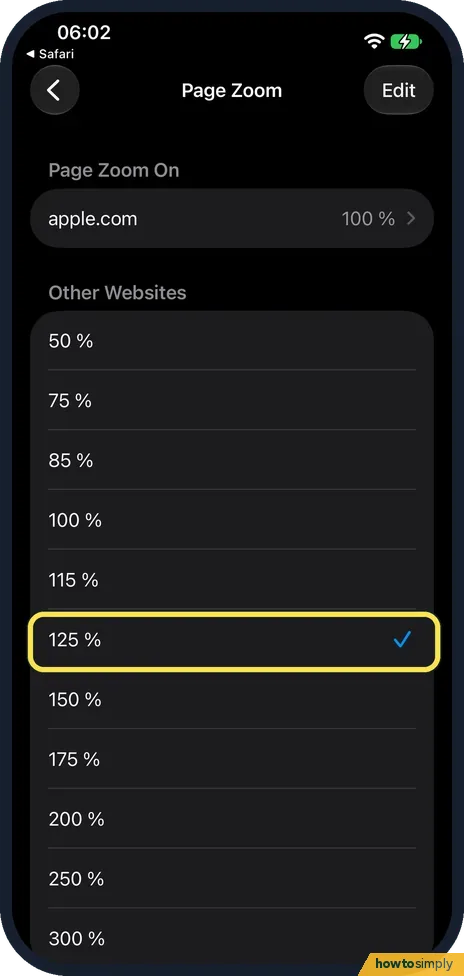
Tap a zoom level
Under Other Websites there are eleven levels: 50, 75, 85, 100, 115, 125, 150, 175, 200, 250 and 300%. The tick is on 100% at first; the picture shows ours after we tapped 125 %. Websites you have zoomed one by one are listed above, under Page Zoom On; ours showed apple.com at 100%.
If you do not see this option
- Your iPhone runs iOS 17 or earlier. Safari is in the main Settings list itself, not under Apps.
- You want larger text only in Safari. Apple: Settings, Accessibility, Per-App Settings, Safari. If Safari is not listed, tap Add App. Source: Customize your Safari settings on iPhone
If this does not work
- One website keeps its old size. Sites you zoomed one by one are listed under Page Zoom On and keep their own level; ours showed apple.com at 100%. That site is simply remembering what you told it earlier. Tap Edit at the top right to remove one.
- A site is still too small. In Safari, tap the Page menu button left of the search field, tap Page Zoom and tap the large A.
- Pages look cramped or cut off? Choose a lower level, and use the large A on sites that still need more.
- Another browser is not affected? Page Zoom is a Safari setting. Browsers from the App Store have their own text size or zoom options, so set those separately in each app.
Good to know
For just one website: in Safari, tap Page Zoom after tapping the Page menu button, found at the left end of the search field. The big A makes it bigger and the small A makes it smaller.
To enlarge text in all apps, not only in Safari: how to make text bigger on an iPhone.
The value under Other Websites becomes Safari's starting size for every site you have not set on its own. Websites you adjust with the large and small A are added to the Page Zoom On list and keep their own level. To go back, open the same page and tap 100%. Your bookmarks and history are not affected.
About this guide
Some websites seem to be written for ants, with text so tiny that every line turns into a squint. Small text on a website can be made larger with Page Zoom in Safari. The reason this guide goes through Settings instead is that the Safari settings have one value for all websites, from 50% to 300%, so you choose your size once.
- Device
- iPhone
- Shown on
- iOS 27.0.1 (iPhone 17e)
- App
- Settings
- Path
- Settings › Apps › Safari › Page Zoom
- Real screenshots
- 4 of 4 steps
- What we did
- Performed: we made the change on our device and show the result
- Checked
- October 2026
- Sources
- 1 official, linked below
The screenshots are our own, taken on an iPhone 17e running iOS 27.0.1, in dark mode.
What changed: the screenshots are now our own iPhone 17e on iOS 27.0.1, dark mode, and the wording is checked against those screens.
Sources
Links checked October 2026. Menus and features can change with updates.Did this guide work for you?
Sorry about that. What happened?
Get new guides by email
Our newest guides, sent to your inbox. Free, and you can unsubscribe in one click.
We'll email you to confirm. How we use your email
Follow howtosimply on Facebook
We share our new guides on our Facebook page, so the next fix turns up in your feed.
Follow on Facebook