How to create a shared album on an iPhone
- Shown on
- iPhone 17e
- Software
- iOS 27.0.1More iOS 27 guides
- Checked
- October 2026
- Real screenshots
- 5 of 5 steps
Quick answer
Turn on Shared Albums under Settings, your name, iCloud, Photos. Then open Photos, tap Collections and go to Shared Albums. Create the album (on our iPhone 17e, with no shared albums yet, the button was Start Sharing), add photos, give it a name and choose who can see it. Then invite people with Invite Participants.
Watch these steps
 Watch on YouTubeA video of this task from our YouTube channel · opens YouTube
Steps
- 1
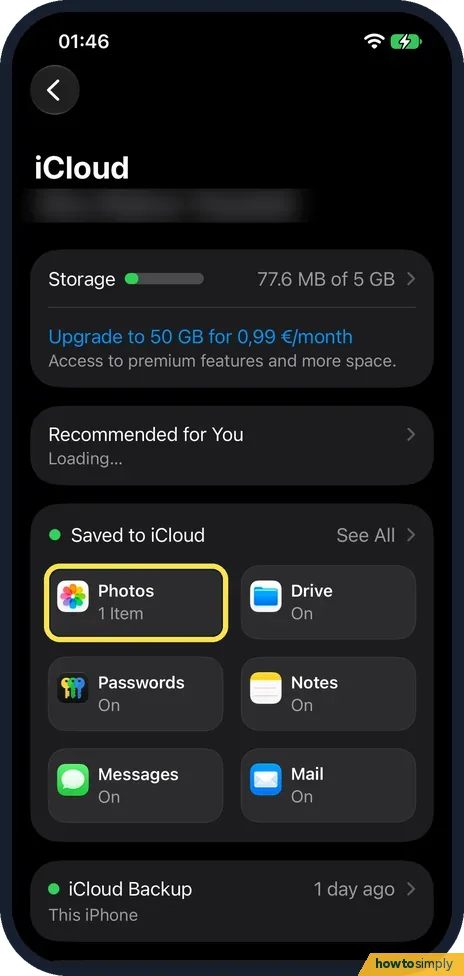
Open Settings, tap your name, then iCloud and Photos
On our iPhone 17e with iOS 27, the iCloud page showed Photos as a tile under Saved to iCloud, reading 1 Item, next to Drive, Passwords, Notes, Messages and Mail. Tap Photos. Our account name is blurred in the picture.
- 2
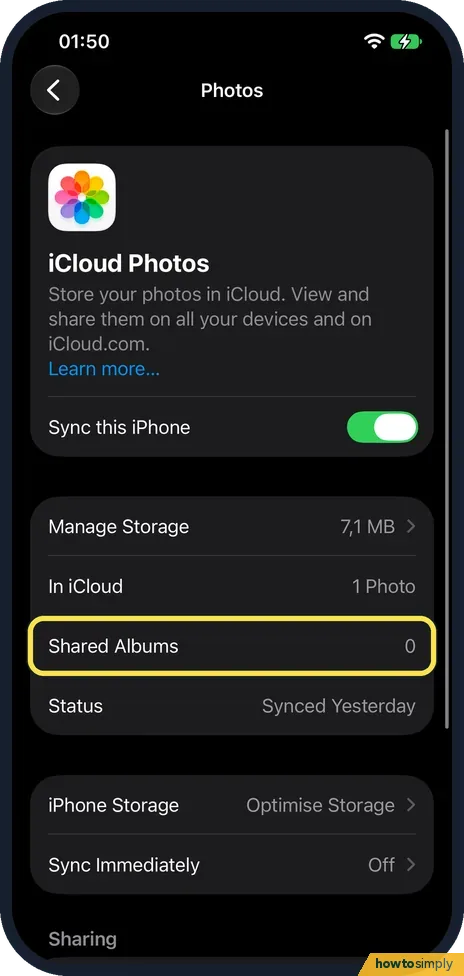
Check Shared Albums on the iCloud Photos page
Apple's iOS 27 guide says to turn on Shared Albums here. On our iPhone 17e with iOS 27.0.1 the switch at the top was called Sync this iPhone and was on, and Shared Albums appeared as a row reading 0, between In iCloud and Status, with no switch on that screen. We have not photographed a separate Shared Albums switch.
- 3
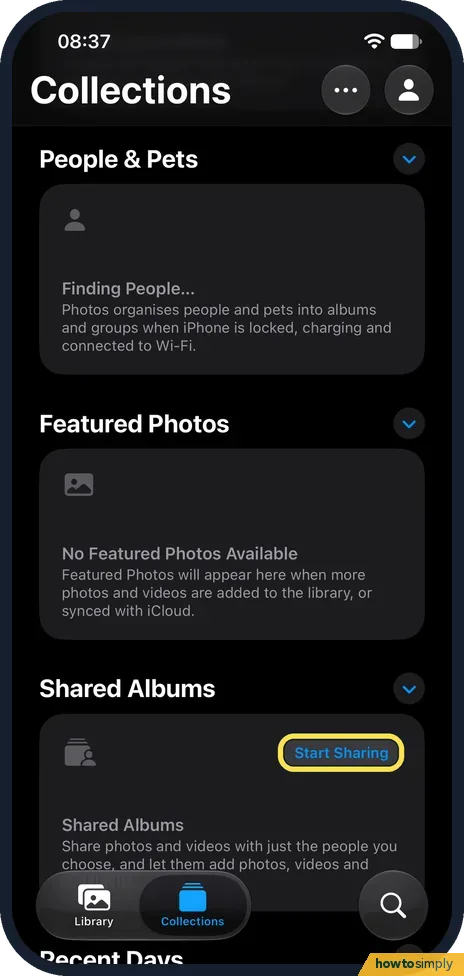
Open Photos, tap Collections, then Start Sharing
Tap Collections at the bottom of Photos and scroll down to Shared Albums. On our iPhone 17e with iOS 27, Shared Albums was the third section of Collections, below People & Pets and Featured Photos. Apple's iOS 27 guide says to tap the Add button there. Our iPhone 17e had no shared albums yet, and the Shared Albums card showed a Start Sharing button instead, with the text Share photos and videos with just the people you choose.
- 4
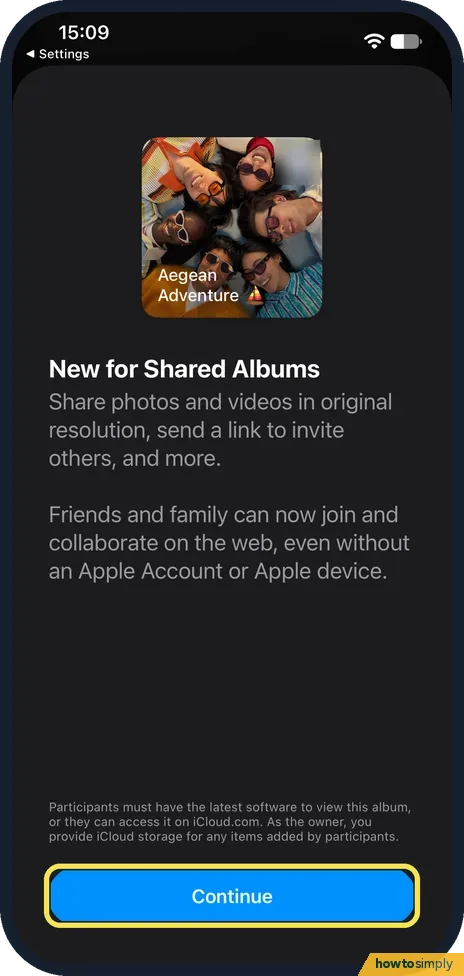
Tap Continue
On our iPhone 17e with iOS 27.0.1, Start Sharing opened a page headed New for Shared Albums. Apple says photos and videos keep their original resolution, you can invite people with a link, and friends and family can join in and work on the album from the web, even if they have no Apple Account or Apple device. Tap Continue at the bottom of that page.
- 5
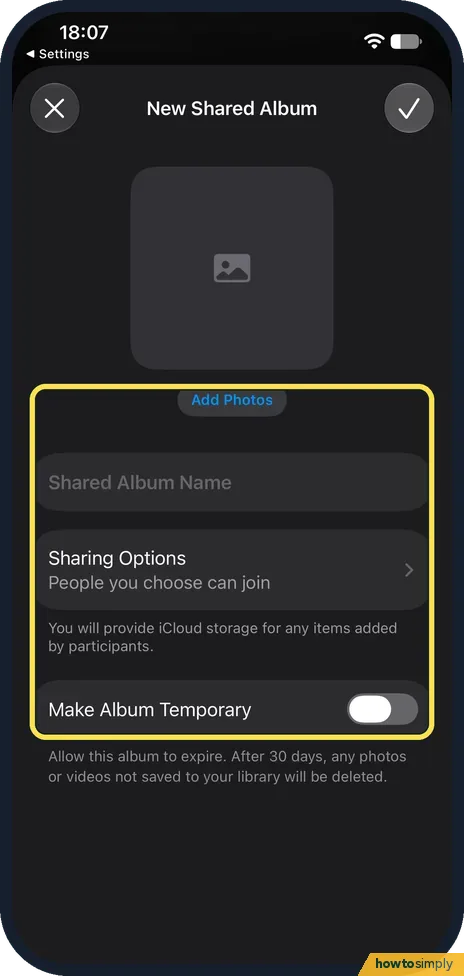
Add photos, name the album and choose who can join
On our iPhone 17e, Continue opened the New Shared Album sheet: an Add Photos button, a Shared Album Name field, Sharing Options reading People you choose can join, with the note You will provide iCloud storage for any items added by participants, and a Make Album Temporary switch, off. Its note reads: Allow this album to expire. After 30 days, any photos or videos not saved to your library will be deleted. Apple says to tap Add Photos and select the items, type a name, and tap Sharing Options to select People You Choose or Anyone with the Link. Apple adds that an album with an expiry date takes up no iCloud storage. Then tap the tick at the top right to create the album. We closed the sheet with the X and did not create an album, so the finished album is not shown.
If you do not see this option
- No Shared Albums section in Collections Apple's iOS 27 guide says to turn on Shared Albums in Settings, your name, iCloud, Photos first. On our iPhone 17e the section came third in Collections, below People & Pets and Featured Photos. Source: Create shared albums in Photos on iPhone
- No Add button in Shared Albums On our iPhone 17e, which had no shared albums yet, the Shared Albums card showed a Start Sharing button instead.
- You cannot find an invitation you were sent Apple says invitations you haven't answered yet are under Collections: tap your Apple Account profile. On our iPhone 17e that is the round person button at the top right of Collections. Source: Create shared albums in Photos on iPhone
If this does not work
- Items Not Shared after you add photos Apple says to check with the album organiser that they have enough room in iCloud for new items, since the album uses their iCloud storage. On our iPhone 17e, the iCloud Photos page in Settings showed the storage in use next to Manage Storage.
- A participant cannot add photos Apple says the organiser opens the album, taps the participant and chooses Can Add Photos, which lets them share photos and videos and remove what they added. Our iPhone 17e had no shared albums, so we have not photographed this menu.
- You cannot invite people to someone else's album Apple says the organiser can give a participant Can Manage Album and Photos, which lets them invite other participants. Our iPhone 17e had no shared albums, so we have not photographed this menu.
Good to know
Apple says people join by selecting the link they received, then selecting Join. They can add their own photos if you leave that option on.
Apple says photos you've copied from a shared album into your own library stay put, even if the shared album is later deleted. Save pictures you want to keep first.
To invite people later, Apple says to open the album, tap the Manage Shared Album button, then Invite Participants, choose a share method and send the invite.
For a few pictures to one person nearby: how to use AirDrop on an iPhone. To keep pictures out of sight: how to hide photos on an iPhone.
About this guide
A shared album holds photos and videos that you share with people you choose. Apple says the people you invite can post their own photos, videos and comments, and everyone sees them.
- Device
- iPhone
- Shown on
- iOS 27.0.1 (iPhone 17e)
- App
- Settings
- Real screenshots
- 5 of 5 steps
- Checked
- October 2026
- Sources
- 4 official, linked below
What changed: the screenshots are now our own iPhone 17e on iOS 27.0.1, dark mode, and the wording is checked against those screens and Apple's iOS 27 guide.
Sources
Links checked October 2026. Menus and features can change with updates.Did this guide work for you?
Sorry about that. What happened?
Get new guides by email
Our newest guides, sent to your inbox. Free, and you can unsubscribe in one click.
We'll email you to confirm. How we use your email
Follow howtosimply on Facebook
We share our new guides on our Facebook page, so the next fix turns up in your feed.
Follow on Facebook