How to see which apps can access your contacts and location on iPhone
- Shown on
- iPhone 17e
- Software
- iOS 27.0.1More iOS 27 guides
- Checked
- October 2026
- Real screenshots
- 7 of 7 steps
- Where it is
- Settings › Privacy & Security
Quick answer
Open Settings and tap Privacy & Security. Tap a category such as Location Services, Contacts or Photos to see every app that asked for it, and tap an app to change its access. For location you choose when, for Contacts how much, and most other categories have an on or off switch per app.
Watch these steps
 Watch on YouTubeA video of this task from our YouTube channel · opens YouTube
Steps
- 1
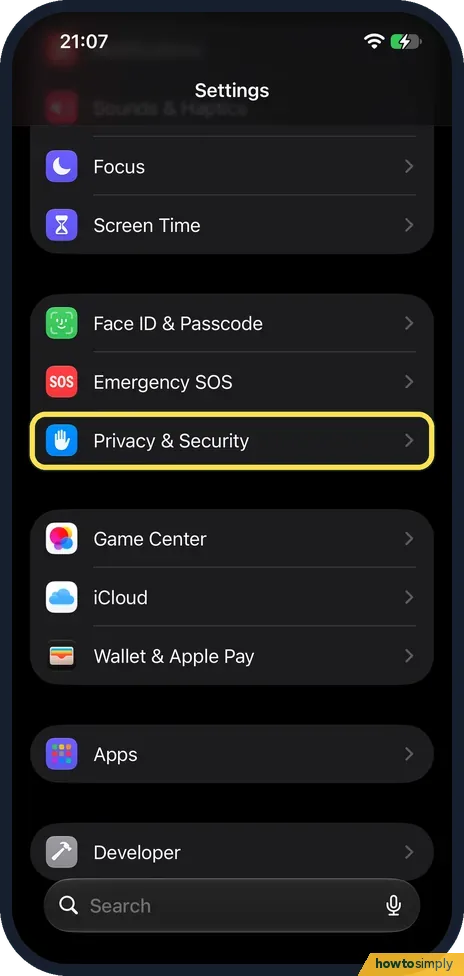
Open Settings and tap Privacy & Security
Scroll down Settings and tap Privacy & Security.
On our iPhone 17e it is below Emergency SOS and above Game Center.
- 2
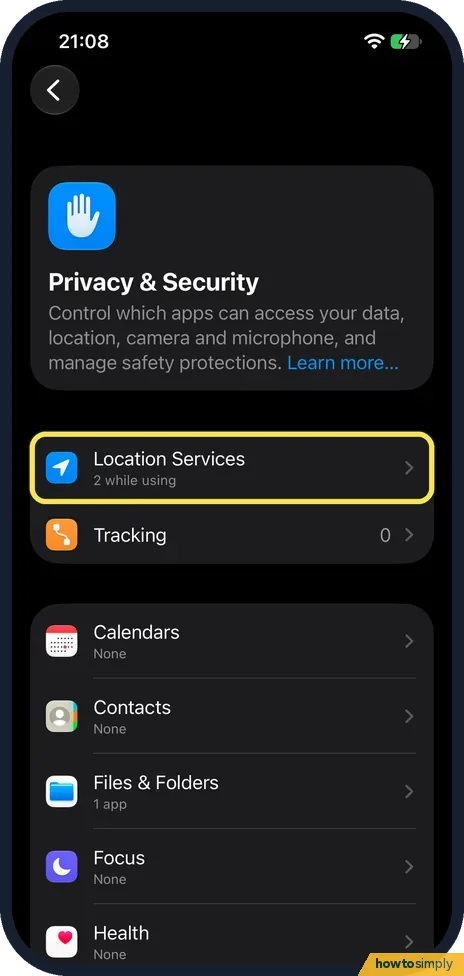
Open Location Services
Tap Location Services, above Tracking (Data Linking Across Companies from iOS 27.2), to see the apps that have asked for your location and what each is allowed. On our iPhone 17e the row said 2 while using.
Tap an app to choose when it may use your location. Apple says an approximate location may be sufficient for an app that does not need your exact location: switch off Precise Location for it.
- 3
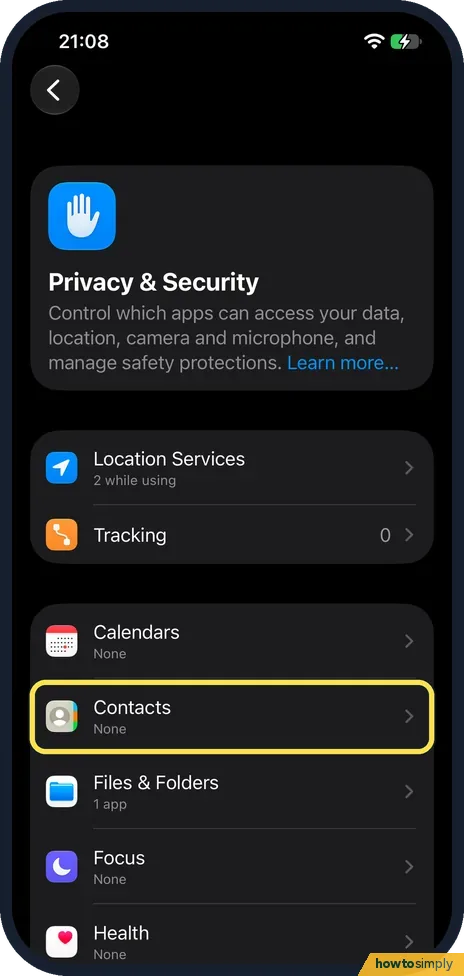
Go back and open Contacts
Each category below works the same way, starting with Calendars, Contacts and Files & Folders.
Tap Contacts to see which apps can read your address book. On our iPhone 17e it said None, while Files & Folders said 1 app.
- 4
Check how much each app may see
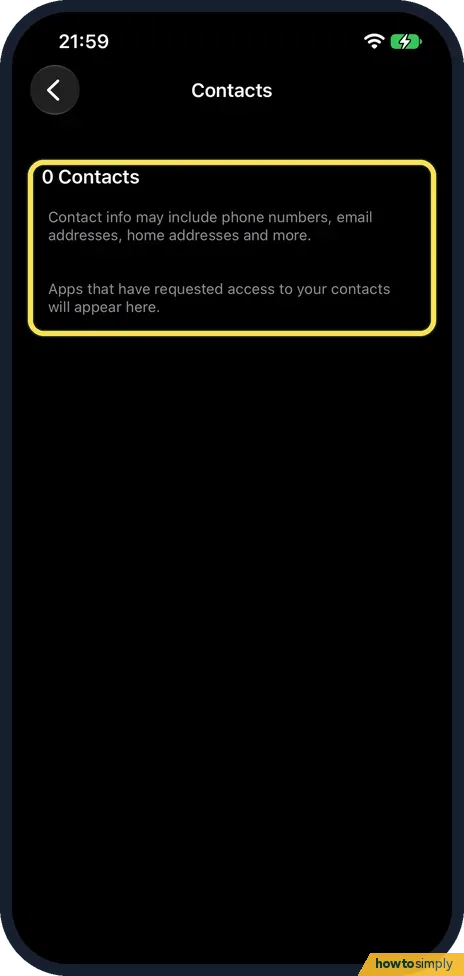
On our iPhone 17e no app had asked, so the page said 0 Contacts and Apps that have requested access to your contacts will appear here.
Once an app has asked, Apple says to tap the app and choose how much access it gets, below Contacts Access.
With Limited Access, Apple says to tap Edit Selected Contacts, pick people and tap Done.
- 5
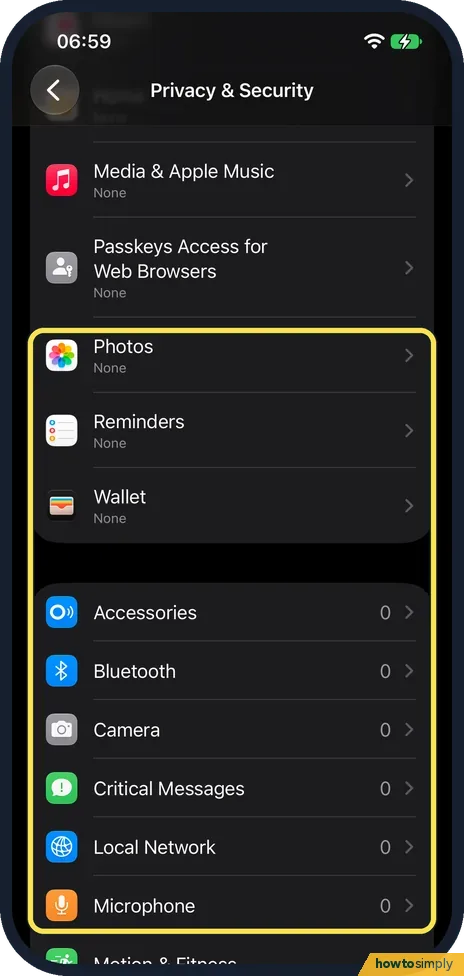
Repeat for Photos, Camera and Microphone
Scroll further down the Privacy & Security page and tap Photos, Camera or Microphone.
On our iPhone 17e Photos said None, and Camera and Microphone each showed 0.
Apple says each category shows the apps that have asked, and any of them can be switched on or off.
- 6
If you cannot change an app's access: check Screen Time
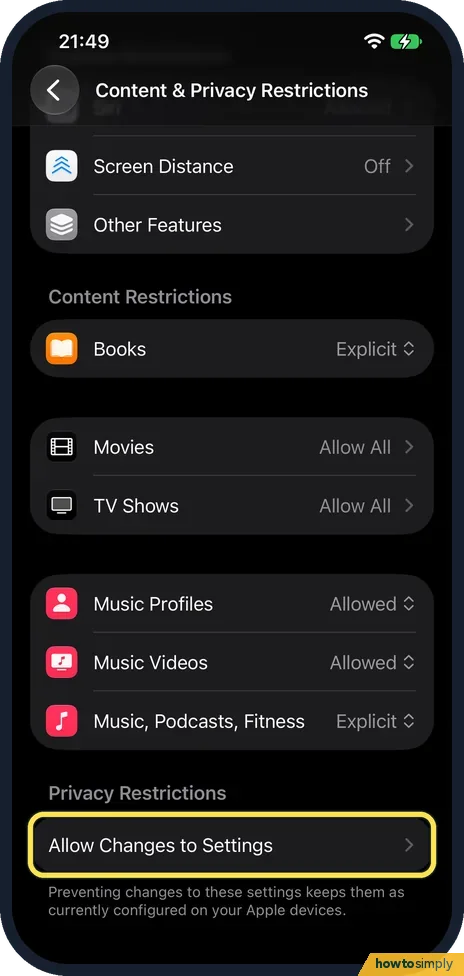
Open Settings, Screen Time, Content & Privacy Restrictions and scroll to the bottom.
On our iPhone 17e, Privacy Restrictions had a single row, Allow Changes to Settings. Tap it.
- 7
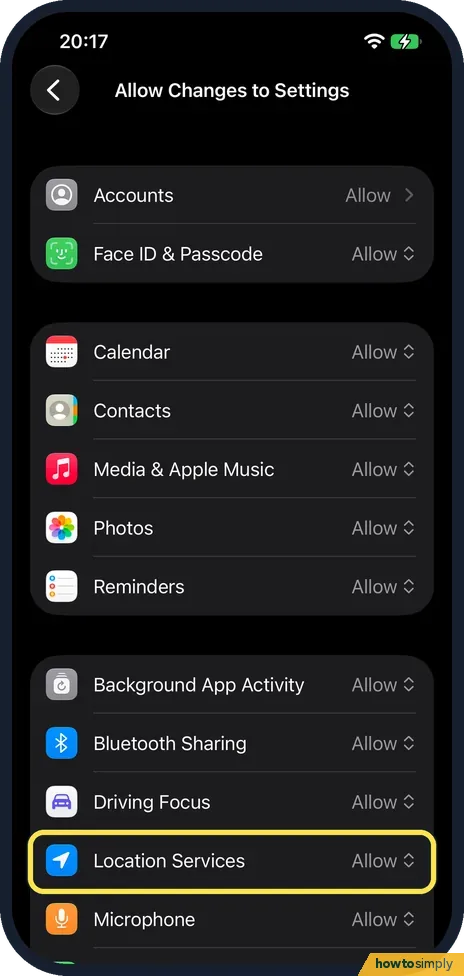
Check the row for the setting
On our iPhone 17e this page listed Accounts, Face ID & Passcode, Calendar, Contacts, Photos, Location Services, Microphone and more, all set to Allow.
Apple's article Set up parental controls to manage your child's iPhone or iPad describes an Allow or Don't Allow choice here. If your setting is set to Don't Allow, ask whoever manages Screen Time on the phone.
If you do not see this option
- A category says None. Apple says tapping a category shows a list of the apps that requested access. On our iPhone 17e, Calendars, Contacts, Focus and Health said None, while Files & Folders said 1 app. Sources: Control access to information in apps on iPhone, Control the location information you share on iPhone, Control access to your contacts on iPhone, Manage information sharing with Safety Check on iPhone, Block features or content with Screen Time on iPhone (iOS 27)
- You want to check everything at once. Apple says Safety Check, under Settings, Privacy & Security, reviews who and what you share with, and can reset system privacy permissions for apps. Sources: Control access to information in apps on iPhone, Control the location information you share on iPhone, Control access to your contacts on iPhone, Manage information sharing with Safety Check on iPhone, Block features or content with Screen Time on iPhone (iOS 27)
If this does not work
- An app stopped working after you removed access. Give access back in the same place: Privacy & Security, the category, then the app. Apple says whatever you choose, you can change it later.
- You cannot change an app's access. Step 6 shows where to check Screen Time's Content & Privacy Restrictions. Apple's guide Block features or content with Screen Time on iPhone explains how to allow or block settings there.
Good to know
Data Linking Across Companies (called Tracking before iOS 27.2), near the top of the same page, controls whether apps may ask to link your activity across other companies' apps and websites. Switch off its Allow Apps to Request switch to refuse all of them at once: how to stop apps from tracking you on iPhone.
If an app stops working after you remove a permission, give it back in the same place. Apple says whatever you choose, you can change it later.
App Privacy Report, on the same page, shows how apps use the permissions you gave them and their network activity.
Safety Check, also on the Privacy & Security page, walks you through what you share with people and apps.
Turn location off completely, or only for system services: How to turn Location Services on or off on iPhone and how to turn off location for system services.
Change one app's location access: how to change when an app may use your location on an iPhone.
About this guide
The apps that asked for access to your information are listed in one place, Settings, Privacy & Security, one category at a time. It is worth looking through that list once in a while and switching off what an app does not need. The screenshots are our own, taken on an iPhone 17e running iOS 27.0.1, in dark mode.
- Device
- iPhone
- Shown on
- iOS 27.0.1 (iPhone 17e)
- App
- Settings
- Path
- Settings › Privacy & Security
- Real screenshots
- 7 of 7 steps
- Checked
- October 2026
- Sources
- 5 official, linked below
What changed: the screenshots are now our own iPhone 17e on iOS 27.0.1, dark mode, and the wording is checked against those screens and Apple's iOS 27 guide.
Sources
- Apple Support: Control access to information in apps on iPhone
- Apple Support: Control the location information you share on iPhone
- Apple iPhone User Guide: Control access to your contacts on iPhone
- Apple iPhone User Guide: Manage information sharing with Safety Check on iPhone
- Apple iPhone User Guide: Block features or content with Screen Time on iPhone (iOS 27)
What to do next
Tighten your iPhone privacy Step 2 of 7
Did this guide work for you?
Sorry about that. What happened?
Get new guides by email
Our newest guides, sent to your inbox. Free, and you can unsubscribe in one click.
We'll email you to confirm. How we use your email
Follow howtosimply on Facebook
We share our new guides on our Facebook page, so the next fix turns up in your feed.
Follow on Facebook