How to open and create ZIP files on an iPhone (iOS 27)
- Shown on
- iPhone 17e
- Software
- iOS 27.0.1More iOS 27 guides
- Checked
- October 2026
- Real screenshots
- 8 of 8 steps
- Where it is
- Files › On My iPhone › Compress
Quick answer
In the Files app, touch and hold a file or folder and tap Compress: a ZIP with the same name appears next to it. To open a ZIP, tap it: Files unpacks it into a new folder in the same place. If a folder with that name is already there, Files adds a 2 to the name.
Steps
- 1
Open the folder in Files
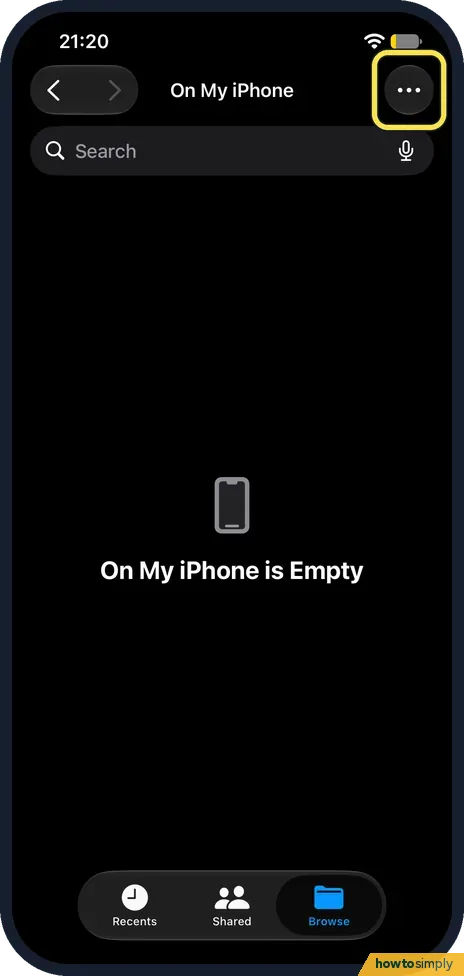
Open the Files app, tap Browse and open the place that holds your files, On My iPhone on ours. It was empty, so we made a test folder: tap the More button, the three dots at the top right.
- 2
Tap New Folder
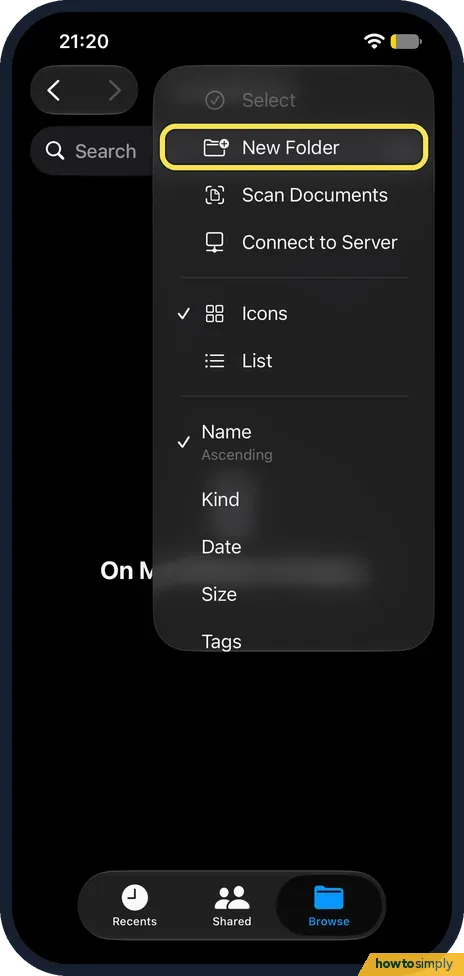
The menu has Select, New Folder, Scan Documents and Connect to Server, then the view and sort options. Tap New Folder. If your files are already in a folder, skip to step 4.
- 3
Name the folder
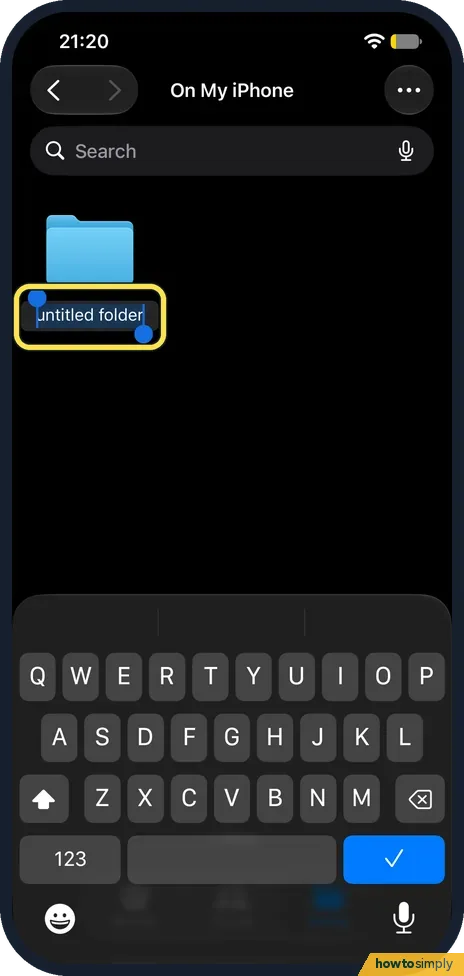
The new folder appears with its name, untitled folder, selected and the keyboard open. Type a name and tap the blue tick key. We called ours ZIP test.
- 4
Touch and hold the folder
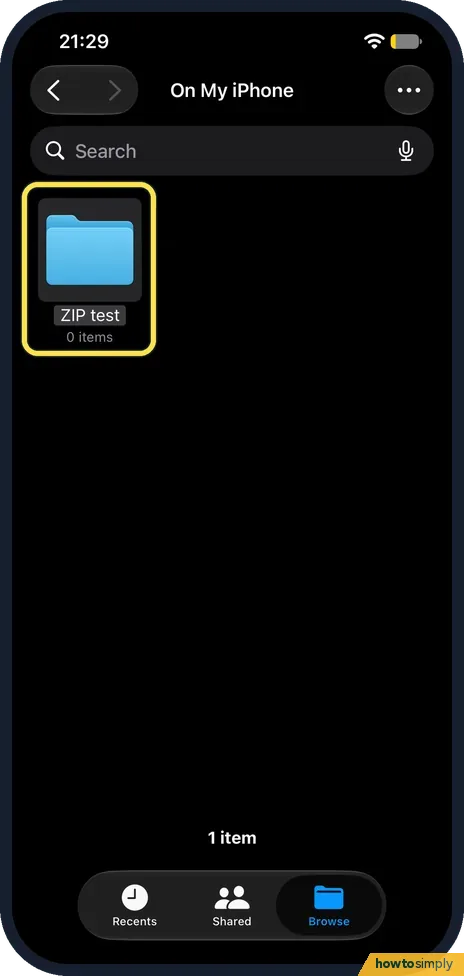
Touch and hold the folder or file you want to pack, here ZIP test, 0 items. Ours was empty. A menu opens below it.
- 5
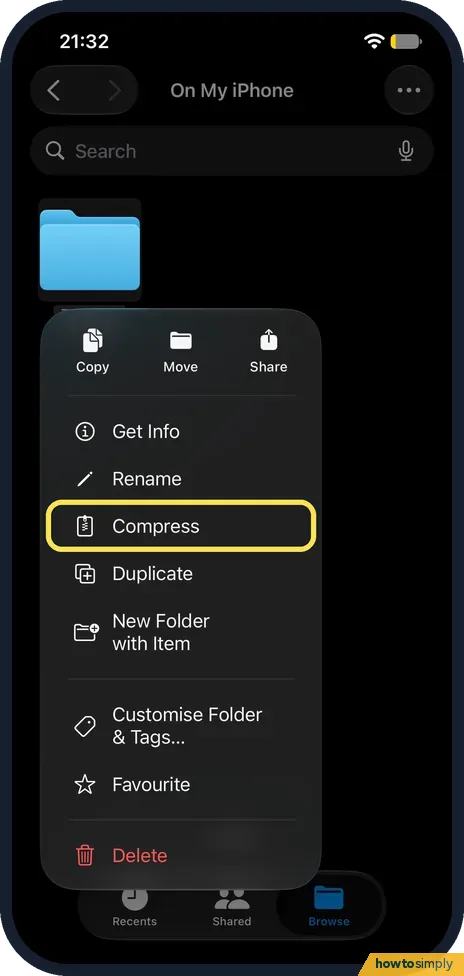
Tap Compress
The menu starts with Copy, Move and Share, then Get Info and Rename. Tap Compress, the next item, above Duplicate.
- 6
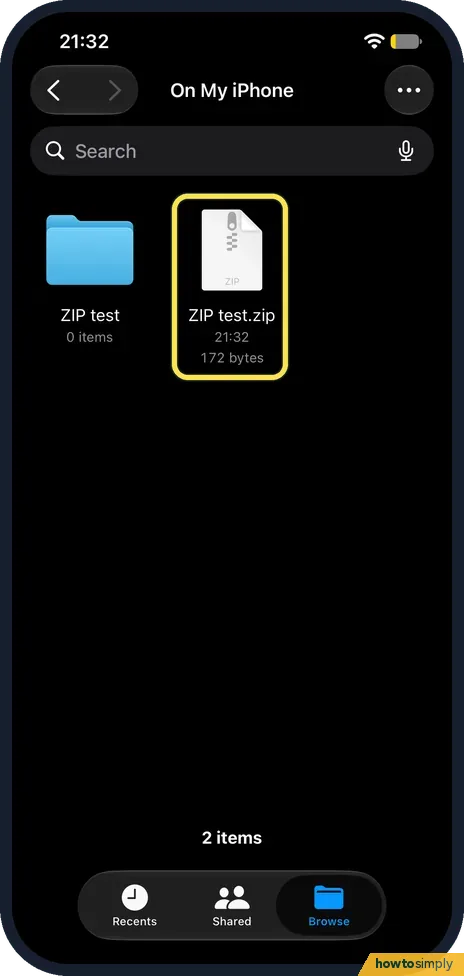
Find the ZIP file
ZIP test.zip appears at once next to the folder, with the time it was made, 21:32, and its size, 172 bytes. The folder stays where it was. Send the ZIP like any other file.
- 7
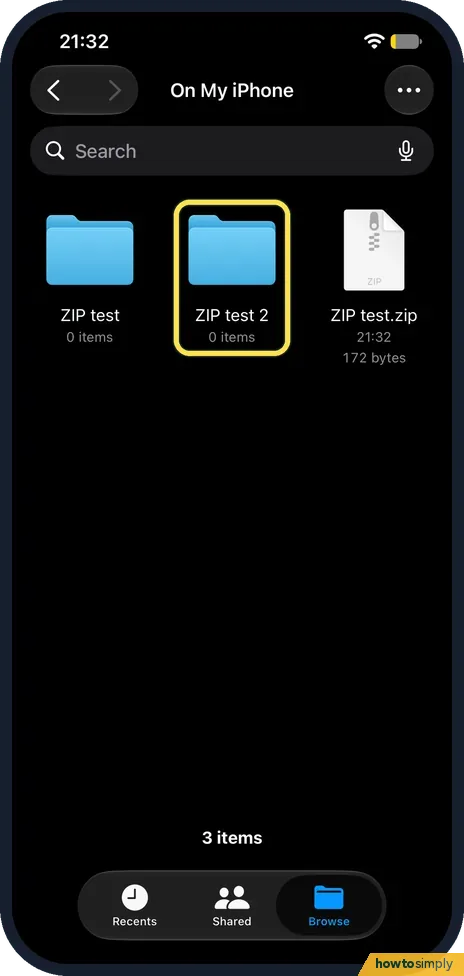
Tap the ZIP file to open it
Tap ZIP test.zip. Files unpacks it straight away into a new folder next to it. Ours is ZIP test 2, 0 items: the name ZIP test was taken, and the folder we zipped was empty. The ZIP file stays too. Tap the new folder to open it.
- 8
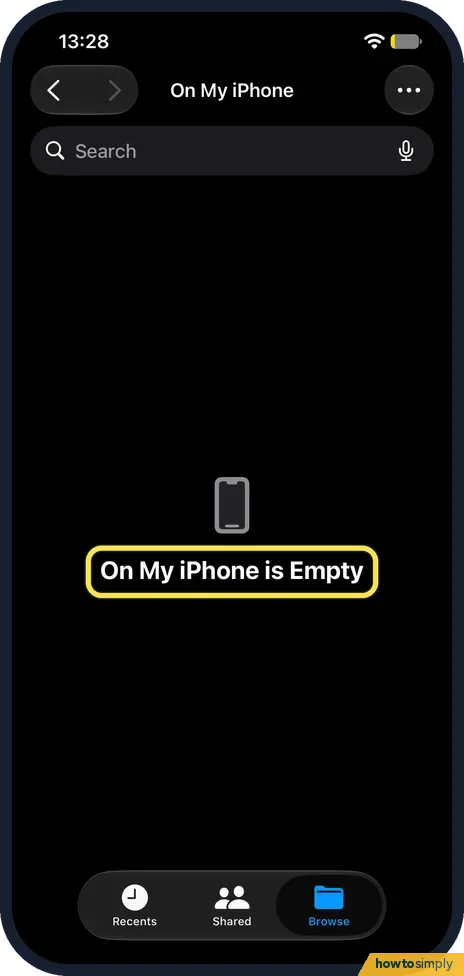
Delete what you no longer need
Tap the More button, then Select, tap the items and tap Delete. We deleted the test folder, the ZIP and the unpacked folder, and the page showed On My iPhone is Empty.
If you do not see this option
- Opening a ZIP someone sent you? Apple says to find the ZIP in the Files app and tap it. We only opened a ZIP made on the iPhone; we did not save one from Mail, Messages or Safari first. Source: Create or open ZIP files on your iPhone or iPad
- Packing several files into one ZIP? Apple says to tap More, Select, choose the files, then More at the lower right and Compress. Several files become Archive.zip in the same folder. We packed one folder only. Source: Create or open ZIP files on your iPhone or iPad
- No Compress in the three-dot menu? On ours the More menu at the top right had Select and New Folder but no Compress. On ours, Compress was in the menu you get by touching and holding the folder. Apple puts it under the More button in the lower right, after Select.
If this does not work
- The unpacked folder ends in 2? Files adds a 2 when a folder with the same name is already there, as with our ZIP test 2. Apple says to touch and hold the folder and tap Rename to change its name.
- The unpacked folder is empty? Ours showed 0 items because the folder we zipped was empty. Apple says tapping a ZIP creates a folder containing the files.
- Want a different name for the ZIP? Apple says to touch and hold the ZIP and tap Rename. On ours Rename is in the same menu as Compress, two items above it.
Good to know
The ZIP file saves to the same folder as the original. If your iPhone is full: iPhone storage full? 7 ways to free up space fast. Files you download in Safari go to Files too: change where Safari saves downloads.
The same on a computer: zip and unzip files on a Mac and zip and unzip files on Windows 11.
This guide does not cover password-protected ZIP files. On a Mac: how to open a password-protected ZIP file on a Mac.
About this guide
The Files app can create and open ZIP files. Apple's page on ZIP files says one file becomes a ZIP with the same name, and tapping a ZIP creates a folder containing the files.
- Device
- iPhone
- Shown on
- iOS 27.0.1 (iPhone 17e)
- App
- Files
- Path
- Files › On My iPhone › Compress
- Real screenshots
- 8 of 8 steps
- Checked
- October 2026
- Sources
- 1 official, linked below
The screenshots are from our iPhone 17e with iOS 27.0.1, in Dark mode. We made an empty test folder called ZIP test in On My iPhone, compressed it, opened the ZIP, then deleted all of it.
Sources
Links checked October 2026. Menus and features can change with updates.Did this guide work for you?
Sorry about that. What happened?
Get new guides by email
Our newest guides, sent to your inbox. Free, and you can unsubscribe in one click.
We'll email you to confirm. How we use your email
Follow howtosimply on Facebook
We share our new guides on our Facebook page, so the next fix turns up in your feed.
Follow on Facebook