How to change when the screen turns off on Windows 11
- Shown on
- Microsoft Cloud PC
- Software
- Windows 11
- Checked
- October 2026
- Real screenshots
- 3 of 3 steps
- Where it is
- Settings › System › Power › Screen
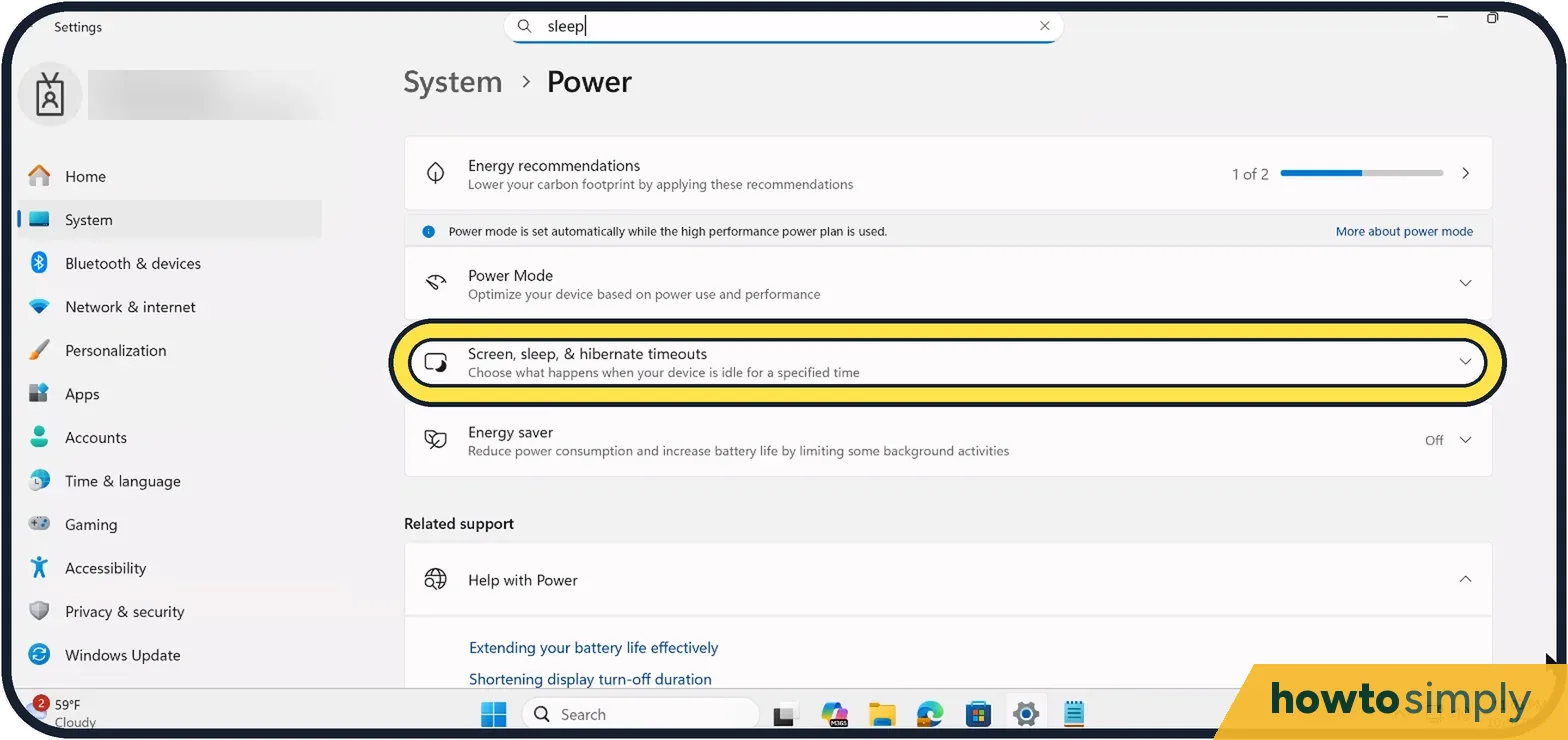 Real screenshot · Microsoft Cloud PC, Windows 11
Quick answer
Open Settings, System, Power (Power & battery on laptops) and expand Screen, sleep, & hibernate timeouts. Choose a time under Turn my screen off after, or Never.
Steps
- 1
Open Power settings
Press Windows + I, click System, then Power, or Power & battery on a laptop. Click Screen, sleep, & hibernate timeouts.
- 2
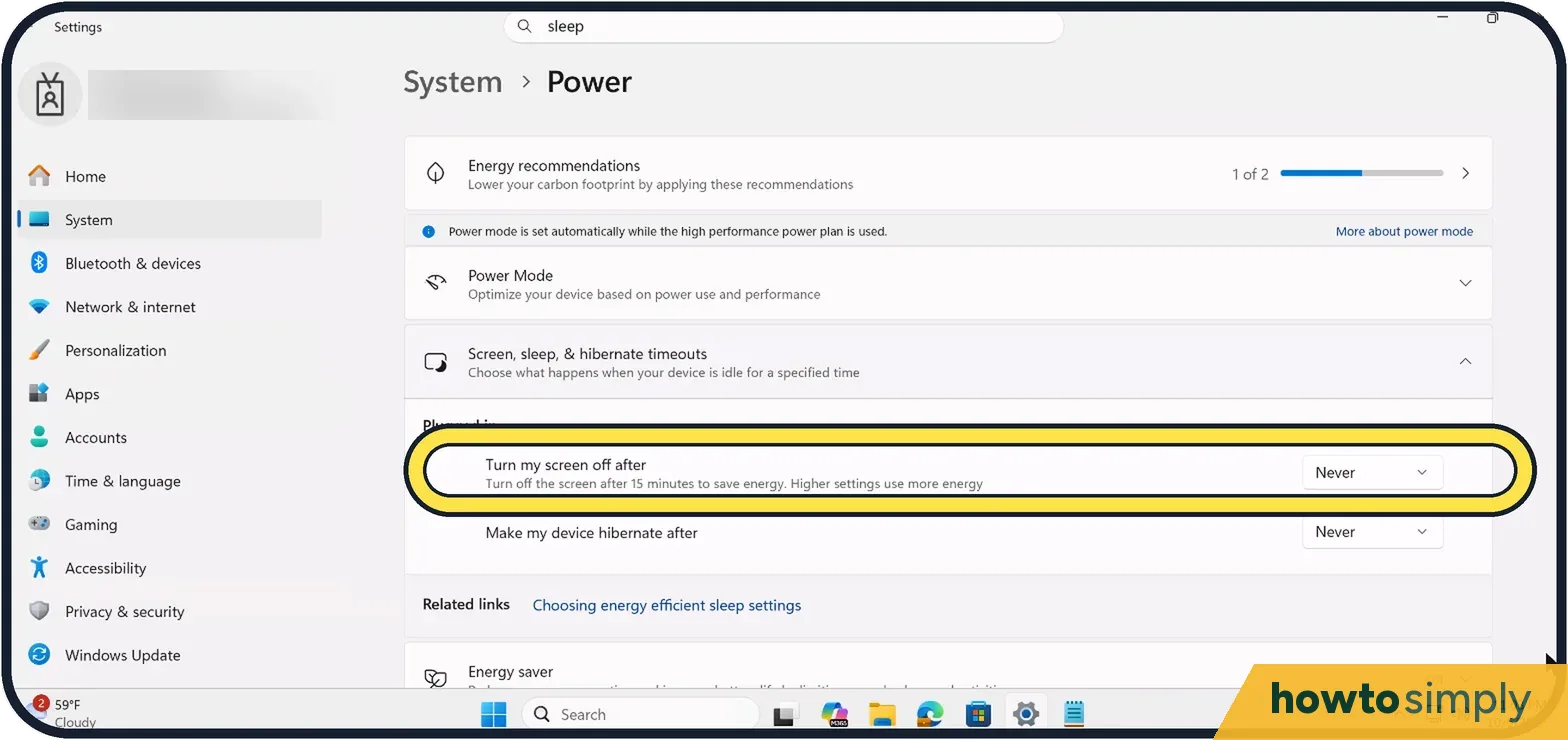
Find Turn my screen off after
Under the Plugged in heading, just above the row, Turn my screen off after shows the current time. Ours was Never.
- 3
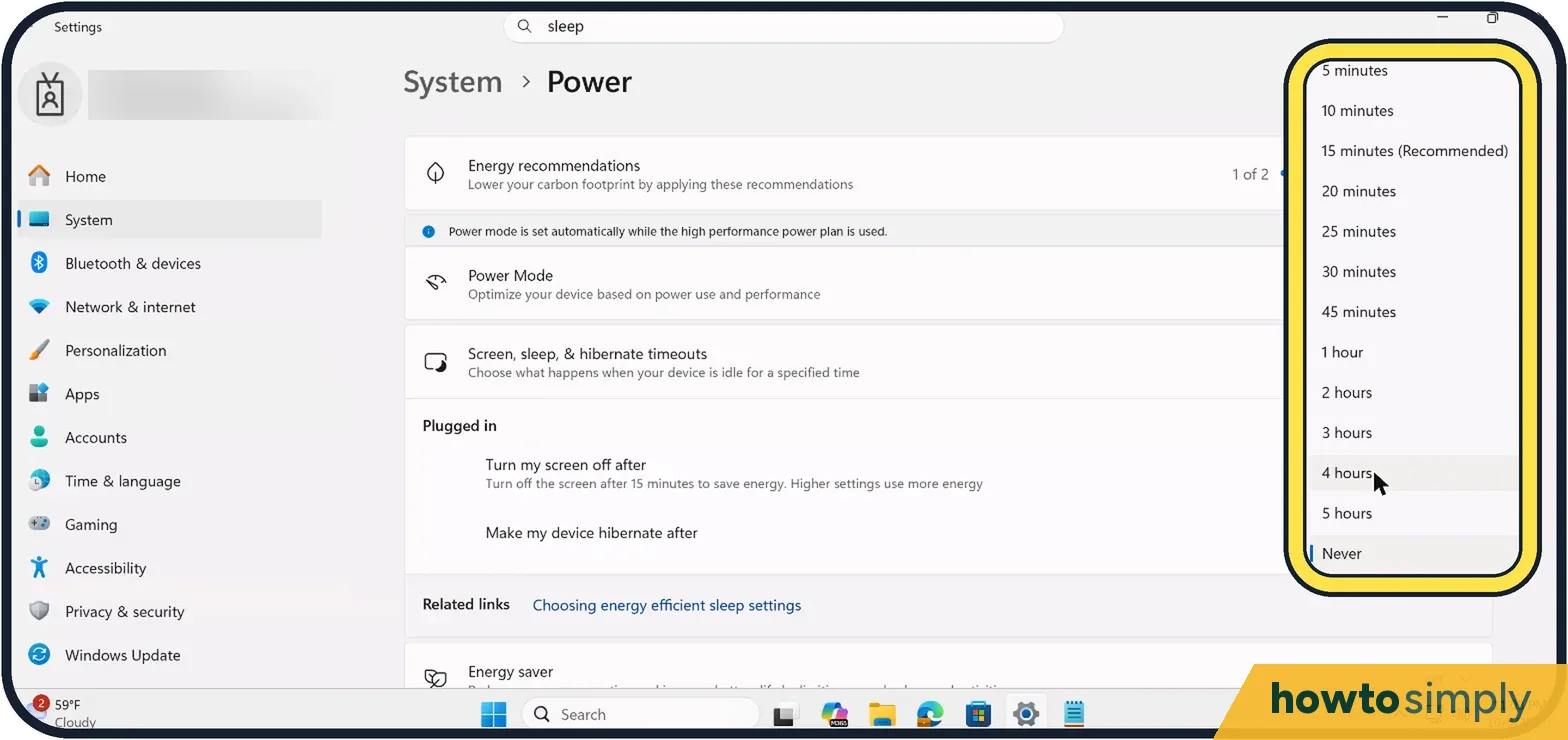
Pick a time
Open the list and choose. 15 minutes is marked Recommended. We left ours unchanged.

If this does not work
- The screen turns off sooner than before Microsoft says Windows defaults were lowered to save energy: a modern standby PC that is plugged in now turns the screen off after 5 minutes instead of 10. Set your own time here.
- The PC goes to sleep as well Microsoft says Make my device sleep after is a separate drop-down on the same page, with its own times for plugged in and on battery.
- The screen still turns off at the old time? Check that you changed the right column. Plugged in and On battery have separate times, and the one in use depends on whether the charger is connected.
- The list is greyed out or resets itself? On a work or school PC, the organisation can set power options for you. If your choice will not save or changes back, ask your IT team.
- The screen dims when the battery is low? Microsoft says Energy saver turns on when the battery is low, dims the screen and limits background activity. This is separate from the screen-off time. Plug in the charger, then check the On battery time again.
Good to know
On battery has its own time; set a shorter time there to save battery.
Microsoft lists Make my device sleep after on the same page. Our Cloud PC has no sleep row.
Microsoft lists the newer Windows defaults, in minutes. On a modern standby PC the screen turns off after 3 on battery and 5 plugged in, and it sleeps after 3 on battery and 5 plugged in. On older S3 PCs the screen turns off after 3 on battery and 5 plugged in, and the PC sleeps after 10 on battery and 15 plugged in. Shorter times save energy, and Microsoft also lists dark mode and lower power modes as ways to cut screen and background use. To make the PC favour battery life or speed, see how to change the power mode.
About this guide
A screen that turns off too soon is annoying while reading; Microsoft says shorter screen-off times reduce idle power use. On our Cloud PC the list marks 15 minutes as Recommended when plugged in, while Microsoft's newer plugged-in default is 5 minutes.
- Device
- Windows
- Shown on
- Windows 11 Enterprise 25H2 (build 26200.9457), Microsoft Cloud PC
- App
- Settings
- Path
- Settings › System › Power › Screen
- Real screenshots
- 3 of 3 steps
- Checked
- October 2026
- Sources
- 1 official, linked below
Sources
Links checked October 2026. Menus and features can change with updates.Did this guide work for you?
Sorry about that. What happened?
Get new guides by email
Our newest guides, sent to your inbox. Free, and you can unsubscribe in one click.
We'll email you to confirm. How we use your email
Follow howtosimply on Facebook
We share our new guides on our Facebook page, so the next fix turns up in your feed.
Follow on Facebook