How to stop apps from opening at startup on Windows 11
- Shown on
- Microsoft Cloud PC
- Software
- Windows 11
- Checked
- October 2026
- Real screenshots
- 4 of 5 steps
- Where it is
- Settings › Apps › Startup
 Real screenshot · Microsoft Cloud PC, Windows 11
Quick answer
Open Settings, choose Apps, then Startup, and switch off every app you do not need the moment you sign in. The apps stay installed; they just stop launching by themselves.
Watch these steps
Watch on YouTubeA video of this task from our YouTube channel · opens YouTubeSteps
- 1
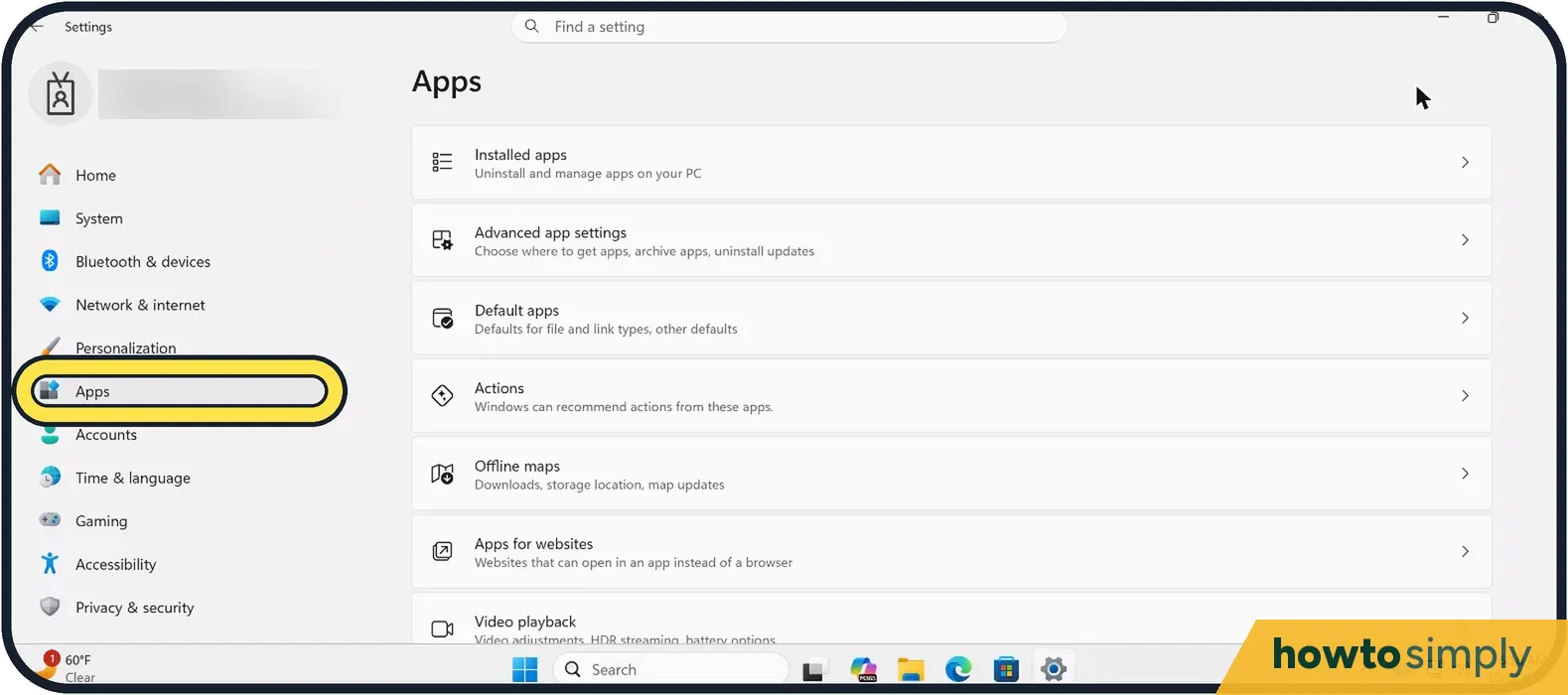
Open Settings and choose Apps
Press Windows + I. Apps is in the list on the left.
- 2
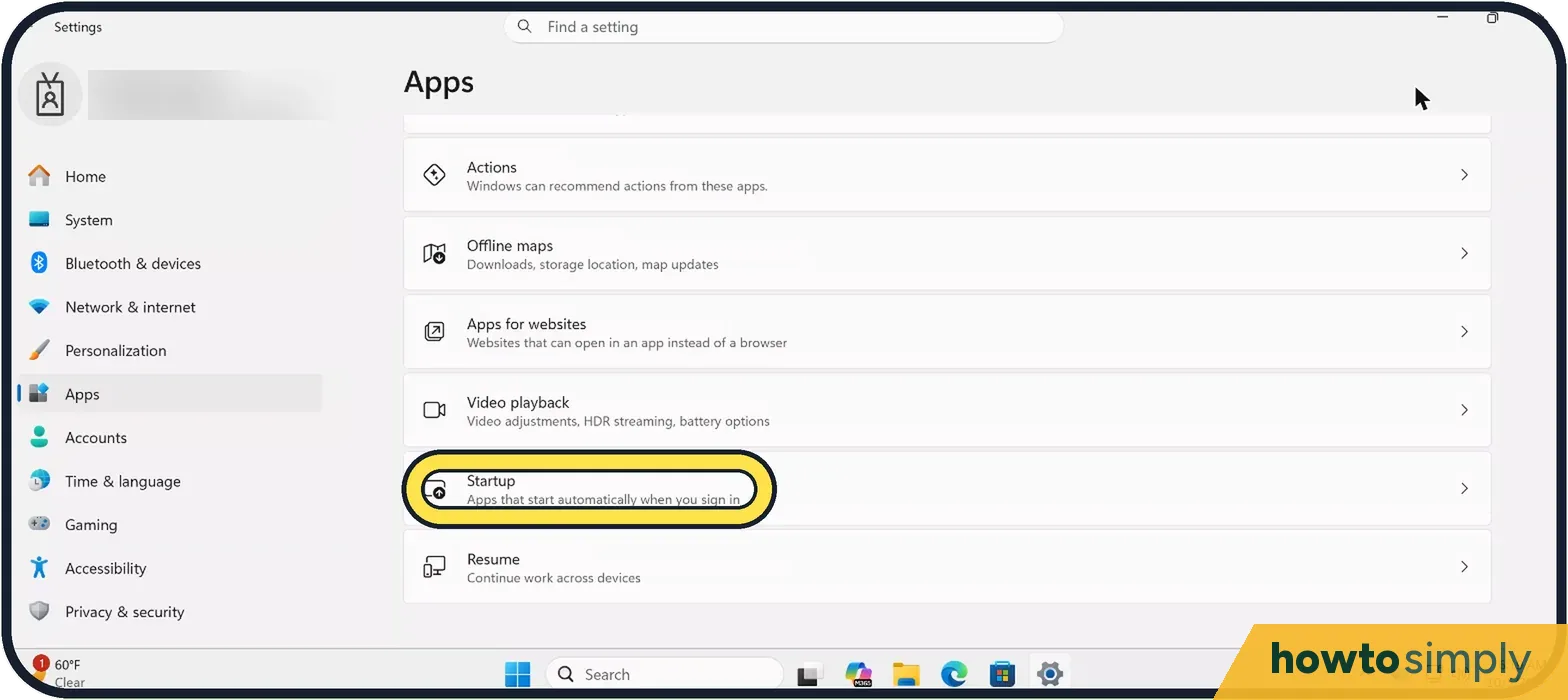
Click Startup
It is near the bottom of the Apps page.
- 3
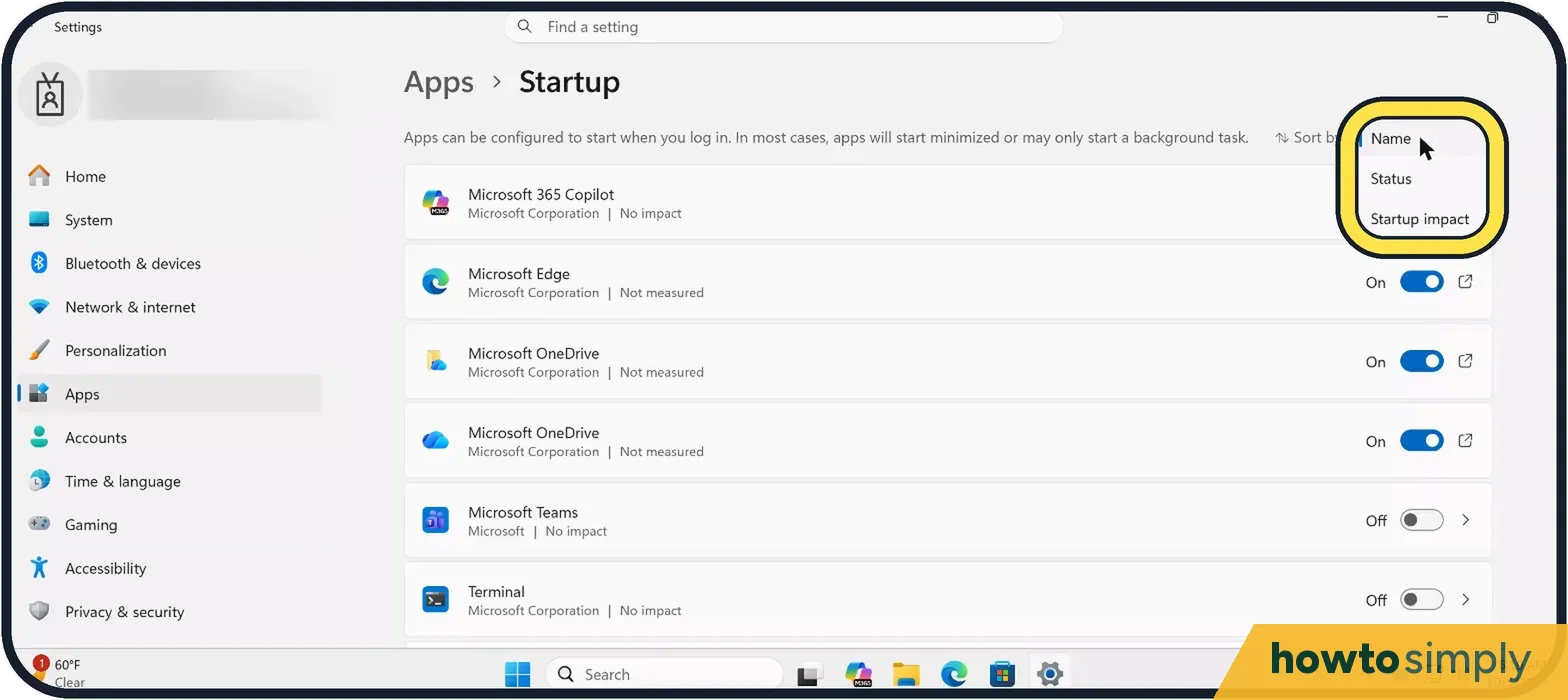
Sort by startup impact
Open the Sort by menu at the top right, shown open in the picture, and choose Startup impact. On our Cloud PC the menu offers Name, Status and Startup impact. Each app's impact is shown under its name; on our Cloud PC they read No impact or Not measured, so none showed High impact. Microsoft says High impact means more than 1 second of processor time or more than 3 MB of disk use at startup.
- 4
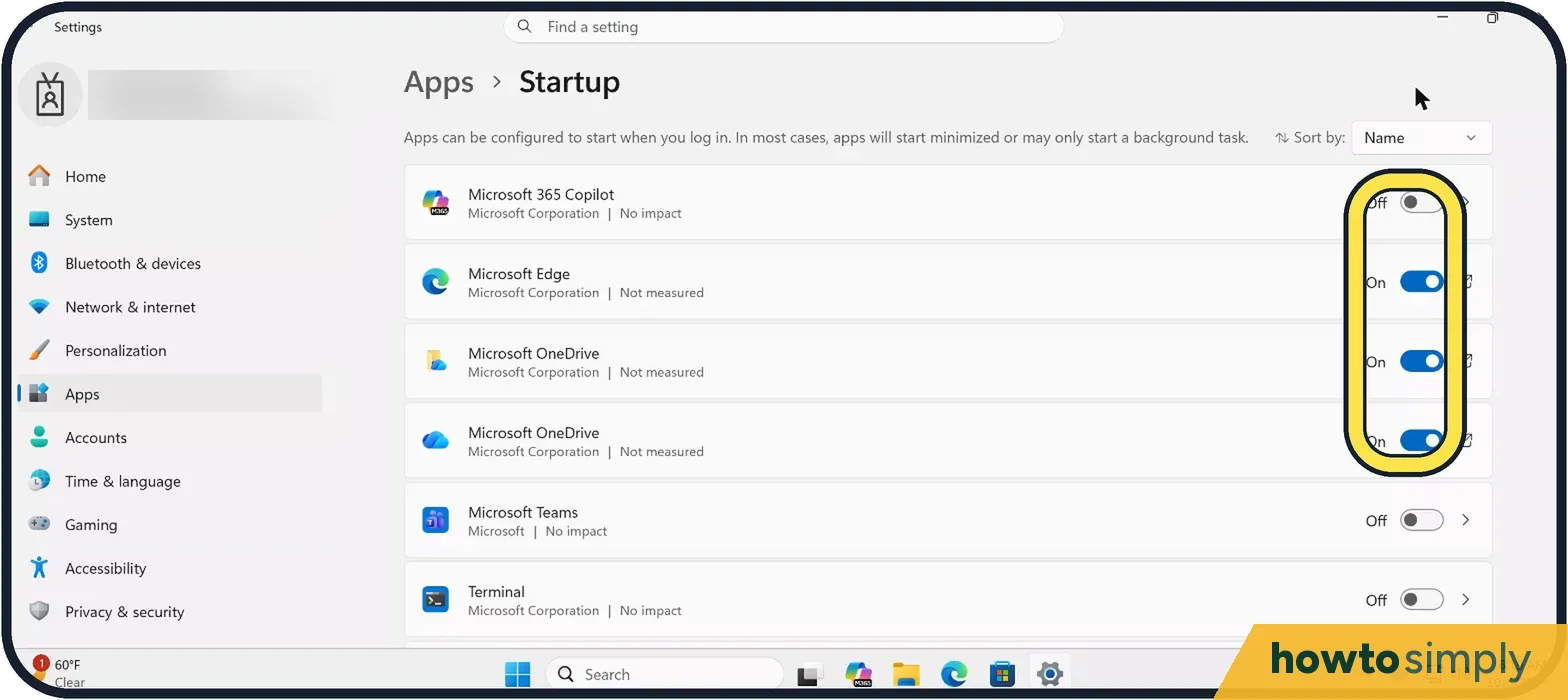
Switch off what you do not need
Turn off chat apps, game launchers, music players and updaters you do not need immediately. Leave your antivirus, touchpad and audio drivers, and cloud backup on. Our picture was taken before sorting, so the list is still by Name. On our Cloud PC, Microsoft Teams, Terminal and one more Microsoft 365 app are already Off, while Microsoft Edge and both Microsoft OneDrive entries are On.
- 5
Restart to feel the difference
The change applies at the next sign-in.


If you do not see this option
- The app is not in the Startup list. Microsoft says apps not registered with a startup task are set up from a startup folder in File Explorer instead. Right-click Start, choose Run, type shell:startup and press Enter, then delete the app's shortcut in the window that opens. Source: Configure startup applications in Windows
- The app starts for every user of the PC. Microsoft says those shortcuts are in the folder you open by typing shell:common startup in Run. Source: Configure startup applications in Windows
If this does not work
- An entry is called We couldn’t find this app. Microsoft says the app may be on a removable or network drive, its path may no longer exist, or it was uninstalled. Reinstalling it can fix it.
- The impact says Not measured. Microsoft says Not measured means there is no data yet and the app is still on. Our Cloud PC showed it for Edge and OneDrive (step 4 picture).
Good to know
Task Manager has a startup list too. Right-click Start, choose Task Manager and open the Startup apps tab. Microsoft says it is the same list as in Settings, with more detail on how much each app slows the start.
If an entry has a name that means nothing to you, right-click it in Task Manager and choose Search online before turning it off.
If the PC still crawls after all that, here are more ideas for a sluggish PC: seven free fixes for a slow laptop.
About this guide
You switch the PC on, and a chat app, a game launcher and an updater all push in ahead of you. That happens because many programs add themselves to the list of things that start with Windows. Microsoft says these apps can slow both the startup and the overall performance of your PC. Turning one off is easy to undo: set its toggle back to On.
- Device
- Windows
- Shown on
- Windows 11 Enterprise 25H2 (build 26200.9457), Microsoft Cloud PC
- App
- Settings
- Path
- Settings › Apps › Startup
- Real screenshots
- 4 of 5 steps
- Checked
- October 2026
- Sources
- 1 official, linked below
The screenshots are our own, taken on Windows 11 Enterprise 25H2 running as a Microsoft Cloud PC, a Windows PC that runs in the cloud.
Sources
Links checked October 2026. Menus and features can change with updates.Did this guide work for you?
Sorry about that. What happened?
Get new guides by email
Our newest guides, sent to your inbox. Free, and you can unsubscribe in one click.
We'll email you to confirm. How we use your email
Follow howtosimply on Facebook
We share our new guides on our Facebook page, so the next fix turns up in your feed.
Follow on Facebook