How to change the power mode on Windows 11
- Shown on
- Microsoft Cloud PC
- Software
- Windows 11
- Checked
- October 2026
- Real screenshots
- 6 of 6 steps
- Where it is
- Settings › System › Power & battery › Power Mode: Best Power Efficiency › Balanced or Best Performance
 Real screenshot · Microsoft Cloud PC, Windows 11
Quick answer
Open Settings, System, Power & battery (Power on a desktop PC) and expand Power Mode. Pick Best Power Efficiency, Balanced or Best Performance. If the list is greyed out, switch the power plan to Balanced in powercfg.cpl.
Steps
- 1
Open Settings, System, Power
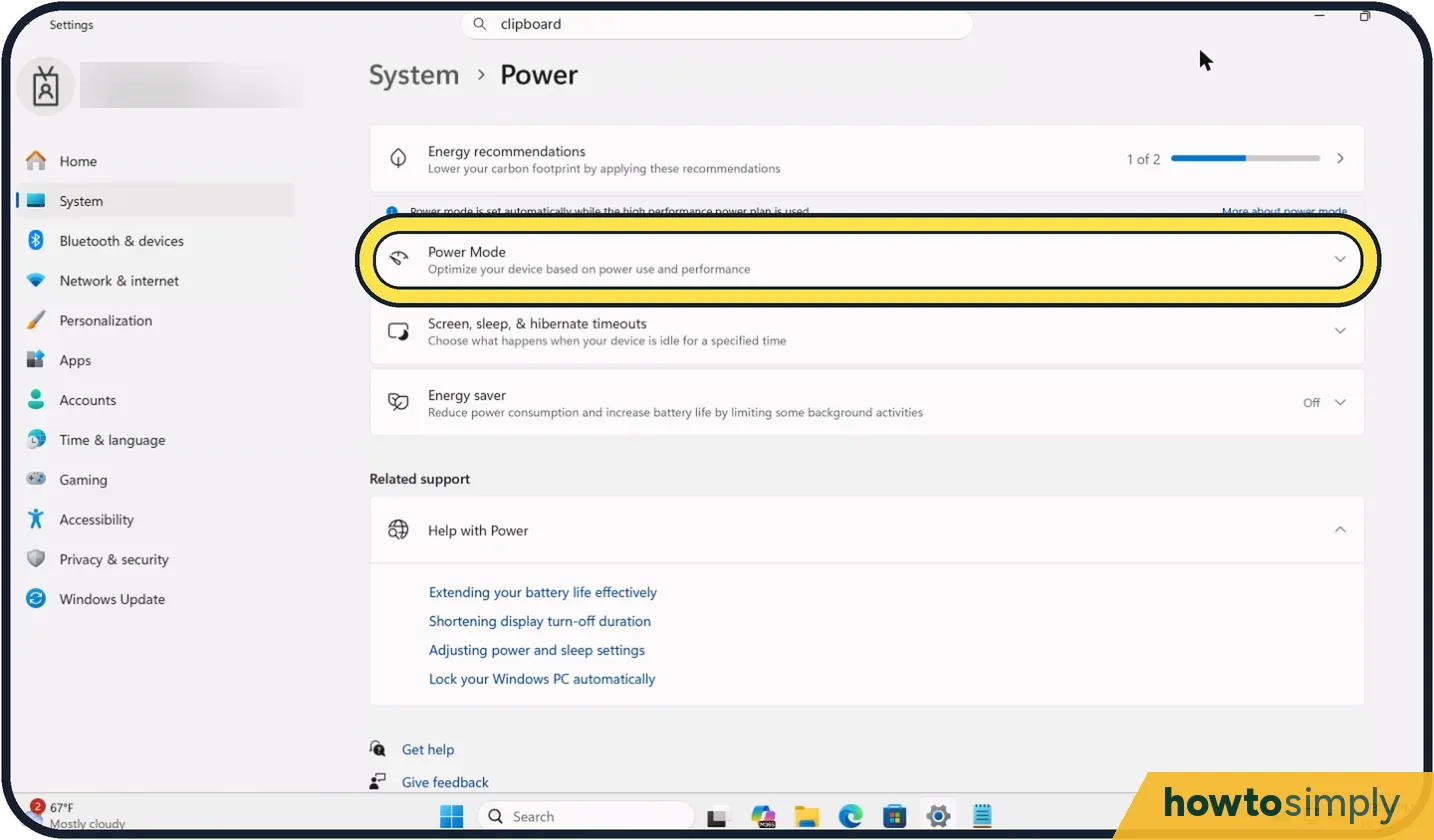
Open Start, Settings, System and click Power & battery. On a desktop PC without a battery, like our Cloud PC, the page is called just Power.
On our Cloud PC the page lists Energy recommendations, Power Mode, Screen, sleep, & hibernate timeouts and Energy saver, which shows Off.
- 2
Open Power Mode
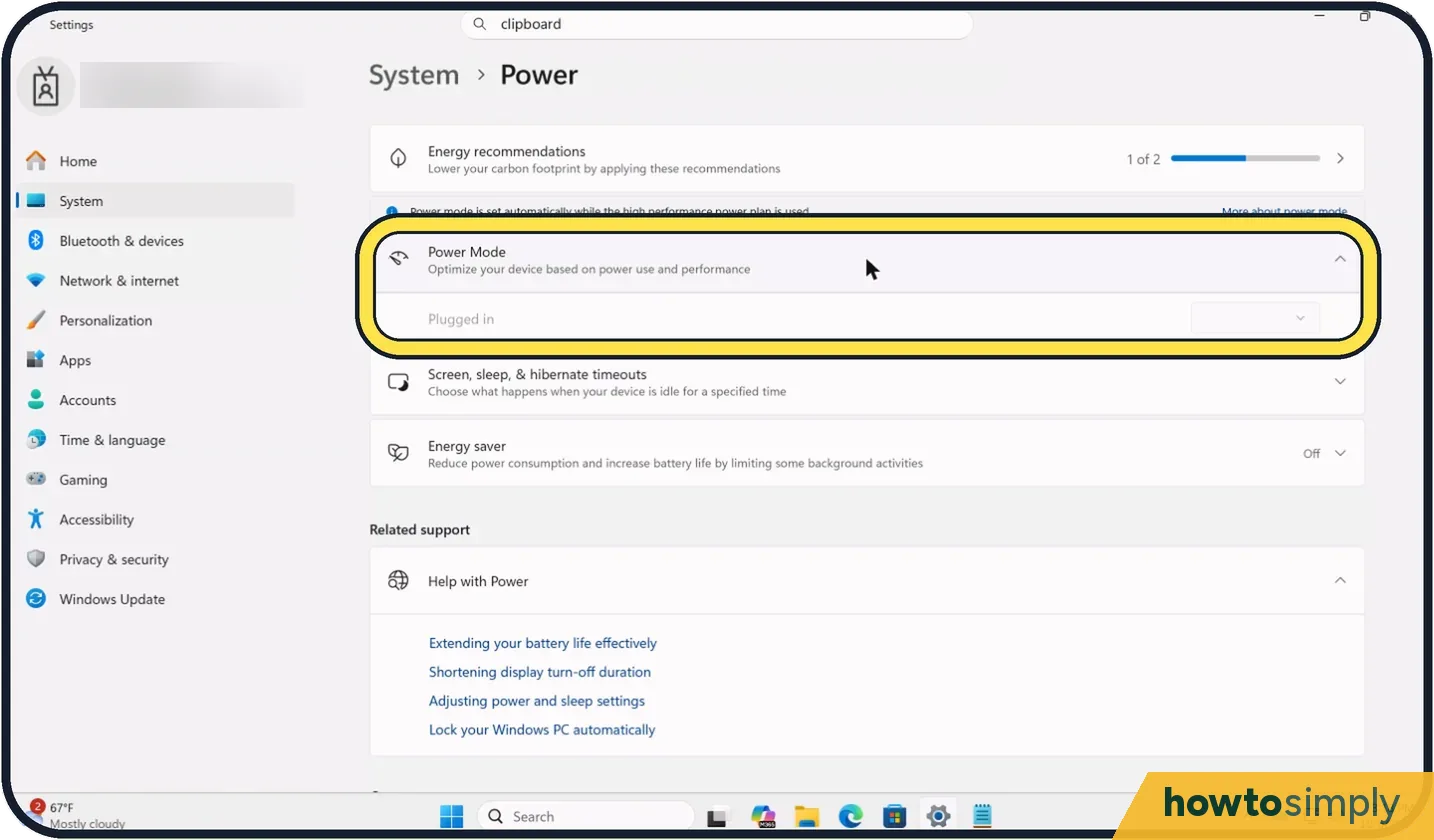
Click the Power Mode row to expand it. On a laptop there are two lists, Plugged in and On battery; a PC without a battery has only Plugged in.
If the Plugged in list is greyed out and empty, as it was at first on our Cloud PC, follow the next two steps.
- 3
Check the blue note
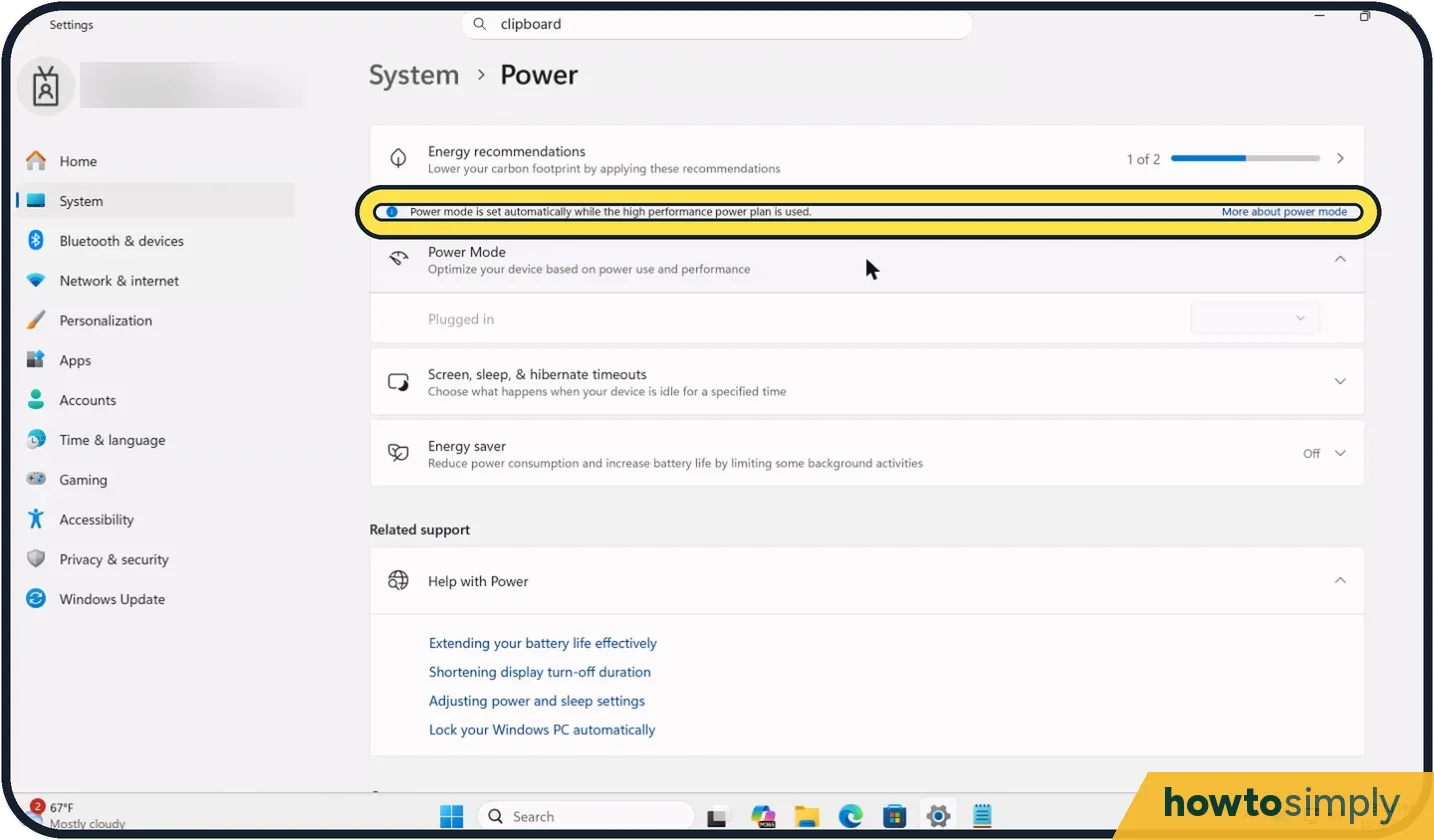
Look for a blue note above Power Mode. On our Cloud PC it said: Power mode is set automatically while the high performance power plan is used.
The list stays grey until you switch the power plan back to Balanced.
- 4
Switch the power plan to Balanced
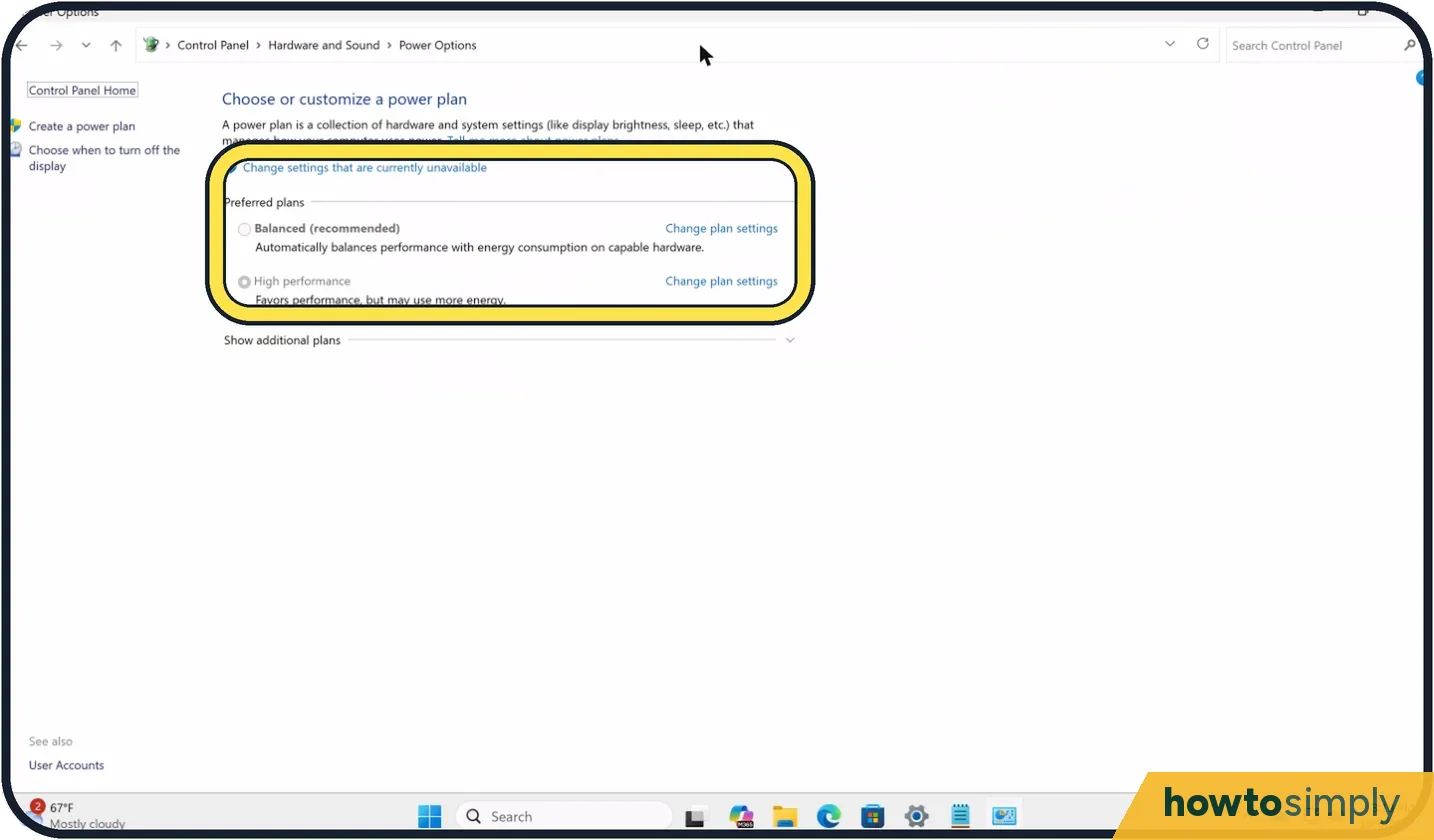
Press Windows + R, type powercfg.cpl and press Enter. Under Preferred plans, select Balanced (recommended), then go back to Settings.
On our Cloud PC the plans are Balanced (recommended) and High performance, and both are grey: click Change settings that are currently unavailable first, which needs an administrator account.
- 5
Choose the mode
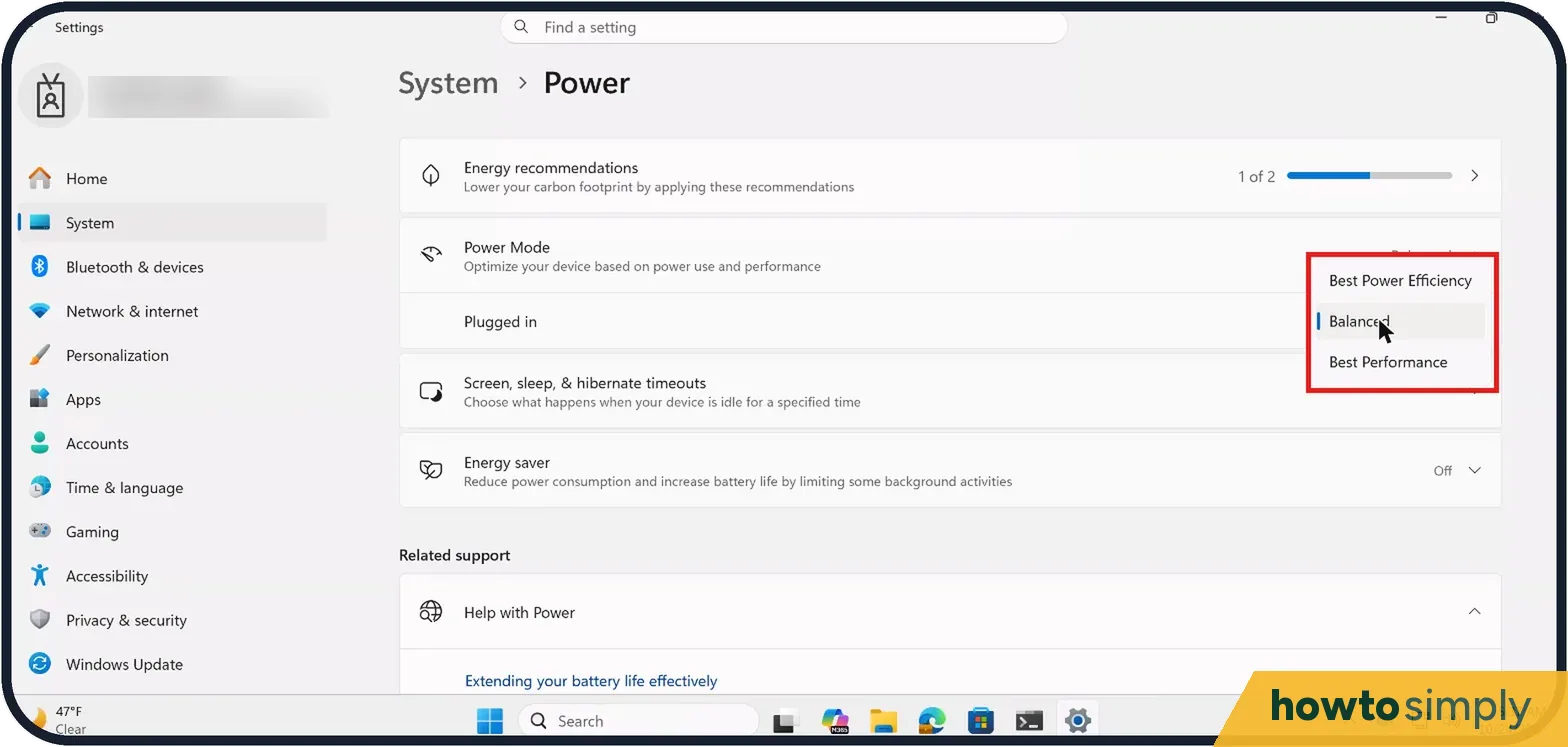
Click the list next to Plugged in and pick Best Power Efficiency, Balanced or Best Performance.
Microsoft says Best Power Efficiency saves battery, Balanced strikes a middle ground between performance and battery, and Best Performance gives the most performance but uses more power.
On our Cloud PC, with the Balanced plan active, the blue note had gone and the list showed exactly these three modes.
- 6
Check the result
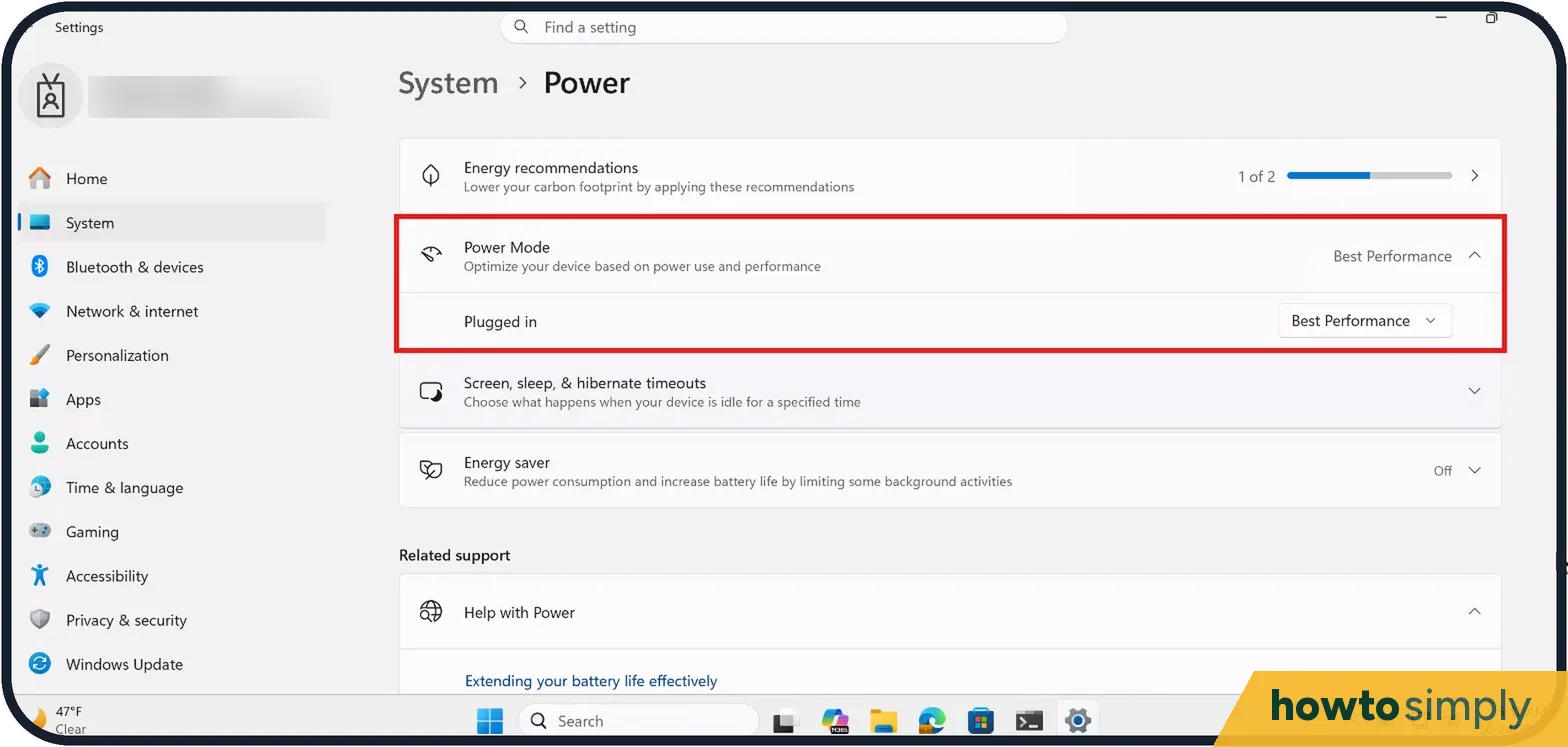
The Power Mode row now shows the mode you picked. On our Cloud PC it showed Best Performance on the row and in the Plugged in list.
On a laptop, set the On battery list as well.

If you do not see this option
- There is no On battery list. A PC without a battery shows only Plugged in under Power Mode, as on our Cloud PC.
- You made your own power plan. Microsoft says a custom power plan can also stop you changing the power mode. Select Balanced in Control Panel, System and Security, Power Options. Sources: Change the power mode for your Windows PC, Tips to improve PC performance in Windows
- Your PC runs Windows 10. Microsoft says to click the battery icon on the taskbar and move the slider. It is not available on all Windows 10 PCs and needs version 1703 or later. Sources: Change the power mode for your Windows PC, Tips to improve PC performance in Windows
If this does not work
- The Plugged in list is grey and empty. Microsoft says a custom power plan might be selected; on our Cloud PC the blue note above Power Mode named the High performance plan. Switch the plan to Balanced (recommended) in powercfg.cpl.
- The mode changes when you unplug the laptop. Microsoft says you choose the mode separately for Plugged in and On battery. Set both lists.
- The battery runs down fast on Best Performance. Microsoft says Best Performance increases power use and drains a laptop battery faster. Use it only when you need the speed.
Good to know
Microsoft suggests saving Best Performance for times you really need full speed and power isn't a worry.
For even longer battery life, Energy saver on the same page dims the screen and limits background activity: how to make a Windows 11 laptop battery last longer.
Some makers add their own performance modes in a separate app, which can override the Windows setting.
If the PC is slow whatever the mode: slow laptop: 7 free fixes that actually work.
About this guide
The power mode decides how Windows trades speed against energy use. Microsoft lists it among its tips for a PC that runs slowly.
On our Cloud PC the Power Mode list was greyed out at first, because the High performance power plan was in charge. Once the plan was set to Balanced, the list worked. Microsoft says a custom power plan may be the reason you can't change the power mode, which steps 3 and 4 deal with.
- Device
- Windows
- Shown on
- Windows 11 Enterprise 25H2 (build 26200.9457), Microsoft Cloud PC
- App
- Settings
- Path
- Settings › System › Power & battery › Power Mode: Best Power Efficiency › Balanced or Best Performance
- Real screenshots
- 6 of 6 steps
- Checked
- October 2026
- Sources
- 2 official, linked below
The screenshots are our own, taken on Windows 11 Enterprise 25H2 running as a Microsoft Cloud PC, a Windows PC that runs in the cloud.
Sources
Links checked October 2026. Menus and features can change with updates.Did this guide work for you?
Sorry about that. What happened?
Get new guides by email
Our newest guides, sent to your inbox. Free, and you can unsubscribe in one click.
We'll email you to confirm. How we use your email
Follow howtosimply on Facebook
We share our new guides on our Facebook page, so the next fix turns up in your feed.
Follow on Facebook