How to check the specs of a Windows 11 PC
- Shown on
- Microsoft Cloud PC
- Software
- Windows 11
- Checked
- October 2026
- Real screenshots
- 6 of 6 steps
- Where it is
- Settings › System › About
 Real screenshot · Microsoft Cloud PC, Windows 11
Quick answer
Open Settings, System and scroll down to About. Device specifications lists the Processor, Installed RAM and System type; Windows specifications shows the Edition, Version and OS build. The drive size is under System, Storage.
Watch these steps
Watch on YouTubeA video of this task from our YouTube channel · opens YouTubeSteps
- 1
Open Settings
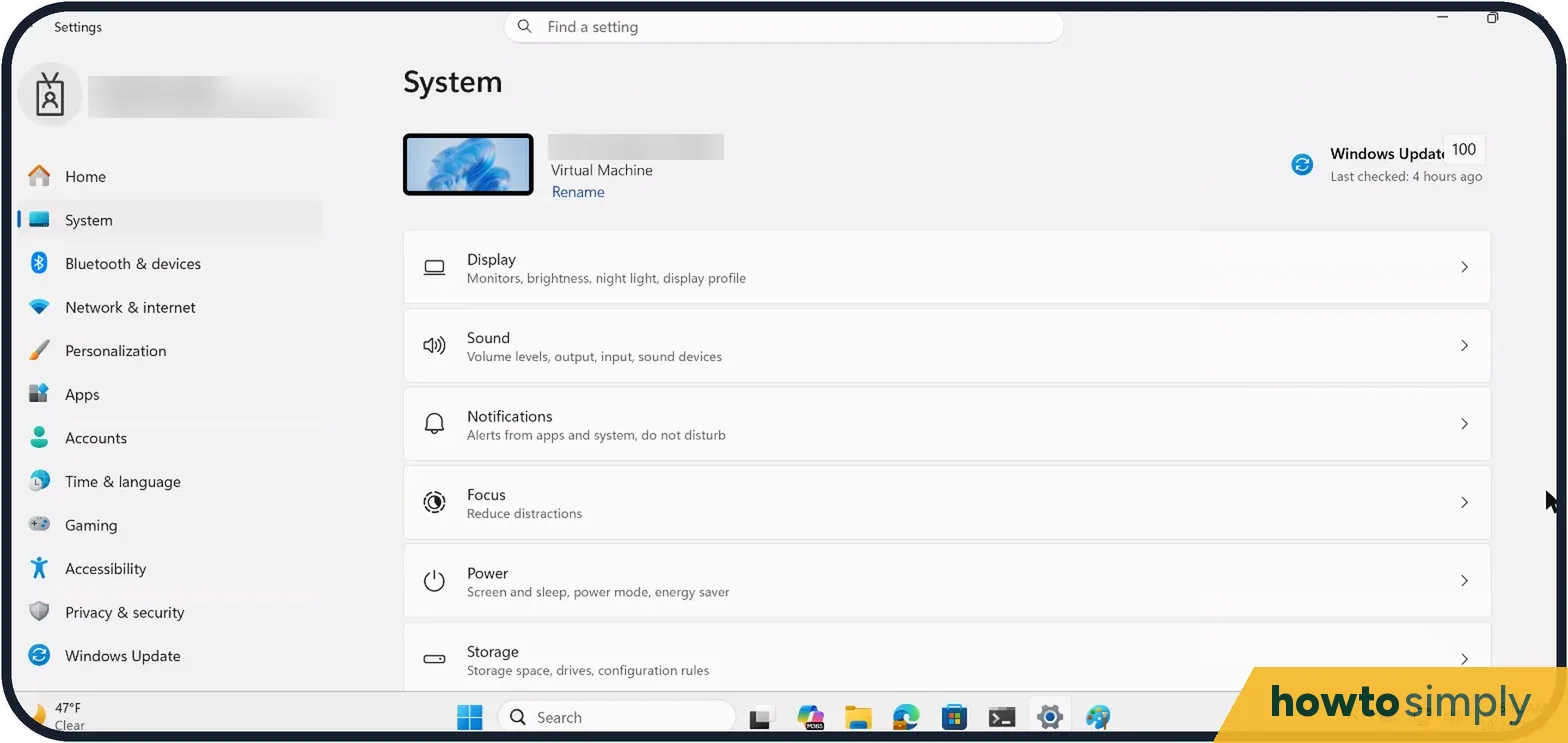
Press Windows + I. The System page opens.
On our Cloud PC the top of the page shows the PC name with Virtual Machine below it.
- 2
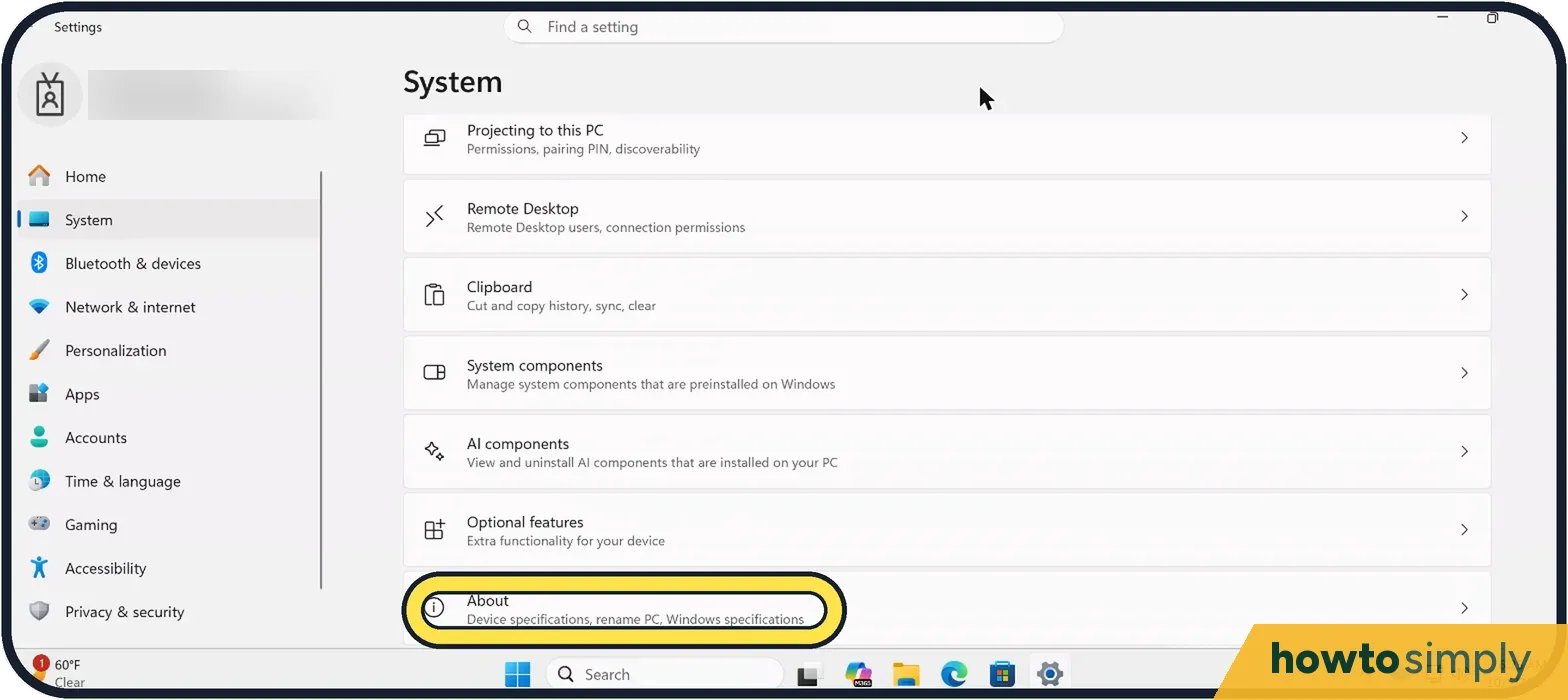
Scroll down and click About
It is the last entry in the list, labelled Device specifications, rename PC, Windows specifications.
On our Cloud PC, About is the last row on the System page, below Optional features.
- 3
Read Device specifications
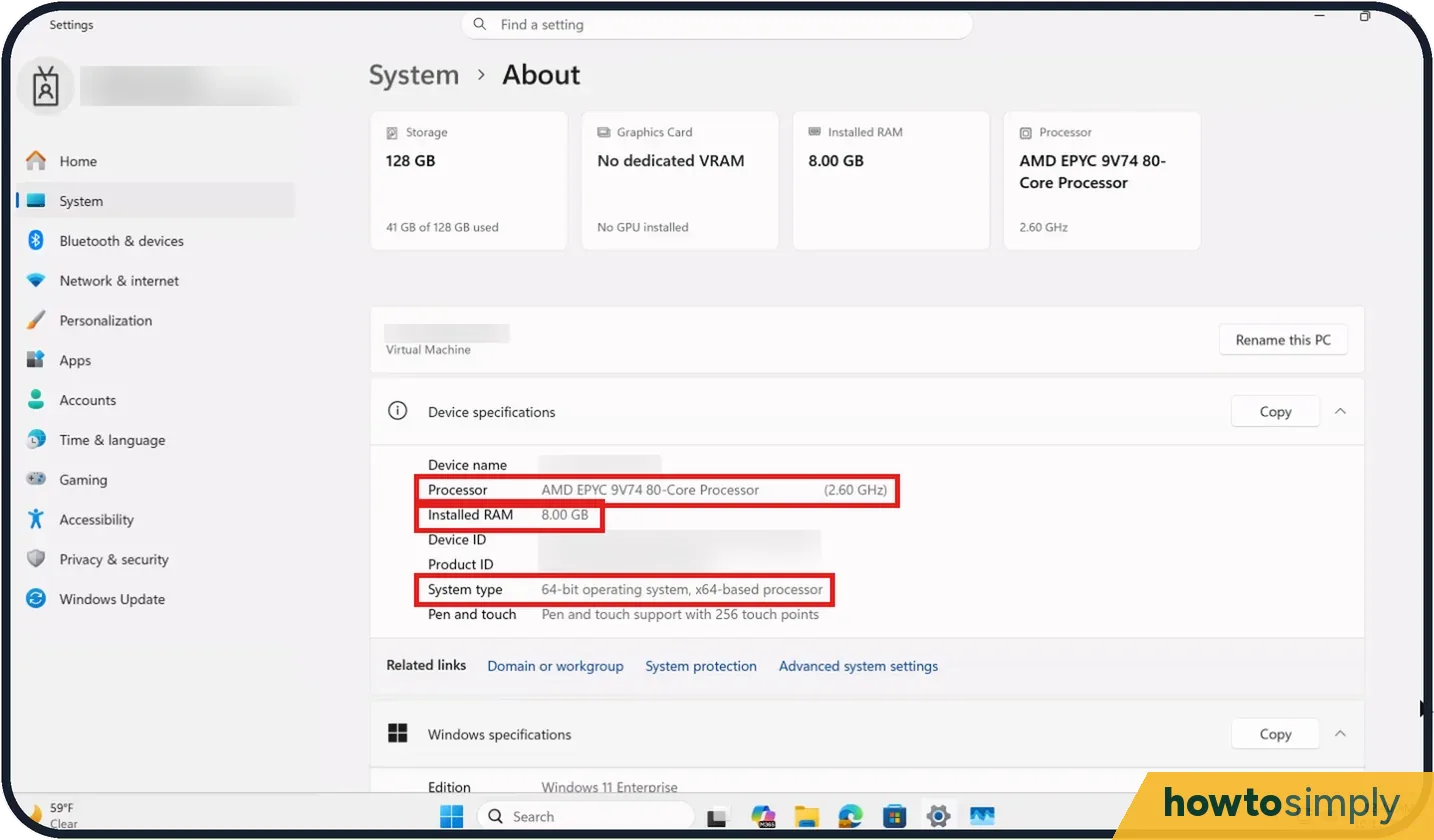
Click Device specifications to open it if it is folded. Read the Processor, Installed RAM and System type rows; System type says whether Windows is 64-bit.
On our Cloud PC these read AMD EPYC 9V74 80-Core Processor (2.60 GHz), 8.00 GB and 64-bit operating system, x64-based processor.
- 4
Read Windows specifications
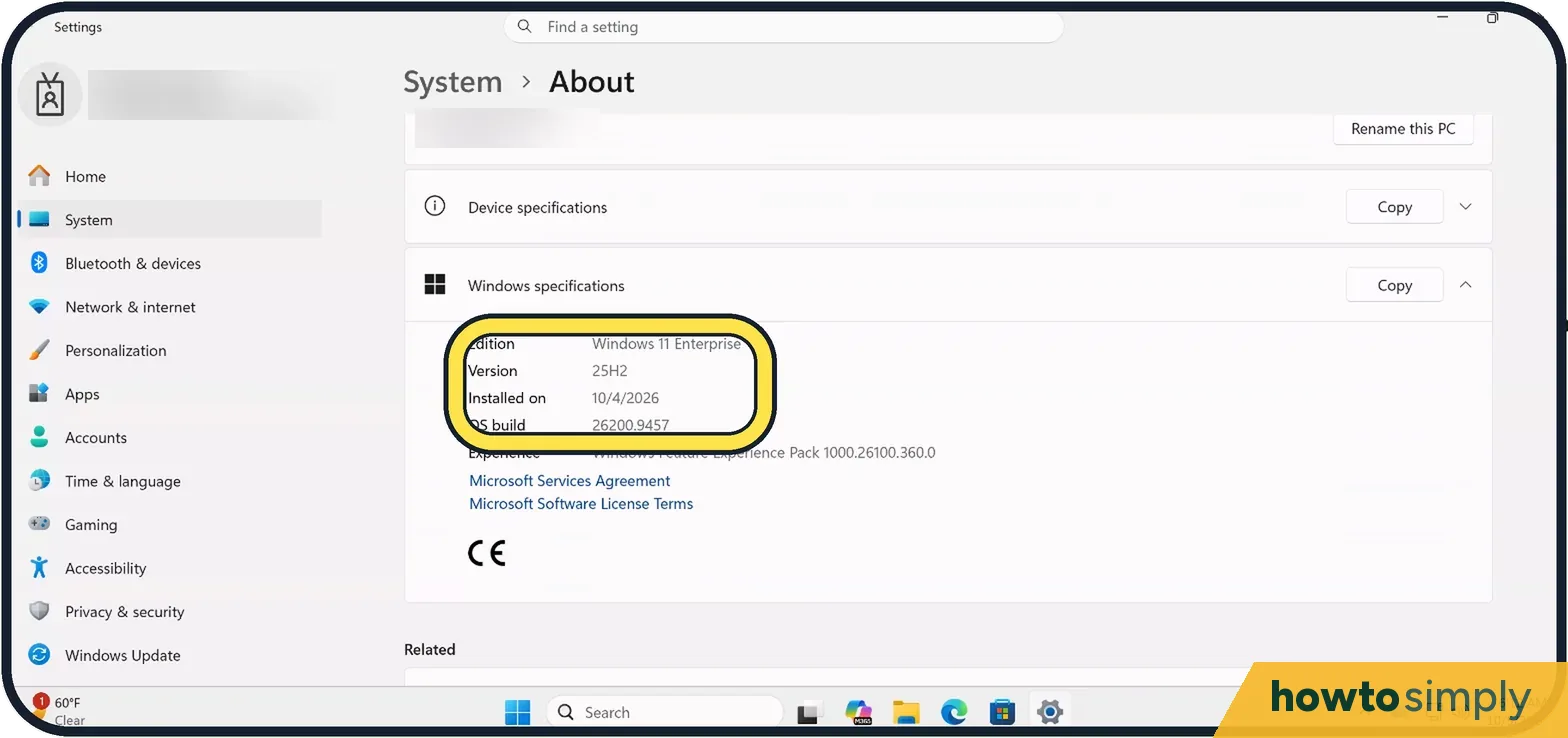
Edition shows your edition of Windows, Version shows the version number such as 25H2, and OS build shows the build.
On our Cloud PC these read Windows 11 Enterprise, 25H2 and 26200.9457.
- 5
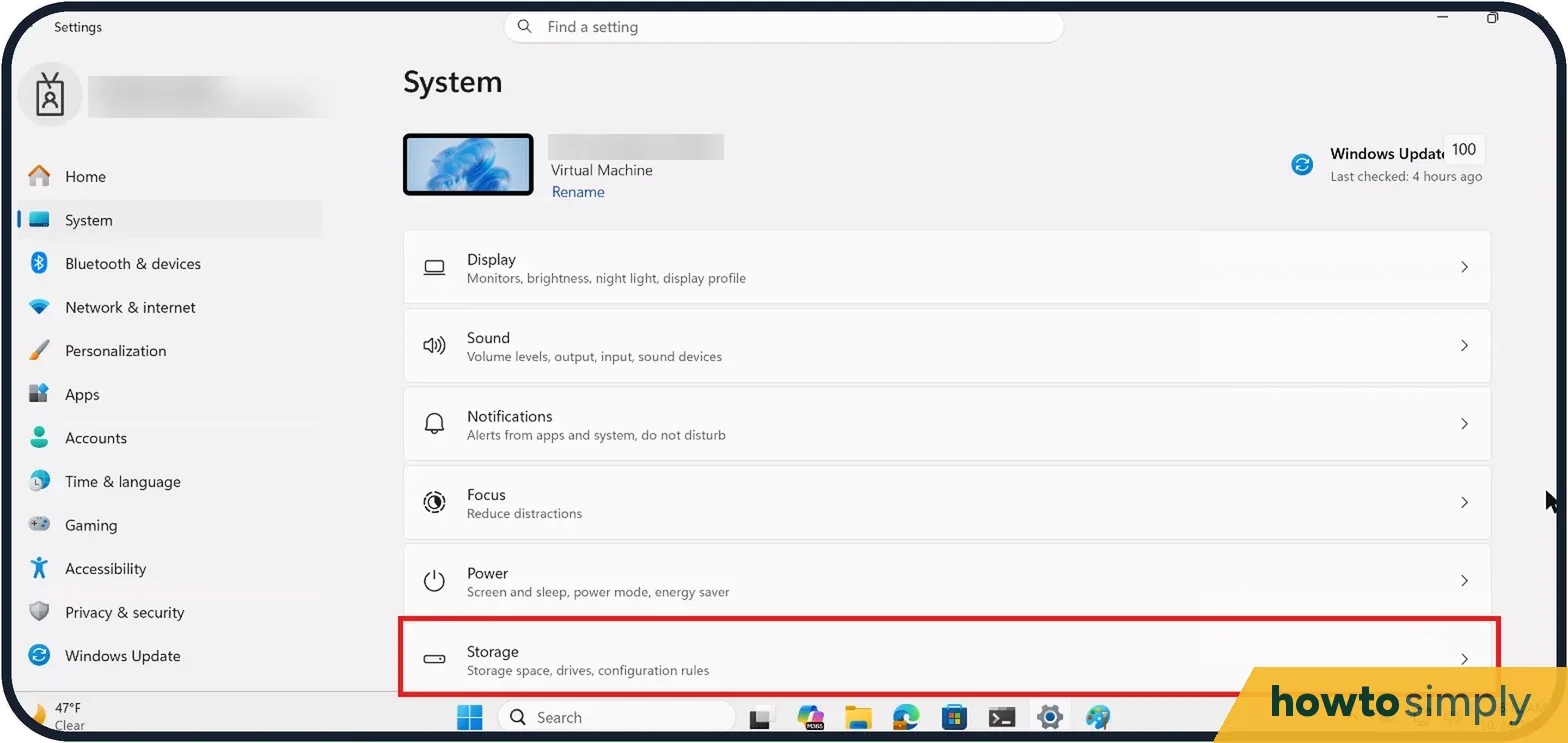
Go back to System and click Storage
Click System in the left-hand list, then click Storage.
On our Cloud PC Storage is the sixth row, below Power, labelled Storage space, drives, configuration rules.
- 6
Check the drive size
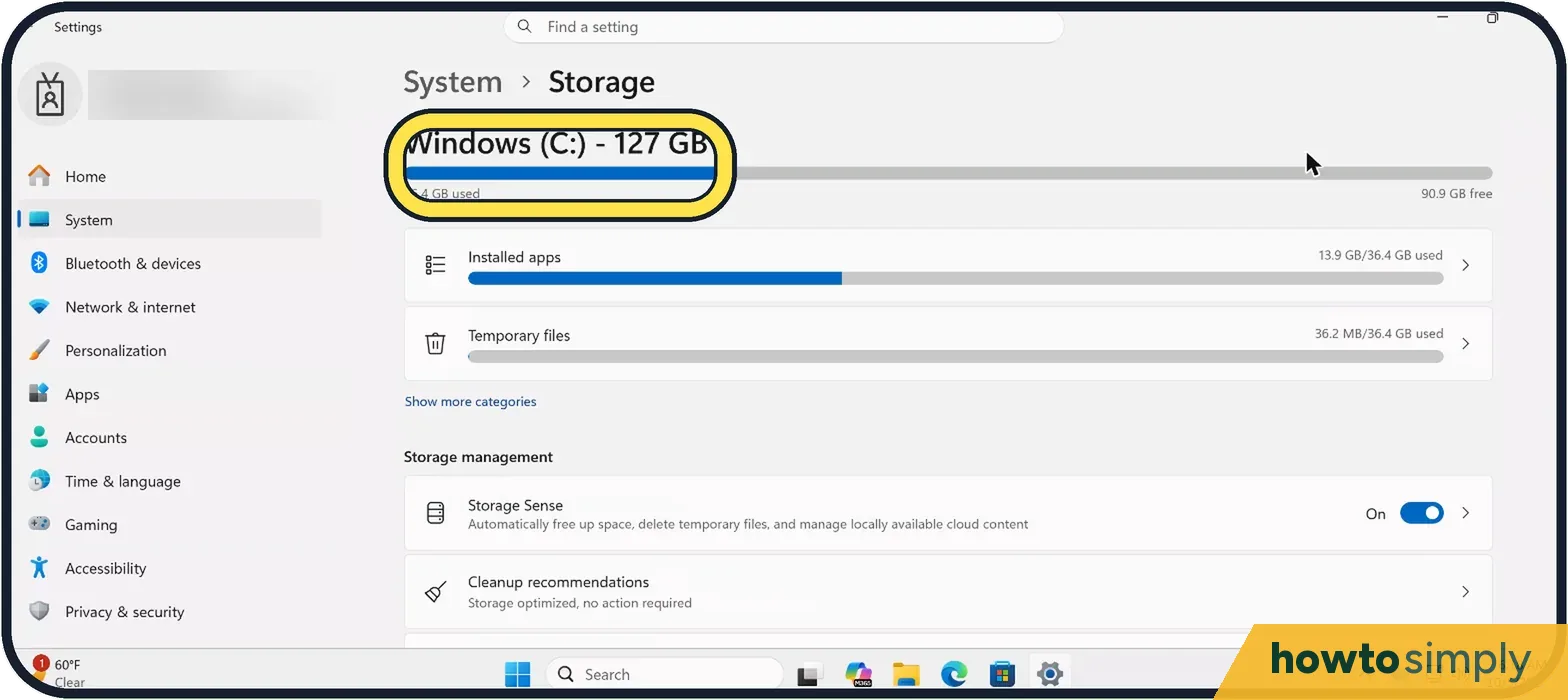
The System › Storage page shows how large the drive is and how much is free.
On our Cloud PC it shows Windows (C:) - 127 GB with 90.9 GB free.


If you do not see this option
- About is not on the screen Scroll to the bottom of the System page. About is the last entry, below Optional features.
- Device specifications shows no details The section is folded. Click Device specifications or the arrow at the right of its row to open it.
- No graphics card is named On our Cloud PC, a virtual machine, the Graphics Card card on the About page reads No dedicated VRAM and No GPU installed.
- Storage is not in the list Click System in the left-hand list first. On our Cloud PC Storage sits below Power on the System page.
If this does not work
- Windows + I does nothing Click the Settings icon on the taskbar if it is pinned, as it is on our Cloud PC, then click System.
- The storage figures do not match On our Cloud PC the Storage card on the About page shows 128 GB, while the Storage page shows Windows (C:) - 127 GB. Use the Storage page for the drive size and free space.
- You need to send the details to someone Click Copy next to Device specifications or Windows specifications, then paste the text into an email or message.
Good to know
The Copy button next to each section copies the details so you can paste them into an email.
For the graphics card, open Settings, System, Display, Advanced display. The name is shown under Display information. On our Cloud PC the Graphics Card card on the About page reads No dedicated VRAM and No GPU installed.
Running low on space? See how to free up disk space on Windows 11.
About this guide
You need these details to check whether a program or game will run, to buy the right memory, or when someone helping you asks what PC you have.
- Device
- Windows
- Shown on
- Windows 11 Enterprise 25H2 (build 26200.9457), Microsoft Cloud PC
- App
- Settings
- Path
- Settings › System › About
- Real screenshots
- 6 of 6 steps
- Checked
- October 2026
- Sources
- 1 official, linked below
Sources
Links checked October 2026. Menus and features can change with updates.Did this guide work for you?
Sorry about that. What happened?
Get new guides by email
Our newest guides, sent to your inbox. Free, and you can unsubscribe in one click.
We'll email you to confirm. How we use your email
Follow howtosimply on Facebook
We share our new guides on our Facebook page, so the next fix turns up in your feed.
Follow on Facebook