Windows 11 screen has a yellow or pink tint? How to fix it
- Shown on
- Microsoft Cloud PC
- Software
- Windows 11
- Checked
- October 2026
- Real screenshots
- 7 of 7 steps
- Where it is
- Settings › System › Display › Night light
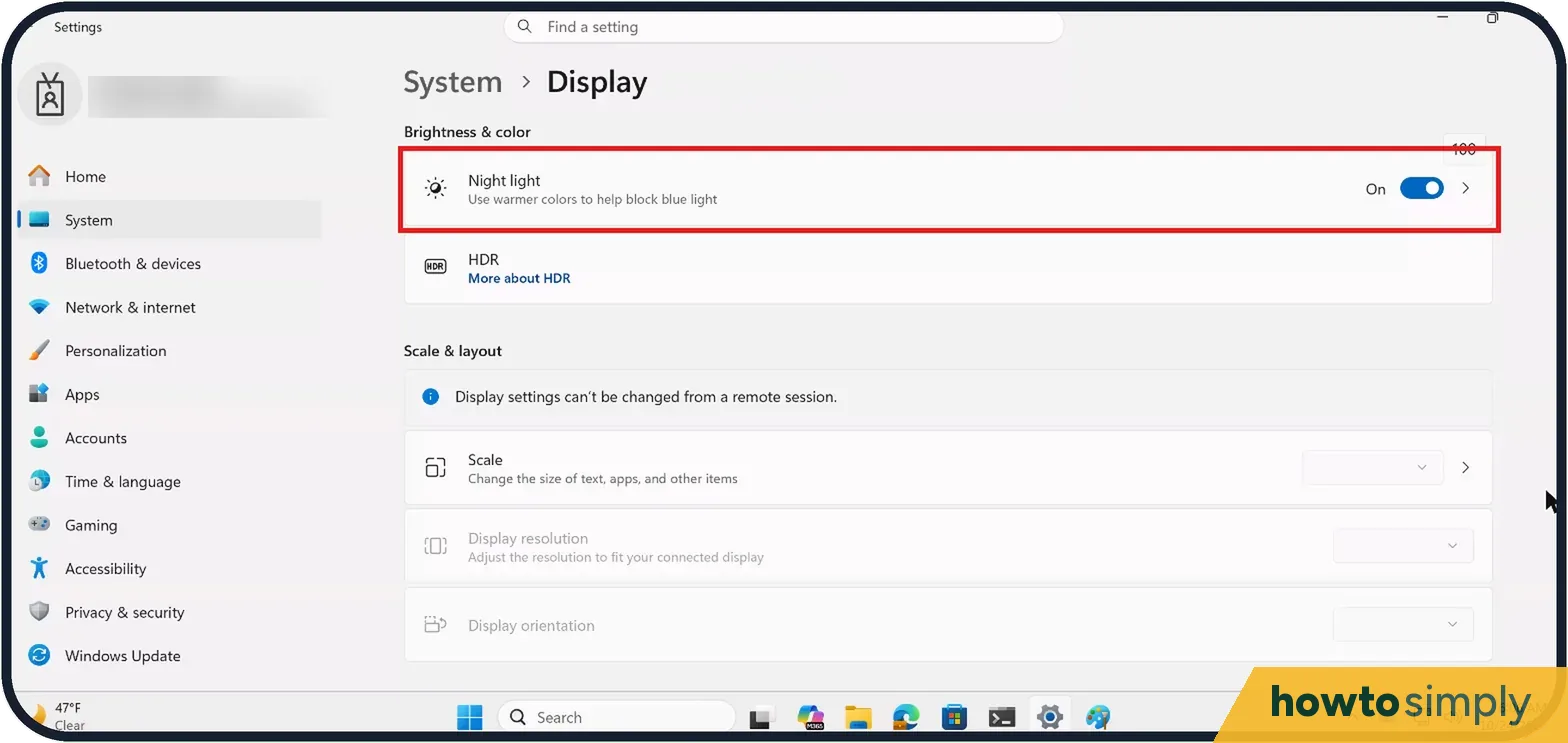 Real screenshot · Microsoft Cloud PC, Windows 11
Quick answer
A yellow tint is usually Night light: open Settings, System, Display, Night light and click Turn off now. Odd colours usually come from a colour filter: open Settings, Accessibility, Color filters and switch it off.
Steps
- 1
Check Night light
Open Start, Settings, System, Display.
The switch at the right end of the Night light row shows whether it is On or Off.
On our Cloud PC the row read On, although the warm tint did not show through the remote connection.
- 2
Turn it off
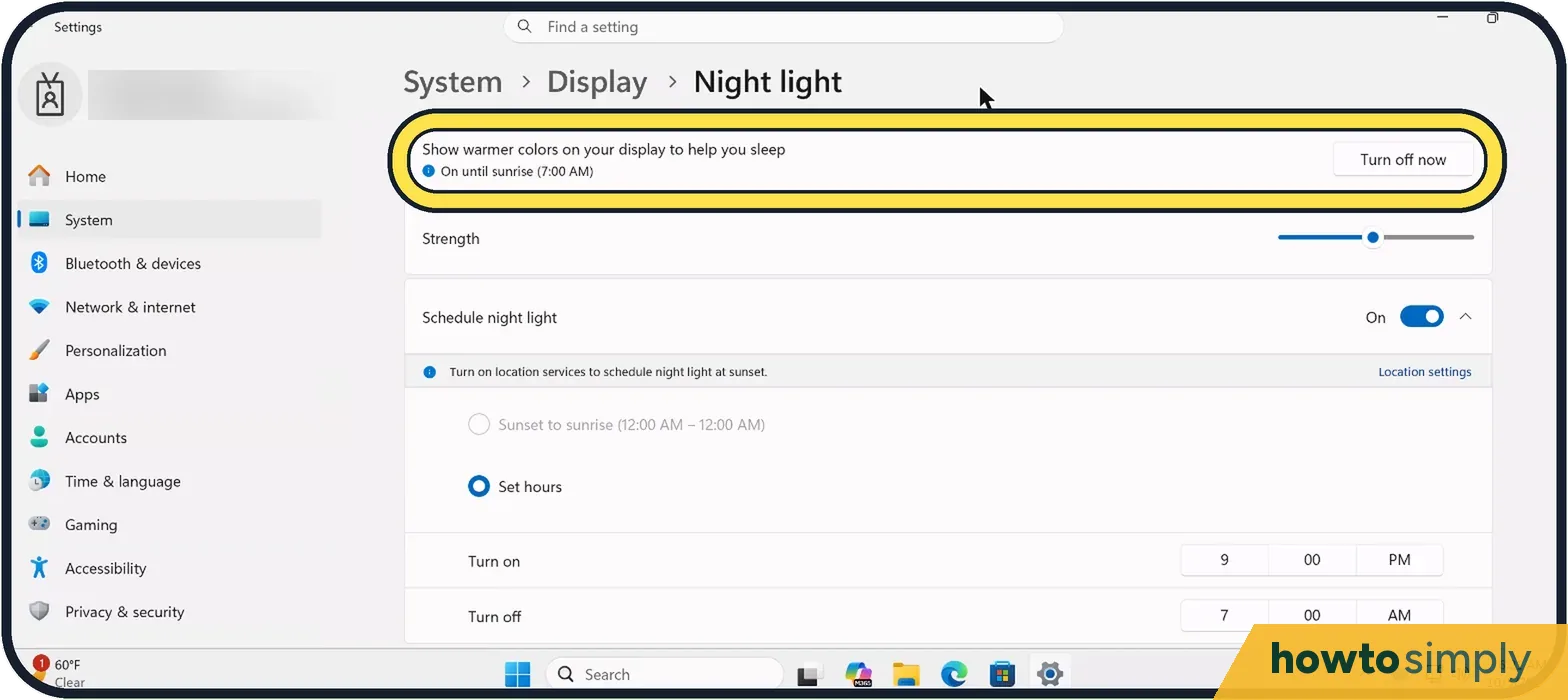
Click the Night light row, then Turn off now.
While it is on, the page says until when; on our Cloud PC it read On until sunrise (7:00 AM).
Once it is off, the button reads Turn on now.
- 3
Check the schedule
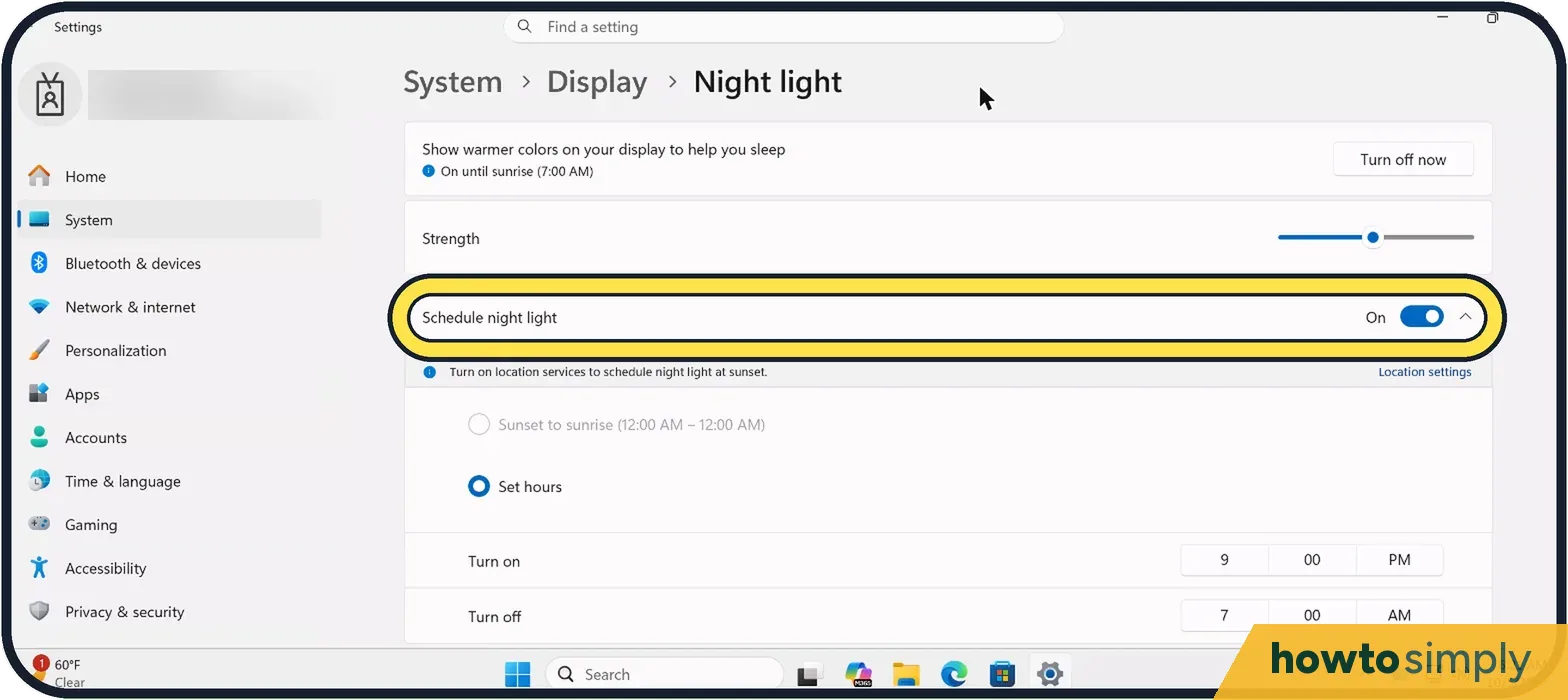
If Schedule night light is On, Night light comes back at the set time.
Switch the schedule off, or lower Strength so it is less yellow.
- 4
Check the colour filters
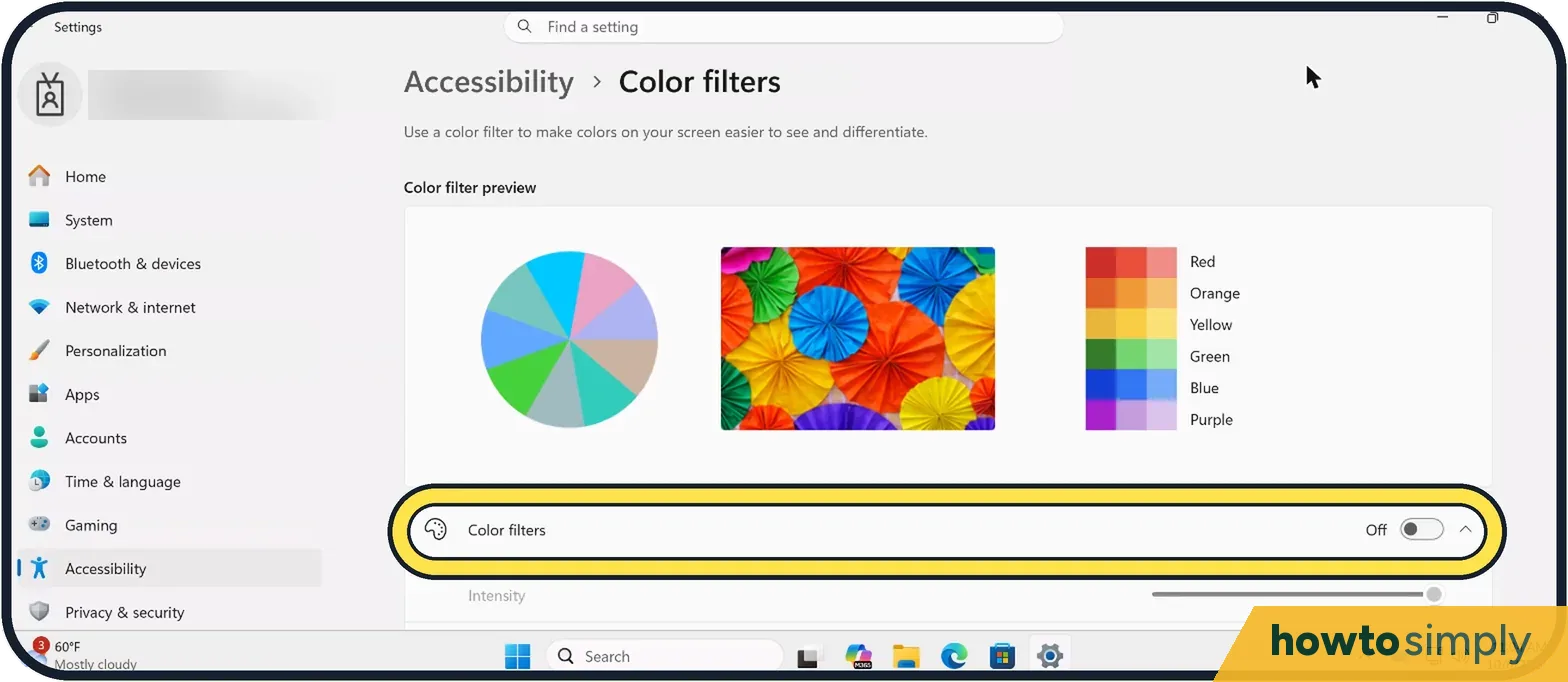
Open Settings, Accessibility, Color filters.
If Color filters is On, switch it off and the normal colours come back.
- 5
See which filter was chosen
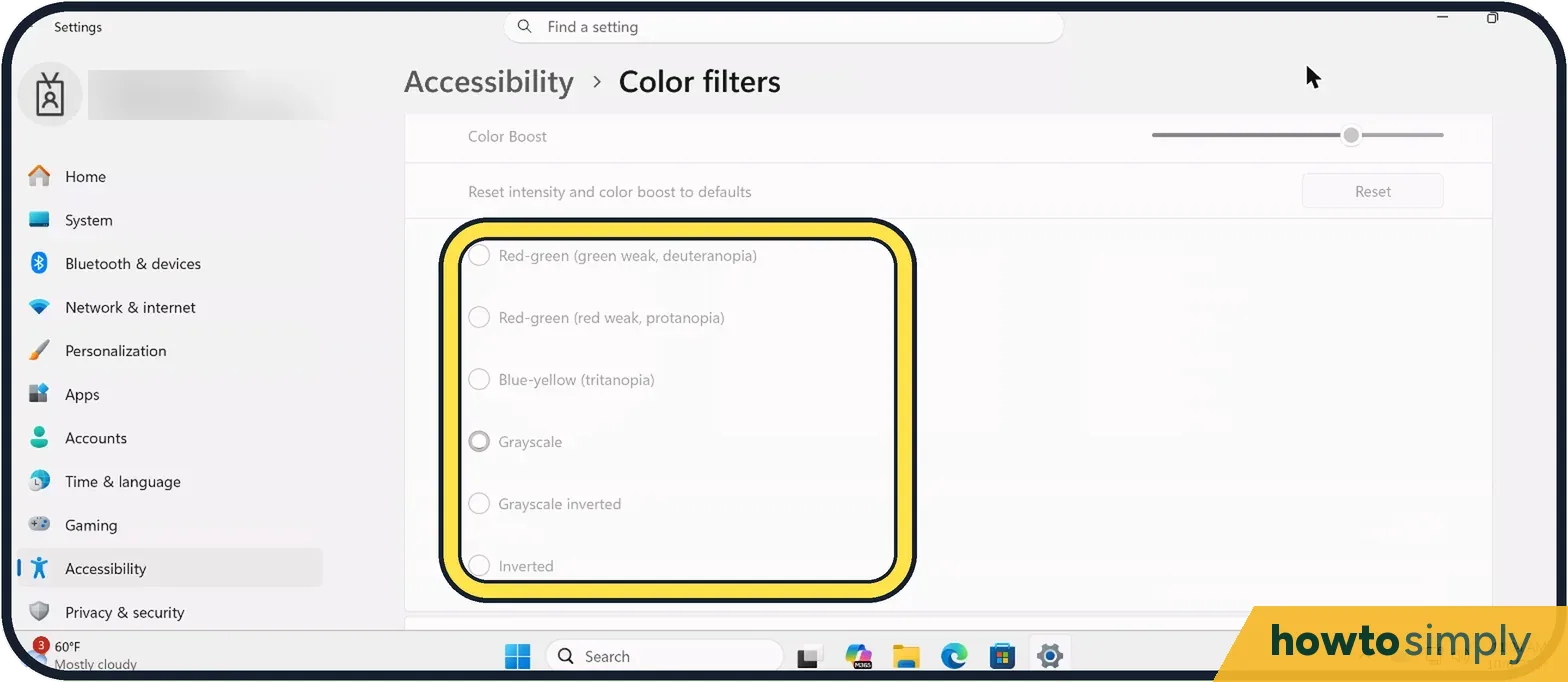
Below the switch are the filters: Red-green (green weak, deuteranopia), Red-green (red weak, protanopia), Blue-yellow (tritanopia), Grayscale, Grayscale inverted and Inverted.
The selected one is the filter Windows applies when Color filters is On.
- 6
Check the shortcut
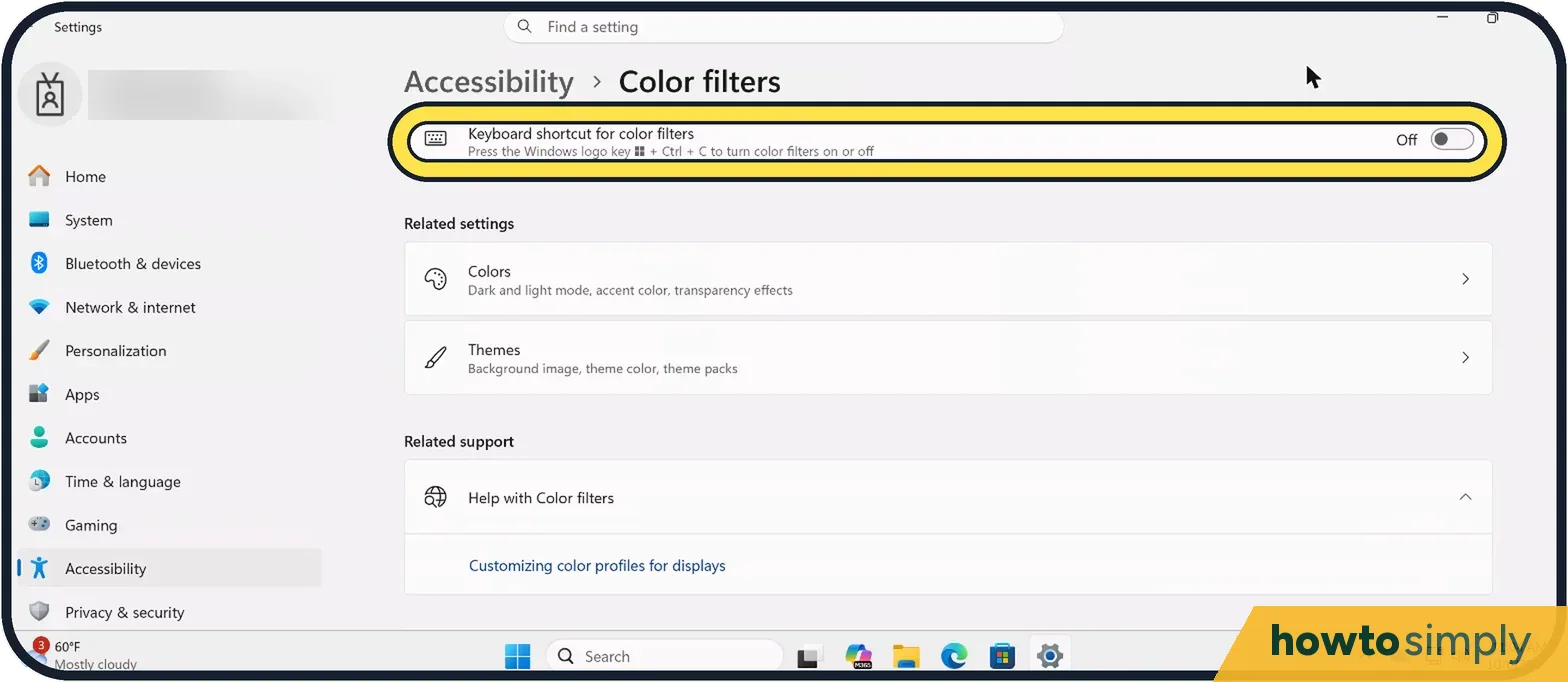
Keyboard shortcut for color filters lets the Windows logo key + Ctrl + C turn color filters on or off, so a filter can appear by accident.
Switch the shortcut off if you do not use it. On our Cloud PC it is Off.
- 7
Only Edge and Chrome look yellow?
Since a Windows update at the end of September 2026, people on Microsoft Q&A report a yellow page in Edge and Chrome; Microsoft has not confirmed this as a bug.
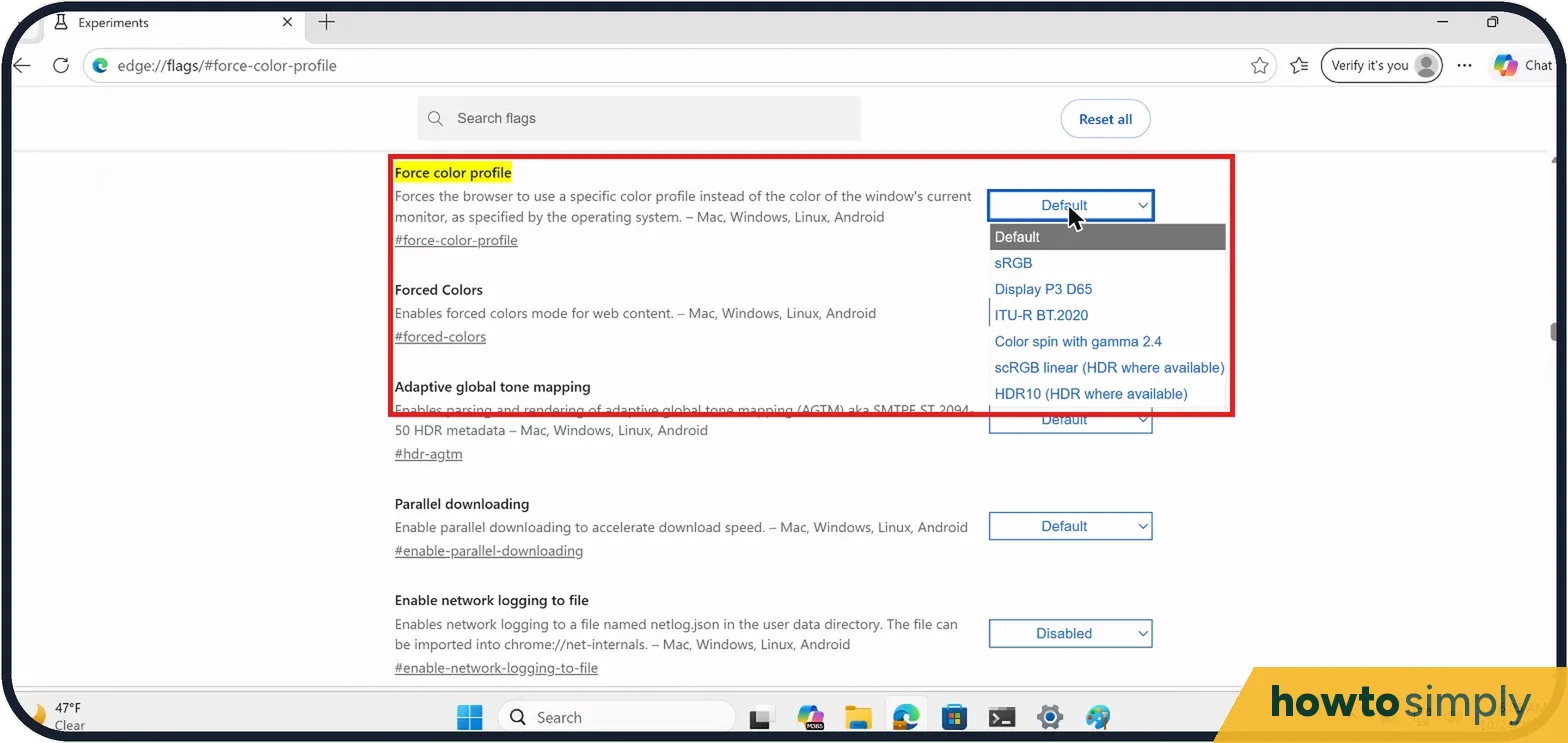
The fix given in that thread: type edge://flags (or chrome://flags) in the address bar, set Force color profile to sRGB and restart the browser.
On our Cloud PC the list offers Default, sRGB, Display P3 D65, ITU-R BT.2020, Color spin with gamma 2.4, scRGB linear (HDR where available) and HDR10 (HDR where available).

If you do not see this option
- No Night light row, or it is greyed out Microsoft says some drivers, like DisplayLink or Basic Display, don't support Night light. If the switch is greyed out, it says to update the display driver. Sources: Change display brightness and color in Windows, Use color filters in Windows, yellow page color on browsers after latest windows update
- No Turn off now button Night light is already off: the button then reads Turn on now, as on our Cloud PC after turning it off.
- Your PC runs Windows 10 Microsoft says colour filters are under Settings, Ease of Access, Color filters there, and under Color & high contrast on earlier versions of Windows 10. Sources: Change display brightness and color in Windows, Use color filters in Windows, yellow page color on browsers after latest windows update
If this does not work
- Colours still look wrong everywhere Microsoft says Automatically manage color for apps, under Settings, System, Display, Color profile, keeps colours accurate on supported displays. Check it there, with the colour profile.
- Colours went wrong after a colour profile was added Microsoft says to open Settings, System, Display, Color profile and select the display. Expand the profile and click Remove, or choose another profile and click Set profile to make it the default.
- Using a Cloud PC or remote session On our Cloud PC the Night light tint did not come through the remote connection even with Night light On, so check the switch rather than the colours you see, because the screen in front of you is not the one Night light is tinting.
Good to know
If the colours are still wrong everywhere and neither setting is on, check the colour profile under Settings, System, Display, Color profile.
Using Night light on purpose: how to turn on Night light on Windows 11.
About this guide
Well, a screen that suddenly turns yellow or pink makes you wonder whether the monitor is on its way out. Two Windows settings change the colours of the screen. Night light makes it warmer, and colour filters change the colour palette. Night light can also be scheduled to turn on and off by itself at set times. If only browser windows look yellow after an update, see the last step.
- Device
- Windows
- Shown on
- Windows 11 Enterprise 25H2 (build 26200.9457), Microsoft Cloud PC
- App
- Settings
- Path
- Settings › System › Display › Night light
- Real screenshots
- 7 of 7 steps
- Checked
- October 2026
- Sources
- 2 official, 1 other, linked below
The screenshots are our own, taken on Windows 11 Enterprise 25H2 running as a Microsoft Cloud PC, a Windows PC that runs in the cloud.
Sources
Links checked October 2026. Menus and features can change with updates.Did this guide work for you?
Sorry about that. What happened?
Get new guides by email
Our newest guides, sent to your inbox. Free, and you can unsubscribe in one click.
We'll email you to confirm. How we use your email
Follow howtosimply on Facebook
We share our new guides on our Facebook page, so the next fix turns up in your feed.
Follow on Facebook