How to turn on Storage Sense on Windows 11
- Shown on
- Microsoft Cloud PC
- Software
- Windows 11
- Checked
- October 2026
- Real screenshots
- 6 of 6 steps
- Where it is
- Settings › System › Storage
 Real screenshot · Microsoft Cloud PC, Windows 11
Quick answer
Open Settings, click System, then Storage, and switch on Storage Sense. Click Storage Sense to choose how often it runs and after how many days files in the Recycle Bin and the Downloads folder are deleted.
Steps
- 1
Open Settings, System, Storage
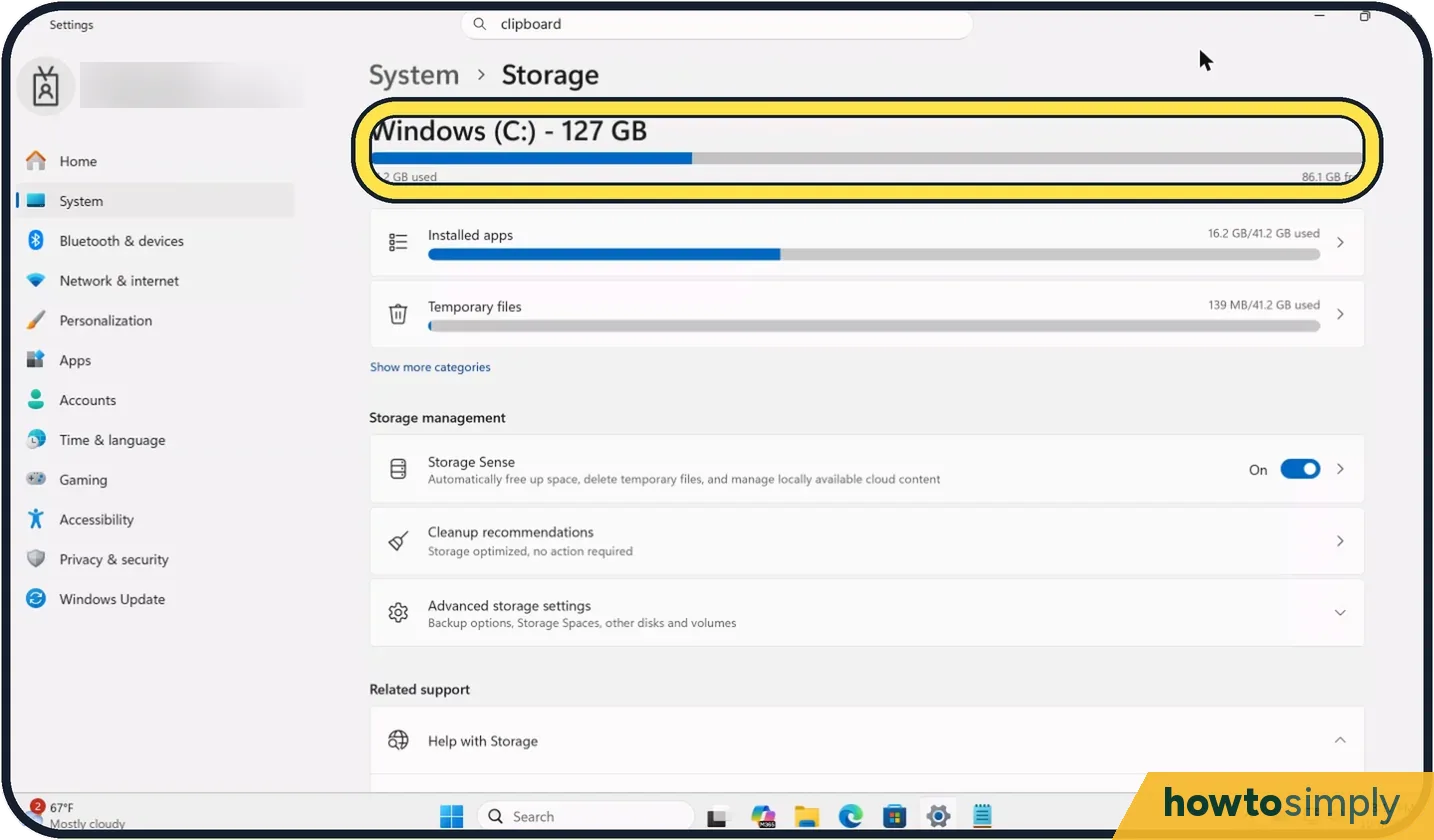
Open Start, Settings, System and click Storage.
The bar at the top shows how much of the system drive is used and free. On our Cloud PC it read Windows (C:) - 127 GB, with 41.2 GB used and 86.1 GB free.
- 2
Switch on Storage Sense
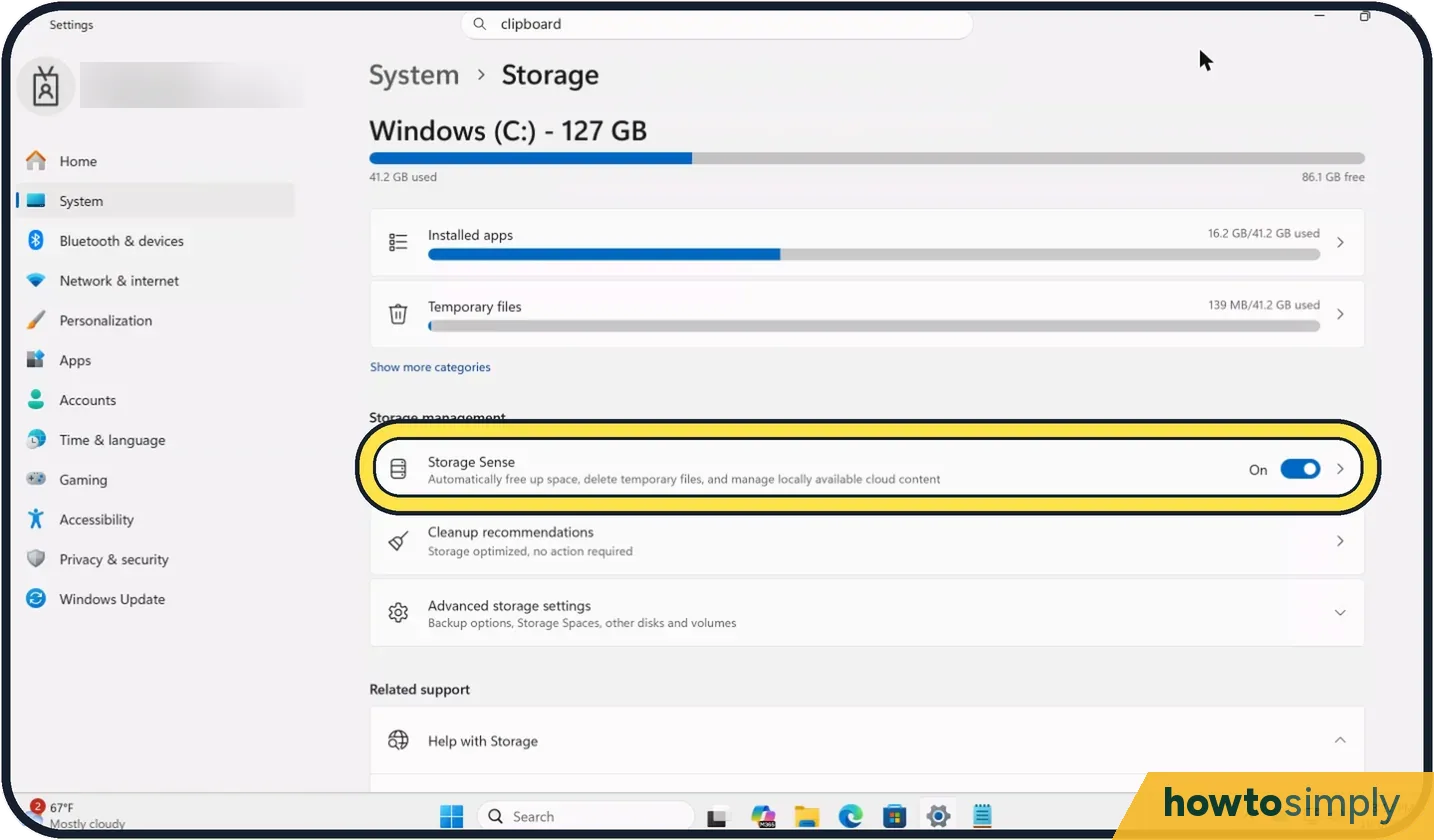
Under Storage management, switch on Storage Sense.
With the default settings, it kicks in when the PC runs low on disk space. On our Cloud PC it was already On.
- 3
Click Storage Sense to choose how often it runs
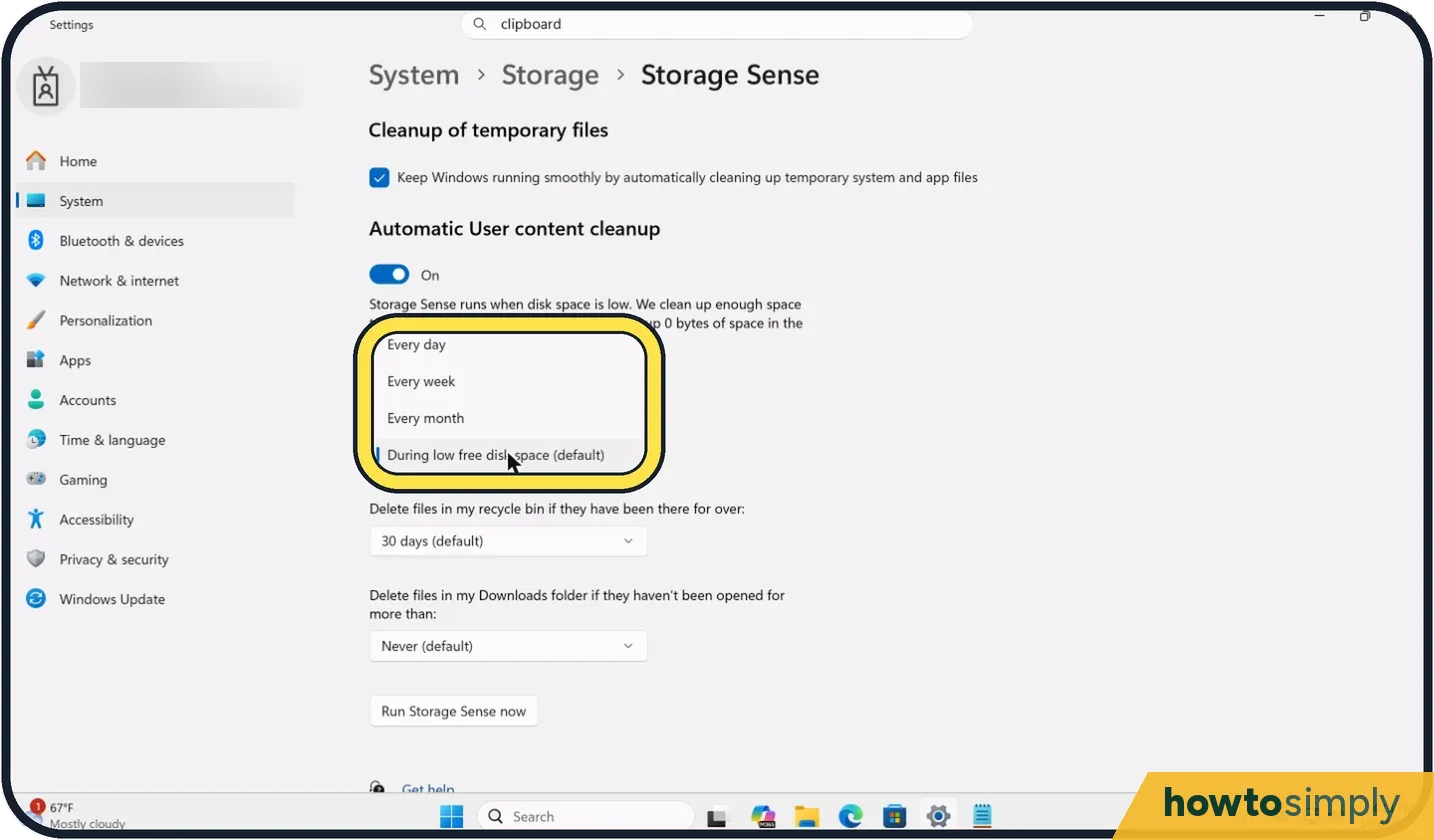
Click the Storage Sense row itself. Make sure Automatic User content cleanup is On.
Under Run Storage Sense, choose Every day, Every week, Every month or During low free disk space (default).
- 4
Set the Recycle Bin
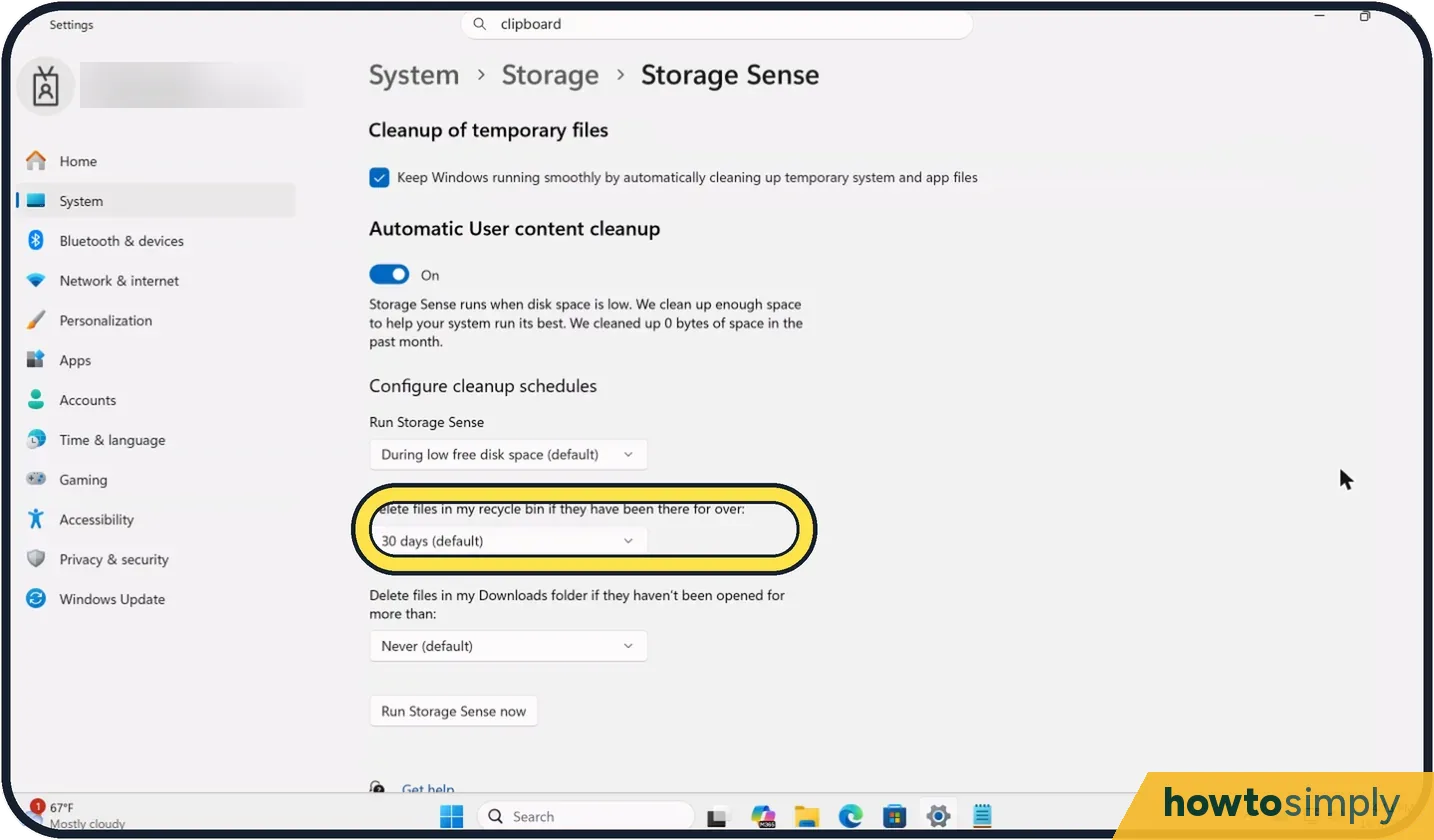
Under Delete files in my recycle bin if they have been there for over, choose a number of days.
The default is 30 days (default). After that time, deleted files are gone for good.
- 5
Decide about the Downloads folder
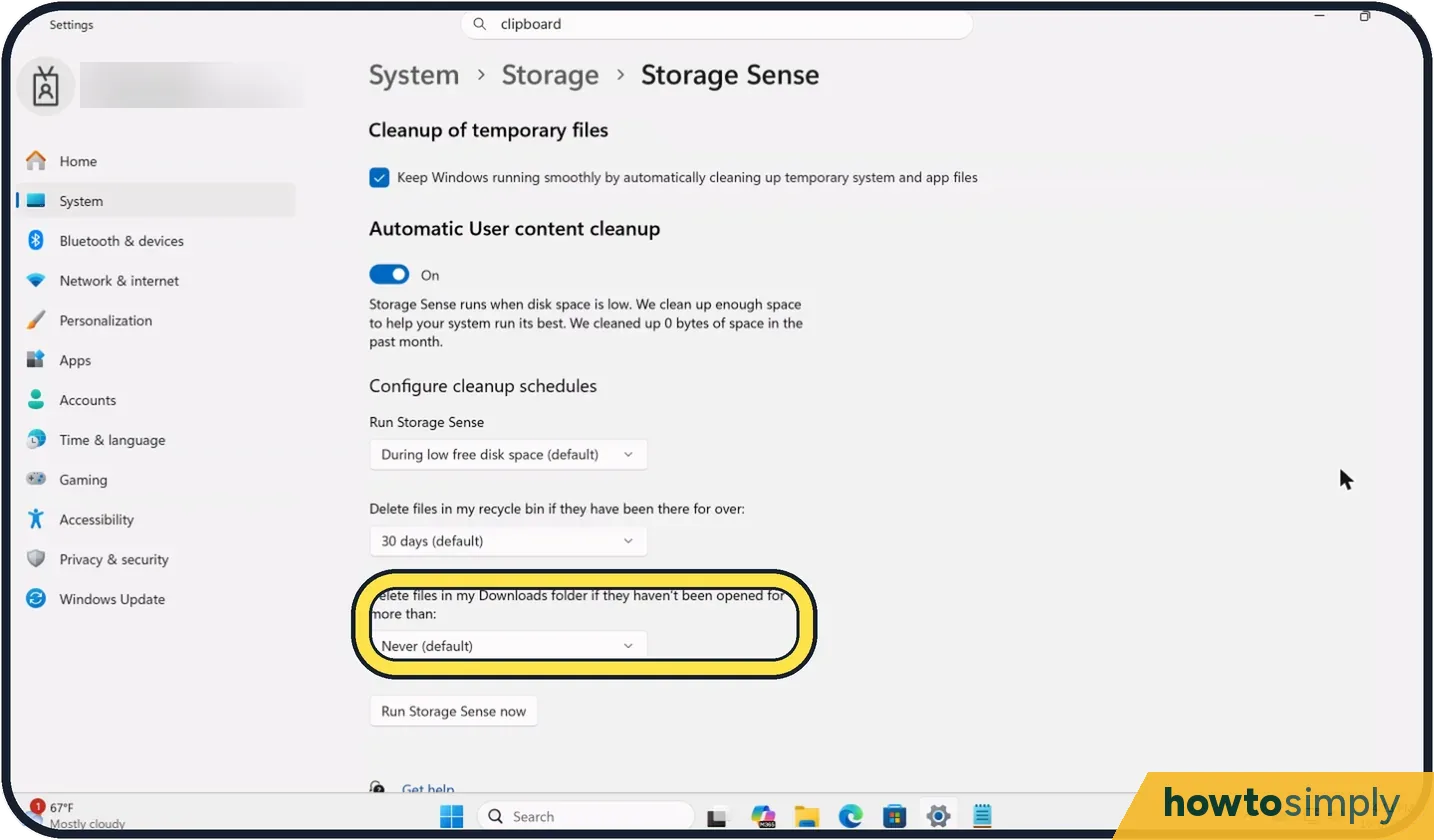
Delete files in my Downloads folder if they haven't been opened for more than is set to Never (default).
Leave it on Never if you keep things in Downloads that you still need.
- 6
Run it once now
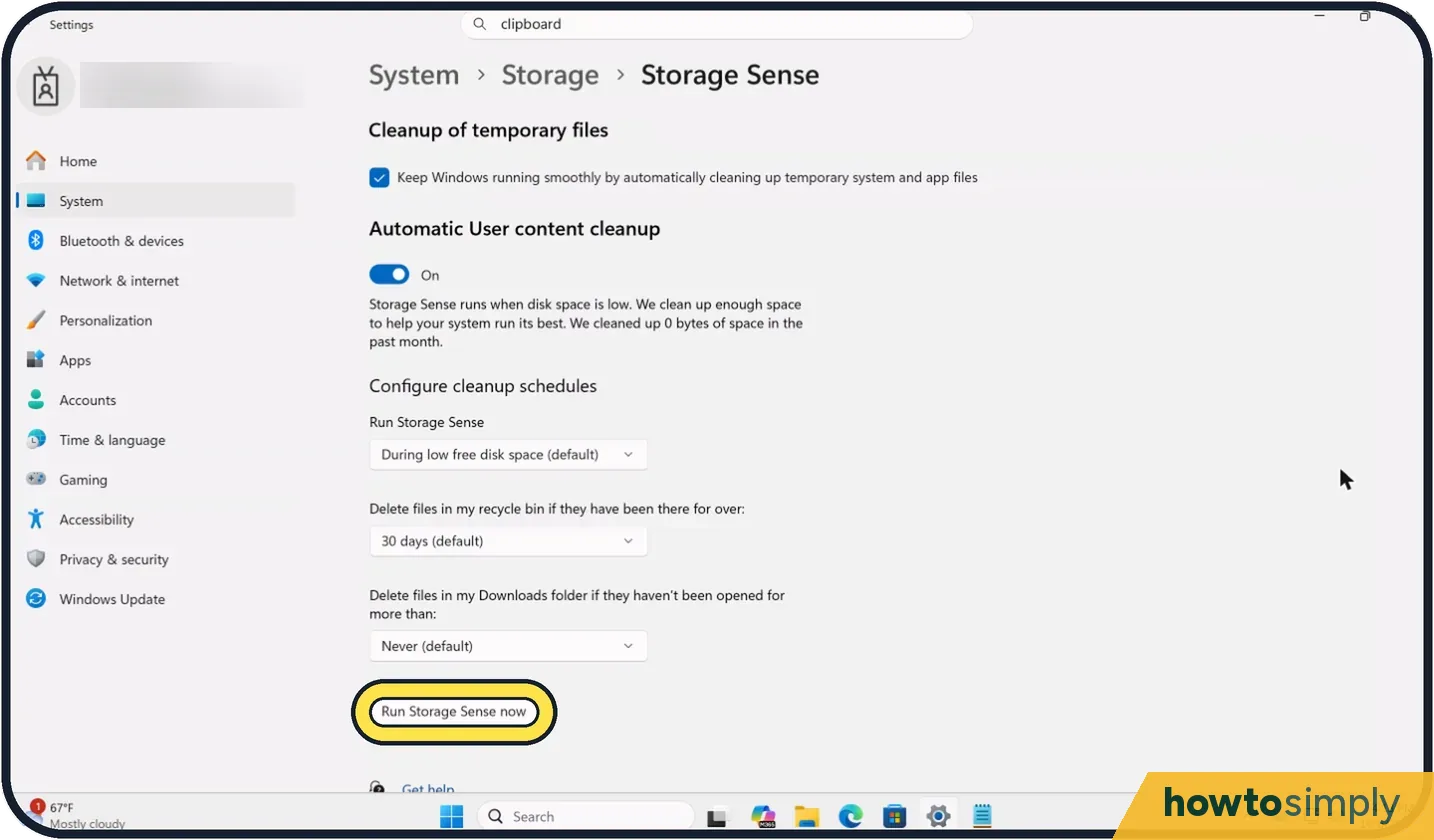
Click Run Storage Sense now at the bottom of the page to clean up straight away. This permanently deletes files.
The page also says how much space it cleaned up in the past month. On our Cloud PC it said: We cleaned up 0 bytes of space in the past month.


If you do not see this option
- Storage Sense does not clean another drive. Microsoft says it works on the system drive only. For other drives, open Settings, System, Storage, Advanced storage settings, Storage used on other drives. Source: Manage drive space with Storage Sense
- It has not run yet. Microsoft says it only runs once you've been signed in and online for over 10 minutes. With the default setting, During low free disk space (default), it runs when the drive is low on space. Source: Manage drive space with Storage Sense
- Your Downloads folder is never cleaned. That is the default: the Downloads setting is Never (default). Choose a number of days on the Storage Sense page if you want it cleaned.
If this does not work
- A file from OneDrive now shows as online-only. Microsoft says that starting in Windows 11, version 22H2, Storage Sense by default makes OneDrive files online-only when they have not been opened for more than 30 days. They aren't gone for good; as long as the PC has room and a network connection, you can bring them back onto it. Files marked Always keep on this device are left alone.
- You want to remove the old Windows installation after an update. Microsoft says to open Settings, System, Storage, Temporary files, tick Previous Windows Installation(s) and select Remove files.
- Nothing seems to have been cleaned. Check the line under Automatic User content cleanup on the Storage Sense page, which shows how much was cleaned up in the past month. On our Cloud PC it showed 0 bytes. Click Run Storage Sense now to clean up straight away.
Good to know
If you use OneDrive, Storage Sense can also turn files you have not opened for a while into online-only files. They aren't gone for good, and as long as the PC has room and a network connection, you can bring them back onto it. Files marked Always keep on this device are never touched.
Storage Sense waits until you've been signed in and online for over ten minutes before it does anything.
For a one-off clear-out with more options, see how to free up disk space on Windows 11.
About this guide
Storage Sense is Windows' own cleaner. It clears space on the drive for you by deleting things you don't need, such as temporary files and whatever is sitting in the Recycle Bin. It works on the system drive, usually C:.
- Device
- Windows
- Shown on
- Windows 11 Enterprise 25H2 (build 26200.9457), Microsoft Cloud PC
- App
- Settings
- Path
- Settings › System › Storage
- Real screenshots
- 6 of 6 steps
- Checked
- October 2026
- Sources
- 1 official, linked below
Sources
Links checked October 2026. Menus and features can change with updates.Did this guide work for you?
Sorry about that. What happened?
Get new guides by email
Our newest guides, sent to your inbox. Free, and you can unsubscribe in one click.
We'll email you to confirm. How we use your email
Follow howtosimply on Facebook
We share our new guides on our Facebook page, so the next fix turns up in your feed.
Follow on Facebook