How to change what the Action button does on an iPhone
- Shown on
- iPhone 17e
- Software
- iOS 27.0.1More iOS 27 guides
- Checked
- October 2026
- Real screenshots
- 4 of 4 steps
- Where it is
- Settings › Action Button
Quick answer
Open Settings and tap Action Button. Swipe sideways through the choices, such as Silent Mode, Camera or Shortcut, and stop on the one you want. Press and hold the button to use it.
Steps
- 1
Check that your iPhone has one
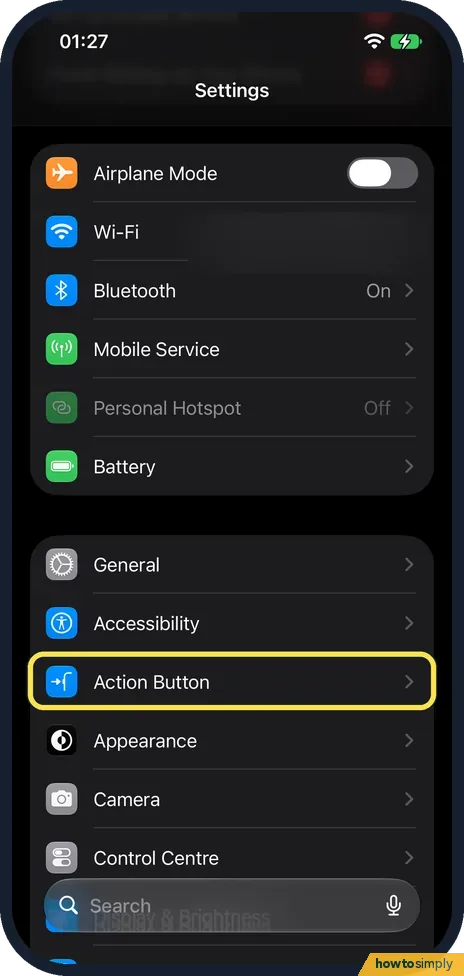
If the main Settings list has an Action Button row, your iPhone has the button. On our iPhone 17e with iOS 27, Action Button was just below Accessibility.
- 2
Open Settings and tap Action Button
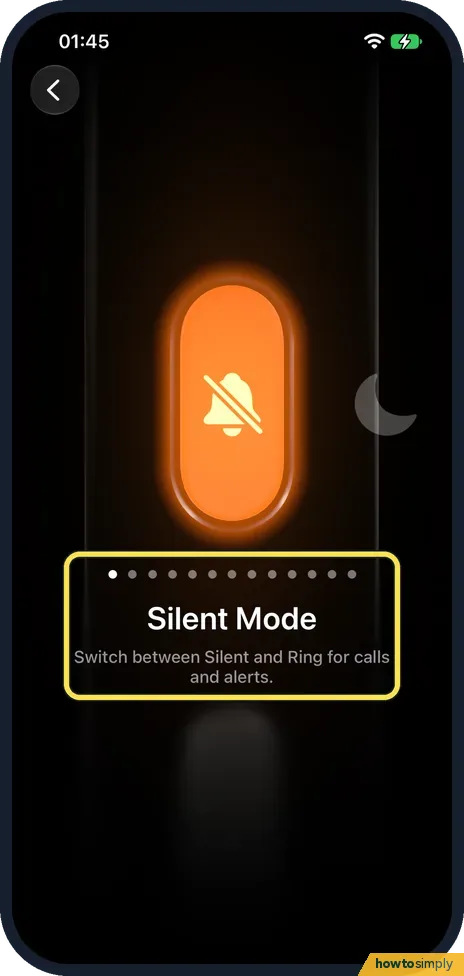
It is in the group with General and Accessibility. On our iPhone 17e with iOS 27.0.1 the page opened on Silent Mode, the default, with a row of dots for the other actions.
- 3
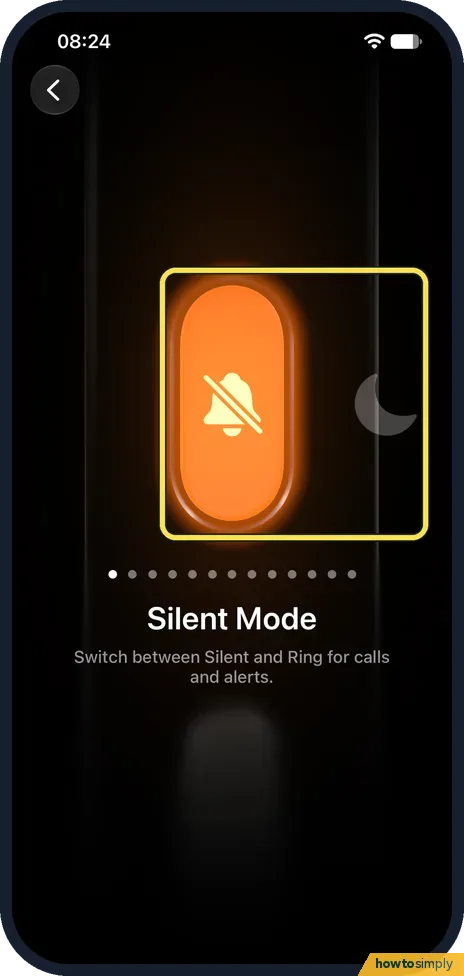
Swipe to choose an action
Swipe sideways across the picture of the current action, boxed. Apple lists Silent Mode, Focus, Camera, Visual Intelligence (not on every model), Flashlight, Voice Memo, Recognize Music, Translate, Magnifier, Controls, Shortcut, Accessibility and No Action. On our iPhone 17e with iOS 27, the first one was Silent Mode, with the note: Switch between Silent and Ring for calls and alerts, and a row of 13 dots below the picture. If an action has more options, Apple says a button appears below it: tap it and pick one. Controls, Shortcut and Accessibility need that choice, or the button does nothing. Then hold the Action button down to use it.
- 4
Check the new action
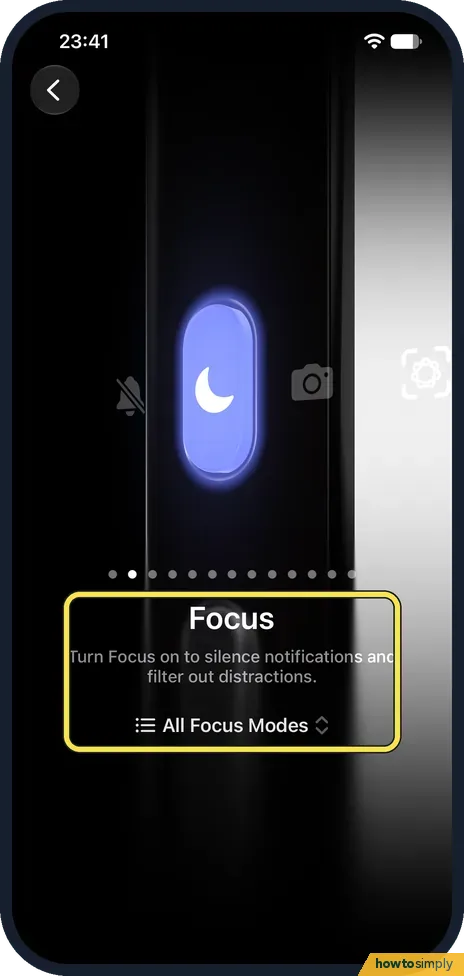
After one swipe, ours showed Focus, with the note Turn Focus on to silence notifications and filter out distractions, and an All Focus Modes button below it for choosing the Focus. We swiped back to Silent Mode afterwards.
If you do not see this option
- There is no Action Button row in Settings. Your iPhone has no Action button. Apple says only supported models have one, in place of the Ring/Silent switch. On phones with the Ring/Silent switch, Apple says orange showing on the switch means your iPhone is in Silent mode. On our iPhone 17e the row was just below Accessibility. Sources: Use and customize the Action button on iPhone, Silence iPhone
- There is no options button below the action. Apple says that if the action has more options, a button appears below it. On our iPhone 17e, Silent Mode showed only its name and one line of text: "Switch between Silent and Ring for calls and alerts." Source: Use and customize the Action button on iPhone
If this does not work
- Pressing the button does nothing. Press and hold it, as Apple says. For Controls, Shortcut and Accessibility, Apple says you also have to tap the button under the action and choose an exact option, or the Action button won't do anything.
- You changed the action and now need Silent mode. Apple says that if your Action button is not set to Silent mode, go to Settings, Sounds & Haptics and turn Silent mode on or off there.
Good to know
If the button no longer controls Silent mode, use the bell in Control Centre, or Settings, Sounds & Haptics, to silence the phone.
Shortcut lets the button launch an app or start a shortcut you use a lot.
Choose No Action if you keep pressing it by accident.
About this guide
Apple says that on supported models the Action button takes the place of the Ring/Silent switch. Silent Mode is the default action, but the button can do something else instead. The screenshots are our own, taken on an iPhone 17e running iOS 27.0.1.
- Device
- iPhone
- Shown on
- iOS 27.0.1 (iPhone 17e)
- App
- Settings
- Path
- Settings › Action Button
- Real screenshots
- 4 of 4 steps
- Checked
- October 2026
- Sources
- 2 official, linked below
What changed: new screenshots from our iPhone 17e on iOS 27.0.1, dark mode, and the wording checked against those screens.
Sources
Links checked October 2026. Menus and features can change with updates.Did this guide work for you?
Sorry about that. What happened?
Get new guides by email
Our newest guides, sent to your inbox. Free, and you can unsubscribe in one click.
We'll email you to confirm. How we use your email
Follow howtosimply on Facebook
We share our new guides on our Facebook page, so the next fix turns up in your feed.
Follow on Facebook