How to change a slo-mo video to normal speed on an iPhone
- Shown on
- iPhone 17e
- Software
- iOS 27.2More iOS 27 guides
- Checked
- October 2026
- Real screenshots
- 4 of 4 steps
- Where it is
- Photos › Edit › Playback Speed
Quick answer
Open the slo-mo video in Photos and tap Edit. Tap the Playback Speed button, the gauge icon at the top right, and pick 100 %. On our 240 fps clip it read 100 % 240 fps. Then tap Done.
Steps
- 1
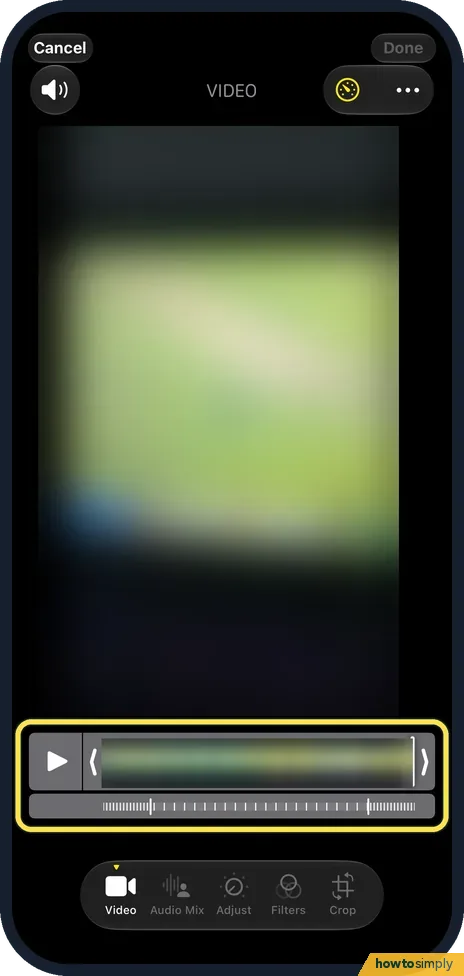
Open the clip and tap Edit
Open Photos, find the slo-mo video and tap Edit. The editor opens on Video. Under the timeline, a strip of tick marks shows the slow-motion part.
- 2
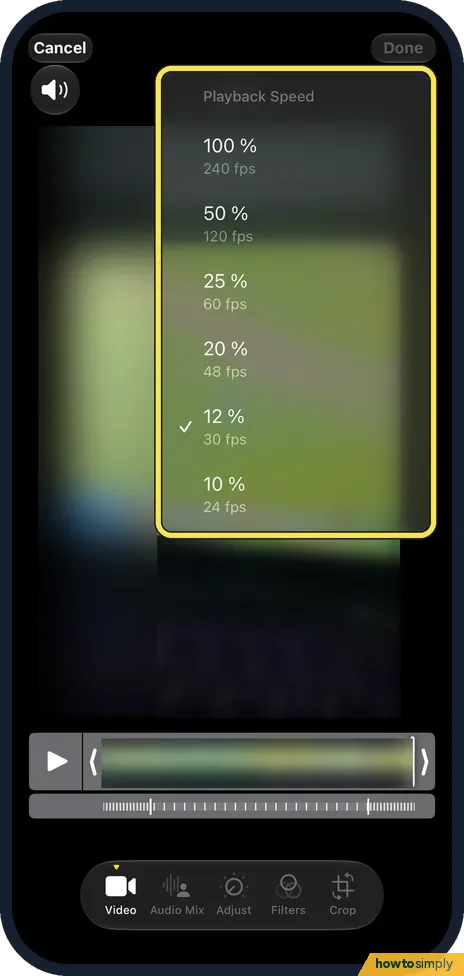
Tap Playback Speed
Tap the gauge icon at the top right, next to the three dots. A Playback Speed menu opens with 100 %, 50 %, 25 %, 20 %, 12 % and 10 %, each with a frame rate. Ours had 12 % (30 fps) ticked.
- 3
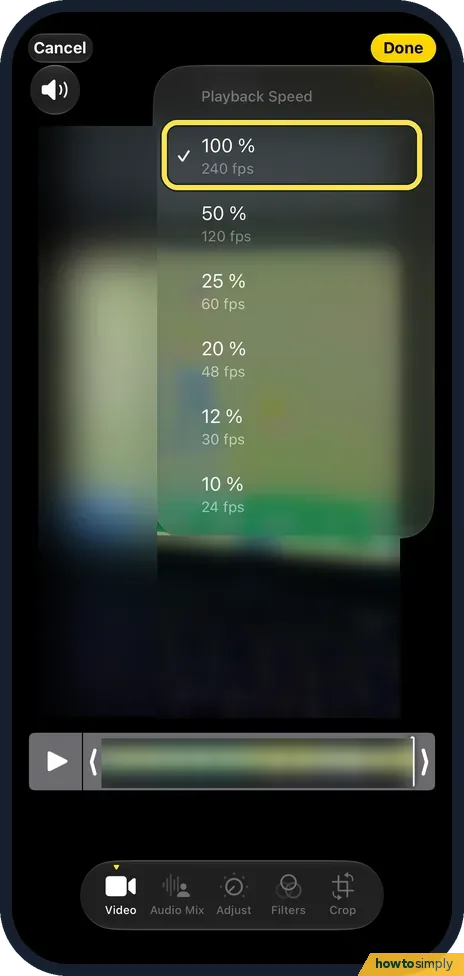
Tap 100 %
Tap 100 % (240 fps on our clip). That is normal speed, and the tick moves to 100 %.
- 4
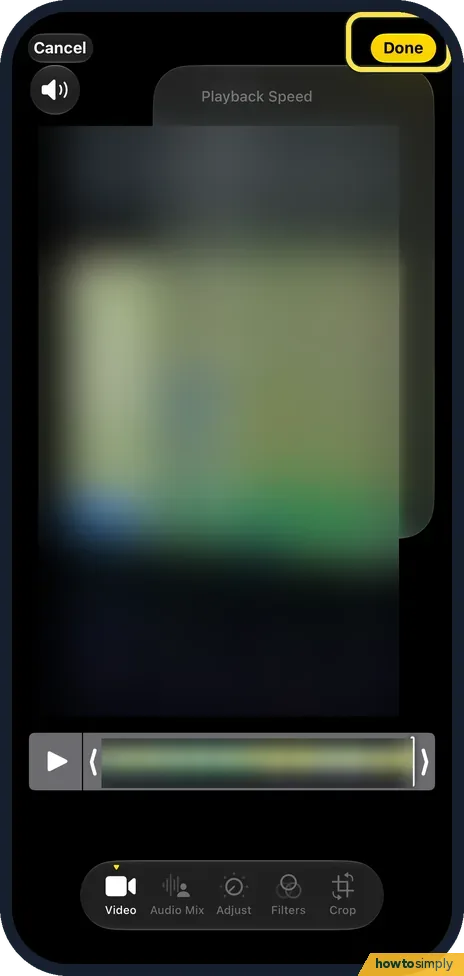
Check the timeline, then tap Done
The strip of tick marks under the timeline is gone and Done turns yellow. Tap Done to keep the change. We tapped Cancel and Discard Changes instead, so our clip stayed in slow motion.
If you do not see this option
- Fewer speeds in the list? Apple says which speeds you can pick depends on the format you filmed in: bigger formats give you more choices. Our clip was recorded at 240 fps. Source: Trim video length, adjust speed, and edit audio on iPhone
- No speed button? Apple says you can change the playback speed in iOS 18 and later, and slow down only videos captured at more than 30 fps. Source: How to edit videos on your iPhone, iPad, or Mac
If this does not work
- Changed your mind before saving? Tap Cancel at the top left. Ours asked: Are you sure you want to discard your changes? Tap Discard Changes and the clip stays as it was.
- Want the slow motion back later? Apple says to open the video, tap Edit, then tap Revert to undo edits after you save.
- Only want part of it slow? Keep the slow speed and drag the bars in the timeline to set where slow motion starts and ends, Apple says, so only the cannonball stays slow.
- The change shows on your other devices too? Apple says that with iCloud Photos, edits are saved across all your devices, so your Mac or iPad plays the clip at normal speed too. Revert brings back the slow motion.
Good to know
To record slo-mo at 120 fps instead of 240 fps, see how to change the slow-motion frame rate on an iPhone.
After you save, you can still revert to the original, so Revert can bring the slow motion back later. To keep a slow version and a normal version side by side, open the video, tap the three dots and tap Duplicate, then change the speed on one copy only.
About this guide
Slo-mo suits a cannonball into the pool far better than a whole wedding toast. The Playback Speed menu lists each speed with a frame rate. Our clip was set to 12 % (30 fps), and 100 % (240 fps) is normal speed.
- Device
- iPhone
- Shown on
- iOS 27.2 (iPhone 17e)
- App
- Photos
- Path
- Photos › Edit › Playback Speed
- Real screenshots
- 4 of 4 steps
- Checked
- October 2026
- Sources
- 4 official, linked below
The screenshots are from our iPhone 17e with iOS 27.2, in Dark mode, taken on 27 October 2026 with a 13-second slo-mo clip.
Sources
Links checked October 2026. Menus and features can change with updates.Did this guide work for you?
Sorry about that. What happened?
Get new guides by email
Our newest guides, sent to your inbox. Free, and you can unsubscribe in one click.
We'll email you to confirm. How we use your email
Follow howtosimply on Facebook
We share our new guides on our Facebook page, so the next fix turns up in your feed.
Follow on Facebook