How to change the private Wi-Fi address on an iPhone (iOS 27)
- Shown on
- iPhone 17e
- Software
- iOS 27.0.1More iOS 27 guides
- Checked
- October 2026
- Real screenshots
- 3 of 3 steps
- Where it is
- Settings › Wi-Fi › i › Private Wi-Fi Address
Quick answer
Open Settings, Wi-Fi and tap the i next to your network. Under Private Wi-Fi Address, set it to Off, Fixed or Rotating as you prefer. Ours was Fixed. Rotating changes the address over time; Off uses the real address, for networks that need it.
Steps
- 1
Open your network details
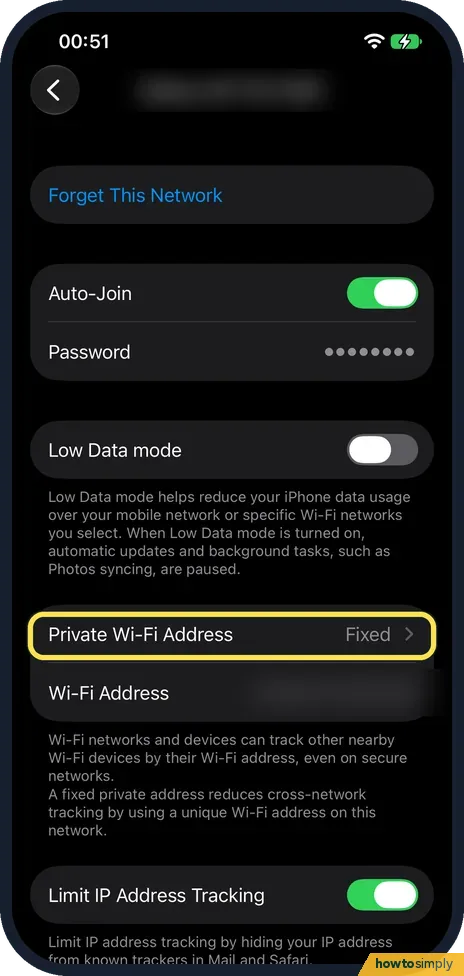
In Settings, Wi-Fi, tap the i next to the network. Private Wi-Fi Address is in the middle of the page, under Low Data Mode.
- 2
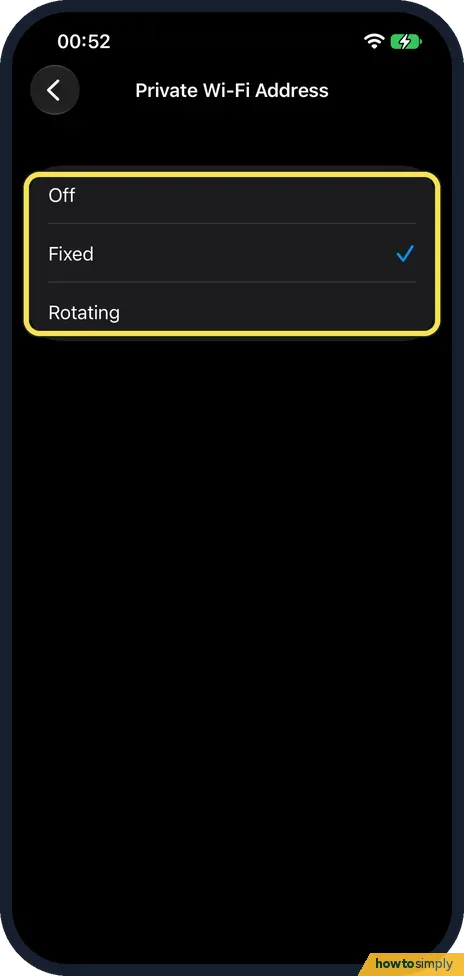
Choose Off, Fixed or Rotating
Fixed was ticked on ours. The note on the network page in step 1 says a fixed private address reduces tracking across networks.
- 3
Check Limit IP Address Tracking
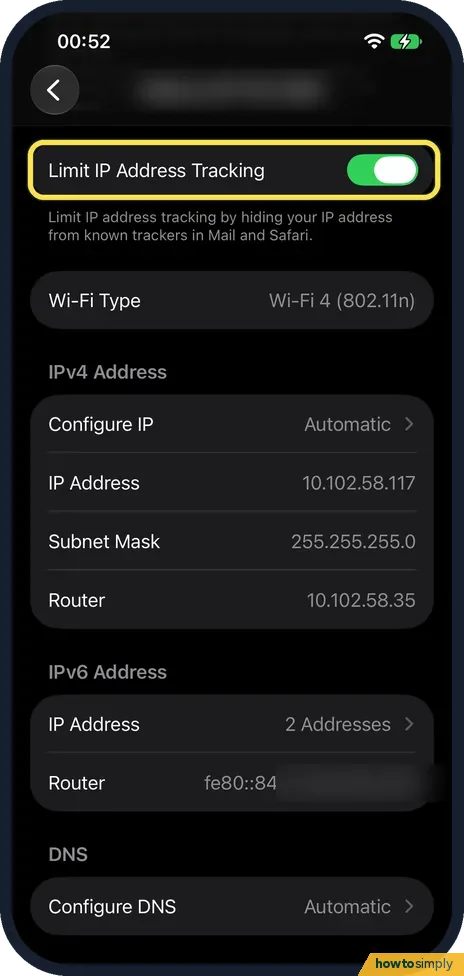
Further down the same page, it was on. It hides your IP address from known trackers in Mail and Safari.
If you do not see this option
- Apple's page says Private Address on or off? On ours, in iOS 27, it was a list with three choices instead of a switch. Source: Use a private network address on iPhone
- iCloud Private Relay? There was no Private Relay page on ours: the iCloud page listed it under Get More with iCloud+, so it needs a paid plan.
- A switch instead of three choices? Apple says Off, Fixed and Rotating are for iOS 18 or later. On an earlier version, Private Wi-Fi Address is a single switch, on or off. Source: Use private Wi-Fi addresses on Apple devices
If this does not work
- Network asks you to sign in again? Apple says Rotating changes to a new private address every 2 weeks, but Fixed keeps the same one.
- Parental controls or a router block? Apple says to turn the private address off for that network only.
- Cannot join or reach the internet? Apple suggests installing the latest software updates and trying again before you decide to turn the private address off. Only then set it to Off for that one network.
- The network is not in the list? To change the setting for a network you are not connected to, Apple says to tap Edit at the top right of the Wi-Fi page first, then tap the More Info button next to its name.
- The setting is locked on a work network? Apple says companies and other organisations can switch private addresses off, through a network profile, on managed devices that connect to their Wi-Fi.
- Router sent a new device alert? Apple notes that a router set to warn about new devices will do so the first time the iPhone joins with a private address. It is still your phone, so you can approve it in the router's settings.
Good to know
For Safari tracking, see how to hide your IP address from trackers in Safari on an iPhone.
Apple explains the defaults: the iPhone picks Fixed when it joins a new network secured with WPA2 or stronger, and Rotating when the network has weak or no security. Off uses the phone's hardware address, which makes it easier for network operators to link to the phone's activity and location over time. Erasing the phone or resetting network settings also gives it a new private address next time it joins.
About this guide
Your iPhone uses a made-up Wi-Fi (MAC) address on each network so it is harder to track. Some networks, such as ones with parental controls, need the real one.
- Device
- iPhone
- Shown on
- iOS 27.0.1 (iPhone 17e)
- App
- Settings
- Path
- Settings › Wi-Fi › i › Private Wi-Fi Address
- Real screenshots
- 3 of 3 steps
- Checked
- October 2026
- Sources
- 2 official, linked below
The screenshots are from our iPhone 17e with iOS 27.0.1, in Dark mode. The network name and the Wi-Fi address are blurred. We changed nothing.
Sources
Links checked October 2026. Menus and features can change with updates.Did this guide work for you?
Sorry about that. What happened?
Get new guides by email
Our newest guides, sent to your inbox. Free, and you can unsubscribe in one click.
We'll email you to confirm. How we use your email
Follow howtosimply on Facebook
We share our new guides on our Facebook page, so the next fix turns up in your feed.
Follow on Facebook