How to change the slow-motion frame rate on an iPhone
- Shown on
- iPhone 17e
- Software
- iOS 27.0.1More iOS 27 guides
- Checked
- October 2026
- Real screenshots
- 3 of 3 steps
- Where it is
- Settings › Camera › Record Slo-mo
Quick answer
Open Settings, tap Camera, then Record Slo-mo, and tap 1080p HD at 120 fps or 1080p HD at 240 fps. At 240 fps, the default, a minute of slo-mo needs about 480 MB. At 120 fps it needs about 170 MB.
Steps
- 1
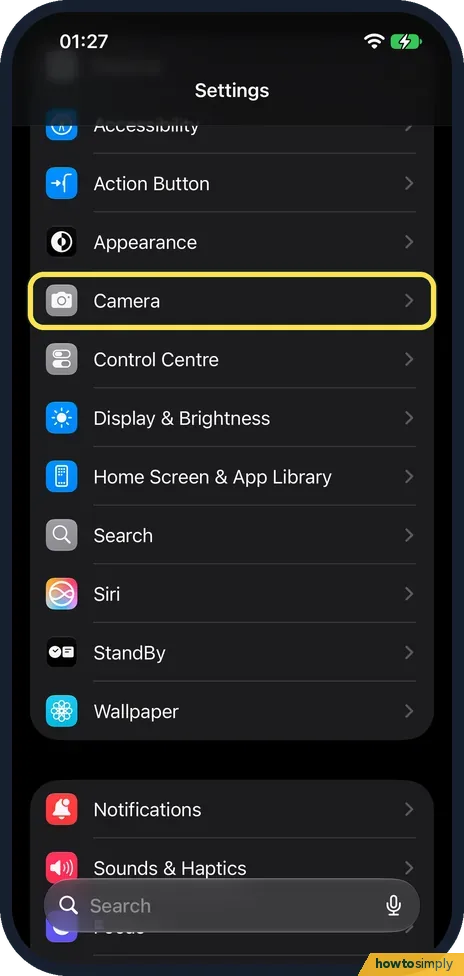
Open Settings and tap Camera
Tap Camera. It is between Appearance and Control Centre.
- 2
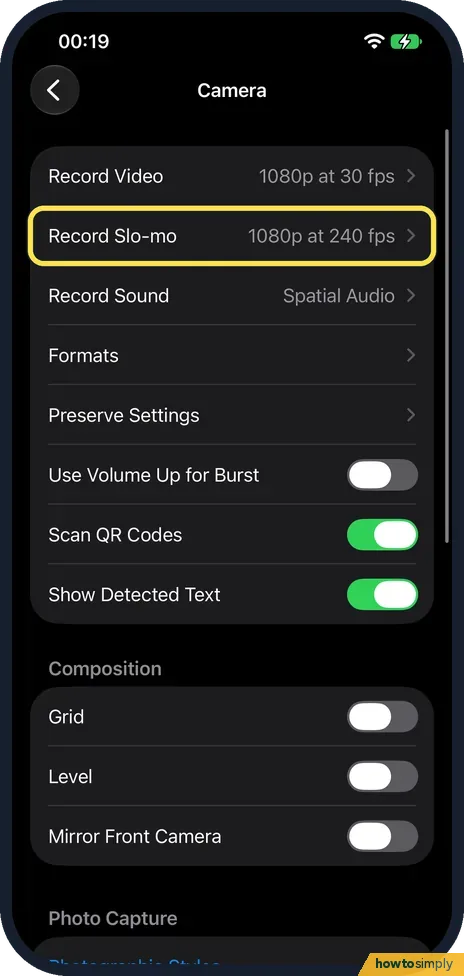
Tap Record Slo-mo
It is the second row, below Record Video. The row shows the current setting at the right. On our iPhone 17e it said 1080p at 240 fps.
- 3
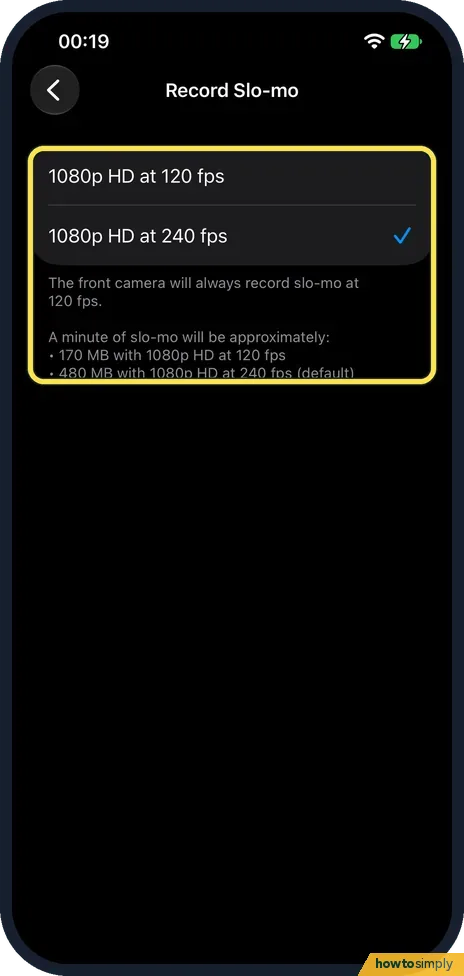
Tap the frame rate
There are two choices on our iPhone 17e: 1080p HD at 120 fps and 1080p HD at 240 fps. The tick shows the active one. On ours it was 240 fps. The note below the list says a minute of slo-mo is about 170 MB at 120 fps and about 480 MB at 240 fps, and that the front camera always records slo-mo at 120 fps.
If you do not see this option
- No 4K at 120 fps choice Apple's iOS 27 guide adds 4K at 120 fps using the back camera, on models that support it. Our iPhone 17e lists only the two 1080p HD choices. Source: Change video recording settings on iPhone
- No setting for the front camera There is none. Apple says the front camera records slo-mo at 1080 HD at 120 fps, and the note on the page says the front camera always records slo-mo at 120 fps. Source: Change video recording settings on iPhone
If this does not work
- 240 fps is missing or not used Seen on our iPhone 17e, not in Apple's guide: the note under Settings > Camera > Formats says 4K at 60 fps, 1080p at 240 fps and HDR video require High Efficiency. If Formats is set to Most Compatible, switch it back to High Efficiency.
- Slo-mo will not start recording? Apple points out you can't record video while you're on a phone or FaceTime call. End the call, then open Camera again.
- Fewer slow speeds in Photos after switching? Apple says the playback speeds you can choose later depend on the format you captured: the larger the format, the more options. So if you like to play with the speed afterwards, the bigger setting is worth its space for short moments.
Good to know
Apple points out that on models that support it, Record Slo-mo also gives you 4K at 120 fps using the back camera. Our iPhone 17e did not offer it.
You do not have to decide in advance which part plays slowly. Apple says to open a Slo-mo video in the Photos app, start editing, and drag the black upright bars under the frame viewer to choose where the slow motion plays.
For normal video: how to change the video resolution and frame rate on an iPhone.
This sets the default slo-mo frame rate for the back camera. To undo it, tick the other option under Record Slo-mo. You can still choose later which part of a clip plays slowly, and which plays at regular speed: how to change a slo-mo video to normal speed on an iPhone.
Apple adds that iPhone 16 Pro, iPhone 17 Pro and iPhone 18 Pro models and iPhone Duo can also film slow motion in Video mode if you pick 120 FPS from the format options on screen.
About this guide
Say a handful of slo-mo clips from a birthday party have eaten a surprising chunk of your storage. By default, slo-mo on the back camera is set to 1080p HD at 240 frames per second, and Apple notes that faster frame rates result in larger video files. Half the frame rate takes about a third of the storage.
On iOS 26 Apple gives the same path, Settings > Camera > Record Slo-mo, and does not mention a 4K at 120 fps choice. Screenshots: iPhone 17e, iOS 27.0.1, dark mode.
- Device
- iPhone
- Shown on
- iOS 27.0.1 (iPhone 17e)
- App
- Settings
- Path
- Settings › Camera › Record Slo-mo
- Real screenshots
- 3 of 3 steps
- Checked
- October 2026
- Sources
- 4 official, linked below
What changed: the screenshots are now our own iPhone 17e on iOS 27.0.1, dark mode, and the wording is checked against those screens and Apple's iOS 27 guide.
Sources
Links checked October 2026. Menus and features can change with updates.Did this guide work for you?
Sorry about that. What happened?
Get new guides by email
Our newest guides, sent to your inbox. Free, and you can unsubscribe in one click.
We'll email you to confirm. How we use your email
Follow howtosimply on Facebook
We share our new guides on our Facebook page, so the next fix turns up in your feed.
Follow on Facebook