Samsung Weather showing the wrong location? How to fix it
- Shown on
- Galaxy A57 5G (One UI 8.5) and Galaxy A57 (One UI 9)
- Checked
- October 2026
- Real screenshots
- 6 of 6 steps
Quick answer
Open the Weather app and tap Agree when it asks to use your precise location, then Turn on for Location Accuracy and Change to precise location. The place at the top of the location list is the one Weather uses. Device Location has to be on for it to follow you.
Steps
- 1
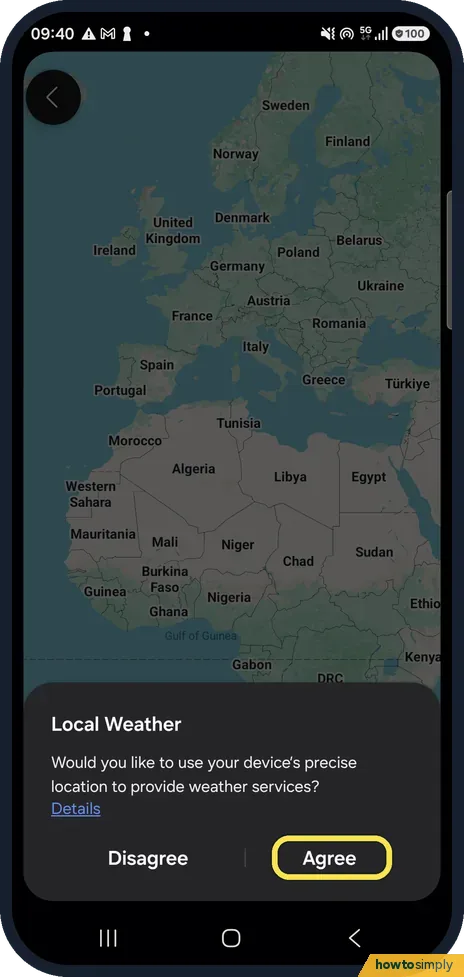
Tap Agree on Local Weather
Open the Weather app. The first time, it asks whether to use your device's precise location to provide weather services. Tap Agree.
- 2
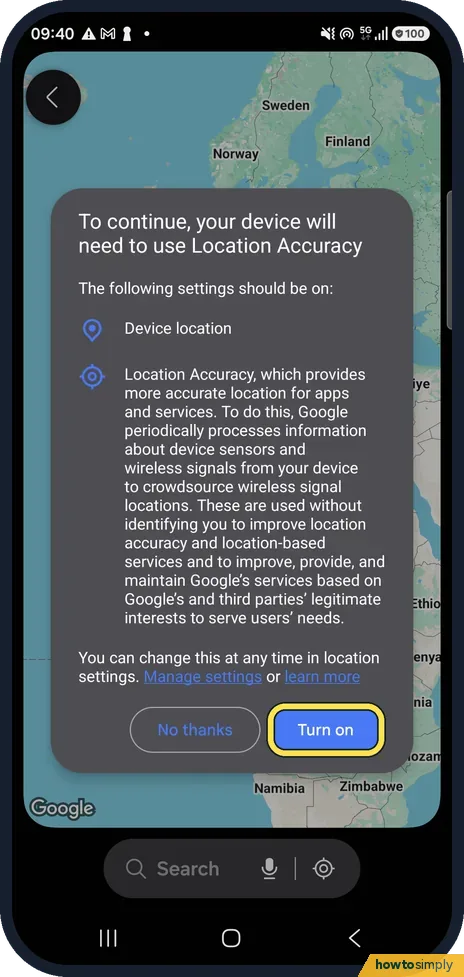
Turn on Location Accuracy
Next, Google asks to turn on Location Accuracy. It names the settings that should be on: Device location and Location Accuracy. Tap Turn on.
- 3
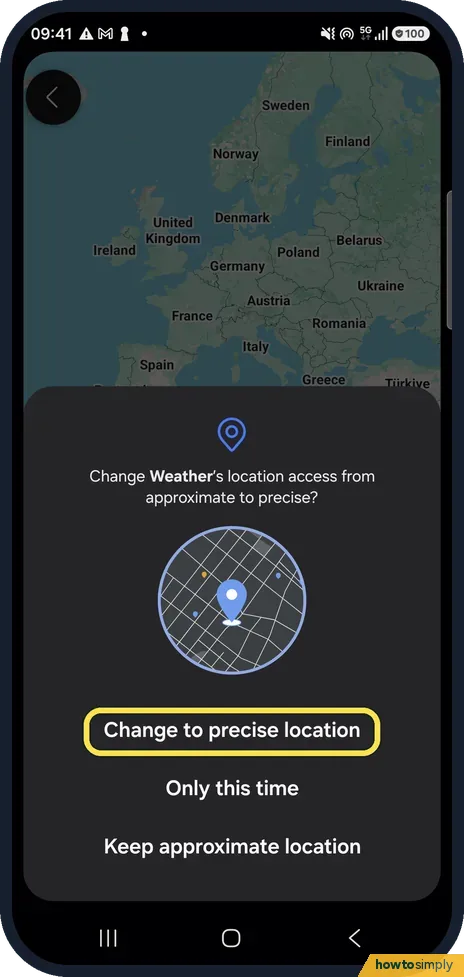
Choose precise location
Android then asks whether to change Weather's access from approximate to precise. Tap Change to precise location. Keep approximate location gives the app only a rough area.
- 4
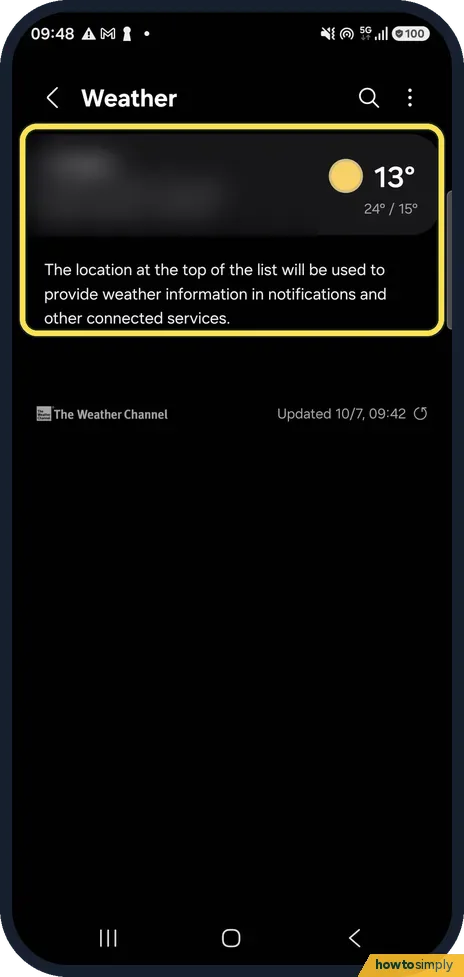
Check which place is at the top
Tap the menu at the top left of the Weather app to see your locations. The screen says it: the location at the top of the list is used for weather in notifications and other connected services.
- 5
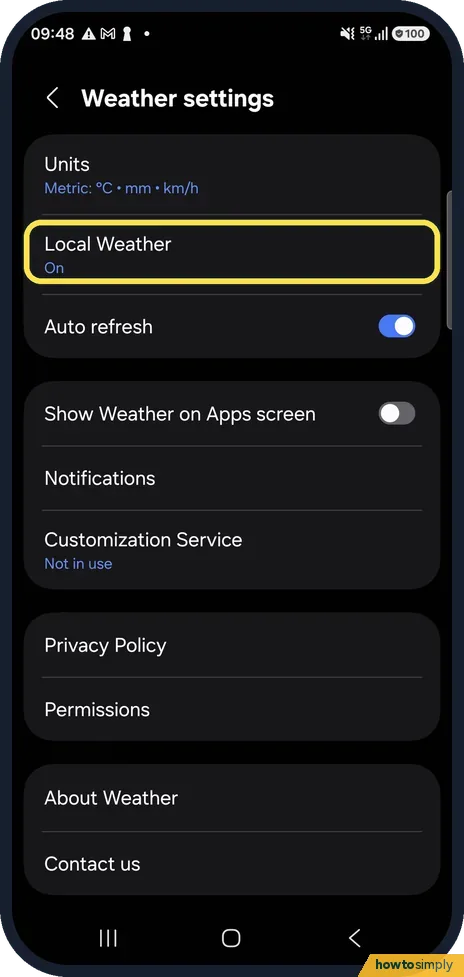
Make sure Local Weather is on
Tap the three dots, then Settings. Local Weather should say On. Auto refresh, below it, keeps the forecast updated; ours was on.
- 6
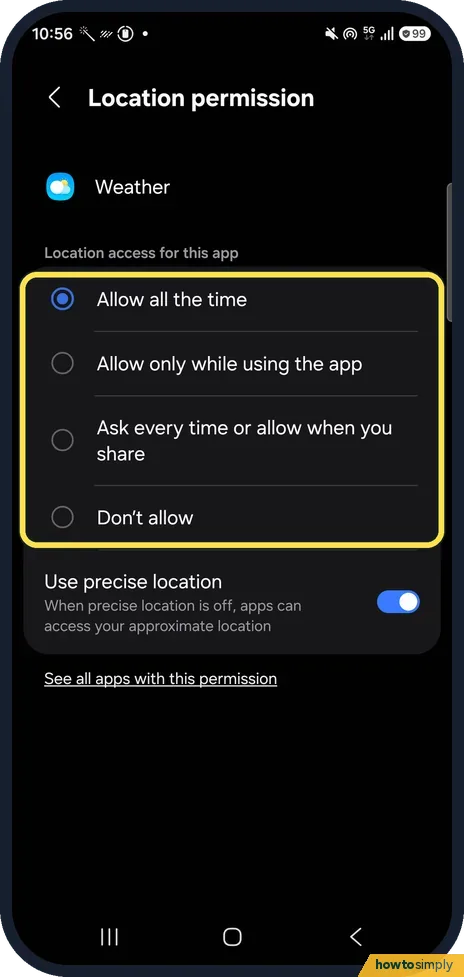
Check Weather's location permission
Settings, Apps, Weather, Permissions, Location. Ours was set to Allow all the time, with Use precise location on. If it says Don't allow, or precise location is off, Weather cannot use where you are and may show the wrong place.
Where we checked these steps
- Galaxy A57 5G, One UI 8.5 (Android 16)
- Galaxy A57, One UI 9 (Android 17)
We have not checked other phones or older versions. If a menu looks different on yours, the notes under each step and the fixes further down cover the differences we found.
If you do not see this option
- Weather is not on the Apps screen On our phone Show Weather on Apps screen, in Weather settings, was off, so the app opens from its widget. Samsung says you can add the widget by touching and holding the Home screen, Widgets, Weather. Source: How to set the Weather widget location on your Galaxy phone
- The place you want is not in the list Samsung says to open Weather, tap the plus icon at the top right and search for the place. It might ask you to tap OK to agree to the terms first. Source: How to set the Weather widget location on your Galaxy phone
If this does not work
- Right town, but the forecast is out of date? Samsung suggests first checking that your phone's software and apps are updated to the latest version: Settings, Software update.
- Location only updates when you open the app? Samsung says the GPS location service has to be switched on for the app to keep showing where you are now.
Good to know
Still the wrong place? There is one more switch to check. Samsung says the widget shows your current location only while the phone's location service is on. Swipe down and check that Location is on in the quick panel. If your habit is to switch Location off there to save battery, that is the very switch the widget needs.
However, if you would rather the widget always shows one place, say your home town, touch and hold the Weather widget, tap Settings, then Change next to the location, pick one of your saved places and tap Save, as Samsung describes.
The forecast comes from The Weather Channel, as the location page shows. Some cards in the app open weather.com in the browser.
Location itself off target? Samsung Galaxy location not accurate? 5 settings to check. To change Weather's access later: how to change an app's location permission.
About this guide
Well, it is never nice to plan your day around a forecast that turns out to be for another town. Samsung says the Weather widget shows the weather for your current location by default. Make sure you check that list in the steps below, because it is the part most people miss. The first time you open Weather it asks three questions in a row, and these are the answers that let it use where you are.
We blurred our place name on the Weather page. Step 6 is from the same phone after its One UI 9 update (Android 17).
- Device
- Android
- Shown on
- Samsung Galaxy A57 5G (SM-A576B), One UI 8.5, Android 16, Samsung Galaxy A57 (SM-A576B), One UI 9, Android 17 (build A576BXXU6BZIE)
- App
- Weather
- Real screenshots
- 6 of 6 steps
- Our phone
- Shown on Galaxy A57, One UI 8.5
- Checked
- October 2026
- Sources
- 1 official, linked below
Sources
Links checked October 2026. Menus and features can change with updates.Did this guide work for you?
Sorry about that. What happened?
Get new guides by email
Our newest guides, sent to your inbox. Free, and you can unsubscribe in one click.
We'll email you to confirm. How we use your email
Follow howtosimply on Facebook
We share our new guides on our Facebook page, so the next fix turns up in your feed.
Follow on Facebook