How to take a selfie by showing your palm on a Samsung Galaxy
- Shown on
- Galaxy A57 5G (One UI 8.5) and Galaxy S26 (One UI 9.0)
- Checked
- November 2026
- Real screenshots
- 2 of 3 steps
Quick answer
Open Camera, the settings gear, Shooting methods and turn on Show palm. Switch to the front camera and hold your open palm towards it; a short countdown starts and the photo is taken without touching the screen.
Steps
- 1
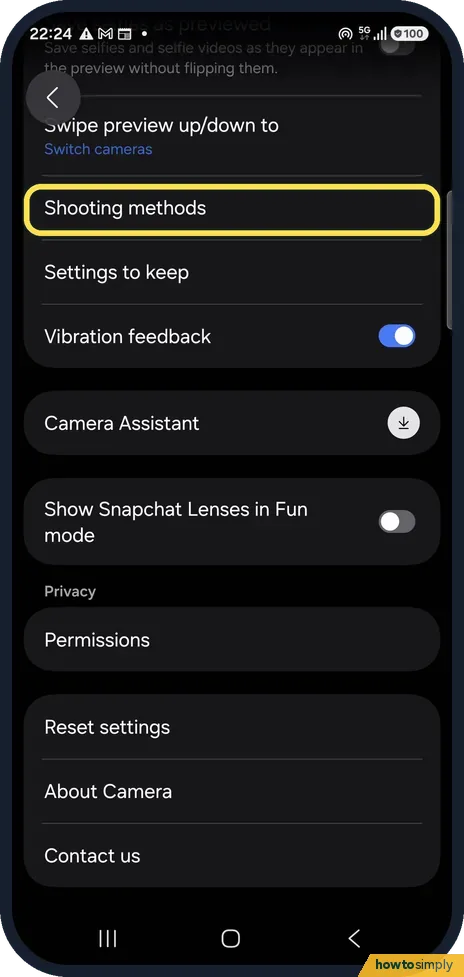
Open Shooting methods
In Camera settings, scroll down and tap Shooting methods.
- 2
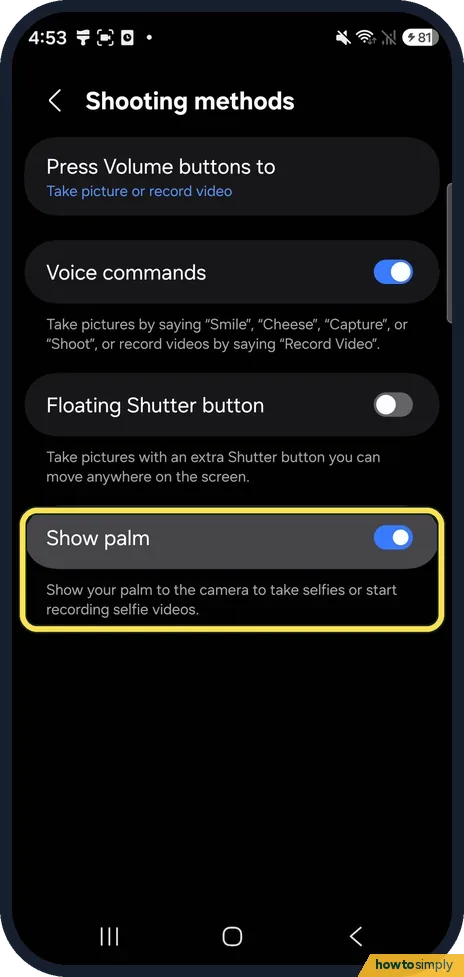
Turn on Show palm
Show palm was on on our Galaxy S26, as was Voice commands; Floating Shutter button was off. Its line says Show your palm to the camera to take selfies or start recording selfie videos.
- 3
Show your palm to the front camera
Switch to the front camera, hold the phone or prop it up, and raise your open palm towards the lens until the countdown starts.
Where we checked these steps
- Galaxy A57 5G, One UI 8.5 (Android 16)
- Galaxy S26, One UI 9.0 (Android 17)
We have not checked other phones or older versions. If a menu looks different on yours, the notes under each step and the fixes further down cover the differences we found.
If you do not see this option
- You are using the rear camera Samsung explains Show palm as holding your palm up to the front camera to snap a selfie, so flip to the front camera first. Source: What are the different camera modes and how do I use them?
- You would rather not raise your hand Shooting methods also has voice control. Samsung says you can say shoot, capture, cheese or smile to take a photo, and record video to start filming. Source: What are the different camera modes and how do I use them?
If this does not work
- The picture is taken before you are ready Samsung says the camera waits a few seconds after it sees your palm, so you have time to pose. Lower your hand and pose straight away. It is quick, but once you know it is coming, you will be ready for it.
- The volume buttons take pictures instead In the same Shooting methods page, Press Volume buttons to can be set to take pictures. Samsung says the volume then cannot be changed while you record video.
- The phone does not react to your palm? Show your palm to the front camera; Samsung says the phone then takes a photo after a few seconds.
- It works close up but not from further away? The camera has to see the palm clearly, so a small hand far away in the frame is harder to spot. Move one step closer, or raise your hand nearer to the phone.
- Still nothing after checking the switch? Samsung's own guide starts by installing any software update. Update under Settings, Software update, Download and install, then try again.
Good to know
The same page has other options: Voice commands ("Smile", "Cheese", "Capture" or "Shoot") and a Floating Shutter button, which adds an extra shutter button on the screen.
Show palm only works while the Camera app is open on the front camera, so leaving it on does not use extra battery or watch for gestures elsewhere. It does mean a wave towards the lens can take an unexpected selfie, which you can delete. To stop that, switch Show palm off on the same page.
Samsung's guide for Galaxy A phones lists more selfie settings in Camera settings, such as Save selfies as previewed, which saves selfies without flipping them. For more control over framing, turn on the grid: turn on the camera grid on a Samsung Galaxy.
About this guide
There is always someone missing from the group photo, and it is usually the person holding the phone. Show palm lets you take the photo without touching the screen, which Samsung says stops it moving and coming out blurry.
- Device
- Android
- Shown on
- Samsung Galaxy A57 5G (SM-A576B), One UI 8.5, Android 16, Samsung Galaxy S26 (SM-S942N, Korean model), One UI 9.0, Android 17 (build CP2A.260605.016.S942NKSU5BZJB)
- App
- Camera
- Real screenshots
- 2 of 3 steps
- What we did
- Observed: looked at each screen, changed nothing
- Checked
- November 2026
- Sources
- 4 official, linked below
The screenshots are from a Samsung Galaxy S26 with One UI 9.0 and Android 17, in Dark mode, apart from step 1, from our Galaxy A57 with One UI 8.5. Samsung points out that which camera options you get depends on your exact phone and its software.
Sources
- Samsung Latin: How to take photos showing the palm of your hand with your Samsung Galaxy phone
- Samsung UK: What are the different camera modes and how do I use them?
- Samsung US: Galaxy A Series Camera App: A16, A26, A36, and A56 5G
- Samsung Singapore: How to use Palm Gesture to take selfie on Samsung mobile?
Did this guide work for you?
Sorry about that. What happened?
Get new guides by email
Our newest guides, sent to your inbox. Free, and you can unsubscribe in one click.
We'll email you to confirm. How we use your email
Follow howtosimply on Facebook
We share our new guides on our Facebook page, so the next fix turns up in your feed.
Follow on Facebook