How to change an app's location permission on a Samsung Galaxy
- Shown on
- Galaxy A57 5G (One UI 8.5) and Galaxy S26 (One UI 9.0)
- Checked
- November 2026
- Real screenshots
- 5 of 5 steps
- Where it is
- Settings › Location › App permissions
Quick answer
Open Settings, Location, App permissions. Apps are grouped by what they are allowed: all the time, only while in use, or not allowed. Tap an app and choose a new level, for example Allow only while using the app.
Steps
- 1
Open App permissions
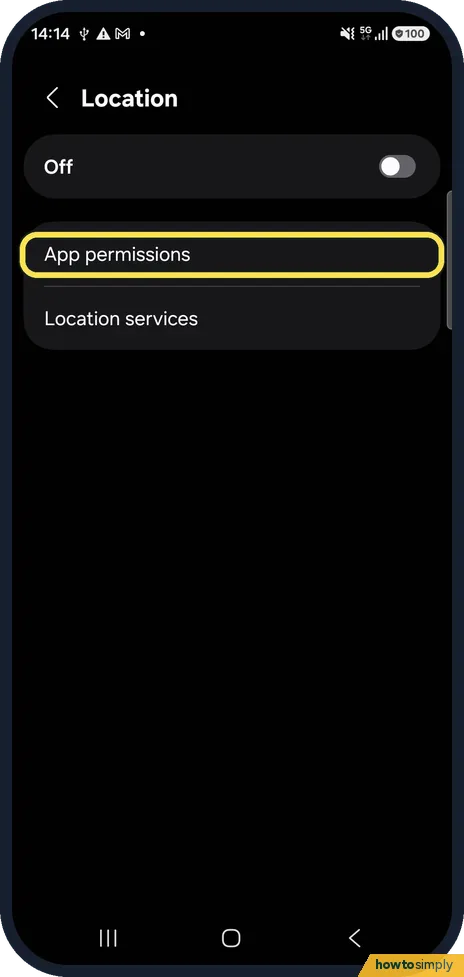
Open Settings, Location and tap App permissions.
- 2
See which apps can use location
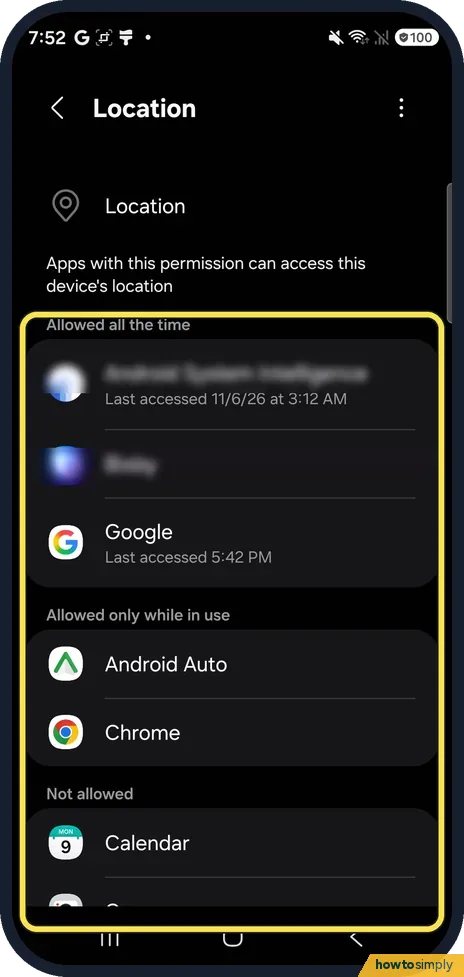
The list is grouped by access: Allowed all the time, Allowed only while in use and Not allowed. Scroll down for the rest. We blurred two of our apps.
- 3
Change an app
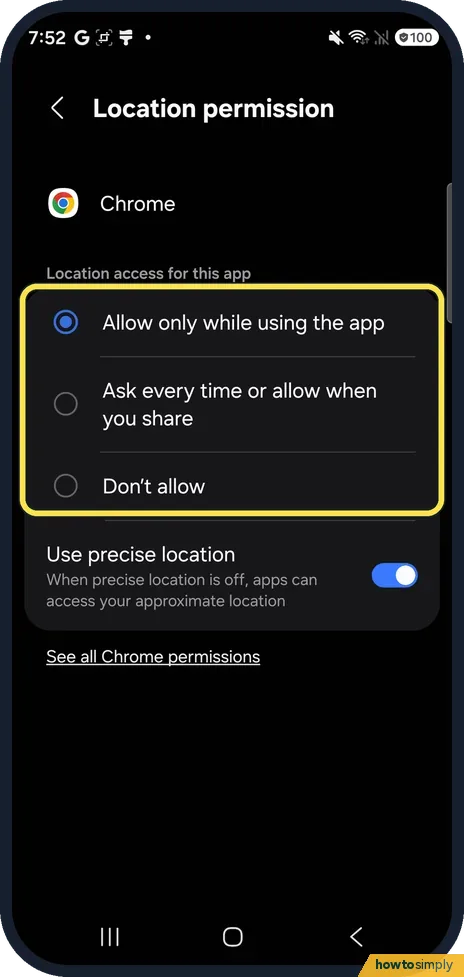
Tap an app and pick one of its choices: Allow all the time, Allow only while using the app, Ask every time or allow when you share, or Don't allow.
The choices depend on the app. For Chrome our Galaxy S26 offered three: Allow only while using the app, which was selected, Ask every time or allow when you share, and Don't allow.
- 4
Check precise location
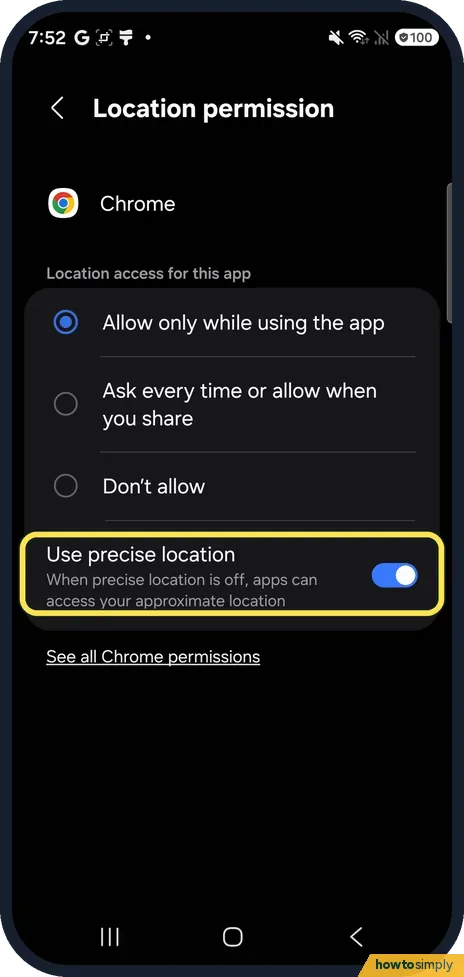
Below the choices, Use precise location decides whether the app gets your exact or only your approximate location. It was on for Chrome on ours. Apps that can use location in the background also offer Allow all the time.
- 5
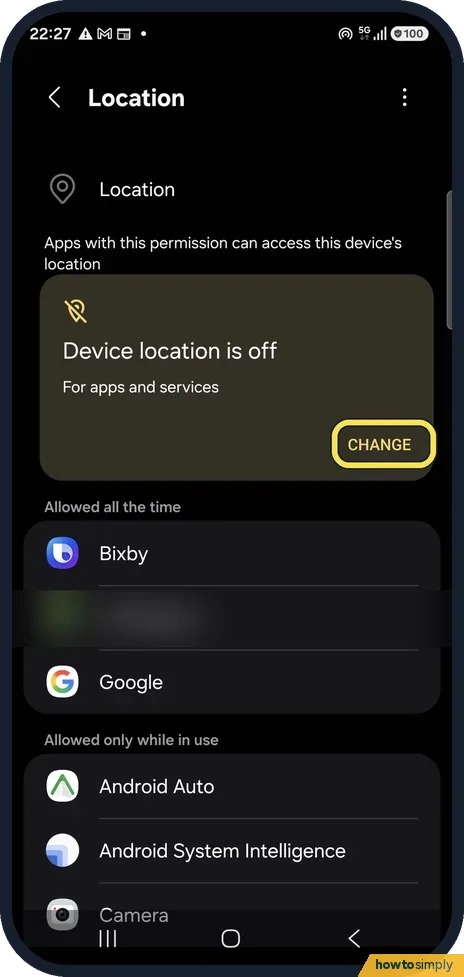
Location switched off?
At the top, ours says Device location is off. While it is off, no app gets your location; tap CHANGE to switch it on.
Where we checked these steps
- Galaxy A57 5G, One UI 8.5 (Android 16)
- Galaxy S26, One UI 9.0 (Android 17)
We have not checked other phones or older versions. If a menu looks different on yours, the notes under each step and the fixes further down cover the differences we found.
If you do not see this option
- The app is not in the list Samsung says App permissions lists the apps that have permission to use location. An app that has never asked does not appear; open it and use the feature that needs your location first. Source: How to activate my location and change settings for location permissions
- You would rather use the quick panel Samsung says you can swipe down and tap the Location icon to turn location services on or off. Source: How to activate my location and change settings for location permissions
If this does not work
- An app still cannot find you Samsung says the switch at the top of Settings, Location must be on, and that a Power saving mode or putting the app to sleep can weaken the GPS signal. Remove the app from the sleeping apps list.
- The location is not accurate Samsung says Improve accuracy, in the Location menu, has Wi-Fi scanning and Bluetooth scanning switches that help the phone find you more precisely.
Good to know
Wrong location in maps or weather is a different problem: Samsung Galaxy location not accurate.
A new setting takes effect the next time the app asks for your location, with no restart. Limiting background access can also help battery life, because the app has fewer reasons to wake the GPS while you are not using it. To see which apps actually used a permission recently, Google Android Help describes a privacy dashboard in Settings; on Android 12 it covers the last 24 hours and on Android 13 about the last 7 days.
About this guide
Picture this: a new app pops up a question, you tap Allow without reading it, and you never think about it again. Few apps need your location all the time. Checking this list now and then is one of the easiest privacy wins on a phone, because it is calm, quick work with nothing to break.
- Device
- Android
- Shown on
- Samsung Galaxy A57 5G (SM-A576B), One UI 8.5, Android 16, Samsung Galaxy S26 (SM-S942N, Korean model), One UI 9.0, Android 17 (build CP2A.260605.016.S942NKSU5BZJB)
- App
- Settings
- Path
- Settings › Location › App permissions
- Real screenshots
- 5 of 5 steps
- What we did
- Observed: looked at each screen, changed nothing
- Checked
- November 2026
- Sources
- 3 official, linked below
The screenshots are from a Samsung Galaxy S26 with One UI 9.0 and Android 17, in Dark mode, apart from steps 1 and 5, from our Galaxy A57 with One UI 8.5. Samsung points out that what the screens and menus look like can depend on the model and software version. We only looked at these screens on our phones and changed nothing.
Sources
Links checked October 2026. Menus and features can change with updates.Did this guide work for you?
Sorry about that. What happened?
Get new guides by email
Our newest guides, sent to your inbox. Free, and you can unsubscribe in one click.
We'll email you to confirm. How we use your email
Follow howtosimply on Facebook
We share our new guides on our Facebook page, so the next fix turns up in your feed.
Follow on Facebook