Google Maps showing the wrong location on Android? How to fix it
- Shown on
- Galaxy S26 (One UI 9.0) and Galaxy A57 5G (One UI 8.5)
- Checked
- November 2026
- Real screenshots
- 5 of 5 steps
Quick answer
Open the phone's Settings, Location and make sure it is on. Then open Location services, Location Accuracy and switch on Improve Location Accuracy. Turn on Wi-Fi as well, even without connecting: Maps uses nearby networks to place the blue dot.
Steps
- 1
Check that Location is on
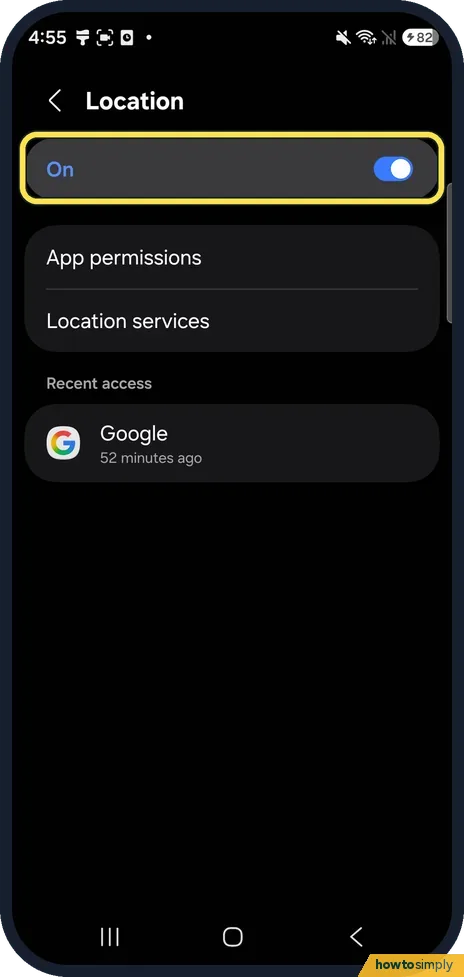
Open Settings and tap Location. The switch at the top must be On. App permissions below shows which apps may use it.
- 2
Open Location Accuracy
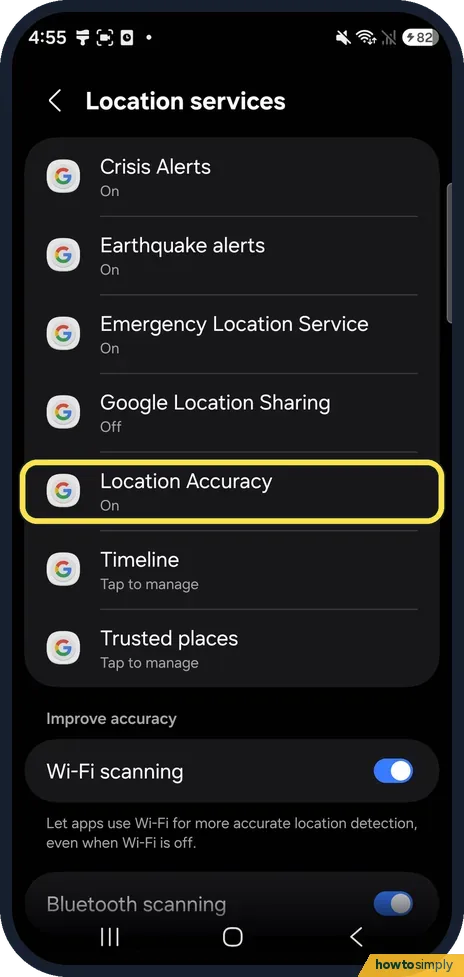
Tap Location services. Location Accuracy is one of Google's entries; ours said On. Below them, under Improve accuracy, Wi-Fi scanning and Bluetooth scanning also help.
- 3
Switch on Improve Location Accuracy
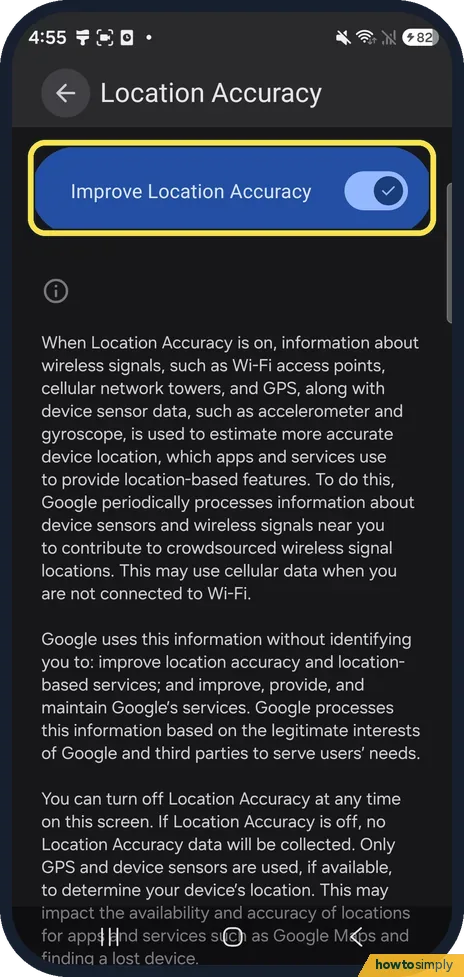
With it off, only GPS and the phone's sensors are used, which is slower and less exact indoors and between tall buildings. The page explains what Google collects when it is on.
- 4
Read the card in Maps
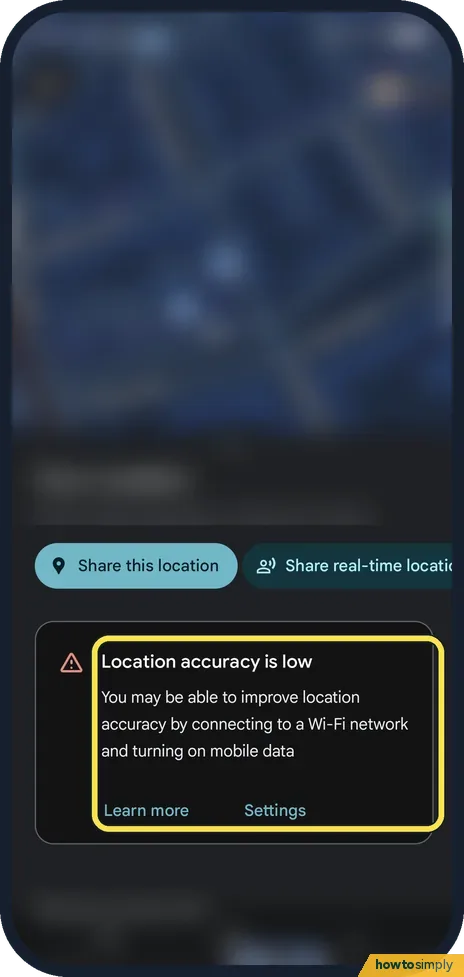
Tap the blue dot in Maps. When the fix is poor, Maps shows Location accuracy is low and suggests connecting to Wi-Fi and turning on mobile data. Its Settings button opens the phone's Connections page.
- 5
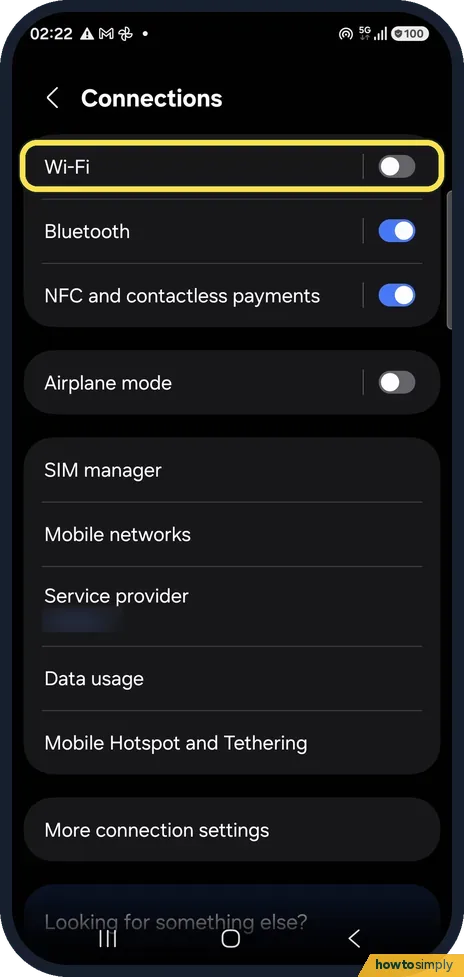
Turn on Wi-Fi or mobile data
On Connections, switch on Wi-Fi. Our test phone had Wi-Fi off, which is exactly when Maps showed the warning.
Where we checked these steps
- Galaxy S26, One UI 9.0 (Android 17)
- Galaxy A57 5G, One UI 8.5 (Android 16)
We have not checked other phones or older versions. If a menu looks different on yours, the notes under each step and the fixes further down cover the differences we found.
If you do not see this option
- You have a Google Pixel or another phone Google's own route to Wi-Fi is Settings, Network and Internet, Internet. Location Accuracy is under Settings, Location, Location services on Pixel phones as well. Source: Find and improve your location's accuracy in Google Maps
- There is no low accuracy card Google says Maps draws a pale blue ring round the blue dot when it can't pin down exactly where you are. A grey dot, or no dot, means Maps cannot find you and shows the last place you visited. Source: Find and improve your location's accuracy in Google Maps
If this does not work
- The location jumps around Google says to turn off Battery Saver. If your habit is to leave Battery Saver on all day, this is the one place where it works against you.
- The location is out of date Google says to turn off Aeroplane mode, and to restart the phone if the location is still wrong.
- Maps has no location permission? Google Android Help says to open Settings, Apps, choose the app, then Permissions. Set Location to Allow only while using the app, or All the time if you want Maps features that run in the background.
Good to know
If the blue beam points the wrong way, Google Maps Help suggests moving the phone in a figure 8 to calibrate the compass. You may feel a bit silly waving your phone about on the pavement, but the compass really does need that little dance. On Maps 26.31.02 our blue dot sheet offered Enter compass mode but no Calibrate button.
Still wrong? Restart the phone and see Google Maps keeps stopping or won't load.
Turning on Wi-Fi and Improve Location Accuracy helps every app that uses location, not only Maps, and you can switch them off again at any time. For more phone-side checks, see Android GPS not accurate: 8 ways to fix your location.
About this guide
Well, it is a strange feeling when Google Maps insists you are standing in the next street while you are clearly on this one. The blue dot sits in the wrong street or shows a wide light blue circle, which means Google Maps isn't sure about your location.
The Settings screenshots are from a Samsung Galaxy S26 with One UI 9.0 and Android 17, in Dark mode. Steps 4 and 5 are from Google Maps 26.31.02 on our Galaxy A57 with One UI 8.5. Maps looks the same on other Android phones; only the phone's own Settings screens differ by brand.
- Device
- Android
- Shown on
- Samsung Galaxy S26 (SM-S942N, Korean model), One UI 9.0, Android 17 (build CP2A.260605.016.S942NKSU5BZJB), Samsung Galaxy A57 5G (SM-A576B), One UI 8.5, Android 16
- App
- Google Maps
- Real screenshots
- 5 of 5 steps
- Checked
- November 2026
- Sources
- 1 official, linked below
Sources
Links checked October 2026. Menus and features can change with updates.What to do next
Get more out of Google Maps on Android Step 6 of 6
Did this guide work for you?
Sorry about that. What happened?
Get new guides by email
Our newest guides, sent to your inbox. Free, and you can unsubscribe in one click.
We'll email you to confirm. How we use your email
Follow howtosimply on Facebook
We share our new guides on our Facebook page, so the next fix turns up in your feed.
Follow on Facebook