Samsung phone not showing up on a computer: USB file transfer fixes
- Shown on
- Galaxy A57 5GSM-A576B
- Software
- One UI 8.5Android 16
- Checked
- October 2026
- Real screenshots
- 4 of 5 steps
Quick answer
Connect the phone, unlock it, pull down the notification panel and tap the USB notification. Under Use USB for, choose Transferring files / Android Auto. The default, Charging phone only, hides the phone's storage from the computer. If nothing appears, try a different cable and USB port.
Steps
- 1
Connect and unlock the phone
Plug the phone into the computer and unlock it. A locked phone does not share its storage.
- 2
Open USB settings
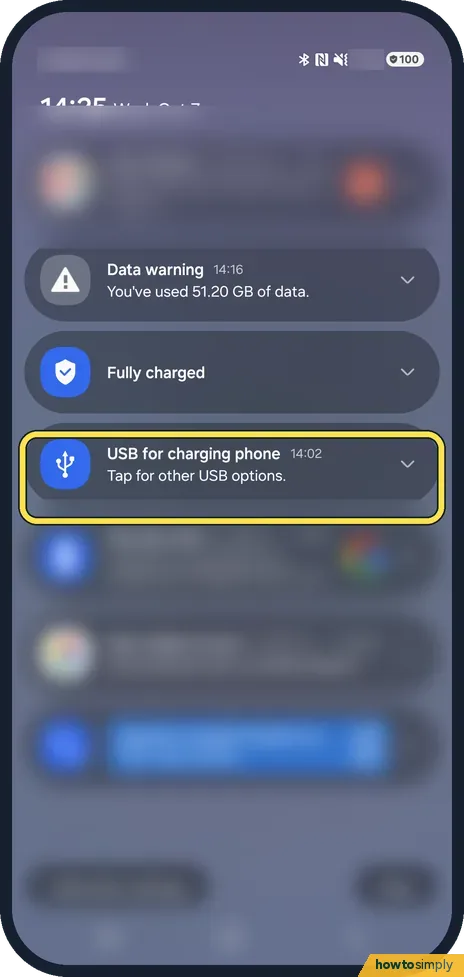
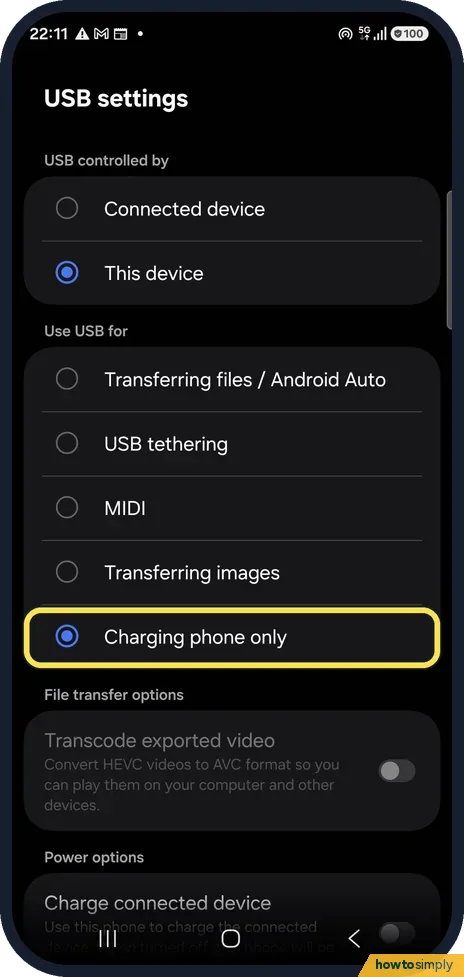
Tap the notification USB for charging phone. The USB settings page opens. Ours was set to Charging phone only.
- 3
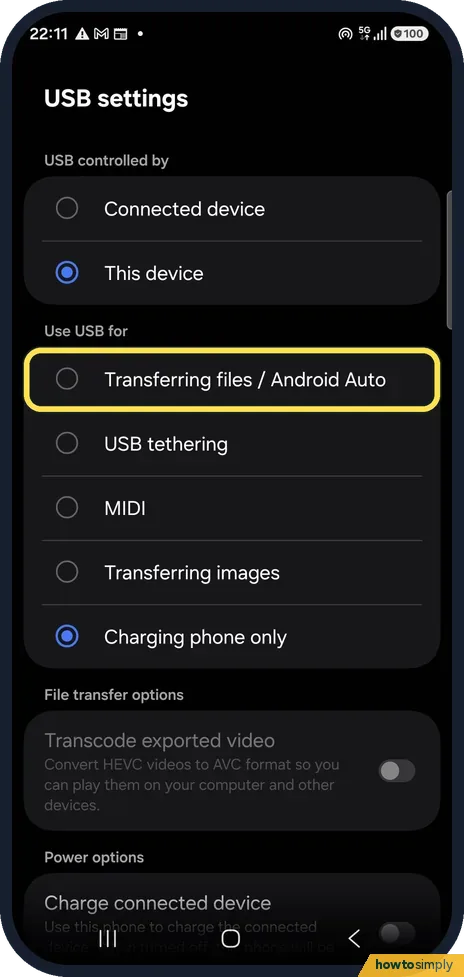
Choose Transferring files
Under Use USB for, tap Transferring files / Android Auto. The phone then shows up on a Windows PC as a device under This PC, with its internal storage inside. We left our setting as it was.
- 4
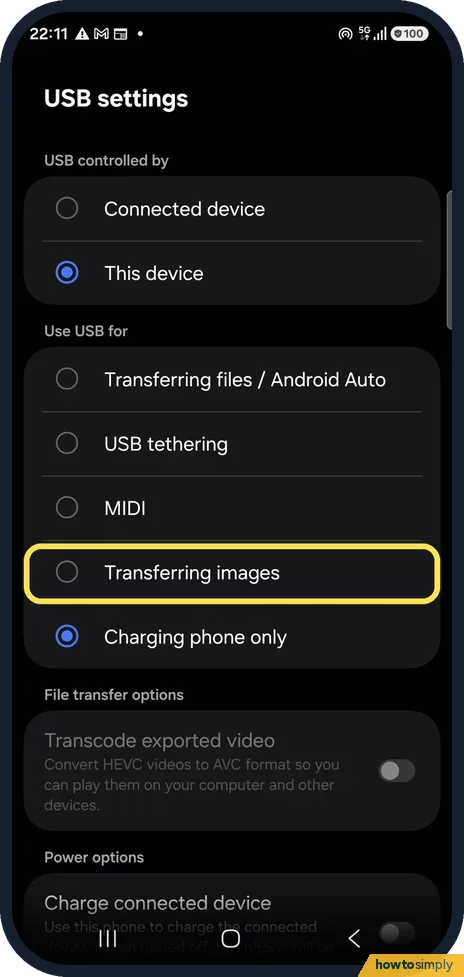
Photos only? Choose Transferring images
Transferring images shows only the camera folders, which some photo apps on the computer need.
- 5
Try another cable and port
If the notification never appears, the cable may charge only. Use the cable that came with the phone or another data cable, and a USB port directly on the computer, not a hub.
Illustration
If you do not see this option
- Only the phone name shows on the computer Samsung says that in some modes, charging only for example, the PC may just show the phone's name or no folder at all. Choose Transferring files / Android Auto so the internal storage can be opened. Source: What to do if your Samsung Galaxy phone folder does not appear on PC connection
- The screens look different on your phone Samsung warns that features, menu names and paths differ from model to model and between software and app versions. Look for a notification about USB in the panel after you plug in. Source: What to do if your Samsung Galaxy phone folder does not appear on PC connection
If this does not work
- The computer shows no folders The phone asks Allow access to phone data when you connect it, and the computer shows no folders until you tap Allow. It is easy to miss, because the question appears on the phone, not on the computer.
- The prompt never appears Samsung says to put the newest USB driver for your phone on the PC, try again, and then check the driver installed properly.
- Still nothing on any cable? Google suggests testing each side on its own: try the phone's port on another computer, and the computer's port with another device. Restart the computer and the phone, and install any pending Android update.
Good to know
If the phone asks Allow access to phone data?, tap Allow. If you don't see that prompt, Samsung suggests putting the newest USB driver for your phone on the PC.
On a Mac, a Galaxy does not appear in Finder, so you need an app to copy files; Samsung's is Smart Switch for Mac.
If videos you copied will not play on an older computer, Transcode exported video, further down the same page, converts HEVC videos so older computers can play them.
If the phone is back on Charging phone only next time you connect, tap the notification and choose again. For a few photos, a cable is not the only way: Google mentions uploading to your Google Account, for example Google Photos or Drive, and opening them on the computer, or using Quick Share with a Windows PC.
About this guide
A phone that charges happily from a computer while the computer acts as if it is not there is a common puzzle, and it is rarely a fault. If a Galaxy is connected but not recognised, the cause may be the current USB setting on the phone. The cable counts too: some USB cables can't move files at all.
- Device
- Android
- Shown on
- Samsung Galaxy A57 5G (SM-A576B), One UI 8.5, Android 16
- App
- Settings
- Real screenshots
- 4 of 5 steps
- What we did
- Observed: looked at each screen, changed nothing
- Our phone
- Shown on Galaxy A57, One UI 8.5
- Checked
- October 2026
- Sources
- 2 official, linked below
Sources
Links checked October 2026. Menus and features can change with updates.Did this guide work for you?
Sorry about that. What happened?
Get new guides by email
Our newest guides, sent to your inbox. Free, and you can unsubscribe in one click.
We'll email you to confirm. How we use your email
Follow howtosimply on Facebook
We share our new guides on our Facebook page, so the next fix turns up in your feed.
Follow on Facebook